
1. Introduction
Thank you for purchasing the SIXWIN Single Din Radio Bluetooth Car Stereo, Model A3436. This manual provides essential information for the proper installation, operation, and maintenance of your new car stereo. Please read this manual thoroughly before use to ensure optimal performance and safety.
Package Contents:
- 1 x Car Stereo
2. Safety Information
Always prioritize safety when installing and operating this device. Improper installation or use can lead to accidents, injury, or damage to the product or vehicle.
- Do not operate the stereo in a way that distracts you from driving.
- Ensure all wiring is correctly connected to prevent short circuits or damage.
- Consult a professional for installation if you are unsure about any steps.
- Keep the volume at a level that allows you to hear outside traffic sounds.
3. Product Overview
The SIXWIN Single Din Car Stereo is designed for universal compatibility and offers a range of features for an enhanced in-car audio experience.
Key Features:
- Dual Bluetooth Function: Connects simultaneously to mobile phones for hands-free calling and music streaming with EQ sound adjustment.
- Full Format Audio Compatibility: Supports FM radio, MP3, SD card, AUX input, and dual USB ports for local music playback.
- Dual USB + Fast Charging: One USB port for data transmission, another for fast charging (5V_1.5A) of mobile devices.
- Universal Single Din Size: Standard size for easy installation in most sedans, SUVs, and commercial vehicles without structural modification.
- Multiple Functions: Includes app-based car positioning, reverse connection protection, audio recording, adjustable button lighting, and voice assistant.
4. Setup and Installation
This car stereo features a standard single DIN size, making it suitable for most vehicles. Matching installation accessories are typically included to facilitate the process.
Wiring and Connection:
Carefully follow your vehicle's wiring diagram and the stereo's connection instructions. Ensure all connections are secure to prevent malfunctions.
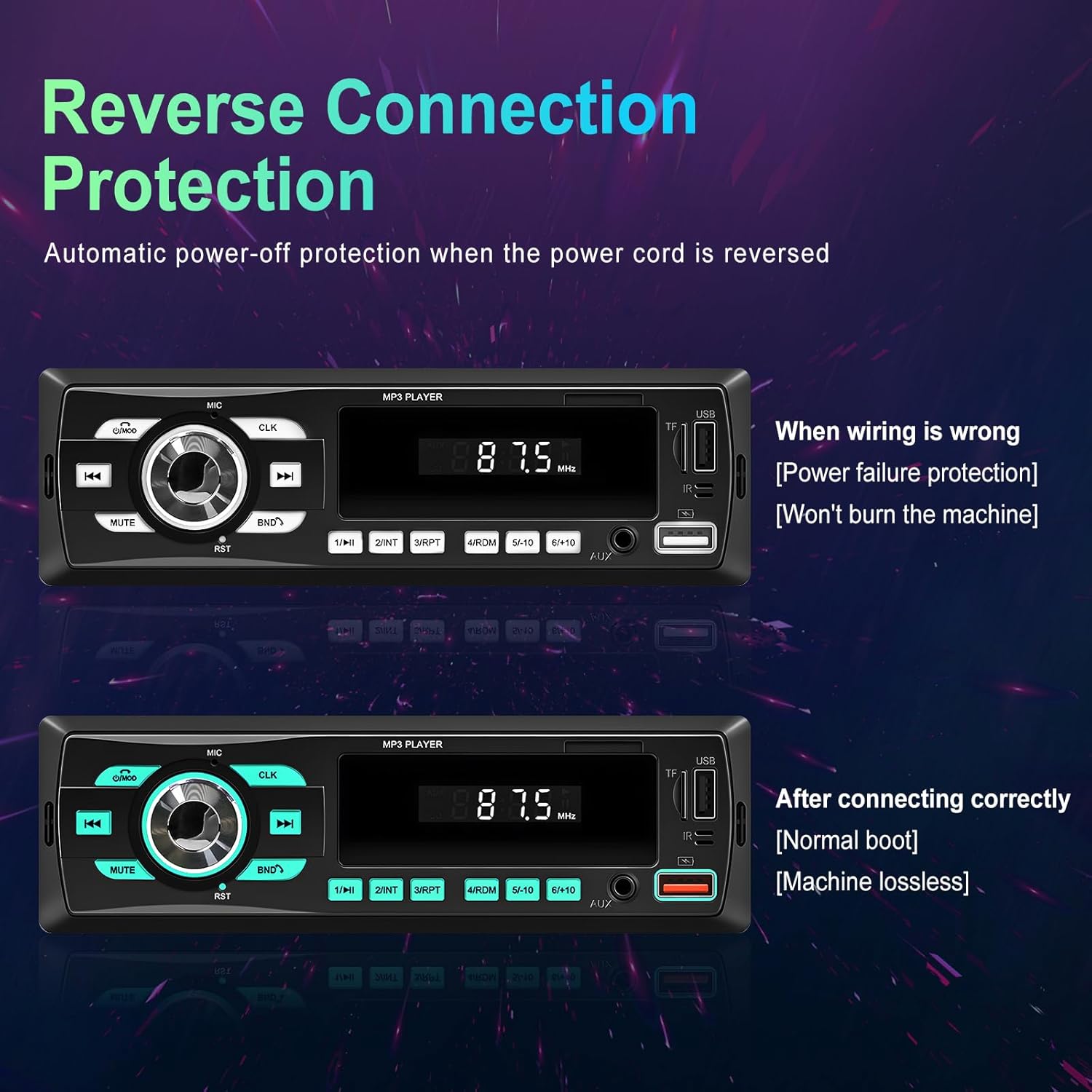
Image: Reverse Connection Protection. This image illustrates the car stereo's power failure protection feature. If the power cord is wired incorrectly, the unit will automatically power off to prevent damage. When wired correctly, the unit boots normally without issue.
The unit is equipped with Reverse Connection Protection. If the power wiring is incorrect, the unit will not power on, protecting it from damage. Correct the wiring if this occurs.
5. Operating Instructions
5.1 Power On/Off
- Press the Power/Mode button to turn the unit on or off.
5.2 Bluetooth Functionality
The stereo features dual Bluetooth chips for simultaneous connection of a mobile phone for hands-free calls and another device for music streaming.
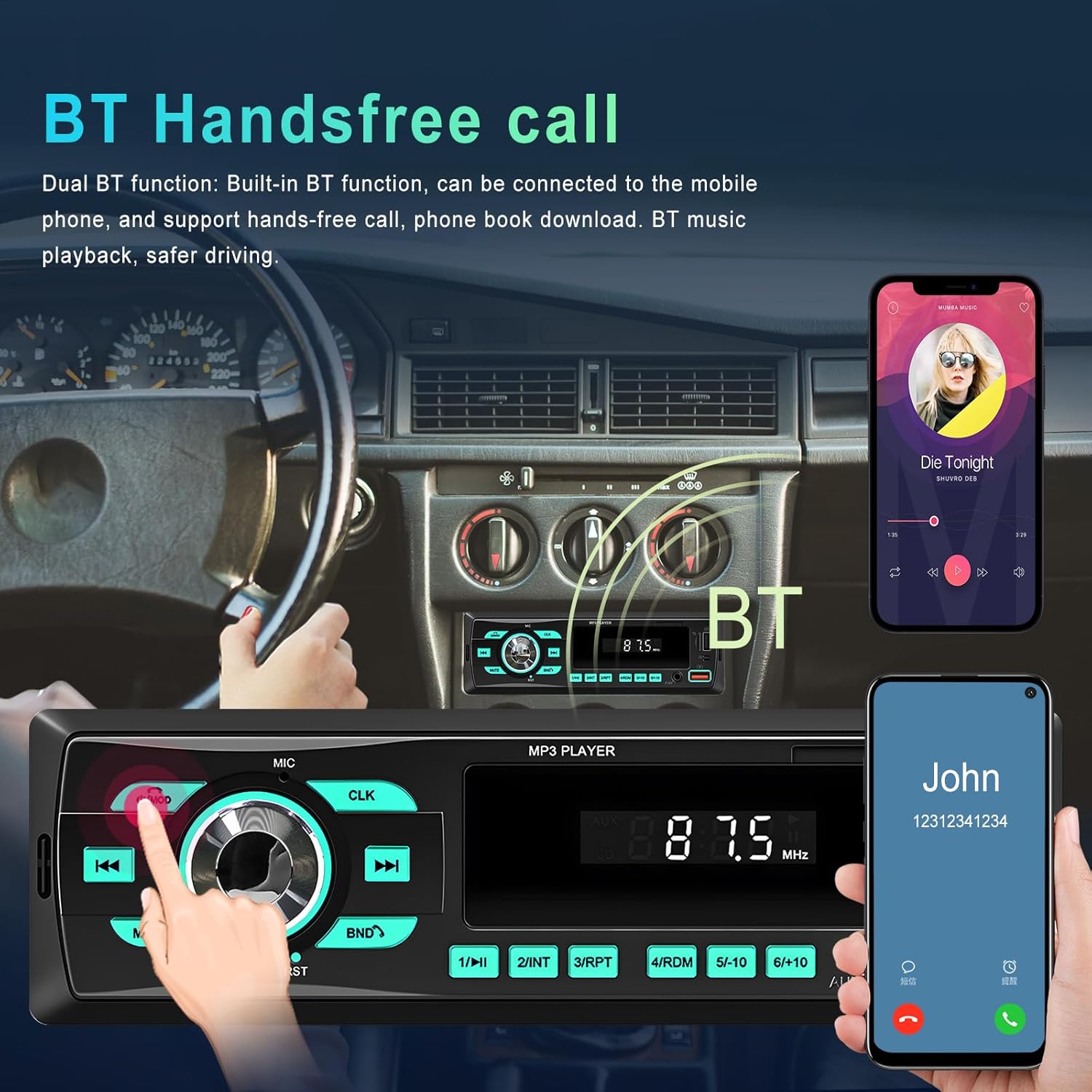
Image: BT Handsfree Call. This image demonstrates the dual Bluetooth functionality, allowing for hands-free phone calls and simultaneous music playback from a connected smartphone.
Pairing a Device:
- Ensure Bluetooth is enabled on your mobile device.
- Select the Bluetooth mode on the car stereo.
- Search for available devices on your phone and select "SIXWIN" (or similar name) to pair.
- Once paired, you can make/receive calls and stream audio.
5.3 App Control (Car Positioning)
Utilize the dedicated mobile application to locate your parked car, especially in large parking areas.

Image: APP Positioning to Find Car. This image illustrates how the mobile application helps users locate their vehicle in a parking lot by displaying its position on a map.
App Installation:
- For Android devices, download from Google Play or directly via APK download.
- For iOS devices, download from the App Store.
Usage: Connect your mobile phone via Bluetooth before parking. The app will record the car's position. Disconnecting Bluetooth after turning off the engine will not affect the recorded position.
5.4 Audio Playback
The unit supports various audio sources and formats.

Image: Multimedia Player. This image highlights the multiple playback methods supported by the car stereo, including TF card, U disk (USB), and AUX input.
- FM Radio: Press the BAND button to switch between FM bands. Use the Seek buttons to automatically search for stations.
- MP3/SD/AUX/USB: Insert an SD card, USB drive, or connect an AUX device. The unit will automatically switch to the corresponding mode or can be selected manually using the Mode button.
5.5 USB Charging
The stereo is equipped with dual USB ports. One is for data, and the other supports fast charging.

Image: USB Charging. This image demonstrates the car stereo's ability to fast charge a mobile phone through one of its dual USB ports while simultaneously reading data from another.
- Connect your mobile phone or tablet to the designated fast-charging USB port (typically marked with a lightning bolt symbol or higher amperage).
- This port provides 5V_1.5A current for efficient charging.
5.6 Audio Recording
Record audio from Bluetooth, AUX, or FM radio directly to a TF card or USB disk.
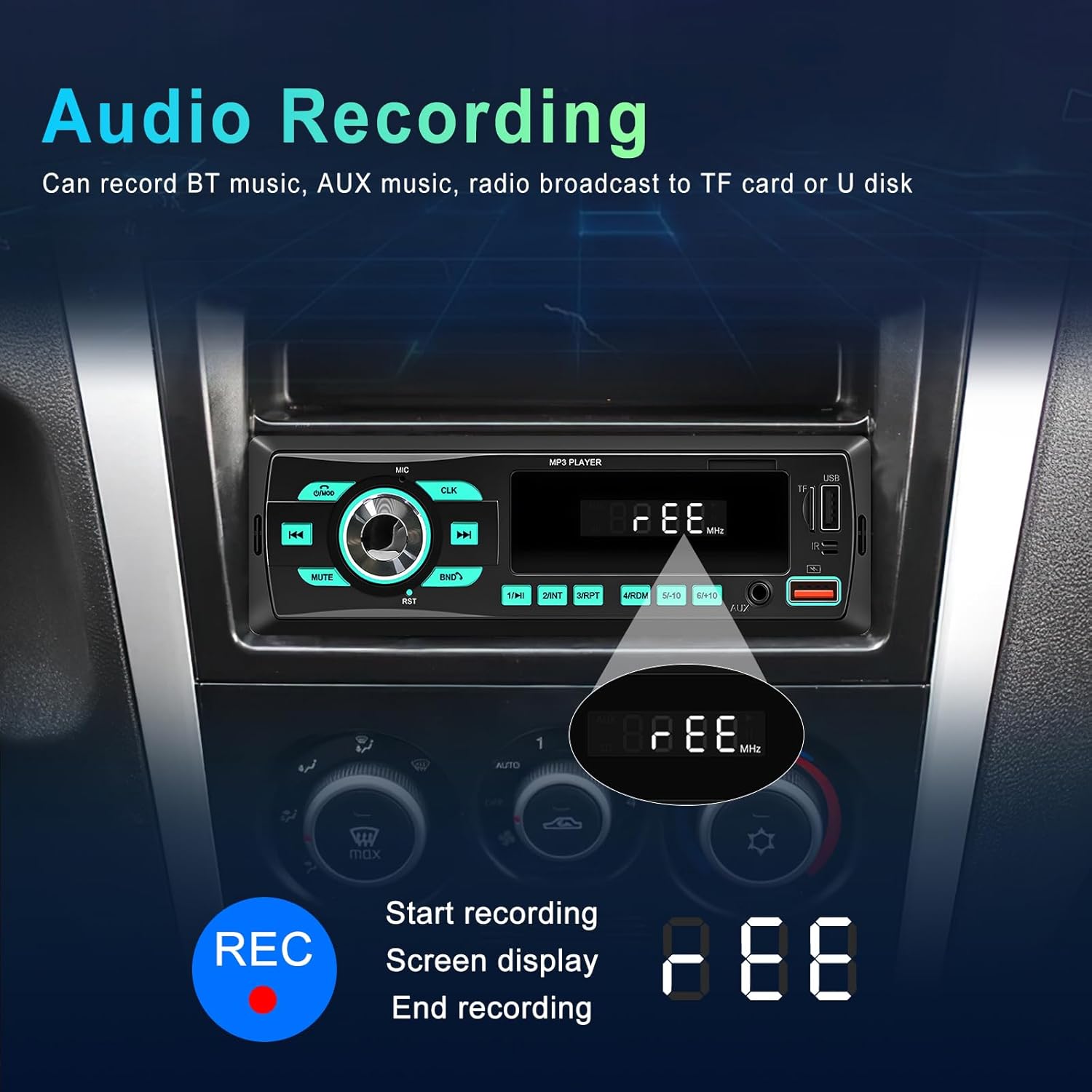
Image: Audio Recording. This image shows the car stereo's display indicating the start and end of an audio recording session, which can capture BT, AUX, or radio audio to a TF card or U disk.
- Ensure a TF card or USB disk is inserted.
- Select the desired audio source (BT, AUX, FM).
- Press the REC button (if available, or refer to specific button mapping) to start recording. The screen will display "REC".
- Press the REC button again to stop recording.
5.7 Voice Assistant
Activate your smartphone's voice assistant directly from the car stereo when connected via Bluetooth.

Image: Voice Assistant. This image illustrates the voice assistant feature, which can be activated with a single key press when Bluetooth is connected, allowing for commands like making calls, navigation, or playing music.
- With your phone connected via Bluetooth, press the designated Voice Assistant button (often a microphone icon) to wake up the assistant.
- You can then issue commands such as "Call [Contact Name]", "Navigate to [Destination]", or "Play [Song/Artist]".
5.8 Adjustable Button Color
Customize the aesthetic of your car stereo by changing the button illumination color.
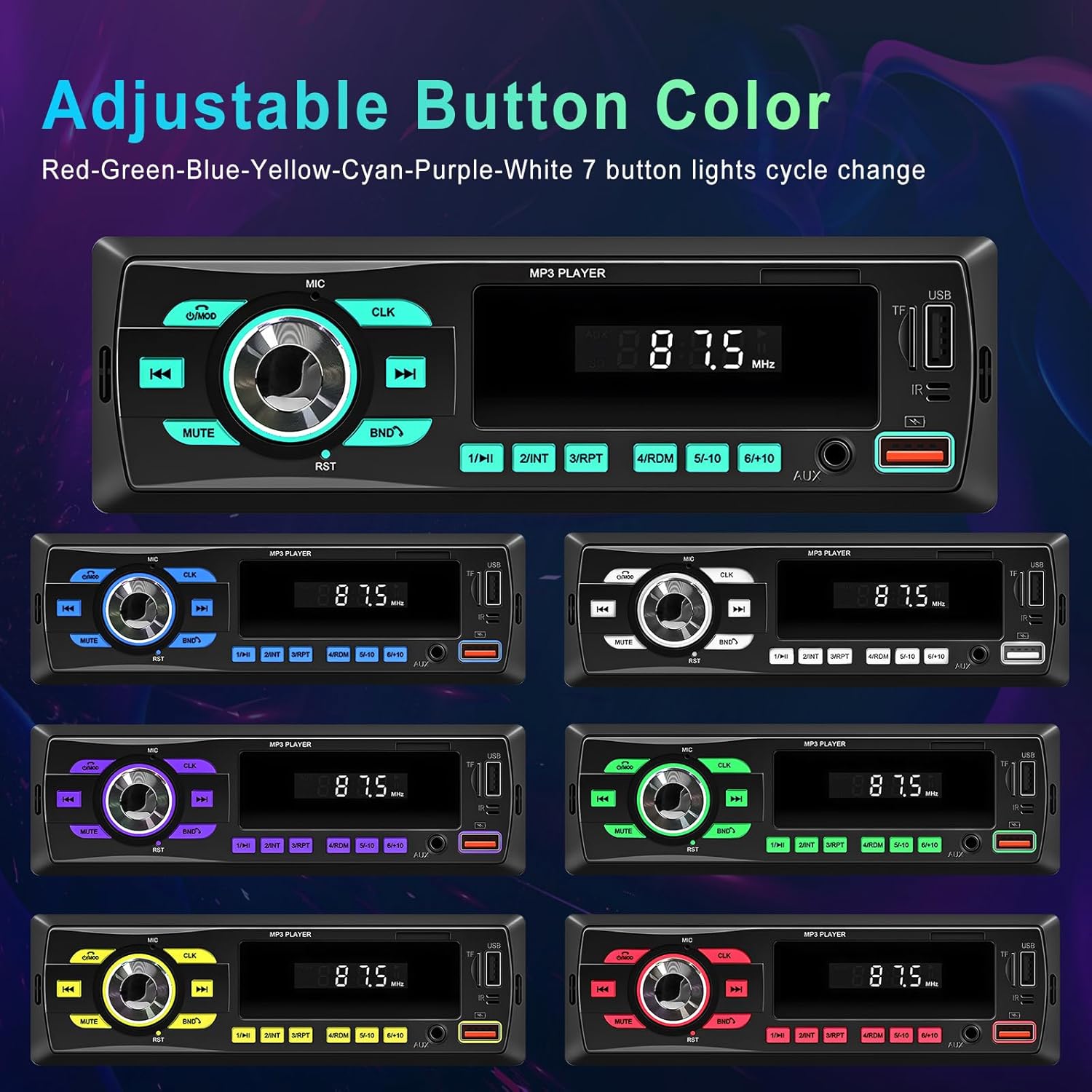
Image: Adjustable Button Color. This image displays the car stereo's buttons illuminated in seven different colors (Red, Green, Blue, Yellow, Cyan, Purple, White), demonstrating the customizable lighting feature.
- Refer to the specific button on your unit (often a Color or Light button) to cycle through the 7 available colors: Red, Green, Blue, Yellow, Cyan, Purple, White.
5.9 EQ Sound Effect Adjustment
- Press the EQ button to cycle through preset equalizer settings (e.g., Pop, Rock, Classic, Jazz) or to access custom bass and treble adjustments.
6. Maintenance
Proper maintenance ensures the longevity and optimal performance of your car stereo.
- Cleaning: Use a soft, dry cloth to clean the unit's surface. Do not use abrasive cleaners or solvents.
- Avoid Moisture: Keep the unit dry and away from excessive moisture.
- Temperature: Avoid exposing the unit to extreme temperatures.
7. Troubleshooting
If you encounter issues with your car stereo, refer to the following common problems and solutions:
| Problem | Possible Cause | Solution |
|---|---|---|
| Unit does not power on. | Incorrect wiring (Reverse Connection Protection activated). Blown fuse. | Check all power connections, ensuring correct polarity. Verify vehicle's fuse and the unit's fuse. |
| No sound. | Speaker wires disconnected. Volume too low. Incorrect audio source. | Check speaker connections. Increase volume. Select correct audio source (FM, AUX, USB, BT). |
| Bluetooth connection issues. | Device not in pairing mode. Stereo not in Bluetooth mode. Interference. | Ensure phone's Bluetooth is on and discoverable. Select Bluetooth mode on stereo. Try re-pairing. |
| Poor FM radio reception. | Antenna not connected or damaged. Weak signal area. | Check antenna connection. Try scanning for stations in a different location. |
| USB/SD card not recognized. | Incompatible format. Corrupted files. Improper insertion. | Ensure files are in supported formats (e.g., MP3). Reinsert the device. Try a different USB/SD card. |
8. Specifications
| Feature | Specification |
|---|---|
| Model Number | A3436 |
| Product Dimensions | 3.7"D x 7.3"W x 2.3"H (9.4 x 18.5 x 5.8 cm) |
| Item Weight | 12.1 ounces (343 grams) |
| Connectivity Technology | Bluetooth |
| Controller Type | Hand Control |
| Compatible Devices | Smartphone |
| Connector Type | 3.5mm Jack (AUX) |
| Audio Output Mode | Stereo |
| Output Power | 4 Watts |
9. Warranty and Support
For warranty information and technical support, please contact SIXWIN customer service through the retailer where the product was purchased or visit the official SIXWIN website. Please retain your proof of purchase for any warranty claims.