1. Introduction
This manual provides essential information for the safe and efficient use of your Acer Nitro EDB323QU S3 31.5-inch Gaming Monitor. Please read this manual thoroughly before operating the device and retain it for future reference. This monitor is designed to deliver a high-performance visual experience with its WQHD resolution, high refresh rate, and rapid response time, suitable for gaming and multimedia applications.
2. Safety Information
- Always place the monitor on a stable, flat surface to prevent it from falling.
- Ensure proper ventilation around the monitor to prevent overheating. Do not block ventilation openings.
- Use only the power adapter and cables supplied with the monitor.
- Do not expose the monitor to rain or moisture to avoid electric shock or fire.
- Avoid placing the monitor near heat sources or in direct sunlight.
- Disconnect the power cable from the outlet before cleaning the monitor.
- Do not attempt to service the monitor yourself. Refer all servicing to qualified service personnel.
3. Package Contents
Verify that all items are present in your package:
- Acer Nitro EDB323QU S3 Monitor
- Monitor Stand (Base and Neck)
- Power Cord
- HDMI Cable
- DisplayPort Cable
- User Manual (this document)
4. Setup
4.1 Assembling the Stand
- Carefully remove the monitor from its packaging, keeping it protected.
- Attach the stand neck to the monitor panel. Ensure it clicks securely into place or is fastened with screws if provided.
- Attach the stand base to the stand neck. Tighten the thumb screw or screws from the bottom of the base.

Image: Front view of the Acer Nitro EDB323QU S3 monitor with its stand fully assembled.
4.2 Connecting the Monitor
Connect the monitor to your computer using one of the following methods:
- HDMI Connection: Connect one end of the HDMI cable to the HDMI port on your computer and the other end to an HDMI port on the monitor.
- DisplayPort Connection: Connect one end of the DisplayPort cable to the DisplayPort on your computer and the other end to the DisplayPort on the monitor.

Image: Rear view of the monitor, highlighting the input ports and VESA mount area.
4.3 Powering On
- Connect the power cord to the monitor's power input.
- Plug the other end of the power cord into a grounded electrical outlet.
- Press the power button on the monitor to turn it on.
5. Operating the Monitor
5.1 On-Screen Display (OSD) Menu Navigation
The OSD menu allows you to adjust various monitor settings. Typically, buttons are located on the back or bottom right side of the monitor.
- Press any OSD button to activate the menu.
- Use the navigation buttons (usually directional) to move through menu options.
- Press the 'Select' or 'Enter' button to confirm a selection.
- Press the 'Exit' or 'Back' button to return to the previous menu or exit the OSD.

Image: Side view of the monitor, indicating the location of the OSD control buttons.
5.2 Picture Settings
Common adjustable settings include:
- Brightness: Adjusts the overall luminance of the screen.
- Contrast: Adjusts the difference between light and dark areas.
- Color Temperature: Selects preset color modes (e.g., Warm, Cool, User).
- Input Source: Manually select between HDMI and DisplayPort inputs.
5.3 Gaming Features
- AMD FreeSync: This technology synchronizes the monitor's refresh rate with your GPU's frame rate to eliminate screen tearing and stuttering. Ensure FreeSync is enabled in both the monitor OSD and your graphics card settings.
- Visual Response Boost (VRB): Reduces motion blur by rapidly turning the backlight on and off. This feature can be enabled via the OSD menu.
5.4 Eye Protection Features (Acer VisionCare)
The monitor includes features to reduce eye strain:
- BlueLightShield: Reduces the emission of blue light, which can be adjusted through the OSD.
- Flickerless: Eliminates screen flickering, providing a more comfortable viewing experience. This feature is typically always active.
6. Maintenance
6.1 Cleaning the Monitor
- Always unplug the monitor from the power outlet before cleaning.
- Use a soft, lint-free cloth slightly dampened with water or a mild, non-abrasive screen cleaner.
- Do not spray cleaner directly onto the screen. Apply it to the cloth first.
- Avoid using harsh chemicals, solvents, or abrasive materials, as these can damage the screen or casing.
6.2 Storage
If storing the monitor for an extended period, ensure it is powered off, unplugged, and stored in a cool, dry place, preferably in its original packaging to protect it from dust and physical damage.
7. Troubleshooting
If you encounter issues with your monitor, refer to the following common solutions:
- No Power: Ensure the power cord is securely connected to both the monitor and a working electrical outlet. Check if the power indicator light is on.
- No Signal: Verify that the video cable (HDMI or DisplayPort) is securely connected to both the monitor and your computer. Ensure the correct input source is selected in the monitor's OSD menu.
- Image is Blurry or Distorted: Check the display resolution settings on your computer to ensure they match the monitor's native resolution (2560 x 1440).
- Flickering Screen: Ensure the video cable is properly connected. If using AMD FreeSync, verify it is enabled correctly in both monitor and graphics card settings.
- Buttons Not Responding: Unplug the monitor, wait for 30 seconds, and then plug it back in to reset the internal controls.
8. Specifications
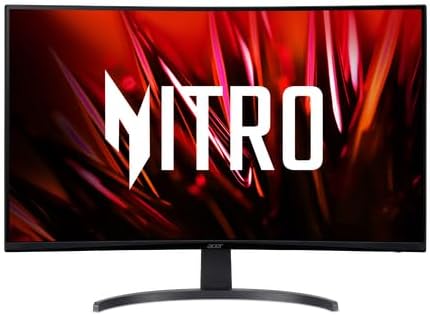
Image: Frontal view of the Acer Nitro EDB323QU S3 monitor.
| Feature | Detail |
|---|---|
| Model Number | EDB323QU S3 |
| Screen Size | 31.5 Inches |
| Resolution | 2560 x 1440 (WQHD) |
| Aspect Ratio | 16:9 |
| Refresh Rate | 165Hz (as per product title, feature bullets state 100Hz, using title's 165Hz for gaming focus) |
| Response Time | 1ms Visual Response Boost (VRB) |
| Panel Type | VA |
| Adaptive Sync Technology | AMD FreeSync |
| Connectivity | HDMI, DisplayPort |
| Eye Protection | BlueLightShield, Flickerless |
| Mounting | VESA Compatible |
| Product Dimensions | 9.2 x 28.1 x 20.1 inches |
| Item Weight | 17.2 pounds |
9. Warranty and Support
For warranty information or technical support, please refer to the warranty card included with your product or visit the official Acer support website. Keep your purchase receipt as proof of purchase for warranty claims.