
1. Introduction
The Alesis Teacher's Choice 61 is a 61-key portable electronic keyboard designed for beginners and returning players. It features an intuitive learning system with light-up keys, a wide range of sounds, and comprehensive practice support functions. This manual provides essential information for setting up, operating, and maintaining your instrument.
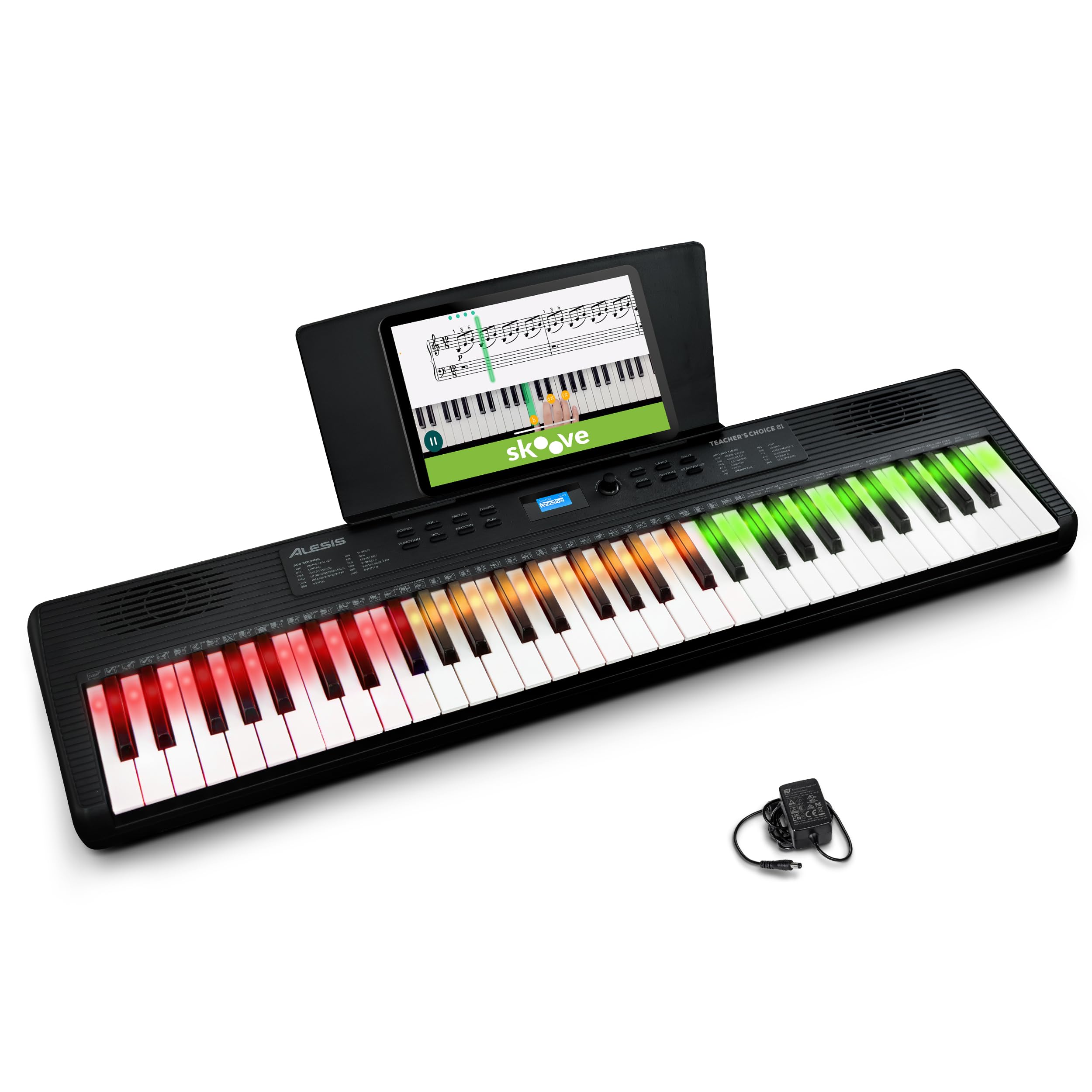
Image: The Alesis Teacher's Choice 61 electronic keyboard, showcasing its light-up keys and compact design.
2. Product Features
- Intuitive Learning System: Designed for enjoyable and smooth progress, this 61-key electronic keyboard integrates with the Skoove app. It features smart learning functions that guide the notes to play in real-time with red, green, and amber LEDs.
- Diverse Tones for Expanded Expression: Includes 300 built-in tones such as piano, strings, brass, guitar, and synthesizer, along with 300 accompaniment rhythms and 30 demo songs. Layer mode and Split mode allow for more creative performances.
- Comprehensive Practice Support Functions: Features a metronome adjustable from 40-280 BPM, a convenient transpose function, and a record/playback function to objectively review your own performance. This efficiently supports daily practice.
- Versatile Connectivity: Equipped with a headphone jack (3.5mm) for private practice, an AUX input for connecting external audio devices, a USB-MIDI output for PC connection, and a sustain pedal input (6.35mm), offering broad expandability.
- Portable Design for Anywhere Play: The compact body with built-in speakers can be powered not only by the included AC adapter but also by 6 AA batteries (sold separately). Enjoy playing and practicing anywhere, from your living room to outdoors.
3. Setup
3.1 Unboxing and Initial Inspection
Carefully remove all components from the packaging. Ensure all items listed in the packing contents are present and undamaged. If any items are missing or damaged, contact customer support immediately.
3.2 Powering the Keyboard
The Teacher's Choice 61 can be powered in two ways:
- AC Adapter: Connect the included AC power adapter to the 12V DC input on the rear panel of the keyboard and then to a power outlet.
- Batteries: For portable use, insert 6 AA batteries (not included) into the battery compartment on the underside of the keyboard.

Image: The Alesis Teacher's Choice 61 keyboard with its power adapter and USB-C cable, ready for connection.
3.3 Music/Tablet Stand Installation
Insert the included music/tablet stand into the slot located on the top panel of the keyboard. Ensure it is securely seated.

Image: The Alesis Teacher's Choice 61 keyboard with a tablet placed on the music stand, displaying sheet music.
4. Operating Instructions
4.1 Power On/Off
Press the POWER button located on the control panel to turn the keyboard on or off.
4.2 Adjusting Volume
Use the VOL + and VOL - buttons to adjust the master volume of the keyboard.
4.3 Selecting Tones (Voices)
Press the VOICE button, then use the number keys or the data wheel to select from 300 available tones. The selected tone will be displayed on the LCD screen.

Image: A close-up of the keyboard's display, showing 'GrandPno' as the selected sound.
4.4 Selecting Rhythms (Accompaniment)
Press the RHYTHM button, then use the number keys or the data wheel to select from 300 accompaniment rhythms. Press START/STOP to begin or end the rhythm.

Image: A detailed view of the rhythm selection area on the control panel.
4.5 Layer Mode
To layer two different tones simultaneously, press the LAYER button. Select the first tone, then select the second tone. Both will sound when keys are pressed.
4.6 Split Mode
To split the keyboard into two sections with different tones, press the SPLIT button. The left and right sections can then be assigned different voices.

Image: Two individuals playing the keyboard, demonstrating the split mode functionality.
5. Practice Functions
5.1 Metronome
Press the METRO button to activate the metronome. Use the TEMPO button and data wheel to adjust the tempo from 40 to 280 BPM.
5.2 Transpose
The transpose function allows you to shift the pitch of the entire keyboard up or down in semitone steps. Refer to the full manual for specific key combinations to activate and adjust transpose.
5.3 Record and Playback
Press the RECORD button to start recording your performance. Press PLAY to listen to your recorded performance. This feature helps in self-assessment and improvement.

Image: A close-up view of the record and play buttons on the control panel.
5.4 Skoove App Integration
Connect your keyboard to the Skoove app via USB-MIDI for interactive lessons. The light-up keys will guide you through exercises and songs in real-time. A 3-month Skoove Premium subscription is included with your purchase.

Image: The Skoove logo, representing the integrated learning platform.
6. Connectivity
The Teacher's Choice 61 offers various connection options:
- Headphone Output (3.5mm): Connect headphones for silent practice. The internal speakers will be muted automatically.
- AUX Input (3.5mm): Connect an external audio device (e.g., smartphone, tablet) to play along with your favorite music.
- USB-MIDI Output: Connect the keyboard to a computer or mobile device using the included USB-C cable for MIDI communication with music software or learning apps like Skoove.
- Sustain Pedal Input (6.35mm): Connect an optional sustain pedal (not included) for expressive playing.

Image: The rear panel of the keyboard, highlighting the various input and output ports.
7. Maintenance
To ensure the longevity of your Alesis Teacher's Choice 61 keyboard, follow these maintenance guidelines:
- Cleaning: Use a soft, dry cloth to wipe the surface of the keyboard. Do not use abrasive cleaners, waxes, or solvents.
- Storage: Store the keyboard in a cool, dry place away from direct sunlight, extreme temperatures, and high humidity.
- Handling: Avoid dropping the keyboard or subjecting it to strong impacts. Do not place heavy objects on top of it.
- Power: Disconnect the AC adapter when not in use for extended periods. Remove batteries if storing the unit for a long time to prevent leakage.
8. Troubleshooting
| Problem | Possible Cause | Solution |
|---|---|---|
| No sound | Volume too low; headphones connected; power issue. | Increase volume; disconnect headphones; check power connection/batteries. |
| Keys not lighting up | Learning mode not active; app not connected. | Ensure learning mode is enabled or Skoove app is properly connected via USB-MIDI. |
| Keyboard not responding | Power issue; system freeze. | Check power supply; turn off and on again. |
If you encounter issues not listed here or if the problem persists, please contact Alesis customer support.
9. Specifications
- Brand: Alesis
- Model: TEACHRCHCE61KO
- Number of Keys: 61
- Key Type: Light-up keys
- Built-in Tones: 300
- Accompaniment Rhythms: 300
- Demo Songs: 30
- Connectivity: 3.5mm Headphone Output, 3.5mm AUX Input, USB-MIDI Output, 6.35mm Sustain Pedal Input
- Power: AC Adapter (included) or 6 AA Batteries (sold separately)
- Dimensions (W x D x H): 91.4 cm x 23.1 cm x 7.4 cm (approx. 36 in x 9.1 in x 2.9 in)
- Weight: Approximately 3.3 kg (7.27 lbs)
- Color: Black
- UPC: 694318026953
- Country of Origin: China
10. Warranty and Support
10.1 Manufacturer's Warranty
This Alesis product is covered by a 1-year manufacturer's warranty from the date of purchase. The warranty covers defects in materials and workmanship under normal use. Please retain your proof of purchase for warranty claims.
10.2 Customer Support
For technical support, troubleshooting assistance, or warranty inquiries, please visit the official Alesis website or contact their customer service department. Contact information can typically be found on the Alesis website or in the product packaging.
Online resources, including FAQs and additional documentation, may also be available on the Alesis support page.


