
1. Introduction
Thank you for choosing the ATTACK SHARK V3 Ultra-Light Wireless Gaming Mouse. This manual provides essential information for setting up, operating, and maintaining your new gaming mouse. Please read it carefully to ensure optimal performance and longevity of your device.

Image 1.1: ATTACK SHARK V3 Ultra-Light Wireless Gaming Mouse. This image displays the black V3 mouse held by a person, highlighting its ergonomic design and lightweight nature. The mouse features a scroll wheel and side buttons.
2. Package Contents
Ensure all items are present in the package:
- ATTACK SHARK V3 Wireless Gaming Mouse
- 2.4GHz USB Receiver
- USB-C Charging Cable
- User Manual
- Attack Shark Stickers
- Replacement Mouse Feet

Image 2.1: Package Contents. This image shows the V3 mouse, 2.4G receiver, USB cable, user manual, Attack Shark stickers, and mouse feet, all neatly arranged next to the product box.
3. Product Features
3.1. PixArt 3311 Sensor for Precision
The V3 mouse is equipped with a high-precision PixArt 3311 sensor, offering up to 25000 DPI. This sensor provides accurate tracking and responsiveness, crucial for gaming. DPI can be fine-tuned in 50-step increments via the dedicated driver software.

Image 3.1: PixArt 3311 Sensor. A close-up view of the PixArt 3311 sensor chip, emphasizing its advanced technology for precise tracking with specifications like 400 IPS, 25000 DPI, and 40G acceleration.
3.2. Ultra-Lightweight Design
Weighing approximately 62g, the V3 mouse is designed for comfort during extended use. Its lightweight construction helps reduce hand fatigue, making it suitable for long gaming sessions or daily tasks.

Image 3.2: Ultra-Lightweight Design. This image illustrates the mouse's lightweight nature and ergonomic shape, designed for right-handed users and large hands, with key dimensions indicated.
3.3. Tri-Mode Connectivity
The V3 mouse offers versatile connectivity options: wired USB-C, 2.4GHz wireless, and Bluetooth. This allows seamless switching between different devices and usage scenarios.

Image 3.3: Tri-Mode Connectivity. The image shows the mouse connected via its USB-C cable, with the 2.4G receiver also visible, demonstrating the three connection modes: wired, 2.4G wireless, and Bluetooth.
3.4. Long-lasting Rechargeable Battery
Equipped with a 500mAh battery, the V3 mouse provides extended usage on a single charge. The BK52820 main control chip ensures efficient power consumption, contributing to its long battery life.
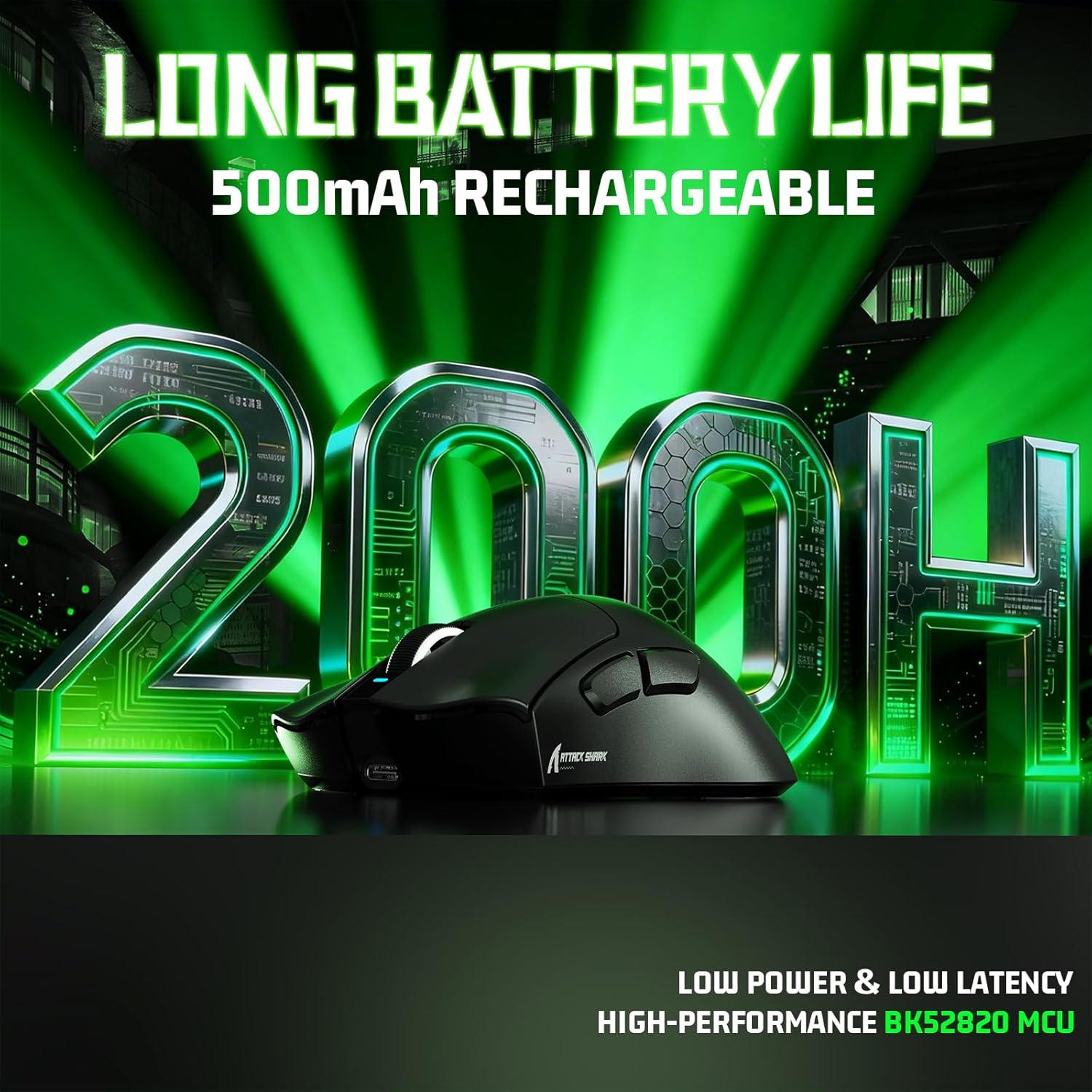
Image 3.4: Long Battery Life. This image highlights the mouse's 500mAh rechargeable battery, emphasizing up to 200 hours of usage thanks to low power consumption and the BK52820 MCU.
3.5. Programmable Buttons and Software
The V3 mouse features 5 programmable buttons. Utilize the dedicated driver software to customize button functions, adjust DPI settings, polling rate, and create macros for personalized control.
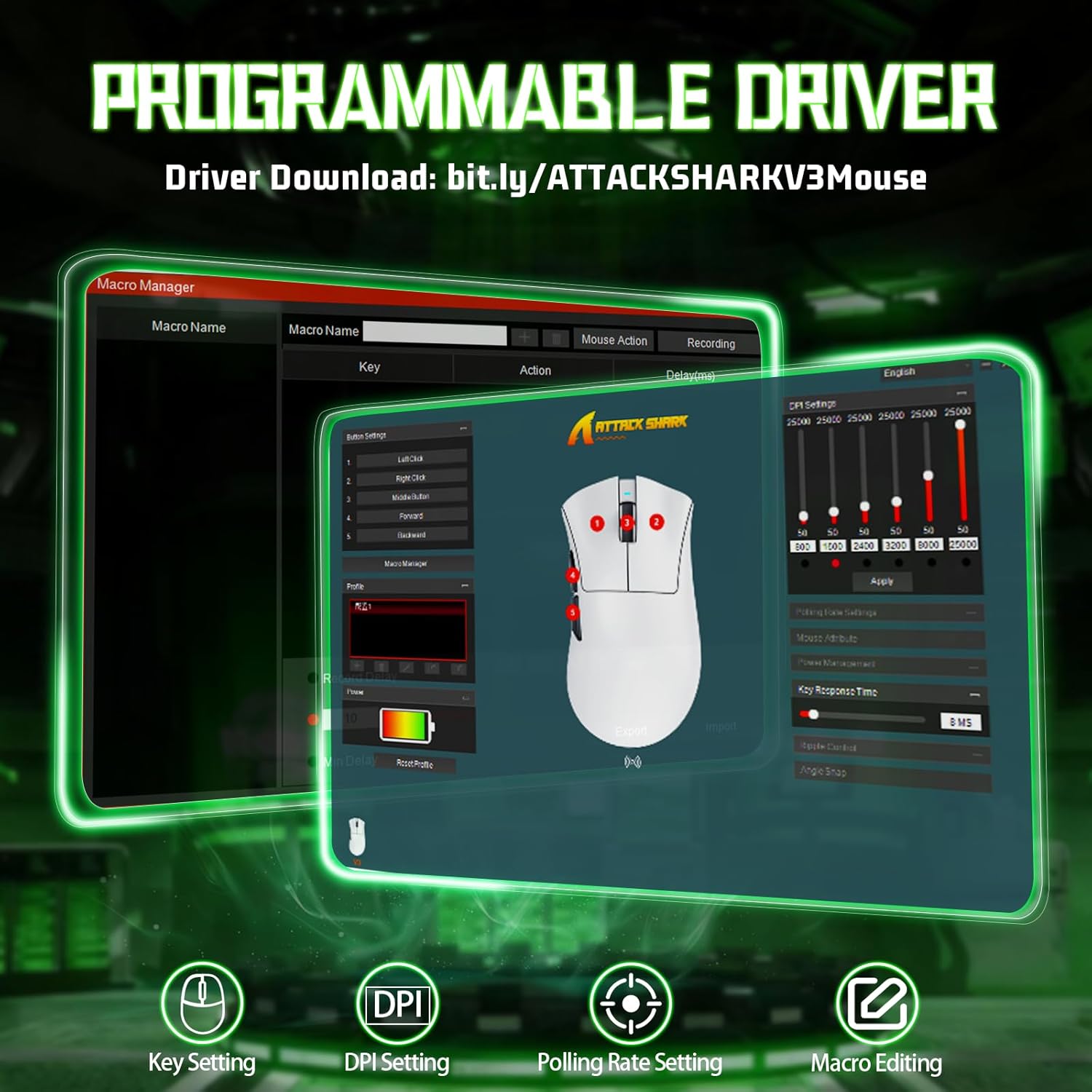
Image 3.5: Programmable Driver Software. A screenshot of the mouse's driver interface, showing options for key settings, DPI adjustment, polling rate, and macro editing, with the mouse itself in the foreground.
4. Setup Guide
4.1. Charging the Mouse
- Connect the supplied USB-C cable to the mouse's charging port.
- Connect the other end of the USB-C cable to a USB power source (e.g., computer USB port, USB wall adapter).
- The indicator light on the mouse will show charging status. A full charge typically takes a few hours.
4.2. Connecting via 2.4GHz Wireless
- Locate the 2.4GHz USB receiver in the package.
- Plug the USB receiver into an available USB port on your computer.
- Turn on the mouse using the power switch located on the bottom. Ensure the mode switch is set to 2.4G.
- The mouse should automatically connect to your computer.
4.3. Connecting via Bluetooth
- Turn on the mouse and set the mode switch to Bluetooth (BT).
- On your computer or device, go to Bluetooth settings and enable Bluetooth.
- Search for new devices. The mouse should appear as 'ATTACK SHARK V3' or similar.
- Select the mouse to pair. Follow any on-screen prompts.
4.4. Connecting via Wired USB-C
- Connect the supplied USB-C cable to the mouse.
- Connect the other end of the USB-C cable to a USB port on your computer.
- The mouse will function as a wired mouse and charge simultaneously.
5. Operating Instructions
5.1. DPI Adjustment
The DPI button is located on the underside of the mouse. Press this button to cycle through preset DPI levels. Each level is indicated by a different color on the mouse's LED. For precise DPI customization, use the ATTACK SHARK driver software.
5.2. Programmable Buttons
The V3 mouse features 5 programmable buttons (left click, right click, scroll wheel click, and two side buttons). Download and install the ATTACK SHARK driver software from the official website to customize these buttons, assign macros, and adjust other performance settings.
5.3. Switching Connection Modes
Use the switch on the bottom of the mouse to select your desired connection mode: 2.4G for wireless via USB receiver, BT for Bluetooth, or OFF for wired mode (when connected via USB-C cable).
5.4. Power Management
To conserve battery life, turn off the mouse when not in use for extended periods. The mouse also features an automatic sleep mode to save power.
6. Maintenance
6.1. Cleaning
To clean your mouse, use a soft, dry cloth. For stubborn dirt, lightly dampen the cloth with water. Avoid using harsh chemicals or abrasive materials, as these can damage the mouse's surface or internal components.
6.2. Battery Care
To prolong battery life, avoid fully discharging the mouse frequently. Store the mouse in a cool, dry place when not in use. Do not expose the mouse to extreme temperatures.
7. Troubleshooting
- Mouse not responding: Ensure the mouse is charged and powered on. Check the connection mode (2.4G, BT, or wired). For 2.4G, ensure the USB receiver is properly inserted. For Bluetooth, re-pair the device.
- Lag or disconnections: Ensure the mouse is within range of the receiver/device. Avoid interference from other wireless devices. Try connecting via wired mode to rule out wireless issues.
- DPI not changing: Press the DPI button firmly. If using custom settings, ensure the driver software is running and settings are applied.
- Buttons not working: Check if the buttons are programmed correctly in the driver software. Ensure no physical obstructions.
- Charging issues: Verify the USB-C cable is securely connected to both the mouse and the power source. Try a different USB port or cable.
8. Specifications
| Feature | Specification |
|---|---|
| Model | ATTACK SHARK V3 |
| Sensor | PixArt 3311 Optical Sensor |
| DPI Range | Up to 25000 DPI (adjustable via driver) |
| Acceleration | 40G |
| Connectivity | 2.4GHz Wireless, Bluetooth, USB-C Wired |
| Battery Capacity | 500mAh Rechargeable |
| Weight | Approx. 62g |
| Switches | HUANO Micro Switches (20 Million Clicks) |
| Programmable Buttons | 5 |
| Compatibility | Windows XP/7/8/10/11, Mac OS, Android, Linux |
9. Warranty and Support
For warranty information and technical support, please refer to the official ATTACK SHARK website or contact your local distributor. Keep your purchase receipt for warranty claims.


