
DunRock DunRock Bubble Pro (DRBPROB)
DunRock Bubble Pro In-Ear Headphones User Manual
Model: DRBPROB
Introduction
Thank you for choosing the DunRock Bubble Pro In-Ear Headphones. These true wireless earbuds are designed to provide a high-quality audio experience with advanced features such as Bluetooth 5.4 connectivity, Active Noise Cancellation (ANC), multipoint pairing, and app control. This manual will guide you through the setup, operation, and maintenance of your new headphones to ensure optimal performance and longevity.
Safety Information
Please read all safety instructions carefully before using this product. Keep this manual for future reference.
- Do not expose the earbuds or charging case to extreme temperatures, humidity, or liquids.
- Avoid dropping, impacting, or disassembling the device.
- Do not use abrasive cleaners or harsh chemicals.
- Listen at moderate volumes to prevent hearing damage.
- Keep out of reach of children and pets.
Package Contents
Ensure all items are present in the package:
- DunRock Bubble Pro In-Ear Headphones (Left and Right earbuds)
- Charging Case
- USB-C Charging Cable
- Ear Tips (S, M, L sizes)
- User Manual
Product Overview
The DunRock Bubble Pro In-Ear Headphones feature 12mm dynamic drivers for rich sound and multiple microphones for clear calls. The ergonomic design ensures a comfortable fit.

Image: DunRock Bubble Pro In-Ear Headphones in their open charging case. The earbuds are black with a sleek design, and the charging case is compact and oval-shaped. This image provides a general view of the product components.
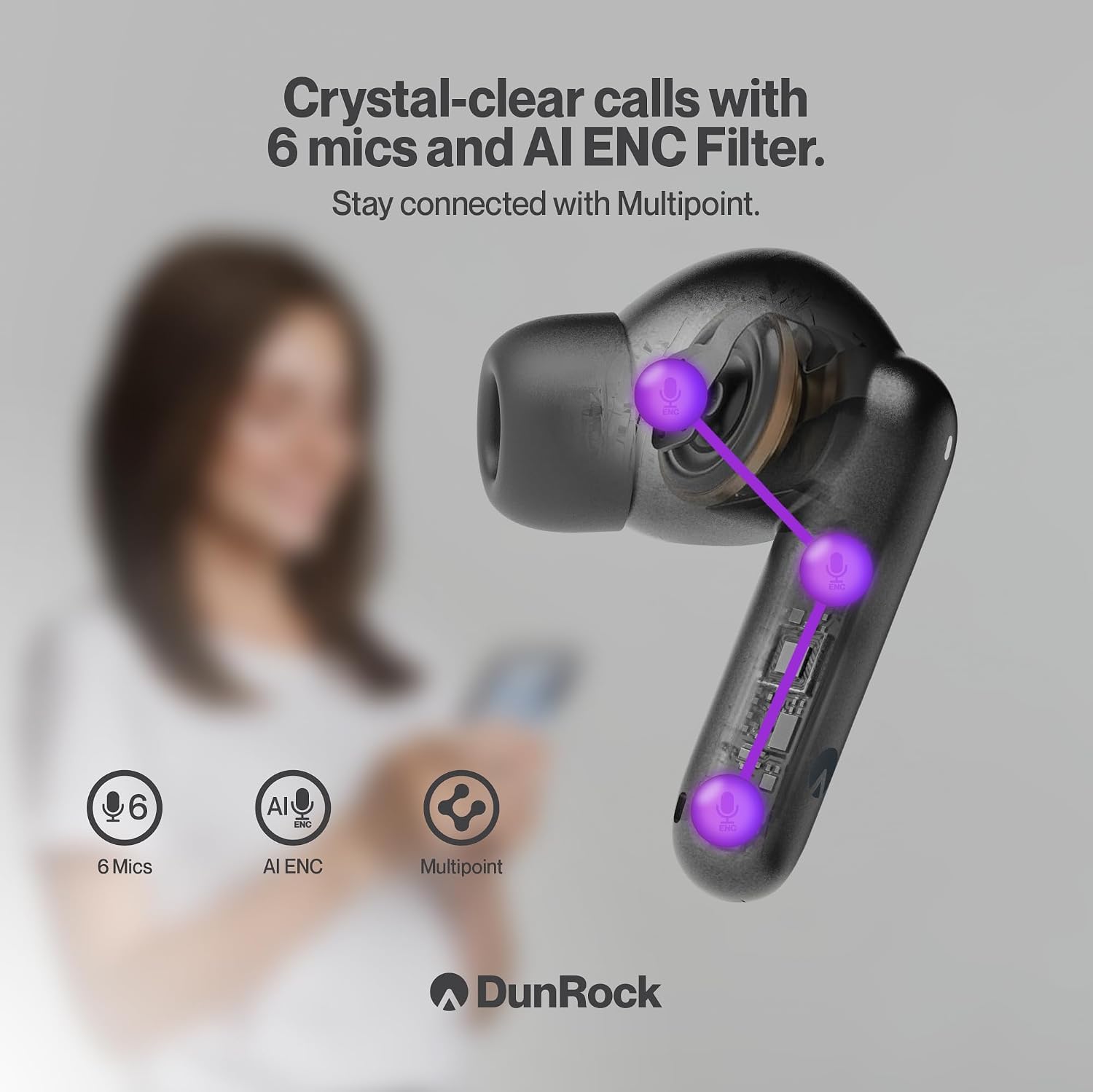
Image: Diagram illustrating the internal structure of a DunRock Bubble Pro earbud, highlighting the 12mm speaker driver. Text indicates "12mm Speaker Driver", "Custom EQ", and "Rich Bass", emphasizing the audio capabilities.
Setup
1. Charging the Earbuds and Case
Before first use, fully charge the earbuds and the charging case.
- Connect the USB-C charging cable to the charging port on the case and to a power source.
- The indicator light on the case will show charging status.
- Place the earbuds into the charging case. They will begin charging automatically.

Image: Graphic illustrating the battery life and charging features. It shows the earbuds and charging case, with text indicating "30 Hours Playtime" (24 hours from charging case, 6 hours from earbuds), "USB-C Fast Charge", and "10min = 2h Playtime".
2. Selecting Ear Tips
Choose the ear tips that provide the best seal and comfort for optimal sound quality and Active Noise Cancellation.
- Experiment with the small (S), medium (M), and large (L) ear tips provided.
- A good fit ensures secure placement and effective noise isolation.
3. Bluetooth Pairing
- Open the charging case. The earbuds will automatically enter pairing mode (indicator lights will flash).
- On your device (smartphone, tablet, laptop), enable Bluetooth.
- Search for "DunRock Bubble Pro" in the list of available devices and select it to connect.
- Once connected, the indicator lights on the earbuds will stop flashing.
4. DunRock App Installation
For full control and customization of your headphones, download the DunRock App.
- Search for "DunRock" in your device's app store (App Store for iOS, Google Play Store for Android).
- Install the app and follow the on-screen instructions to connect your Bubble Pro headphones.

Image: Screenshot of the DunRock App interface on a smartphone, showing options for EQ presets, custom controls, and an ANC slider. The earbuds and charging case are also visible, emphasizing app integration for full control.
Operating Instructions
Power On/Off
- Power On: Open the charging case, or take the earbuds out of the case. They will power on automatically.
- Power Off: Place the earbuds back into the charging case and close the lid. They will power off automatically.
Touch Controls
The DunRock Bubble Pro headphones feature intuitive touch controls. These can be customized via the DunRock App.
| Action | Function |
|---|---|
| Single Tap (L/R) | Play/Pause, Answer/End Call |
| Double Tap (L) | Previous Track |
| Double Tap (R) | Next Track |
| Triple Tap (L/R) | Activate Voice Assistant |
| Long Press (L/R) | Toggle ANC/Transparency Mode (customizable) |
| Incoming Call Long Press (L/R) | Reject Call |
Note: Specific touch control functions can be reconfigured within the DunRock App.
Active Noise Cancellation (ANC) & Transparency Mode
The Bubble Pro headphones offer Active Noise Cancellation to reduce ambient noise and Transparency Mode to allow you to hear your surroundings.
- Toggle between ANC, Transparency Mode, and Normal Mode by long-pressing either earbud (default setting).
- Adjust ANC intensity and transparency levels through the DunRock App.
Call Functions (ENC Microphones)
Equipped with 6 ENC (Environmental Noise Cancellation) microphones, your headphones ensure clear voice quality during calls.

Image: Diagram showing the placement of 6 microphones on the DunRock Bubble Pro earbud, along with icons for "6 Mics", "AI ENC Filter", and "Multipoint". This highlights the advanced call clarity features.
- Answer/End Call: Single tap either earbud.
- Reject Call: Long press either earbud during an incoming call.
Multipoint Connection
The Bubble Pro supports multipoint pairing, allowing simultaneous connection to two devices.

Image: Graphic demonstrating the multipoint connection feature, showing the DunRock Bubble Pro earbuds connected simultaneously to a laptop and a smartphone. Icons for "Multipoint", "Dual Device", and "Seamless Switch" are displayed.
- Pair the headphones with your first device.
- Disconnect Bluetooth on the first device (or put earbuds back in case and re-enter pairing mode if needed).
- Pair the headphones with your second device.
- Reconnect Bluetooth on the first device. The headphones should now be connected to both.
- Audio will automatically switch between devices based on active playback.
Low Latency Mode (Gaming/Video)
For gaming and video content, activate the low latency mode via the DunRock App to minimize audio delay.
Maintenance
Cleaning
- Wipe the earbuds and charging case with a soft, dry, lint-free cloth.
- Remove ear tips and clean them with mild soap and water, then dry thoroughly before reattaching.
- Do not use harsh chemicals or abrasive materials.
Storage
- When not in use, store the earbuds in their charging case to protect them and keep them charged.
- Store in a cool, dry place away from direct sunlight and extreme temperatures.
Battery Care
- Charge the device regularly, even if not used for extended periods, to maintain battery health.
- Avoid fully discharging the battery frequently.
Troubleshooting
| Problem | Solution |
|---|---|
| Earbuds not powering on | Ensure earbuds are charged. Place them in the charging case and close the lid, then open again. |
| Cannot pair with device |
|
| No sound or low volume |
|
| ANC not working effectively |
|
| Call quality issues |
|
Specifications
| Feature | Detail |
|---|---|
| Model Name | DunRock Bubble Pro |
| Model Number | DRBPROB |
| Connectivity | Bluetooth 5.4 |
| Noise Control | Active Noise Cancellation (-45dB) |
| Microphones | 6 ENC Microphones |
| Driver Size | 12mm Dynamic Driver |
| Battery Life (Earbuds) | Up to 7 hours |
| Total Battery Life (with Case) | Up to 35 hours |
| Charging Case Battery Capacity | 380 mAh |
| Charging Port | USB-C |
| Water Resistance | IPX4 (Water Repellent) |
| Latency | 75ms (Low Latency Mode) |
| Control Method | Touch, App Control |
| Additional Features | Multipoint Pairing, Custom EQ via App |
Warranty and Support
DunRock products are designed for reliability and performance. For warranty information and technical support, please refer to the official DunRock website or contact their customer service. Keep your proof of purchase for warranty claims.
For further assistance, visit: www.dunrock.com/support (Example link, please refer to actual manufacturer website)
Related documentsDunRock Bubble Pro (DRBPROB)

Ask a question about this manual
Ask about setup, troubleshooting, compatibility, parts, safety, or missing instructions. Manuals+ will review the question and use this page’s manual context to help answer it.