
Introduction
Welcome to the user manual for your RUXINGX 4G Children's Smartwatch T12. This guide provides essential information on setting up, operating, and maintaining your smartwatch to ensure optimal performance and safety for your child. Please read these instructions carefully before use.
Package Contents
Upon unboxing, please verify that all the following items are included in your package:
- RUXINGX 4G Children's Smartwatch T12
- USB Charging Cable
- User Manual (this document)
- SIM Card Ejector Tool
- Screen Protector

Image: Contents of the RUXINGX T12 Smartwatch package, showing the watch, charging cable, user manual, and additional accessories.
Product Overview and Features
3-Way Calling
The smartwatch supports clear phone calls, convenient voice communication, and face-to-face video calls, allowing your child to stay connected with pre-approved contacts.

Image: The smartwatch facilitates clear phone calls, voice chat, and video calls for communication.
Dual HD Viewing Angles & Camera
Equipped with a camera, the smartwatch allows for HD video calling and capturing memorable moments. The dual viewing angles ensure comprehensive recording.

Image: The smartwatch supports HD video calls and includes a camera for capturing photos.
Advanced Positioning (GPS+AGPS+LBS+WIFI)
The smartwatch utilizes multiple positioning technologies (GPS, AGPS, LBS, and WIFI) for accurate real-time location tracking. Parents can set up safe zones and review location history through the companion app.
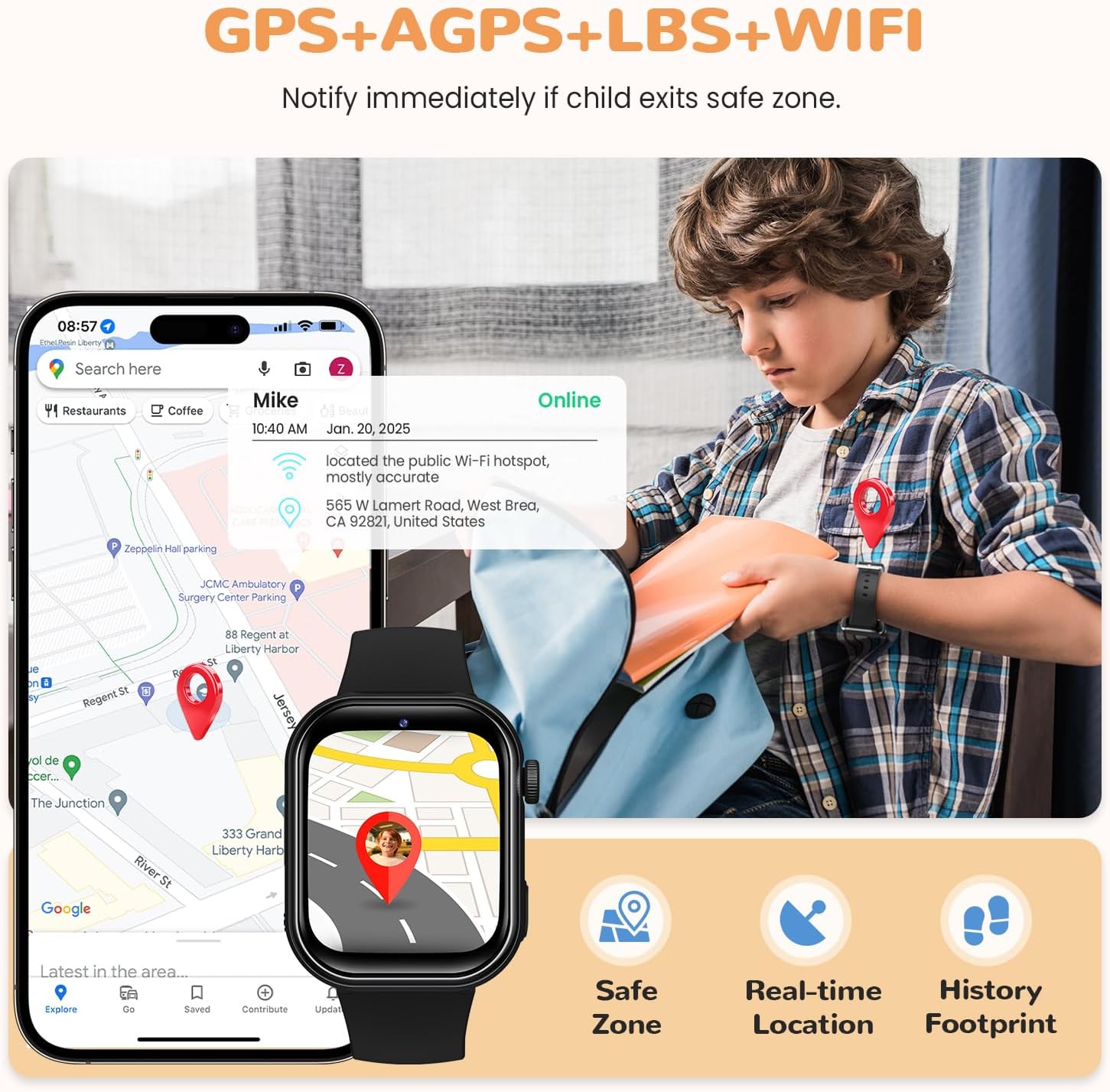
Image: The smartwatch provides precise location tracking with features like safe zones, real-time location, and history footprint.
One-button SOS Emergency Call
In an emergency, your child can press and hold the SOS button for 3 seconds. The smartwatch will automatically dial three pre-defined emergency contacts until a connection is made, ensuring immediate assistance.

Image: The SOS function allows for quick emergency calls to pre-set contacts.
School Mode & Call Blocking
To minimize distractions during school hours, parents can activate School Mode via the app. This mode limits smartwatch functions to only displaying time, disabling apps, and turning off network access, while still allowing SOS calls.
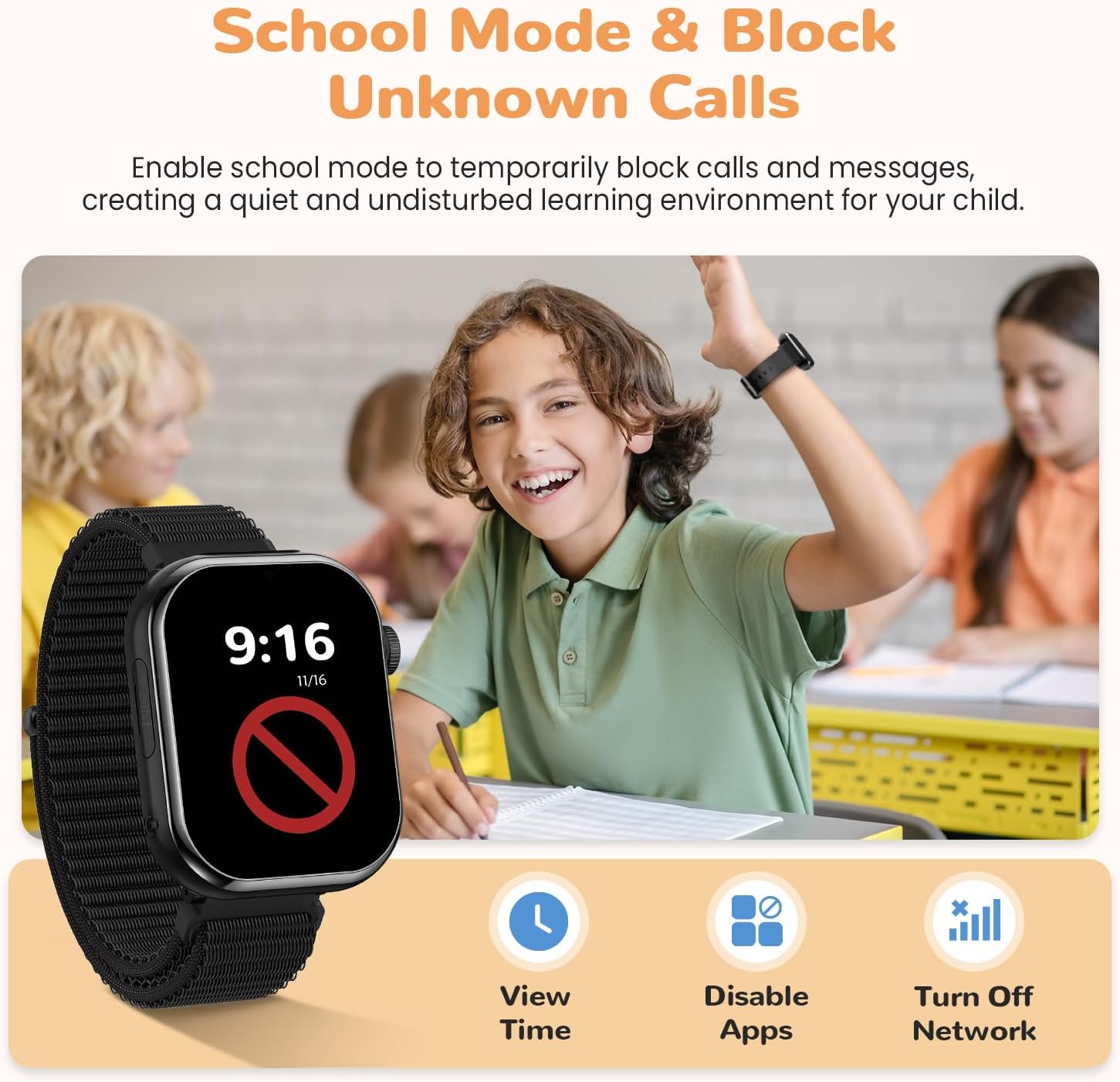
Image: School Mode helps children focus by limiting smartwatch functions during specific times.
High-brightness LED Flashlight
The smartwatch includes a built-in LED flashlight, activated with a single button, providing convenient illumination in low-light conditions.

Image: The smartwatch features a high-brightness LED flashlight for various uses.
Setup Guide
1. SIM Card Installation
- Ensure the smartwatch is powered off.
- Locate the SIM card slot on the side of the watch.
- Use the provided SIM ejector tool to open the SIM tray.
- Insert a 4G Nano SIM card (not included) into the tray with the gold contacts facing up and the notched corner aligned correctly.
- Gently push the SIM tray back into the slot until it clicks into place.
- Power on the smartwatch.
Note: The SIM card must support 4G network connectivity and have an active data plan for full functionality, including calls, video calls, and GPS tracking.
2. App Download and Pairing
- Download the companion app (e.g., 'SeTracker' or similar, as indicated in the watch's manual) from your smartphone's app store (iOS or Android).
- Register an account in the app.
- On the smartwatch, navigate to the 'QR Code' or 'Register Code' section to display the unique pairing code.
- In the app, select 'Add Device' or 'Scan' and scan the QR code displayed on the smartwatch.
- Follow the on-screen prompts in the app to complete the pairing process.
3. Initial Configuration
After successful pairing, use the companion app to:
- Set up emergency contact numbers for the SOS function.
- Define safe zones (geofencing) for location alerts.
- Configure School Mode timings.
- Add approved contacts for calls and video calls.
Operating Instructions
Making and Receiving Calls
- Making a Call: From the watch's main screen, swipe to the 'Contacts' menu, select a contact, and tap the call icon.
- Receiving a Call: When a call comes in, tap the green answer icon on the watch screen. Tap the red hang-up icon to end a call.
Video Calling
Initiate video calls through the companion app on the parent's smartphone. The child can answer video calls directly from the smartwatch.
Voice Chat
The voice chat feature allows for short voice messages to be sent between the smartwatch and the companion app. Access this feature from the watch's menu and record your message.
SOS Function
To activate the SOS function, press and hold the dedicated SOS button (usually located on the side of the watch) for 3 seconds. The watch will cycle through the pre-set emergency contacts until one answers.
GPS Tracking
Real-time location and location history can be viewed directly from the companion app on the parent's smartphone. Ensure the smartwatch has a strong 4G signal for accurate GPS data.
School Mode
School Mode is managed via the companion app. Once activated for specific time periods, the watch will restrict functions to prevent distractions. SOS calls remain active during School Mode.
Using the Flashlight
Locate the flashlight icon in the smartwatch's menu or a dedicated button (if available) to turn the LED flashlight on or off.
Maintenance
Charging
Connect the provided USB charging cable to the charging port on the smartwatch and a compatible USB power adapter (not included). A full charge typically takes approximately 2-3 hours. The watch features an 800mAh battery, providing up to 2 days of usage depending on activity.
Waterproofing (IP68)
The RUXINGX T12 smartwatch is IP68 waterproof, meaning it is resistant to dust and can withstand immersion in water up to 1.5 meters for up to 30 minutes. It is suitable for daily use, such as hand washing or light rain. Do not use the watch in hot water, saunas, or for swimming in deep water, as this may compromise the waterproof seals.
Cleaning
To clean the smartwatch, gently wipe the screen and strap with a soft, damp cloth. Avoid using harsh chemicals or abrasive materials, which can damage the device.
Troubleshooting
Watch not connecting to network
- Ensure the 4G Nano SIM card is correctly inserted and activated with a data plan.
- Check for network coverage in your area.
- Restart the smartwatch.
- Verify APN settings in the companion app if necessary (refer to your SIM card provider for correct APN details).
GPS inaccuracy
- GPS accuracy can be affected by environmental factors such as tall buildings, dense foliage, or indoor locations.
- The watch uses AGPS, LBS, and WIFI for assisted positioning, which may be less precise than pure GPS in certain conditions.
- Ensure the watch has a clear view of the sky for optimal GPS signal reception.
Cannot make/receive calls
- Confirm the SIM card is active and has sufficient credit/data.
- Check if the contact numbers are correctly saved in the watch's phonebook via the app.
- Ensure the watch is not in School Mode or a similar restricted mode.
- Verify network signal strength on the watch.
Battery draining quickly
- Frequent use of video calls, GPS tracking, and games can consume battery faster.
- Adjust GPS update frequency in the app to conserve battery.
- Ensure no background applications are running unnecessarily.
- Check for proper charging and ensure the charging cable is not damaged.
Specifications
| Feature | Specification |
|---|---|
| Brand | RUXINGX |
| Model | T12 |
| Network Connectivity | 4G |
| Positioning | GPS+AGPS+LBS+WIFI |
| Waterproof Rating | IP68 |
| Battery Capacity | 800mAh |
| Battery Life | Up to 2 days (depending on usage) |
| Wrist Circumference | Min 145mm - Max 215mm |
| Watch Dimensions (approx.) | 89mm (width) x 119mm (strap length) - Total length 245mm |

Image: Key specifications of the RUXINGX T12 smartwatch, highlighting battery, network, and positioning features.
Image: Detailed dimensions of the smartwatch, including wrist size compatibility.
Warranty and Support
For warranty information, technical support, or any inquiries regarding your RUXINGX T12 smartwatch, please refer to the contact details provided on the product packaging or the official RUXINGX website. Keep your purchase receipt as proof of purchase for warranty claims.