
Introduction
This manual provides detailed instructions for setting up, operating, and maintaining your YUYIU Wireless 2.4GHz Controller. Please read this manual thoroughly before use to ensure optimal performance and longevity of your device. This controller is designed for use with Xbox One, Xbox Series X|S consoles, and Steam PC Windows (7 or above). It is not compatible with TV or mobile phones.
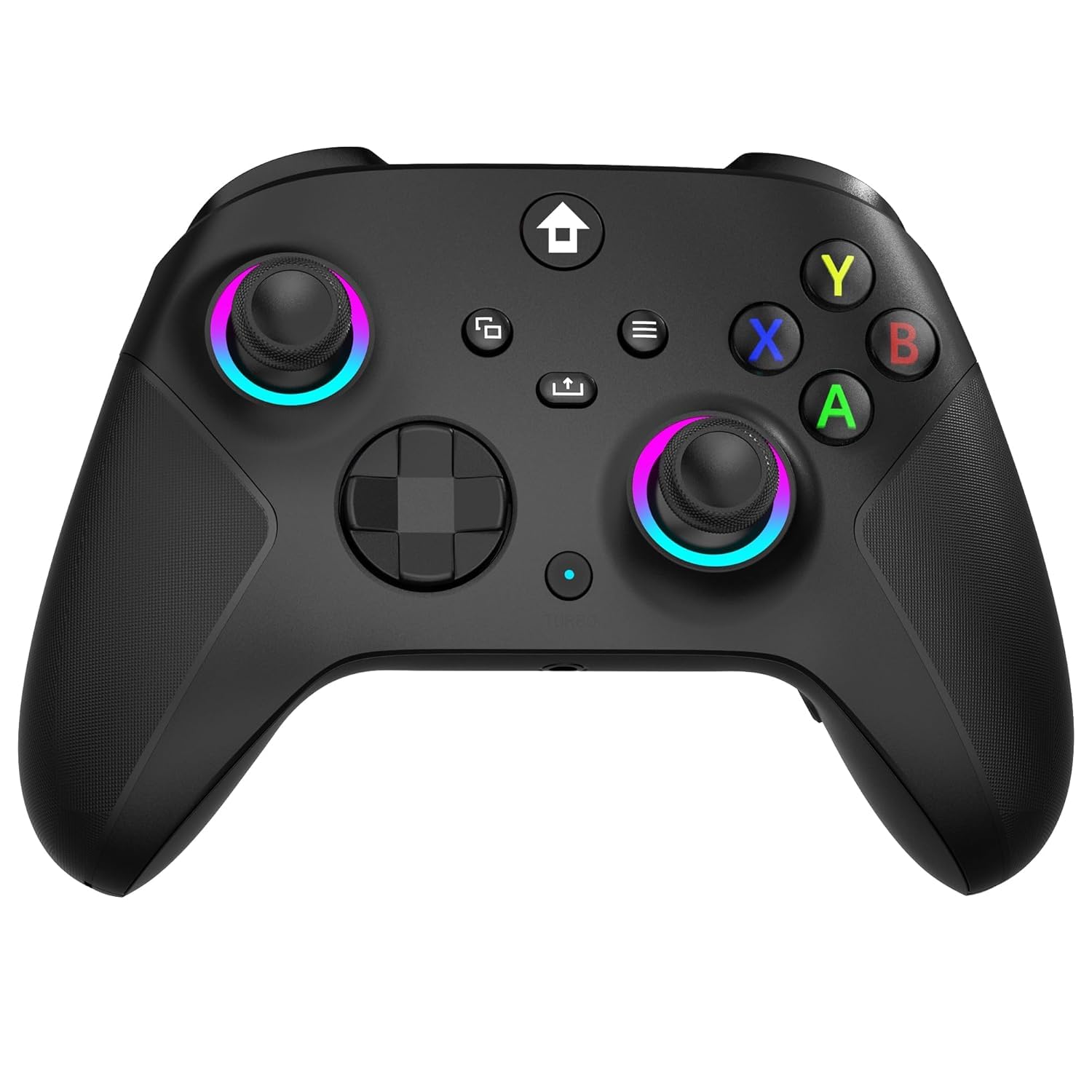
Image: The YUYIU Wireless 2.4GHz Controller, black color variant.
Package Contents
- YUYIU Wireless 2.4GHz Controller
- 2.4GHz Wireless Adapter
- Type-C Charging Cable
- Instruction Manual (this document)
Setup
1. Charging the Controller
Before initial use, fully charge the controller. The built-in 1000mAh lithium battery provides 10-14 hours of play time after a 2-3 hour charge.
- Connect the Type-C charging cable to the controller's Type-C port.
- Connect the other end of the cable to a computer or host USB-C port.
- The indicator light on the controller will flash slowly during charging.
- Once fully charged, the indicator light will remain on, indicating the battery is full.

Image: The controller connected to a USB-C charging cable, illustrating the charging process and battery capacity.
2. Connecting the Controller
The controller connects via a 2.4GHz wireless adapter. It does not support Bluetooth directly.
Wireless Connection (Recommended)
- Ensure your Xbox console (Xbox One/Series X|S) or PC (Windows 7 or above) is powered on.
- Insert the 2.4GHz wireless adapter into an available USB port on your console or PC. The receiver's indicator light will flash slowly.
- Press and hold the "Home" button (house icon) on the controller to turn it on. The controller's indicator light will flash rapidly.
- Press the small button next to the charging port on the controller to make it blink rapidly.
- Press and hold the button on the 2.4GHz wireless receiver to make its light flash rapidly.
- Wait a few seconds for the controller and receiver to pair. Both indicator lights will turn solid, indicating a successful connection.
- The controller is now ready for use.

Image: A user connecting the 2.4GHz wireless adapter to a PC, with the controller in use.
Video: Tutorial demonstrating the wireless receiver connection process for the YUYIU Xbox controller.
Wired Connection
The controller can also be used in wired mode.
- Connect the Type-C charging cable to the controller's Type-C port.
- Connect the other end of the cable to a USB port on your Xbox console or PC.
- The system will automatically detect and install the necessary drivers.
- The controller's indicator light will turn solid, indicating it is connected and ready for use.
Operating Instructions
1. RGB Lighting Modes
The controller features 7 colors of RGB light with 4 lighting modes.
- Monochrome Light Constant On Mode: Press the Light Setting Key + A Key. Press Light Setting Key + B Key to cycle through colors.
- Breathing Mode: Press the Light Setting Key once. The lights on the left and right joysticks will breathe and change through a sequence of colors: Blue, Ice Blue, Green, Orange, Yellow, Red, and Pink.
- Circle Running Marquee Changing Mode: Press the Light Setting Key + Y Key to activate this mode.
- To restore the constant light mode from breathing mode, press the Light Setting Key + A Key.

Image: Visual representation of the four RGB lighting modes: RGB LED off, Flashing Light, Breath LED light, and Solid LED lights.
Video: Tutorial demonstrating how to control and change the RGB lighting modes on the YUYIU Xbox controller.
2. AUTO TURBO & Programmable Keys
The controller supports Turbo functions and programmable back buttons for enhanced gameplay.
Turbo Function
- To set the Turbo function: Press any of the following keys (A/B/X/Y/L1/L2/R1/R2) and then the Turbo Key.
- To activate Auto Turbo: Press the same key and Turbo Key again (second press). The Turbo light will flash when Auto Turbo is active.
- To clear the Turbo function for a single button: Press the same key and Turbo Key a third time.

Image: Diagram illustrating the Turbo and Auto Turbo functions and their activation steps.
Video: Tutorial demonstrating how to set up combo attacks and macro programming on the YUYIU Xbox controller.
Programmable Back Keys (ML/MR)
The "ML" and "MR" buttons on the back of the controller can be programmed to map basic function keys or a combination of 1-16 function keys.
- Basic function keys that can be mapped: A/B/X/Y/LB/RB/L3/R3/D-PAD.
- Refer to the detailed programming instructions in the full manual for specific key combination setups.

Image: Close-up of the controller's back, highlighting the programmable ML and MR buttons and their mapping capabilities.
3. Dual Vibration Motors
The controller is equipped with dual vibration motors that provide realistic feedback for in-game actions such as impacts, weapons, and environmental effects, enhancing the immersive gaming experience.

Image: Illustration showing the dual vibration motors within the controller, emphasizing their role in realistic feedback.
4. 3.5mm Stereo Jack
A 3.5mm stereo jack is integrated into the controller, allowing you to connect headphones and microphones for simultaneous audio reception and transmission during gameplay.
5. 360° Omnidirectional Joysticks
The controller features 360° omnidirectional joysticks designed for rapid rebound and high accuracy, providing precise control in various gaming scenarios.

Image: Detailed view of controller components including refined thumbsticks, precise triggers, responsive action buttons, and a 4-way directional pad.
Maintenance
- Keep the controller clean by wiping it with a soft, dry cloth. Avoid using harsh chemicals or abrasive materials.
- Store the controller in a cool, dry place away from direct sunlight and extreme temperatures.
- Avoid dropping the controller or subjecting it to strong impacts.
- When not in use for extended periods, ensure the controller is fully charged before storing to preserve battery health.
- Do not attempt to disassemble the controller, as this may void the warranty and cause damage.
Troubleshooting
Controller Not Connecting
- Check Power: Ensure the controller is charged. Connect it to a power source using the Type-C cable.
- Verify Receiver: Make sure the 2.4GHz wireless adapter is securely plugged into a working USB port on your console or PC.
- Re-pair: Follow the wireless connection steps in the "Setup" section to re-pair the controller and receiver. Ensure both lights are flashing rapidly during pairing.
- PC Compatibility: For PC, ensure you are running Windows 7 or above.
- Driver Installation: For wired connection on PC, allow the system to automatically install drivers. If issues persist, try updating USB drivers on your PC.
Lights Not Working Correctly
- Check Mode: Ensure you are in the desired lighting mode (Monochrome, Breathing, Marquee). Refer to the "RGB Lighting Modes" section for instructions.
- Reset: Try turning the controller off and on again.
Buttons or Joysticks Unresponsive
- Connection Stability: Ensure a stable connection. Re-pair the controller if necessary.
- Battery Level: Low battery can affect performance. Charge the controller fully.
- Interference: Move away from other 2.4GHz devices that might cause interference.
- Reset Controller: Locate the small reset button (often a pinhole) on the controller and press it with a thin object (like a paperclip) to perform a factory reset.
Specifications
| Feature | Detail |
|---|---|
| Brand | YUYIU |
| Model | B0FZTR9F1B |
| Connectivity Technology | 2.4GHz Wireless (via adapter), USB (Wired) |
| Compatible Devices | Xbox One, Xbox Series S, Xbox Series X, Steam PC (Windows 7+) |
| Controller Type | Joystick |
| Battery Capacity | 1000mAh Lithium Battery |
| Charging Time | 2-3 hours |
| Play Time | 10-14 hours |
| Wireless Range | Up to 33 feet (10 meters) |
| Additional Features | 7-Color RGB Light (4 modes), Dual Vibration Motors, Turbo Function, Programmable Back Keys (ML/MR), 3.5mm Stereo Jack, 360° Omnidirectional Joysticks |
| Item Dimensions | 3.94 x 3.15 x 1.97 inches |
| UPC | 742082240577 |
Warranty and Support
YUYIU is committed to providing high-quality products and a positive user experience. If you encounter any issues or have questions regarding your controller, please contact our customer service team.
- Contact Support: Please refer to the contact information provided with your purchase or visit the official YUYIU website for support options.
- Warranty: Specific warranty details are typically included with your product packaging. Keep your proof of purchase for warranty claims.