
1. Introduction
This manual provides comprehensive instructions for the HIGOLE PC RK3399-4+64 Fanless All-in-One Touchscreen Computer. It covers essential information regarding product features, setup procedures, operational guidelines, maintenance tips, and troubleshooting steps to ensure optimal performance and longevity of your device. Please read this manual thoroughly before using the product.
2. Product Overview
The HIGOLE PC RK3399-4+64 is a robust 10.1-inch industrial touchscreen computer designed for demanding applications. It features a powerful RK3399 hexa-core processor, 4GB RAM, 64GB ROM, and runs on Android 12. Its fanless design ensures silent operation and enhanced durability in various environments.
Key Features:
- Hexa-Core RK3399 Processor: Provides reliable and responsive performance for industrial control systems, digital signage, and interactive kiosks.
- 10.1-inch IPS Touchscreen: Features a 1280x800 resolution with wide viewing angles and G+G multi-touch for intuitive control.
- Comprehensive Connectivity: Includes Gigabit LAN, USB 3.0, HDMI 2.0 (4K@60Hz output), DB9 RS-232 serial port, and optional 4G LTE module.
- Fanless Design: Ensures silent operation and stable performance in temperatures from -10°C to 50°C.
- Android 12 OS: Pre-installed for a stable and versatile platform.
- Flexible Mounting: Standard VESA mount support for versatile deployment.
Internal Components and Performance:
The device is powered by an ARM RK3399 processor with a Mali-T860 MP4 GPU, 4GB LPDDR4 RAM, and 64GB eMMC storage, expandable via TF card slot.
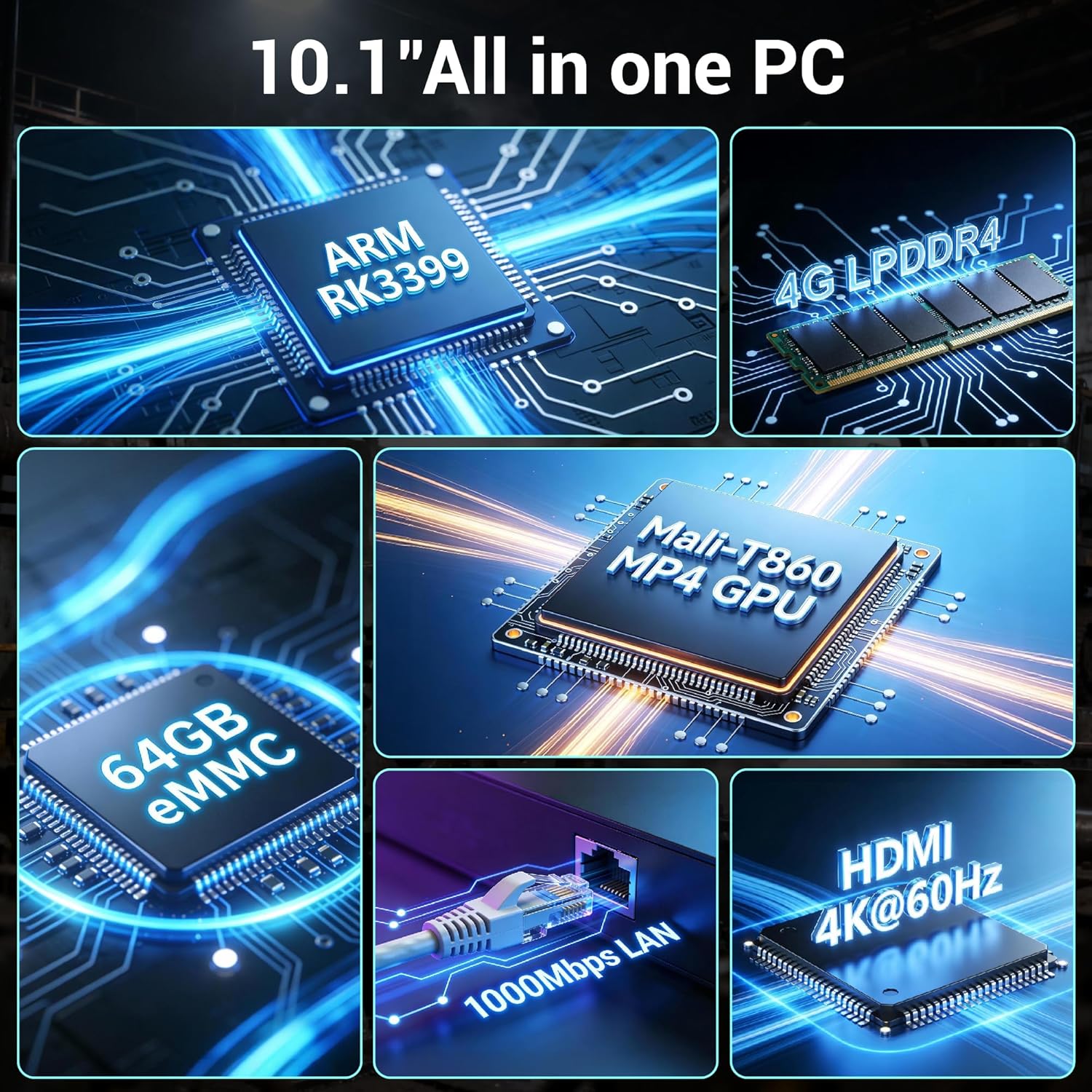
Image: Overview of the internal components and key specifications, including the RK3399 processor, RAM, storage, GPU, and connectivity features.
Available Interfaces:
The device offers a variety of ports for wide compatibility with peripherals and external displays.

Image: Detailed view of the device's rear interfaces, including power input, USB 3.0, Gigabit LAN, USB 2.0, TF Card Slot, HDMI 2.0, Headphone jack, and Type-C port, along with examples of compatible devices.
3. Setup Instructions
3.1 Unboxing and Inspection
- Carefully remove the computer and all accessories from the packaging.
- Verify that all components listed in the packing list are present.
- Inspect the device for any signs of physical damage. If damage is found, contact your vendor immediately.
3.2 Connecting Power
- Connect the provided power adapter to the DC 12V input port on the device.
- Plug the power adapter into a suitable electrical outlet.
- The device is designed for auto-start functionality; it may power on automatically upon receiving power.
3.3 Connecting Peripherals
The device supports various peripherals via its USB and HDMI ports.

Image: The all-in-one computer connected to an external monitor and printer, highlighting its touchscreen operation and convenience without requiring a mouse or keyboard for basic tasks.
- USB Devices: Connect USB cameras, external hard drives, printers, keyboards, or mice to the available USB 2.0 or USB 3.0 ports.
- HDMI Output: Use an HDMI cable to connect the device to an external monitor, TV, or projector for dual-screen display. The HDMI 2.0 port supports up to 4K resolution at 60Hz.
- Network Connection: For a wired connection, plug an Ethernet cable into the Gigabit LAN (RJ45) port. For wireless, ensure Wi-Fi is enabled in the settings.
- Serial Port: The DB9 RS-232 serial port can be used for industrial control applications.
4. Operating Instructions
4.1 Initial Boot-up and Android 12
Upon first power-on, the device will boot into the Android 12 operating system. Follow the on-screen prompts for initial setup, including language selection, Wi-Fi connection, and Google account setup (optional).
4.2 Touchscreen Operation
The 10.1-inch G+G multi-touch screen allows for intuitive interaction. Use standard Android gestures:
- Tap: Select an item or open an application.
- Swipe: Navigate through menus or scroll content.
- Pinch-to-Zoom: Enlarge or reduce content size.
- Long Press: Access contextual menus or move icons.

Image: User interacting with the 10.1-inch touchscreen, highlighting its 10-point multi-touch functionality and responsive design.
4.3 Network Connectivity
- Wi-Fi: Go to Settings > Network & internet > Wi-Fi to connect to available wireless networks. The device supports enhanced Wi-Fi 5.
- Ethernet: If an Ethernet cable is connected, the device will automatically establish a wired network connection.
- Bluetooth: Enable Bluetooth 4.0 in Settings > Connected devices > Connection preferences > Bluetooth to pair with Bluetooth peripherals.
4.4 HDMI Output
The HDMI 2.0 port allows for high-definition video output up to 4K at 60Hz, enabling dual-screen setups for presentations, digital signage, or extended workspaces.

Image: The device connected to an external 4K display, showcasing its HDMI 2.0 capabilities for ultra-high definition picture quality.
4.5 Application Usage
The device is capable of running various Android applications, suitable for office work, industrial control, and multimedia. It can handle applications like Excel, Word, PowerPoint, Photoshop, and more.

Image: The device running Adobe Photoshop, illustrating its capability for efficient office and creative work with 4GB RAM and 64GB ROM.
5. Maintenance
5.1 Cleaning the Device
- Use a soft, lint-free cloth to clean the screen and exterior surfaces.
- For stubborn marks, slightly dampen the cloth with water or a screen-safe cleaner.
- Avoid using harsh chemicals, abrasive cleaners, or aerosol sprays directly on the device.
5.2 Environmental Considerations
The fanless design of this industrial PC allows for reliable operation in challenging environments.

Image: The device operating reliably in temperatures ranging from -10°C to 50°C, demonstrating its suitability for tough industrial conditions.
- Operating Temperature: -10°C to 50°C.
- Storage Temperature: -20°C to 60°C.
- Ensure adequate ventilation around the device, even with its fanless design, to prevent heat buildup in enclosed spaces.
- Avoid exposing the device to direct sunlight, excessive humidity, or dusty environments.
5.3 Fanless Design Benefits
The fanless design eliminates moving parts, reducing noise, power consumption, and the risk of dust ingress, making it ideal for industrial settings where reliability and quiet operation are crucial.

Image: Close-up of the device's robust construction, including its aluminum alloy casing and heat dissipation features, which contribute to its fanless and durable design.
6. Troubleshooting
If you encounter issues with your HIGOLE PC RK3399-4+64, refer to the following common troubleshooting steps:
6.1 Device Not Powering On
- Ensure the power adapter is securely connected to both the device and a working electrical outlet.
- Verify that the power outlet is functional by testing it with another device.
- If the device has an on/off switch, ensure it is in the 'on' position.
6.2 Display Issues
- No Display: If using an external monitor, ensure the HDMI cable is properly connected and the monitor is powered on and set to the correct input source.
- Flickering/Distorted Display: Check cable connections. Try a different HDMI cable or monitor if possible.
- Touchscreen Unresponsive: Ensure the screen is clean and free of obstructions. Restart the device.
6.3 Network Connectivity Problems
- Wi-Fi: Check if Wi-Fi is enabled in settings. Ensure you are connecting to the correct network and entering the password accurately. Restart your Wi-Fi router.
- Ethernet: Verify the Ethernet cable is securely plugged into both the device and the router/switch. Check router status.
- Bluetooth: Ensure Bluetooth is enabled and the peripheral is in pairing mode. Try unpairing and re-pairing the device.
6.4 Peripheral Recognition Issues
- Try connecting the peripheral to a different USB port.
- Test the peripheral on another computer to ensure it is functional.
- Restart the HIGOLE PC.
7. Specifications
Detailed technical specifications for the HIGOLE PC RK3399-4+64 Fanless All-in-One Touchscreen Computer:
| Feature | Specification |
|---|---|
| Brand | HIGOLE PC |
| Model Name | RK3399-4+64 |
| Operating System | Android 12 |
| Standing Screen Display Size | 10.1 Inches |
| Screen Resolution | 1280x800 IPS |
| Max Screen Resolution | 1280x800 |
| Processor Brand | Rockchip |
| Number of Processors | 6 (Hexa-Core RK3399) |
| Graphics Coprocessor | Integrated (Mali-T860 MP4 GPU) |
| RAM Memory Installed Size | 4 GB (DDR4 SDRAM) |
| Memory Storage Capacity | 64 GB (eMMC) |
| Expandable Storage | TF Card Slot (up to 256GB) |
| Connectivity | Gigabit LAN, USB 3.0, USB 2.0, HDMI 2.0 (4K@60Hz), DB9 RS-232, Type-C 3.0 (OTG), Wi-Fi 5, Bluetooth 4.0, Optional 4G LTE |
| Item Weight | 1 pounds |
| Product Dimensions | 9.5 x 2.8 x 6 inches |
| Operating Temperature | -10°C to 50°C |
| Included Components | PC |
8. Warranty and Support
For warranty information and technical support, please refer to the documentation provided with your purchase or visit the official HIGOLE PC website. You may also contact customer service through the retailer where the product was purchased.