
Introduction
The pTron MHR1 is an ergonomically designed phone clip camera grip handle, engineered to enhance your mobile photography and videography experience. It provides a stable and comfortable grip, reducing camera shake and improving control. Featuring a detachable Bluetooth v5.4 remote shutter, it allows for convenient remote operation, making it easier to capture photos and record videos. The universal clamp accommodates smartphones with widths between 55mm and 90mm, and its rotatable design supports both horizontal and vertical shooting modes.
Package Contents
Please verify that all items are present in your package:
- 1 x pTron MHR1 Phone Clip Camera Grip Handle
- 1 x USB Type-C Charging Cable
- 1 x Use Guide Card
Product Overview
Familiarize yourself with the components of your pTron MHR1 device.

Figure 1: Overview of the pTron MHR1 grip, highlighting the integrated Bluetooth remote, built-in stand, and camera-like textured grip for enhanced handling.

Figure 2: Detailed view of the pTron MHR1, pointing out the anti-slip handle, silicone-based phone clamp, cold shoe port for accessories, and the Type-C charging port on the remote control.
- Ergonomic Grip: Designed for comfortable, one-handed operation.
- Universal Phone Clamp: Retractable clamp with a 55-90mm range, featuring silicone anti-slip pads for secure phone placement.
- Detachable Bluetooth Remote: Bluetooth v5.4 remote for wireless photo and video capture.
- Rotatable Design: Allows quick switching between horizontal and vertical shooting orientations.
- Built-in Stand: Enables the grip to stand independently on flat surfaces.
- Cold Shoe Port: For attaching external accessories like microphones or LED lights.
- Type-C Charging Port: Located on the remote control for convenient charging.
Setup Instructions
1. Attaching Your Smartphone
- Gently pull the retractable clamp outwards to expand its width.
- Carefully place your smartphone into the clamp, ensuring it is centered and securely held by the silicone pads. The clamp supports phones with widths between 55mm and 90mm.
- Release the clamp slowly to allow it to grip your phone firmly.
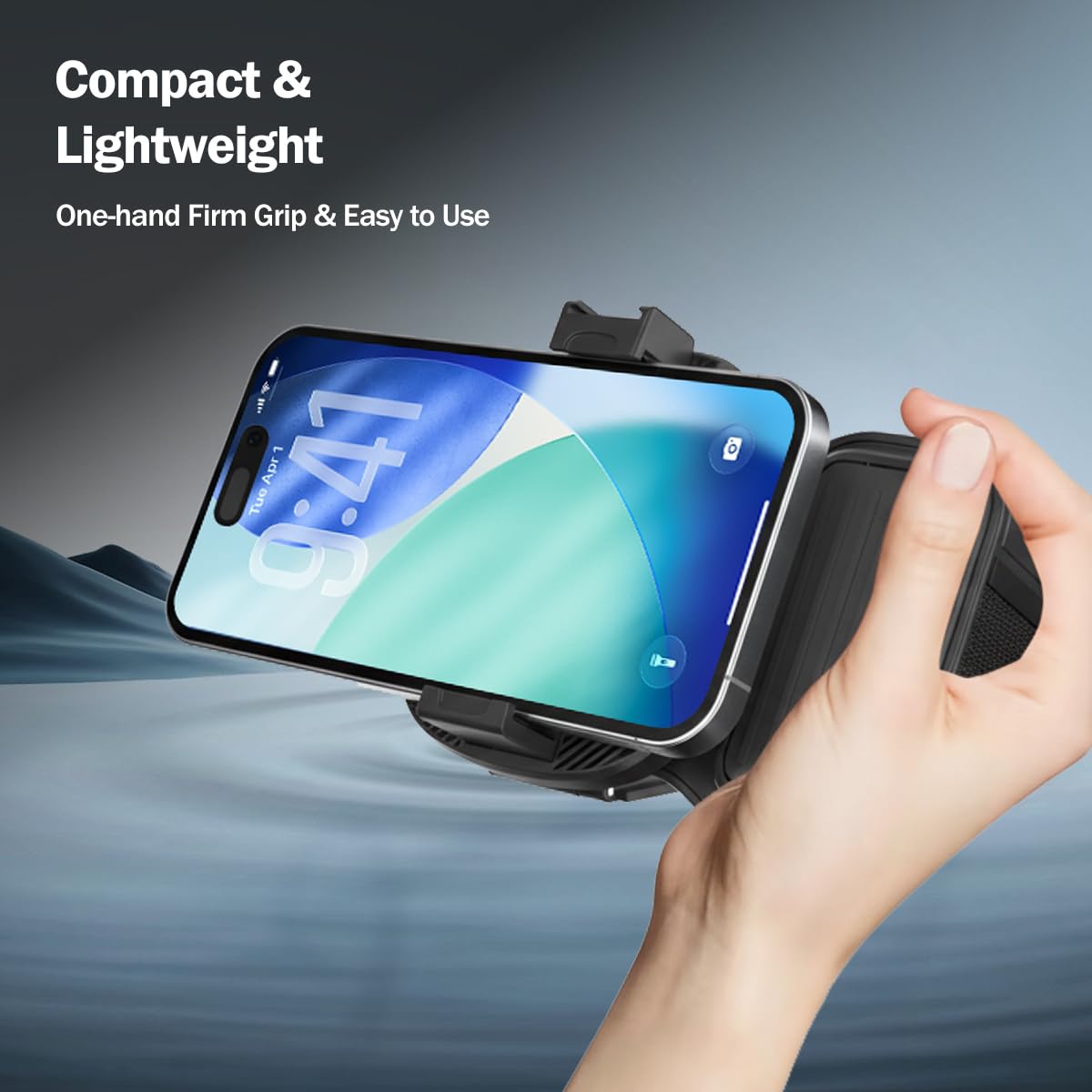
Figure 3: Demonstrating secure smartphone attachment and comfortable one-hand use of the grip.

Figure 4: The rotatable universal clamp, showing its 55-90mm width compatibility and silicone anti-slip design.
2. Pairing the Bluetooth Remote Shutter
- Ensure the remote control is charged. Connect the provided Type-C cable to the remote's charging port and a USB power source if needed.
- Press and hold the power button on the detachable Bluetooth remote until the indicator light begins to flash, indicating it is in pairing mode.
- On your smartphone, navigate to the Bluetooth settings.
- Search for available devices and select "pTron MHR1" (or similar name) from the list.
- Once paired, the indicator light on the remote will stop flashing and remain solid, or turn off, depending on the remote's design.
- Open your smartphone's camera application to test the remote shutter functionality.
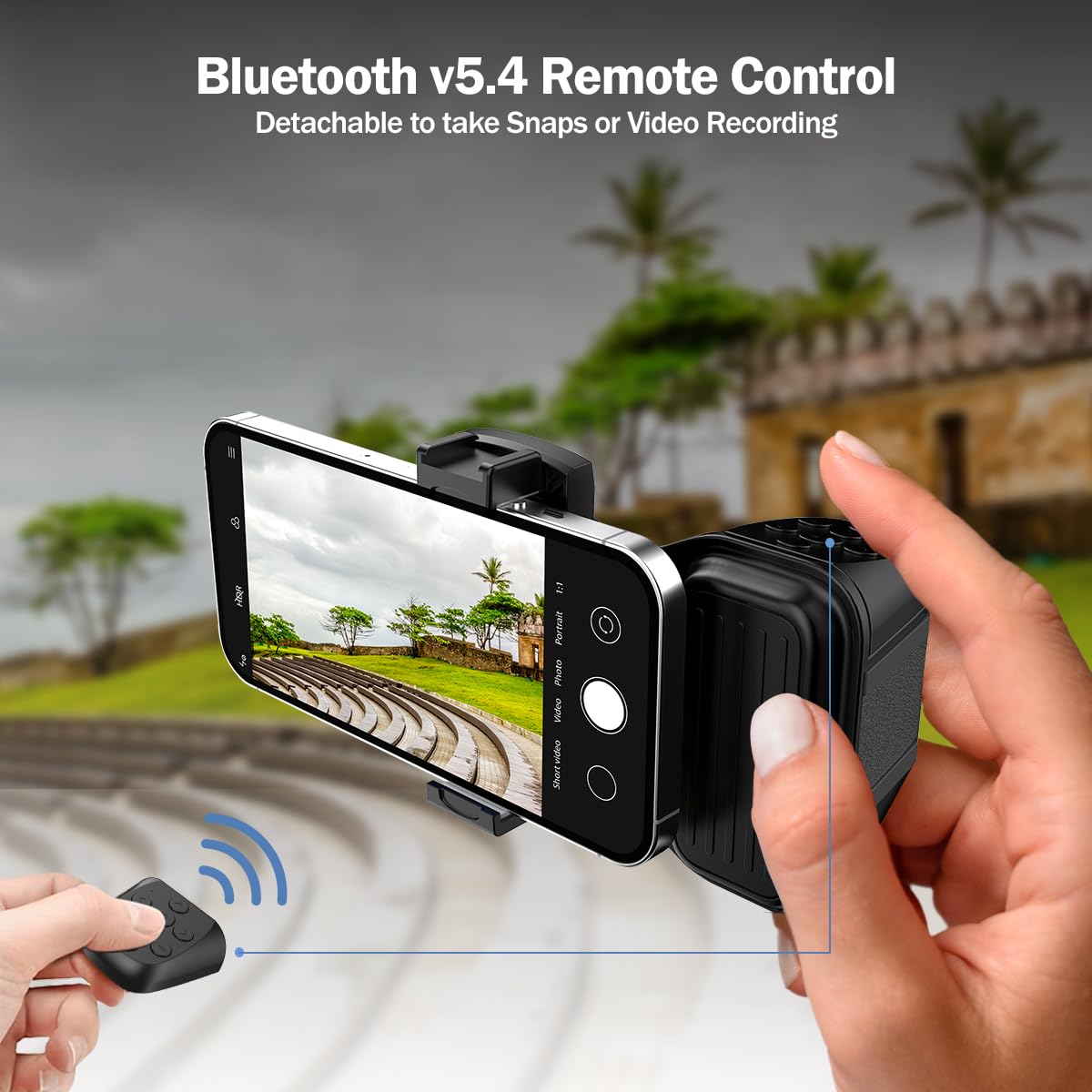
Figure 5: Using the detachable Bluetooth v5.4 remote control for taking snaps or recording videos.
Operating Instructions
Taking Photos and Recording Videos
- Once your smartphone is securely mounted and the Bluetooth remote is paired, open your preferred camera or video recording application.
- Use the buttons on the detachable remote to trigger the shutter for photos or start/stop video recording. Refer to your phone's camera app for specific remote control compatibility.
Switching Shooting Orientation (Horizontal/Vertical)
- The universal clamp allows for easy rotation. Gently rotate your smartphone within the clamp to switch between horizontal (landscape) and vertical (portrait) shooting modes.
- Ensure the phone is securely seated after rotation.

Figure 6: Illustrating the seamless transition between vertical and horizontal shooting views.
Using the Built-in Stand
- To use the MHR1 as a stand, extend the built-in stand located on the back of the grip.
- Place the grip on a flat, stable surface. This is useful for hands-free viewing, video calls, or self-timer photography.
Maintenance
- Cleaning: Wipe the device with a soft, dry cloth. Do not use abrasive cleaners or solvents.
- Storage: Store the MHR1 in a cool, dry place away from direct sunlight and extreme temperatures.
- Battery Care: Charge the remote control regularly, even if not in frequent use, to maintain battery health. Avoid overcharging.
- Avoid Impact: Do not drop or subject the device to strong impacts, as this may damage internal components.
Troubleshooting
| Problem | Possible Cause | Solution |
|---|---|---|
| Remote not pairing with phone. | Remote battery low; Bluetooth off on phone; remote not in pairing mode; interference. | Charge the remote. Ensure phone's Bluetooth is on. Press and hold remote button to enter pairing mode. Move closer to the phone and away from other Bluetooth devices. |
| Remote not taking photos/videos. | Not paired correctly; camera app not open; remote not compatible with specific app functions. | Re-pair the remote. Ensure the camera app is active. Test with the phone's native camera app first. Some third-party apps may have limited remote compatibility. |
| Phone not held securely. | Phone width outside 55-90mm range; improper placement; silicone pads worn. | Verify your phone's width. Ensure the phone is centered and fully seated in the clamp. Contact support if silicone pads are damaged. |
Specifications
| Model | MHR1 |
| Product Dimensions | 7.8 x 8.2 x 5.3 cm |
| Item Weight | 100 g |
| Compatible Devices | Smartphones (55-90mm clamping range) |
| Connectivity | Bluetooth v5.4, USB Type-C (for charging) |
| Material | Acrylonitrile Butadiene Styrene (ABS) + Silicone |
| Special Features | Adjustable, Lightweight, Rotatable, Built-in Stand, Cold Shoe Port |
| Battery Type | Internal Lithium Polymer (rechargeable) |
Warranty Information
The pTron MHR1 Phone Clip Camera Grip Handle comes with a 6 Months Manufacturer Warranty from the date of purchase. This warranty covers manufacturing defects. Please retain your purchase receipt as proof of purchase for warranty claims. The warranty does not cover damage caused by misuse, accidents, unauthorized modifications, or normal wear and tear.
Support Information
For technical assistance, warranty claims, or any other inquiries regarding your pTron MHR1, please contact pTron customer support:
- Email: support@ptron.in
- Phone: 040-67138888
Please have your product model number (MHR1) and purchase details ready when contacting support.
