
1. Introduction
This manual provides instructions for the ATK RS6 Air Hall Effect Gaming Keyboard. The ATK RS6 Air is a high-performance 65% 68-key keyboard designed for gaming, featuring advanced Hall Effect switches, rapid response times, and customizable settings.
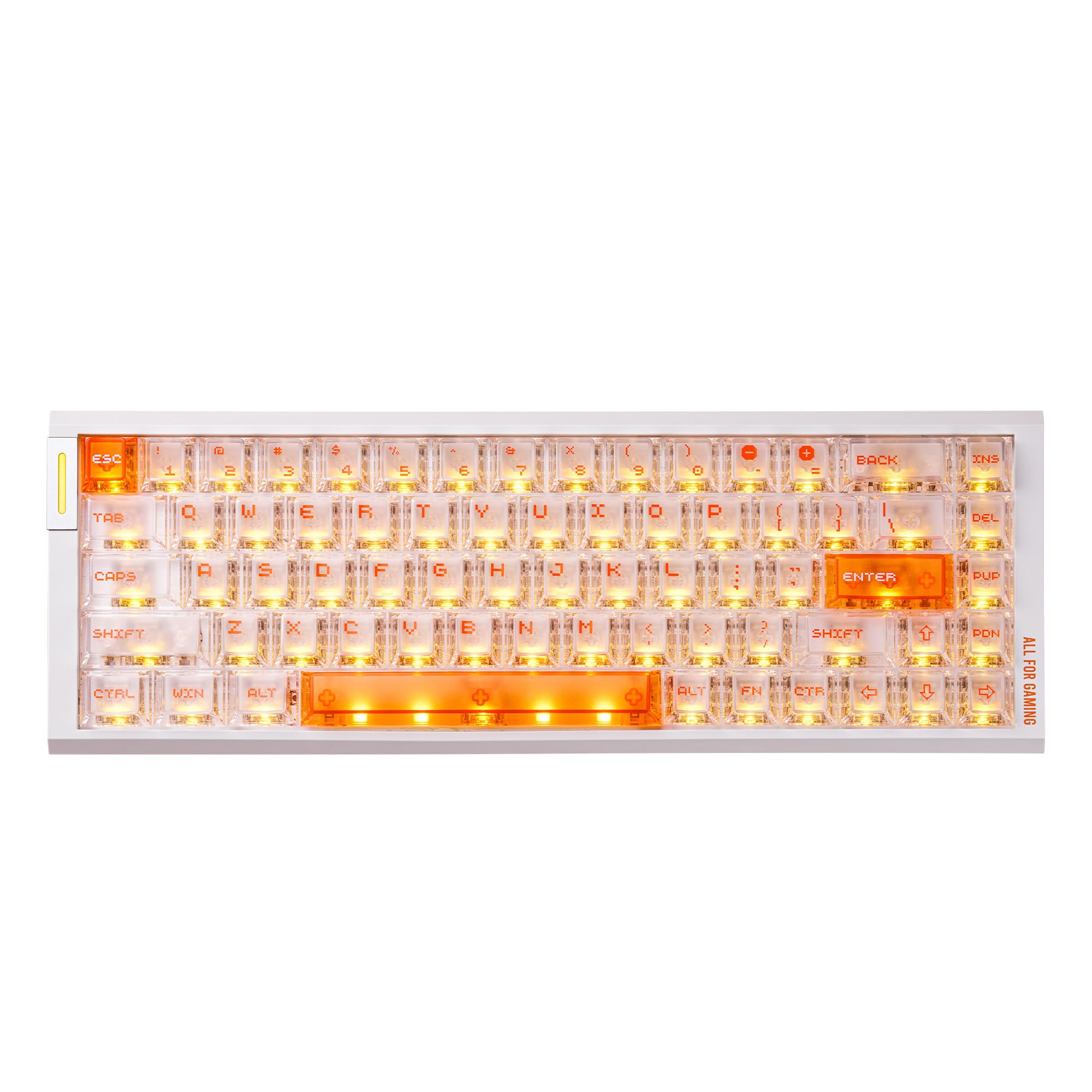
Image: The ATK RS6 Air Hall Effect Gaming Keyboard in White-Ice blade color, showcasing its compact 65% layout and RGB lighting.
2. Package Contents
Verify that all items are present in the package:
- ATK RS6 Air Hall Effect Gaming Keyboard
- USB Cable (USB-C)
- Keycap/Switch Puller
- Spare Switches (4 pieces)
- Warranty Card
- User Manual (this document)
- Brand Stickers
- Extra Contrasting Keycaps (3 pieces)
- Spacebar Dampening Foam

Image: A visual representation of the ATK RS6 Air keyboard and its included accessories, such as the USB cable, switch puller, spare switches, and documentation.
3. Setup Instructions
3.1 Connecting the Keyboard
- Locate the USB-C port on the ATK RS6 Air keyboard.
- Connect one end of the provided USB-C cable to the keyboard's USB-C port.
- Connect the other end of the USB-C cable to an available USB port on your computer (PC, macOS, or Linux).
- The keyboard will automatically be detected by your operating system.
3.2 Software Installation (ATK HUB 3.0)
For full customization and advanced features, install the ATK HUB 3.0 software.
- Visit the official ATK website (www.atk.store) to download the latest version of ATK HUB 3.0.
- Follow the on-screen instructions to complete the installation.
- ATK HUB 3.0 is compatible with Windows, macOS, and Linux operating systems.

Image: A screenshot of the ATK HUB 3.0 software interface, showing options for customizing ATK devices, including the keyboard.
4. Operating the Keyboard
4.1 Hall Effect Technology (GEN-3 BLAZING WIND ULTRA)
The ATK RS6 Air utilizes ATK's self-developed Hall Effect engine for precise and rapid key detection. This technology enables:
- End-to-End Actuation Latency: As low as 0.35 ms.
- RT Release Latency: As low as 0.28 ms.

Image: A detailed view of the Hall Effect switch solution, highlighting the low end-to-end actuation and release latencies.
4.2 Performance Features
The keyboard is engineered for high-performance gaming:
- 8K Polling Rate: Wired 8,000 Hz polling for rapid communication with your computer.
- 256K Scan Rate: Up to 256,000 Hz scan rate for precise key input detection.
- Stable Latency: Achieves a stable latency of 0.08 ms.
- Adjustable Zero Deadzone: Allows for tighter control by eliminating input dead zones.

Image: Graphics illustrating key performance metrics such as 0.08ms stable latency, 8K polling rate, 0.001mm RT precision, 256K scan rate, adjustable zero deadzone, and 0.28ms end-to-end latency.
4.3 Precise RT Tuning
Customize the actuation point of each key:
- Per-key Actuation Range: Adjustable from 0.001 mm to 3.3 mm.
- Step Precision: Adjust in increments of 0.001 mm.
- Use ATK HUB 3.0 software to fine-tune actuation for desired speed or control.
4.4 Structure and Acoustics
The keyboard features a robust build for enhanced feel and sound:
- Aluminum Position Plate: Provides a firm and stable typing base.
- Hard Gasket with 5-Layer Padding: Includes Silicone, IXPE, PET, EPDM, and Bottom Silicone layers for improved acoustics and typing feel.

Image: An exploded view diagram illustrating the Hard Gasket Structure with its five layers of acoustic padding: Silicone Foam, IXPE Foam, PET Film, EPDM Foam, and Bottom Silicone Padding.
4.5 Switches and Keycaps
The ATK RS6 Air is equipped with custom magnetic switches and durable keycaps:
- Magnetic Switches: Available in Zen or Ice blade variants, offering distinct typing experiences.
- Top-Frosted PC Keycaps: Designed for durability and aesthetic appeal.

Image: A close-up view of an ATK custom flagship switch, highlighting its transparent design and internal components.
4.6 RGB Lighting and Programmable Keys
Personalize your keyboard's appearance and functionality:
- 16.8 Million RGB Lighting: Customize lighting effects and colors using ATK HUB 3.0.
- Programmable Keys: Assign custom functions, macros, or keybindings to individual keys via the ATK HUB 3.0 software.

Image: The ATK RS6 Air keyboard illuminated with vibrant RGB lighting, demonstrating the dynamic lighting system and the appearance of the frosted PC keycaps.
5. Maintenance
To ensure the longevity and optimal performance of your ATK RS6 Air keyboard, follow these maintenance guidelines:
- Cleaning: Regularly clean the keyboard with a soft, dry cloth. For deeper cleaning, use a can of compressed air to remove dust and debris from between the keycaps. If necessary, gently wipe keycaps with a slightly damp cloth and mild soap solution, ensuring no liquid enters the keyboard.
- Keycap Removal: Use the provided keycap puller to safely remove keycaps for cleaning or switch replacement. Avoid pulling keycaps without a proper tool to prevent damage.
- Switch Replacement: The keyboard features hot-swappable switches. Use the provided switch puller to carefully remove and replace switches. Ensure the new switch is aligned correctly before pressing it into place.
- Avoid Liquids: Keep liquids away from the keyboard to prevent internal damage. In case of spills, immediately disconnect the keyboard and allow it to dry completely before reconnecting.
- Storage: When not in use for extended periods, store the keyboard in a clean, dry environment away from direct sunlight and extreme temperatures.
6. Troubleshooting
If you encounter issues with your ATK RS6 Air keyboard, refer to the following common troubleshooting steps:
- Keyboard Not Responding:
- Ensure the USB-C cable is securely connected to both the keyboard and your computer.
- Try connecting the keyboard to a different USB port on your computer.
- Test the keyboard on another computer to rule out system-specific issues.
- Keys Not Registering or Double-Typing (Drift/Bugs):
- This can sometimes be resolved by updating the keyboard firmware via ATK HUB 3.0.
- Ensure the switches are properly seated. If a switch feels loose, gently press it down or remove and reinsert it.
- Clean any debris or dust that might be under the affected keycap or switch.
- If the issue persists, consider replacing the affected switch with one of the spare switches provided.
- RGB Lighting Not Working or Incorrect:
- Ensure ATK HUB 3.0 software is installed and running.
- Check lighting settings within ATK HUB 3.0 to ensure desired effects are selected.
- Verify that your computer's USB port provides sufficient power. Try a different USB port if available.
- Software (ATK HUB 3.0) Issues:
- Ensure you have the latest version of ATK HUB 3.0 installed from the official ATK website.
- Restart your computer and the software.
- If problems persist, try reinstalling ATK HUB 3.0.
For further assistance, refer to the support section of this manual or contact ATK customer support.
7. Specifications

Image: A table summarizing the product specifications for the ATK RS6 Air keyboard, including appearance, configuration, and performance details.
| Feature | Detail |
|---|---|
| Brand | ATK |
| Model Number | ATK RS6 Air |
| Connectivity Technology | USB-C (Wired) |
| Compatible Devices | PC, macOS, Linux |
| Keyboard Description | Gaming |
| Recommended Uses | Gaming, Office |
| Special Features | Hot-Swappable, Programmable Keys |
| Keyboard Backlighting | RGB (16.8 Million Colors) |
| Material | Plastic (Chassis), Aluminum (Plate) |
| Switches | Hall Effect Magnetic (Zen or Ice blade) |
| Actuation Range | 0.001–3.3 mm (Adjustable) |
| Polling Rate | 8,000 Hz |
| Scan Rate | Up to 256,000 Hz |
| Stable Latency | 0.08 ms |
| End-to-End Latency | 0.28 ms |
| Internal Padding | 5-Layer (Silicone, IXPE, PET, EPDM, Bottom Silicone) |
| Driver Software | ATK HUB 3.0 |
8. Warranty and Support
8.1 Warranty Information
The ATK RS6 Air keyboard comes with a warranty. Please refer to the included Warranty Card in your package for specific terms, conditions, and duration of the warranty.
8.2 Customer Support
For technical support, software updates, or any inquiries regarding your ATK RS6 Air keyboard:
- Visit the official ATK website: www.atk.store
- For product drivers and related services, please visit the ATK HUB 3.0 section on the website.
- Contact ATK Gaming Gears directly through their seller page on Amazon or their official website for specific support requests.


