
Introduction
This manual provides detailed instructions for the installation, operation, and maintenance of your Anona Pano 4K UHD Indoor Security Camera. Please read this manual thoroughly before using the product to ensure proper function and safety. Keep this manual for future reference.
Package Contents
Verify that all items listed below are included in your package:
- Anona Pano Camera (2 units)
- Mounting Plate (2 units)
- Quick Start Guide
- 5V2A Power Adapter (with 3m power cable) (2 units)
- Screw and Anchor Set (2 sets)
Setup
1. Physical Installation
The Anona Pano camera is designed for indoor use and can be placed on a tabletop or mounted to a wall or ceiling.
- Tabletop Placement: Place the camera on a stable, flat surface in your desired monitoring area. Ensure it has a clear line of sight.
- Wall/Ceiling Mounting:
- Choose a suitable mounting location.
- Use the mounting plate as a template to mark screw holes.
- Drill holes and insert anchors if necessary.
- Secure the mounting plate with the provided screws.
- Attach the camera to the mounting plate by twisting it until it locks into place.
2. Power Connection
Connect the provided 5V2A power adapter to the camera's power port and then plug it into a standard electrical outlet. The camera will power on automatically.
3. App Download and Account Creation
- Download the Anona app from your smartphone's app store (iOS or Android).
- Open the app and follow the on-screen instructions to create a new account or log in if you already have one.
4. Wi-Fi Connection
The Anona Pano camera supports dual-band Wi-Fi 6 (2.4 GHz and 5 GHz) for stable connectivity.
- In the Anona app, tap 'Add Device' or the '+' icon.
- Select your camera model from the list.
- Follow the app's instructions to connect the camera to your home Wi-Fi network. This typically involves scanning a QR code displayed on your phone with the camera or entering your Wi-Fi credentials.
- Ensure your smartphone is connected to the same Wi-Fi network during the setup process.

Image: The Anona Pano camera supports dual-band Wi-Fi 6 for improved network performance. This image illustrates the camera and the benefits of Wi-Fi 6 over older Wi-Fi 4 technology, showing faster and smoother connectivity.
5. MicroSD Card Installation (Optional)
For local storage, you can insert a microSD card (up to 512 GB, not included).
- Locate the microSD card slot on the camera. This may require gently tilting the camera lens upwards to reveal the slot.
- Insert the microSD card with the gold contacts facing down until it clicks into place.
- Format the microSD card via the Anona app settings for optimal performance.
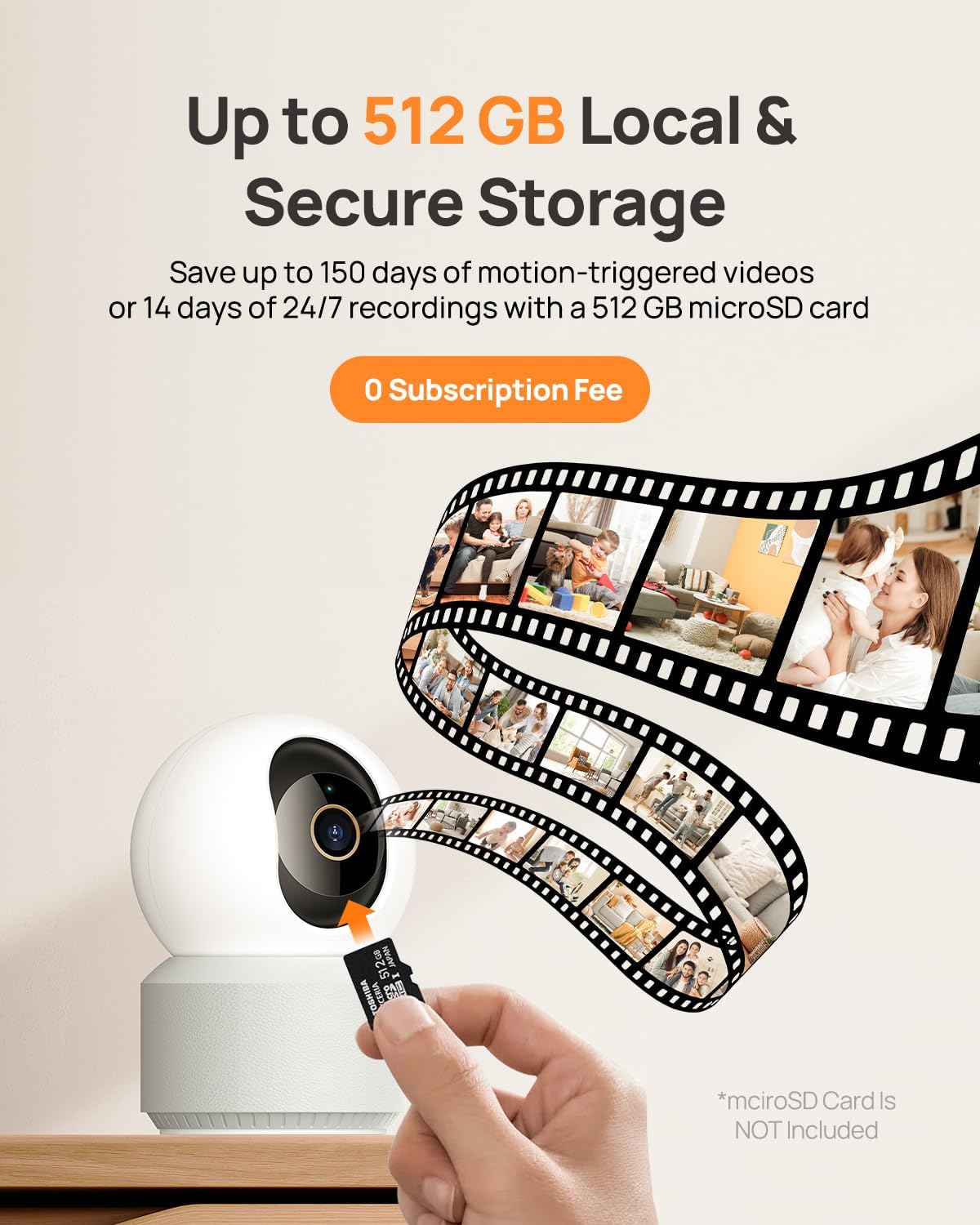
Image: A hand inserting a microSD card into the Anona Pano camera, demonstrating the local storage option. The graphic also shows a filmstrip, symbolizing video recordings saved to the card.
Operating Instructions
1. Live View and Recording
Access the live video feed from your camera through the Anona app. The camera provides 4K UHD resolution with an 8x digital zoom capability.

Image: A visual comparison demonstrating the superior clarity of 4K UHD video (8 Megapixels) compared to 2K HD, highlighting the detail captured by the Anona Pano camera. The image features a baby interacting with a dog.
2. Pan and Tilt Control
The camera offers a 360° horizontal pan and 110° vertical tilt range, allowing you to monitor a wide area.
- In the live view interface of the Anona app, use the directional controls to manually adjust the camera's viewing angle.

Image: The Anona Pano camera is shown with its 360° pan and 110° tilt capabilities, alongside a smartphone displaying the camera's live feed and control interface within the Anona app. This illustrates how users can remotely control the camera's movement.

Image: A close-up of the Anona Pano camera with graphical arrows indicating its 360° horizontal rotation (pan) and 110° vertical movement (tilt), demonstrating its extensive coverage range.
3. Auto-Tracking
Enable the auto-tracking feature in the app settings. When activated, the camera will automatically detect and follow moving objects within its field of view, ensuring continuous recording of activity.
4. AI Detection and Notifications
The camera utilizes AI algorithms to distinguish between different types of motion.
- Person Detection: Identifies human figures.
- Pet Detection: Recognizes pets.
- Baby Crying Detection: Alerts you to the sound of a baby crying.
Configure notification settings in the Anona app to receive instant alerts on your smartphone when specific events are detected.
5. Two-Way Audio
The built-in microphone and speaker allow for two-way communication.
- In the live view, tap the microphone icon to speak through the camera.
- The camera's speaker will transmit your voice, and you can hear audio from the camera's location.
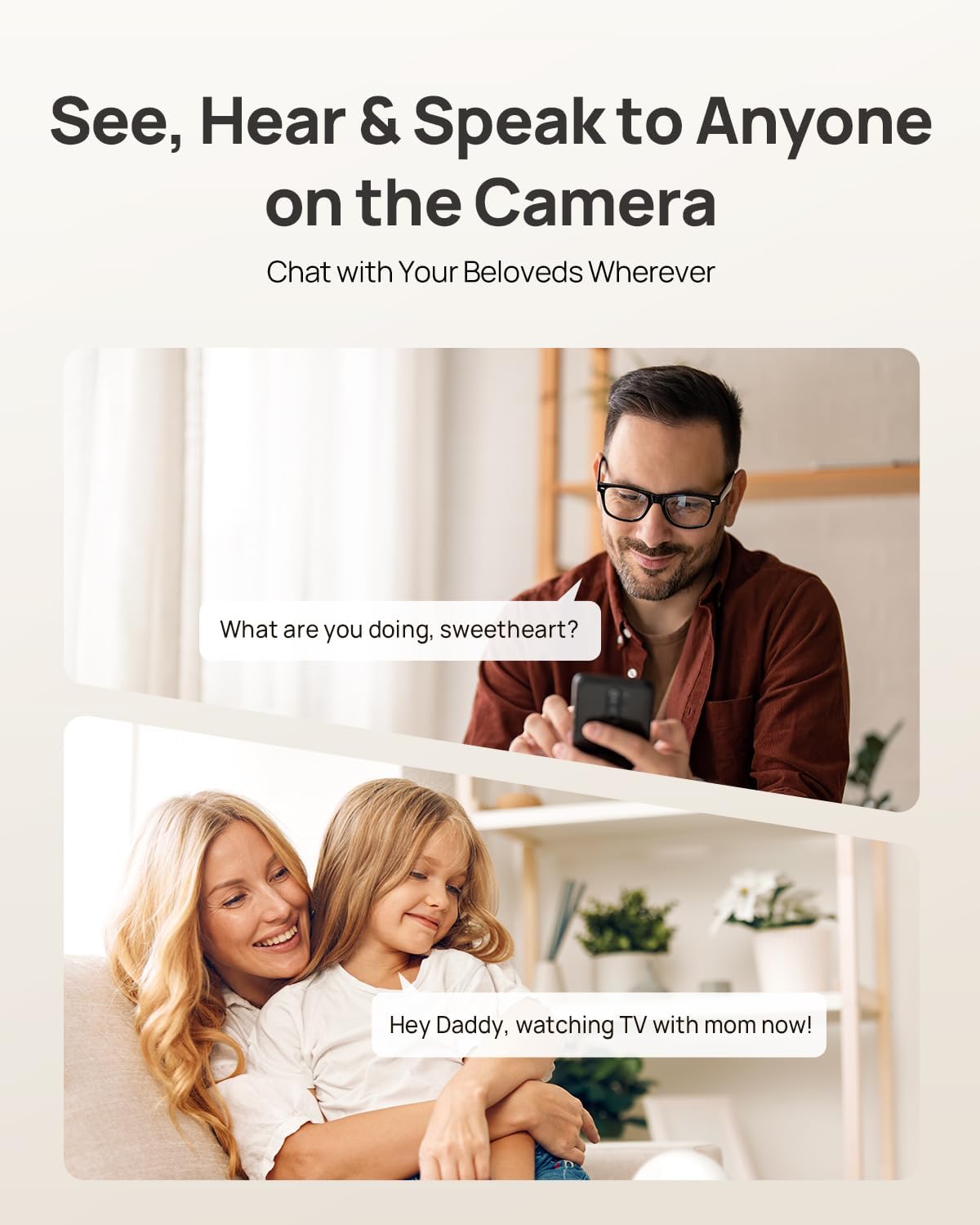
Image: This image illustrates the two-way audio functionality of the Anona Pano camera. A man is shown speaking into his phone, and a woman with a child is depicted listening, demonstrating how users can communicate remotely through the camera.
6. Privacy Mode
Activate Privacy Mode via the Anona app to physically cover the camera lens, ensuring privacy when needed. This stops recording and live viewing without unplugging the device.

Image: The Anona Pano camera is shown with its lens physically covered, indicating Privacy Mode is active. A woman holding a baby is in the background, and a smartphone displays the Anona app interface confirming that Privacy Mode is enabled, emphasizing user control over privacy.
7. Storage Options
The Anona Pano camera offers two storage methods:
- Local Storage: Records to a microSD card (up to 512 GB, not included).
- Cloud Storage: Optional Anona Cloud service provides AES-128 encrypted storage for your recordings.
8. Smart Home Integration
The camera is compatible with Amazon Alexa and Google Assistant. Follow the instructions in the Anona app or your smart home assistant app to link your camera for voice control and integration.
Maintenance
1. Cleaning the Camera
To maintain optimal image quality, regularly clean the camera lens and body.
- Use a soft, dry, lint-free cloth to wipe the lens. For stubborn smudges, a lens cleaning solution designed for optics can be used sparingly.
- Wipe the camera body with a soft, slightly damp cloth. Avoid harsh chemicals or abrasive materials.
- Ensure the camera is powered off before cleaning.
2. Firmware Updates
Anona regularly releases firmware updates to improve performance, add features, and enhance security. Check for updates through the Anona app settings and install them as prompted.
3. Storage Management
- MicroSD Card: Periodically review and delete old recordings from the microSD card via the app to free up space. The card will typically overwrite the oldest footage when full.
- Cloud Storage: Manage your cloud recordings and subscription details through the Anona app.
Troubleshooting
| Problem | Possible Cause | Solution |
|---|---|---|
| Camera not powering on | Power adapter not connected; faulty outlet. | Ensure power adapter is securely connected to camera and outlet. Try a different outlet. |
| Unable to connect to Wi-Fi | Incorrect Wi-Fi password; camera too far from router; Wi-Fi signal interference; incorrect band (2.4GHz vs 5GHz). | Verify Wi-Fi password. Move camera closer to router. Ensure router is broadcasting both 2.4GHz and 5GHz bands and try connecting to both. Reduce interference from other devices. |
| No video feed / Offline | No internet connection; camera disconnected from power. | Check your home internet connection. Restart the camera by unplugging and replugging the power. |
| MicroSD card not recording | Card not inserted correctly; card full; card not formatted; faulty card. | Reinsert the card. Format the card via the app. Replace with a new, compatible microSD card if necessary. |
| Motion detection not working | Detection sensitivity too low; detection zone not set; feature disabled. | Adjust detection sensitivity in the app. Define detection zones. Ensure motion detection is enabled. |
Specifications
| Feature | Specification |
|---|---|
| Model Name | Anona Pano |
| Video Resolution | 4K UHD (8 MP) |
| Still Image Resolution | 8 MP |
| Pan Range | 360° |
| Tilt Range | 110° |
| Optical Zoom | 8x |
| Connectivity | Wireless (Wi-Fi 6, Dual-band 2.4GHz/5GHz) |
| AI Detection | Person, Pet, Baby Crying |
| Audio | Two-Way Audio |
| Storage Options | MicroSD card (up to 512 GB, not included), Cloud Storage |
| Smart Home Compatibility | Amazon Alexa, Google Assistant |
| Power Supply | 5V2A Power Adapter (10W) |
| Indoor/Outdoor Use | Indoor |
| Dimensions | 8.2 x 7.9 x 12.1 cm |
| Weight | 500 Grams |
| Included Components | Camera, Mounting Plate, Quick Start Guide, Power Adapter, Screw/Anchor Set |
Warranty
The Anona Pano 4K UHD Indoor Security Camera comes with a 1-year limited warranty from the date of purchase. This warranty covers manufacturing defects and malfunctions under normal use. It does not cover damage caused by misuse, accidents, unauthorized modifications, or natural disasters. Please retain your proof of purchase for warranty claims.
Support
For technical assistance, troubleshooting beyond this manual, or warranty inquiries, please refer to the official Anona website or contact Anona customer support. Contact information can typically be found on the product packaging or the manufacturer's website.


