1. Product Overview
The Insoma WiFi Water Timer is designed to automate garden and lawn watering. It connects directly to your 2.4GHz WiFi network, allowing remote control via a smartphone application. Key features include app-based scheduling, voice control compatibility with Alexa and Google Assistant, manual watering options, and a rain delay function.
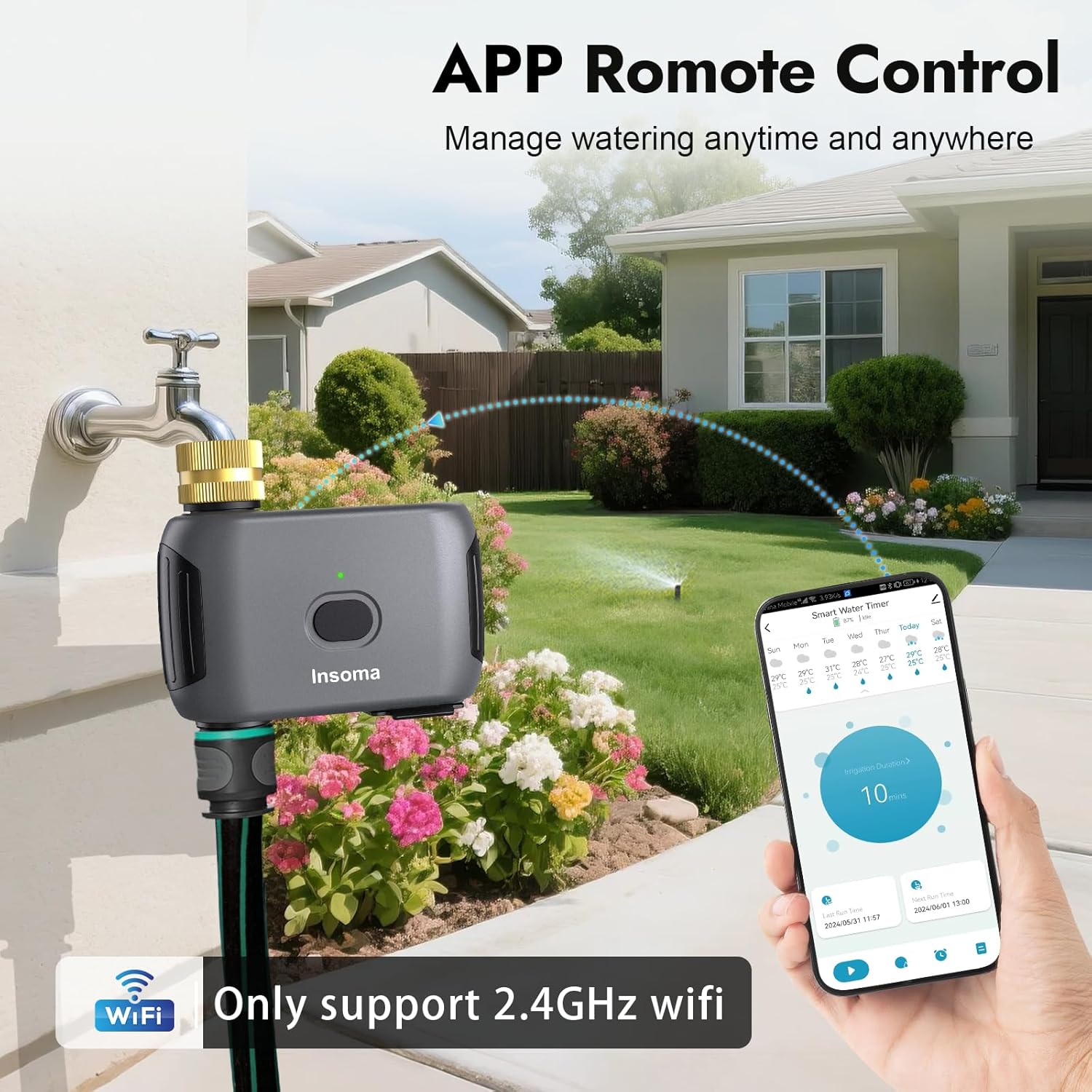
Image 1.1: Insoma WiFi Water Timer in a garden setting, demonstrating app remote control.
2. Package Contents
- Insoma WiFi Water Timer (1 unit)
- User Manual (this document)
- (Batteries not included: Requires 4 x AA 1.5V Alkaline batteries)
3. Product Features
- Direct WiFi Connectivity: Connects directly to 2.4GHz WiFi networks without a separate gateway.
- App Control: Manage watering schedules and monitor history via the Smart Life app.
- Voice Control: Compatible with Amazon Alexa and Google Assistant for hands-free operation.
- Manual Watering: Initiate watering manually for durations from 1 minute to 24 hours without affecting programmed schedules.
- Weather Delay: Pause scheduled watering for 24, 48, or 72 hours based on weather conditions.
- Multiple Schedules: Supports up to 20 watering schedules, including normal and cycle/soak types.
- Durable Construction: Features brass inlet and outlet, IP55 waterproof rating, anti-UV coating, and anti-rust ABS plastic.
- Battery Life: Designed for approximately 1 year of use with 4 AA alkaline batteries.
4. Setup Guide
4.1 Battery Installation
- Locate the battery compartment on the device.
- Open the battery compartment cover.
- Insert 4 new AA 1.5V Alkaline batteries, ensuring correct polarity.
- Close the battery compartment cover securely to maintain the waterproof seal.
4.2 Physical Installation
- Ensure the faucet is turned off.
- Thread the brass inlet of the water timer onto your outdoor faucet. Hand-tighten until secure. Do not overtighten.
- Connect your garden hose to the brass outlet of the water timer. Hand-tighten until secure.
- Turn on the faucet to allow water flow to the timer.

Image 4.2: Proper connection of the water timer to a faucet and garden hose.
4.3 App Download and Pairing
- Download the "Smart Life" app from your smartphone's app store (iOS or Android).
- Register or log in to your Smart Life account.
- Ensure your smartphone is connected to a 2.4GHz WiFi network. The water timer only supports 2.4GHz WiFi.
- In the Smart Life app, tap the "+" icon to add a new device.
- Follow the in-app instructions to pair the Insoma WiFi Water Timer. This typically involves pressing and holding a button on the timer until an indicator light flashes, then confirming in the app.
- Once successfully paired, you can rename the device for easier identification.

Image 4.3: Smart Life app interface for device pairing and management.
5. Operating Instructions
5.1 Scheduling Watering Programs
The Smart Life app allows you to create up to 20 watering schedules, including normal and cycle/soak modes.
- Open the Smart Life app and select your Insoma WiFi Water Timer.
- Navigate to the scheduling section.
- Normal Schedule: Set a specific start time, irrigation duration (1 minute to 24 hours), and days of the week for watering.
- Cycle/Soak Schedule: Define a start time, end time, cycle duration (watering time), and soak duration (pause time) within a specific period and days. This mode is useful for efficient water absorption and preventing runoff.
- Save your desired schedules.

Image 5.1: App interface for setting Normal and Cycle/Soak watering schedules.
5.2 Manual Watering
You can initiate watering instantly without affecting your programmed schedules.
- Via App: In the Smart Life app, select the manual watering option and set the desired duration (1 minute to 24 hours).
- Via Device Button: Press the button on the water timer to start a default manual watering cycle (e.g., 10 minutes). Press again to stop.

Image 5.2: Manual watering can be initiated via the app or directly on the device.
5.3 Rain Delay Function
To prevent overwatering during rainy periods, use the rain delay function.
- In the Smart Life app, access the rain delay settings for your water timer.
- Select a delay duration: 24 hours, 48 hours, or 72 hours.
- All programmed schedules will be paused for the selected duration and will resume automatically afterward.

Image 5.3: Rain delay function pausing watering for a set duration.
5.4 Voice Control Integration
Integrate your Insoma WiFi Water Timer with Amazon Alexa or Google Assistant for voice commands.
- Ensure your water timer is successfully paired with the Smart Life app.
- Open the Alexa or Google Home app.
- Enable the "Smart Life" skill/action and link your Smart Life account.
- Discover devices. Your water timer should appear.
- Use commands such as: "Alexa, turn on the WiFi Water Timer" or "Hey Google, turn off the garden sprinkler."

Image 5.4: Voice control integration with Alexa and Google Assistant.
6. Maintenance
- Battery Replacement: Replace batteries annually or when the app indicates low battery. Use 4 new AA 1.5V Alkaline batteries.
- Cleaning: Periodically check the brass inlet for debris. The built-in metal filter can be removed and cleaned if necessary.
- Winterization: In freezing climates, disconnect the water timer from the faucet and hose before the first frost. Store it indoors in a dry, protected area to prevent damage from freezing water.
Image 6.1: The IP55 waterproof design protects the timer from rain and splashes.
Image 6.2: The reinforced brass inlet includes a removable filter for easy cleaning.
7. Troubleshooting
- Q: The water timer does not connect to WiFi.
- A: Ensure your router is broadcasting a 2.4GHz WiFi signal. The timer does not support 5GHz networks. Move the timer closer to your WiFi router during the pairing process. Check if your WiFi password is entered correctly in the app.
- Q: Water is leaking from the connection points.
- A: Ensure all connections (faucet to timer, timer to hose) are hand-tightened securely. Check for damaged washers or O-rings and replace if necessary. The brass inlet and outlet are designed for a secure, leak-proof connection.
- Q: The timer is not watering according to the schedule.
- A: Verify that the schedules are correctly set and enabled in the Smart Life app. Check the battery level; low batteries can affect operation. Ensure the rain delay function is not active. Confirm the timer has a stable WiFi connection.
- Q: Voice control is not working.
- A: Ensure the Smart Life skill/action is enabled and linked correctly in your Alexa or Google Home app. Confirm the water timer is online and responsive in the Smart Life app. Use the exact device name you assigned in the Smart Life app when giving voice commands.
8. Specifications
| Model Number | ISM-SGW03WF-TT-US |
| Brand | Insoma |
| Material | Brass Inlet and Outlet, ABS Plastic |
| Color | Gray |
| Product Dimensions | 5.7"D x 5.9"W x 2.4"H |
| Item Weight | 12 ounces |
| Water Pressure Range | 7.26-116 PSI |
| WiFi Connectivity | 2.4GHz only |
| Waterproof Rating | IP55 |
| Power Source | 4 x AA 1.5V Alkaline batteries (not included) |
| Number of Settings | Up to 20 watering schedules |
9. Warranty and Support
For warranty information and technical support, please refer to the contact details provided with your purchase or visit the official Insoma website. Keep your purchase receipt for warranty claims.


