1. Introduction
The Eyoyo EY-016Z is a versatile 3-in-1 wearable finger ring barcode scanner designed to enhance efficiency in various scanning tasks. It supports multiple connection modes and is compatible with a wide range of devices and operating systems. This manual provides detailed instructions for setting up, operating, and maintaining your scanner.
2. Key Features
- Wearable Ring Design: Ergonomic finger-worn design with 330° flexible adjustment for left or right-hand use, allowing hands-free operation.
- 3-in-1 Connectivity: Supports 2.4G wireless, Bluetooth 4.1, and USB wired connections for broad compatibility with various devices.
- Wide Compatibility: Works with Windows XP/7/8/10, Mac OS, Linux, Android, and iOS operating systems.
- 1D & 2D Barcode Scanning: Capable of scanning most 1D and 2D barcodes from both paper and digital screens, including QR, DataMatrix, PDF417, EAN, UPC, Code 39, Code 128, and more.
- Compact and Lightweight: Mini size and ultralight design (approximately 30g/1.05oz) for comfortable, extended use.
- Long Battery Life: Equipped with a 450mAh rechargeable battery, providing up to 8 hours of continuous operation on a full charge.
- Multiple Configuration Options: Features instant upload and storage modes, with customizable settings for sound, vibration, and adding keyboard keys (e.g., TAB, CR&LF).
3. Package Contents
Verify that all items are present in your package:
- Eyoyo Ring 2D Scanner
- 2.4G USB Dongle
- USB Cable
- User Manual

Image: Contents of the Eyoyo EY-016Z package, including the scanner, 2.4G dongle, USB cable, and manual.
4. Setup and Connection
4.1 Charging the Scanner
Before first use, fully charge the scanner using the provided USB cable. Connect the USB cable to the scanner's charging port and a power source (e.g., computer USB port or USB wall adapter). The indicator light will show charging status.
4.2 Wearing the Scanner
The scanner is designed to be worn on your finger. Adjust the strap for a comfortable and secure fit. The scanner head can rotate 330 degrees to accommodate both left and right-hand users.

Image: The Eyoyo EY-016Z scanner worn on a finger, demonstrating its 330-degree rotation capability for flexible use.
4.3 Connection Modes
The scanner supports three connection methods:
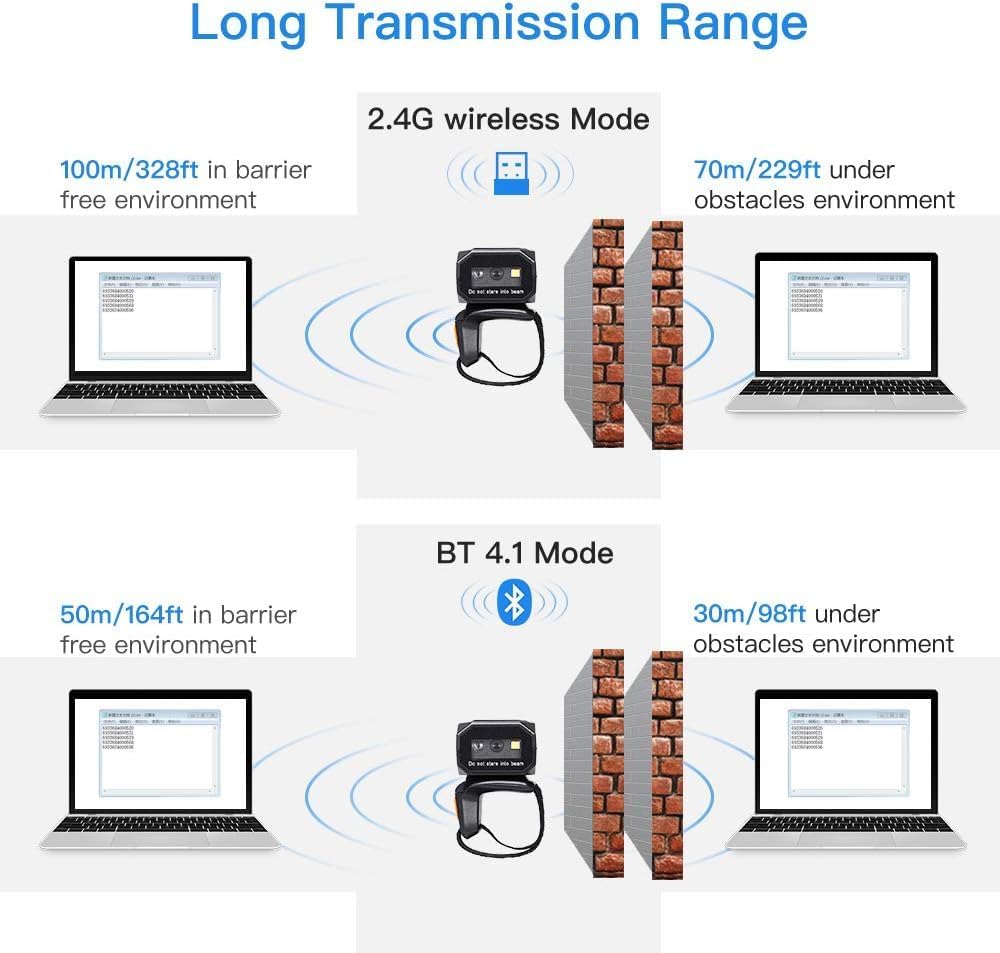
Image: Diagram illustrating the three connection modes: Bluetooth (Wireless Mode - BT 4.1), 2.4G Wireless (Wireless Mode - 2.4G Connection), and USB Wired (Wired Mode - USB Connection).
4.3.1 2.4G Wireless Connection
- Insert the 2.4G USB dongle into an available USB port on your computer or device.
- The scanner will automatically attempt to pair with the dongle. A successful connection is indicated by a specific sound or light pattern (refer to scanner's indicator guide).
4.3.2 Bluetooth Connection
- Ensure Bluetooth is enabled on your host device (PC, smartphone, tablet).
- Scan the Bluetooth pairing barcode (usually found in the full manual or on a setup card).
- On your host device, search for available Bluetooth devices and select "Eyoyo Scanner" (or similar name) to pair.
- A successful connection is indicated by a specific sound or light pattern.
4.3.3 USB Wired Connection
- Connect the scanner to your computer using the provided USB cable.
- The scanner will function as a plug-and-play device, typically requiring no additional driver installation.

Image: Illustration of transmission ranges for 2.4G wireless mode (up to 100m/328ft in barrier-free environment, 70m/229ft with obstacles) and Bluetooth 4.1 mode (up to 50m/164ft in barrier-free environment, 30m/98ft with obstacles).
5. Operating Instructions
5.1 Scanning Barcodes
To scan a barcode, point the scanner's window at the barcode and press the scan button. The scanner will emit a light beam to read the code. A successful scan is typically indicated by a beep and/or a green light.

Image: The Eyoyo EY-016Z scanner demonstrating its ability to capture various 1D and 2D barcodes, including QR Code, Data Matrix, Maxicode, Aztec code, UPC/EAN, and PDF417.
5.2 Upload Modes
The scanner supports two data upload modes:
- Instant Upload Mode: Scanned data is immediately transmitted to the connected device.
- Storage Mode: Scanned data is stored in the scanner's internal memory and can be uploaded later. This is useful when out of range of a host device. To upload stored data, scan the 'Upload Data' barcode (refer to the full manual for specific configuration barcodes).

Image: Visual representation of the two upload modes: Instant Upload Mode (data sent immediately) and Storage Mode (data saved internally for later upload).
5.3 Customizing Settings
The scanner can be configured by scanning specific setup barcodes (provided in the full user manual). These settings include:
- Enabling/disabling sound.
- Enabling/disabling vibration.
- Adding keyboard keys (e.g., TAB, CR&LF) after each scan.
5.4 Compatibility
The Eyoyo EY-016Z scanner is compatible with a wide range of devices and operating systems, including:
- Laptops and PCs running Windows (XP/7/8/10), Mac OS, and Linux.
- Smartphones and tablets running Android and iOS.
- POS systems.

Image: The Eyoyo EY-016Z scanner shown with various compatible devices like laptops, PCs, smartphones, and tablets, highlighting compatibility with Windows, Android, iOS/MacOS, and Linux.
6. Maintenance
6.1 Cleaning
To clean the scanner, use a soft, dry cloth. For stubborn dirt, slightly dampen the cloth with water or a mild, non-abrasive cleaning solution. Do not use harsh chemicals or immerse the scanner in liquid.
6.2 Storage
Store the scanner in a cool, dry place away from direct sunlight and extreme temperatures. When not in use for extended periods, ensure the battery is partially charged (around 50%) to prolong its lifespan.
7. Troubleshooting
7.1 Scanner Not Connecting
- Check Battery: Ensure the scanner is sufficiently charged.
- Verify Mode: Confirm the scanner is in the correct connection mode (2.4G, Bluetooth, or Wired) for your setup.
- Re-pair: For wireless connections, try re-pairing the scanner with your device.
- USB Connection: If wireless fails, try connecting via USB cable to rule out wireless issues.
7.2 Unable to Scan Barcodes
- Barcode Type: Ensure the scanner supports the type of barcode you are trying to scan (1D, 2D, specific symbology).
- Barcode Quality: Check if the barcode is damaged, smudged, or poorly printed.
- Distance/Angle: Adjust the distance and angle between the scanner and the barcode.
- Lighting: Ensure adequate lighting, but avoid direct glare on the barcode.
7.3 Incorrect Data Transmission
- Output Settings: Review the scanner's configuration settings for prefix/suffix, carriage return, or other data formatting options.
- Software Compatibility: Ensure the application receiving the data is correctly configured to accept input from a keyboard wedge device.
8. Safety Information
- Do not expose the scanner to extreme temperatures, humidity, or corrosive substances.
- Avoid dropping or subjecting the scanner to severe impact.
- Do not attempt to disassemble or modify the scanner. This will void the warranty.
- Do not stare directly into the scanner's light beam, as it may cause eye discomfort.
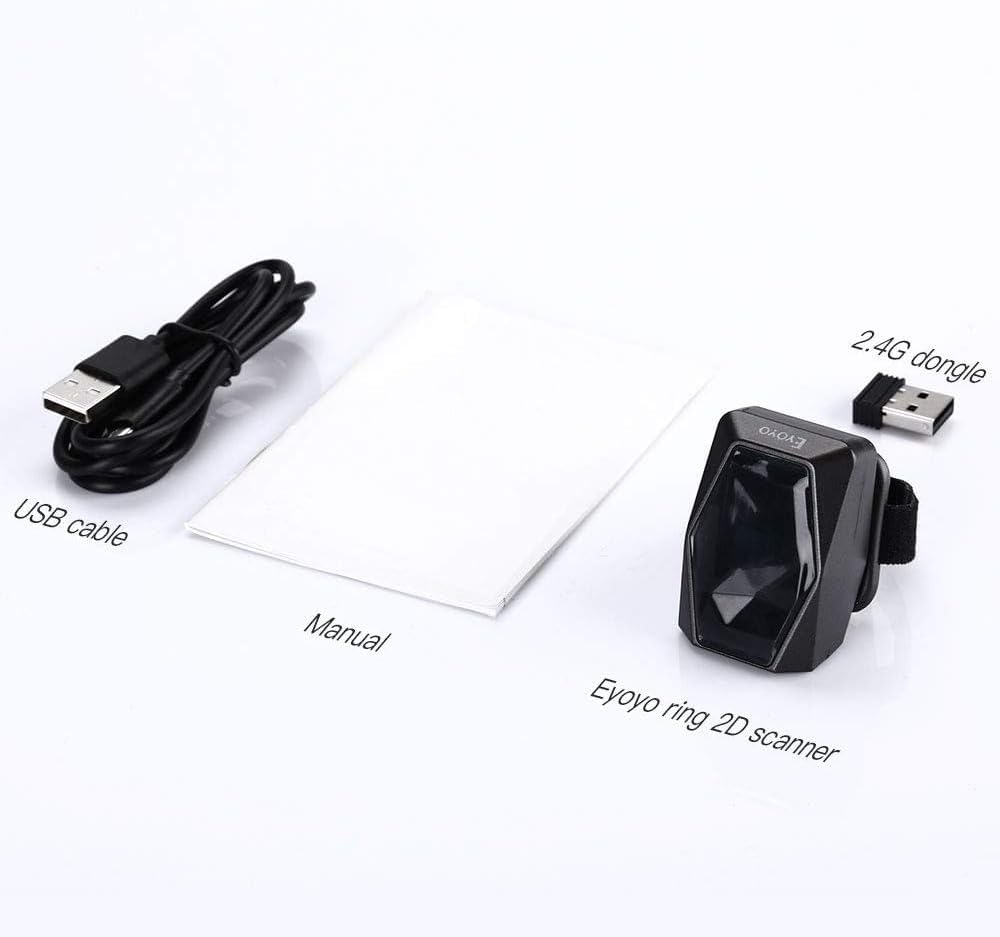
Image: Visual warnings against improper handling of the scanner, specifically advising not to twist the scanner head in certain directions or drag it incorrectly, to prevent damage.
9. Specifications
| Feature | Specification |
|---|---|
| Model Number | EY-016Z |
| Product Dimensions | 4.41 x 3.23 x 1.69 inches (11.2 x 8.2 x 4.3 cm) |
| Item Weight | 3.99 ounces (113 grams) |
| Connectivity Technology | 2.4G Wireless, Bluetooth, USB Cable |
| Compatible Devices | Desktop, Laptop, POS, Smartphone, Tablet |
| Battery Type | 1 Nonstandard Battery (included) |
| Battery Capacity | 450mAh |
| Continuous Working Time | Up to 8 hours |
| 1D Barcode Support | EAN, UPC, Code 39, Code 93, Code 128, UCC/EAN 128, Codabar, Interleaved 2 of 5, ITF-6, ITF-14, ISBN, ISSN, MSI-Plessey, GS1 Databar, GS1 Composite Code, Code 11, Industrial 25, Standard 25, Plessey, Matrix 2 of 5 |
| 2D Barcode Support | QR, DataMatrix, PDF417, Aztec, Maxicode, Hanxin |
10. Warranty and Support
Eyoyo products typically come with a standard manufacturer's warranty. Please refer to the warranty card included in your package or visit the official Eyoyo website for detailed warranty terms and conditions. For technical support, troubleshooting assistance, or service inquiries, please contact Eyoyo customer support through their official channels.


