
Introduction
This user manual provides detailed instructions for the installation, operation, and maintenance of your BDFFLY Wireless HDMI Transmitter and Receiver (Model W3103). Please read this manual thoroughly before using the product to ensure proper functionality and to prevent damage.
The BDFFLY W3103 allows for wireless transmission of HDMI signals, supporting up to 4K decoding and 1080p@60Hz output. It features dual-band (2.4GHz/5GHz) connectivity for stable transmission over long distances, and a plug-and-play design for ease of use.
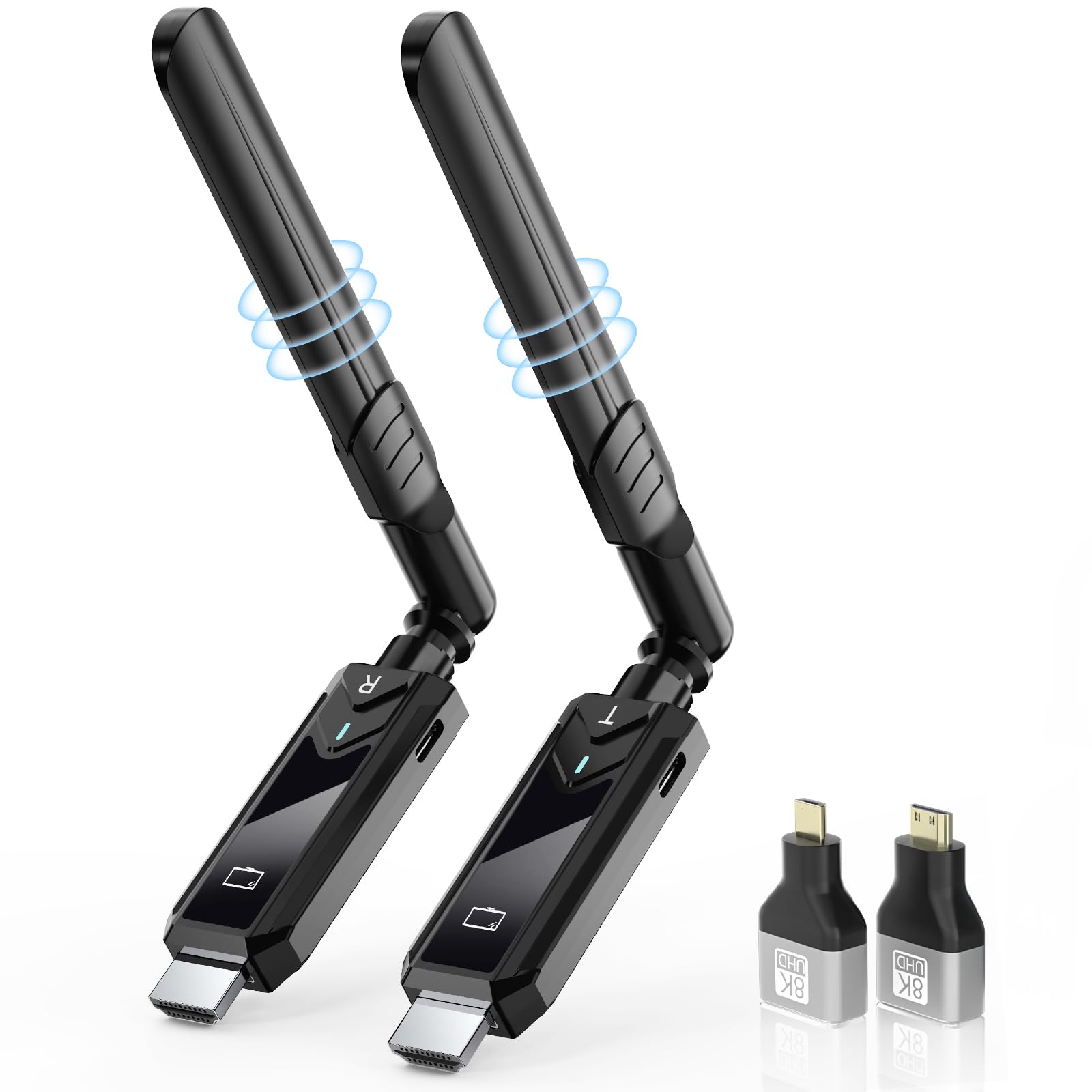
Image: BDFFLY Wireless HDMI Transmitter and Receiver.
Product Overview
Key Features
- Multi-Screen Wireless Expansion: Supports transmitting content wirelessly to multiple displays. A single transmitter can manage up to four receivers (additional receivers sold separately).
- Plug and Play Connectivity: No tangled cables, Wi-Fi, Bluetooth, or complex configurations required. Connects devices within 10 seconds.
- 4K Decoding & 1080p High-Definition Output: Supports up to 4K resolution decoding and delivers ultra-high-definition 1080p image quality at 60Hz.
- Ultra-Long Range Transmission & Dual-Frequency Stability: Supports transmission distances up to 150 meters (500 feet) with dual-band (5GHz and 2.4GHz) chip for enhanced anti-interference capabilities.
- Wide Compatibility: Includes Micro HDMI and Mini HDMI adapters for compatibility with various HDMI display devices. Supports laptops, PCs, MacBooks, cameras, set-top boxes, Blu-ray/DVD players, game consoles, smartphones, tablets, and more.
- Cooling and Temperature Control: Automatic temperature control technology prevents overheating for stable, long-term performance.
Package Contents

Image: Package contents of the BDFFLY Wireless HDMI Extender.
- Wireless Transmitter (TX) x 1
- Wireless Receiver (RX) x 1
- Type-C Cable x 2
- Mini HDMI Adapter x 1
- Micro HDMI Adapter x 1
- User Manual x 1
Device Compatibility

Image: Compatible HDMI input and output devices.
Setup Instructions
Follow these steps to set up your BDFFLY Wireless HDMI Transmitter and Receiver:

Image: Step-by-step setup guide for the BDFFLY Wireless HDMI Extender.
- Step 1: Install Receiver (RX)
Connect the receiver (RX) to an HDMI input port on your monitor or television. Use a USB-C cable to connect the receiver to a power source of at least 5V/2A. Wait approximately 10 seconds and adjust the monitor or TV's HDMI input to the corresponding port until a display appears.
- Step 2: Install Transmitter (TX)
Connect the transmitter (TX) to the HDMI output port of your source device, such as a laptop. Ensure the transmitter is also connected to a power source of at least 5V/1A. After the light indicator flashes rapidly for about ten seconds, the screen projection should complete.
- Step 3: Status Monitoring
Keep the indicators on both the receiver and transmitter illuminated. The transmitter can check the signal strength and power status.
Important Note: If the power supply from the main device is insufficient or unstable for high-definition devices, connect the transmitter to a miniature 5V/1A power adapter to ensure stable operation.
Operating Instructions
Display Modes
The device supports two primary display modes:

Image: Illustration of Copy Mode and Extended Mode display options.
- Copy Mode: Duplicates the content from your source device's screen onto the connected display.
- Extended Mode: Extends your desktop across both your source device's screen and the connected display, allowing for more workspace.
To switch between modes, refer to your operating system's display settings (e.g., Windows Display Settings or macOS System Preferences).
Audio Synchronization
The device features automatic audio synchronization, supporting SBC level audio decoding and 48 kHz/16-bit audio compatibility for a seamless audio-visual experience.

Image: Automatic audio synchronization feature.
Maintenance
- Keep the devices clean and free from dust. Use a soft, dry cloth for cleaning.
- Avoid exposing the devices to extreme temperatures, humidity, or direct sunlight.
- Do not attempt to disassemble or repair the devices yourself. This may void the warranty and cause damage.
- Ensure proper ventilation around the devices to prevent overheating. The built-in temperature control system helps manage heat, but good airflow is still recommended.
Troubleshooting
| Problem | Possible Cause | Solution |
|---|---|---|
| No display on screen. |
|
|
| Unstable or flickering image. |
|
|
| No audio. |
|
|
| Latency or lag. |
|
|
Specifications
| Feature | Detail |
|---|---|
| Brand | BDFFLY |
| Model | W3103 |
| Dimensions | 10 x 5 x 20 cm (approximate) |
| Weight | 160 g |
| Hardware Interface | 802.11 ac/b/g/n |
| Data Link Protocol | Bluetooth, IEEE 802.11n or IEEE 802.11ac |
| Max Transmission Distance | Up to 150 meters (500 feet) |
| Video Decoding | Up to 4K resolution |
| Output Resolution | 1080p @ 60Hz |
| Frequency Bands | 2.4 GHz, 5 GHz |
| Power Input | 5V/1A (TX), 5V/2A (RX) recommended |
| Compatible Devices | Game consoles, cameras, set-top boxes, monitors, desktop computers, laptops, projectors, Blu-ray/DVD players, smartphones, tablets, televisions. |
Warranty and Support
For warranty information and technical support, please refer to the contact details provided with your purchase or visit the official BDFFLY website. Keep your purchase receipt for warranty claims.
If you encounter any issues not covered in this manual, please contact customer support for assistance.
