
1. Introduction
This manual provides comprehensive instructions for the ZYXEL NebulaFlex NWA30BE Dual Band Wi-Fi 7 Wireless Access Point. It covers setup, operation, maintenance, and troubleshooting to ensure optimal performance and reliable wireless connectivity.
Key Features
- BE5100 (2.4GHz: 2x2:2, 5GHz: 2x2:2) dual-radio access point offers blazingly fast WiFi 7 speeds of up to 5.1Gbps.
- WiFi 7's MLO allows simultaneous data transmission across multiple bands, increasing speed, lowering latency, and improving reliability.
- Desktop design requires no installation or mounting, enabling quick and effortless deployment.
- The 2.5GbE uplink port enables multi-gig speeds for WiFi 7 while staying compatible with existing networks.
- NebulaFlex allows users to switch between standalone or intuitive Nebula cloud managed modes as needed.

Figure 1: Main Features of the NWA30BE Access Point
2. Package Contents
Verify that all items are present in your package:
- BE5100 4-Stream WiFi 7 Dual-Radio Desktop NebulaFlex Access Point
- Power Adapter
- Ethernet Cable
3. Product Overview
Familiarize yourself with the physical components and indicators of your NWA30BE Access Point.
Ports and Buttons

Figure 2: Rear Ports of the NWA30BE
- DC Jack: Connect the included power adapter here.
- 2.5GbE Uplink: Connect an Ethernet cable from your router or switch to this port for network and internet access. This port supports multi-gig speeds.
- Reset Button: Use a paperclip to press and hold for 5-10 seconds to restore factory default settings.
LED Indicators

Figure 3: Front LED Indicator
- Green (Solid): Device is powered on and operating normally.
- Green (Blinking): Device is booting up or performing a firmware upgrade.
- Amber (Solid): Device is in standalone mode and ready for initial configuration.
- Amber (Blinking): Network connectivity issue or error.
4. Setup
The NWA30BE is designed for quick and effortless desktop deployment, requiring no complex installation or mounting.
Initial Placement
Place the access point on a flat, stable surface in a central location within the desired coverage area. Avoid placing it near large metal objects, concrete walls, or other devices that may cause interference.

Figure 4: Desktop Placement for Wi-Fi 7 Access Point
Connecting the Access Point
- Connect one end of the included Ethernet cable to the 2.5GbE Uplink port on the NWA30BE.
- Connect the other end of the Ethernet cable to a LAN port on your router or network switch.
- Connect the power adapter to the DC Jack on the NWA30BE and plug it into a power outlet.
- Wait for the LED indicator to turn solid green, indicating the device is ready.
5. Operating Instructions
The NWA30BE offers flexible management options through NebulaFlex, allowing you to choose between standalone mode or cloud-managed mode via the ZYXEL Nebula platform.
NebulaFlex Modes
- Standalone Mode: Configure the access point directly via its web interface. This is suitable for single-device deployments or small networks.
- Nebula Cloud Managed Mode: Integrate the access point into the ZYXEL Nebula cloud platform for centralized management of multiple devices, advanced features, and scalability.

Figure 5: Easy Configuration with Nebula

Figure 6: Scalability with Nebula Cloud Management
Enhancing Wi-Fi Coverage with Smart Mesh
The NWA30BE supports Smart Mesh with Multi-Link Operation (MLO), which allows for expanded Wi-Fi coverage without the need for extensive cabling. This feature uses dual-radio backhaul to achieve higher bandwidth, improved resistance to interference, and ultra-low latency, making it ideal for extending your network seamlessly.

Figure 7: Expand Wi-Fi Easily with Smart Mesh
6. Maintenance
Regular maintenance ensures the longevity and optimal performance of your access point.
- Firmware Updates: Periodically check for and install firmware updates to benefit from new features, security enhancements, and bug fixes. This can typically be done through the Nebula cloud platform or the device's standalone web interface.
- Cleaning: Keep the device clean and free from dust. Use a soft, dry cloth to wipe the exterior. Do not use liquid cleaners or aerosols.
- Optimal Placement: Ensure the access point remains in an open area, away from obstructions, to maintain strong signal strength and prevent overheating.
7. Troubleshooting
If you encounter issues with your NWA30BE, refer to the following common troubleshooting steps:
- No Internet Connection:
- Check if the Ethernet cable is securely connected to both the access point and your router/switch.
- Verify that your main internet connection is active.
- Restart the access point and your router.
- Slow Wi-Fi Speed:
- Ensure the access point is placed optimally, away from interference sources.
- Check for firmware updates.
- Confirm that your client devices support Wi-Fi 7 for maximum speeds.
- If using Nebula cloud, check network traffic and bandwidth limits.
- Device Not Responding:
- Perform a soft reset by unplugging and replugging the power adapter.
- If the issue persists, perform a factory reset using the reset button (refer to Section 3). Note that a factory reset will erase all custom configurations.
8. Technical Specifications
Detailed specifications for the ZYXEL NebulaFlex NWA30BE Access Point:
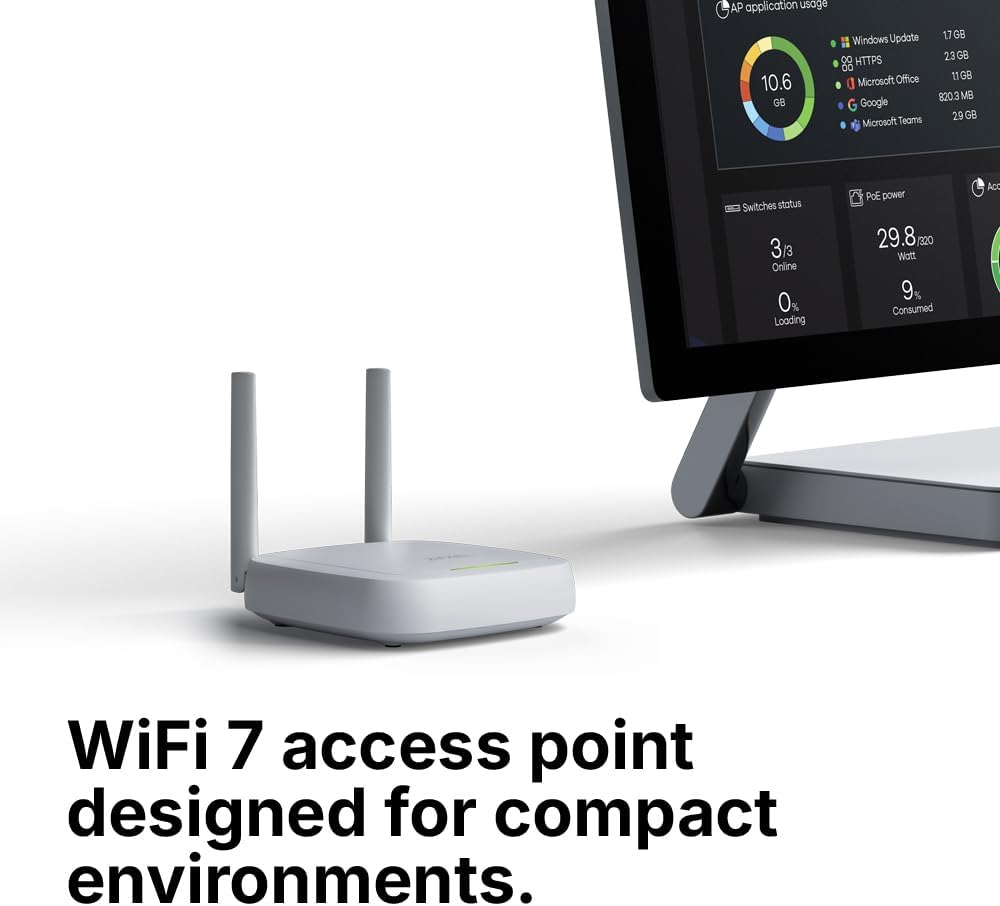
Figure 8: NWA30BE Dimensions
| Feature | Specification |
|---|---|
| Brand | ZYXEL |
| Model Name | NebulaFlex |
| Model Number | NWA30BE |
| Frequency Band Class | Dual-Band |
| Wireless Communication Standard | 802.11.be (Wi-Fi 7) |
| Data Transfer Rate | 5.1 Gigabits Per Second |
| LAN Port Bandwidth | 2500 Mbps |
| Connectivity Technology | Wi-Fi, Ethernet |
| Item Weight | 1.5 Pounds |
9. Warranty and Support
Your ZYXEL NebulaFlex NWA30BE Access Point comes with a manufacturer's warranty and access to support resources.
Warranty Information
This product is covered by a 2-year Manufacturer's Warranty. Please retain your proof of purchase for warranty claims.
Customer Support
For technical assistance, troubleshooting, or warranty inquiries, please visit the official ZYXEL support website or contact their customer service. You can find additional resources and FAQs on the ZYXEL website.
For more information, visit the ZYXEL Store on Amazon.


