
Important Safety Information
Please read all instructions carefully before using this monitor. Keep this manual for future reference.
- Do not place the monitor near water or in humid environments.
- Ensure proper ventilation around the monitor to prevent overheating.
- Use only the power adapter provided with the monitor.
- Avoid exposing the monitor to direct sunlight or extreme temperatures.
- Do not attempt to repair the monitor yourself. Refer all servicing to qualified personnel.
- Clean the screen with a soft, lint-free cloth. Avoid using harsh chemicals.
Package Contents
Please verify that all the following items are included in your package:
- 31.5-inch 2K 120Hz Monitor (x1)
- Monitor Stand (x1)
- Quick Start Guide (QSG) (x1)
- HDMI Cable (x1)
- Power Adapter (x1)
- Power Cord (x1)

An image showing the monitor's dimensions and a list of included accessories: monitor, QSG, HDMI cable, adapter, power cord, and monitor stand.
Setup
Monitor Assembly
Follow these steps to assemble the monitor stand and attach it to the display panel:
- Carefully remove the monitor and stand components from the packaging.
- Attach the base to the stand column, securing it with the provided screw.
- Align the assembled stand with the mounting points on the back of the monitor panel.
- Gently push the stand into place until it clicks securely.
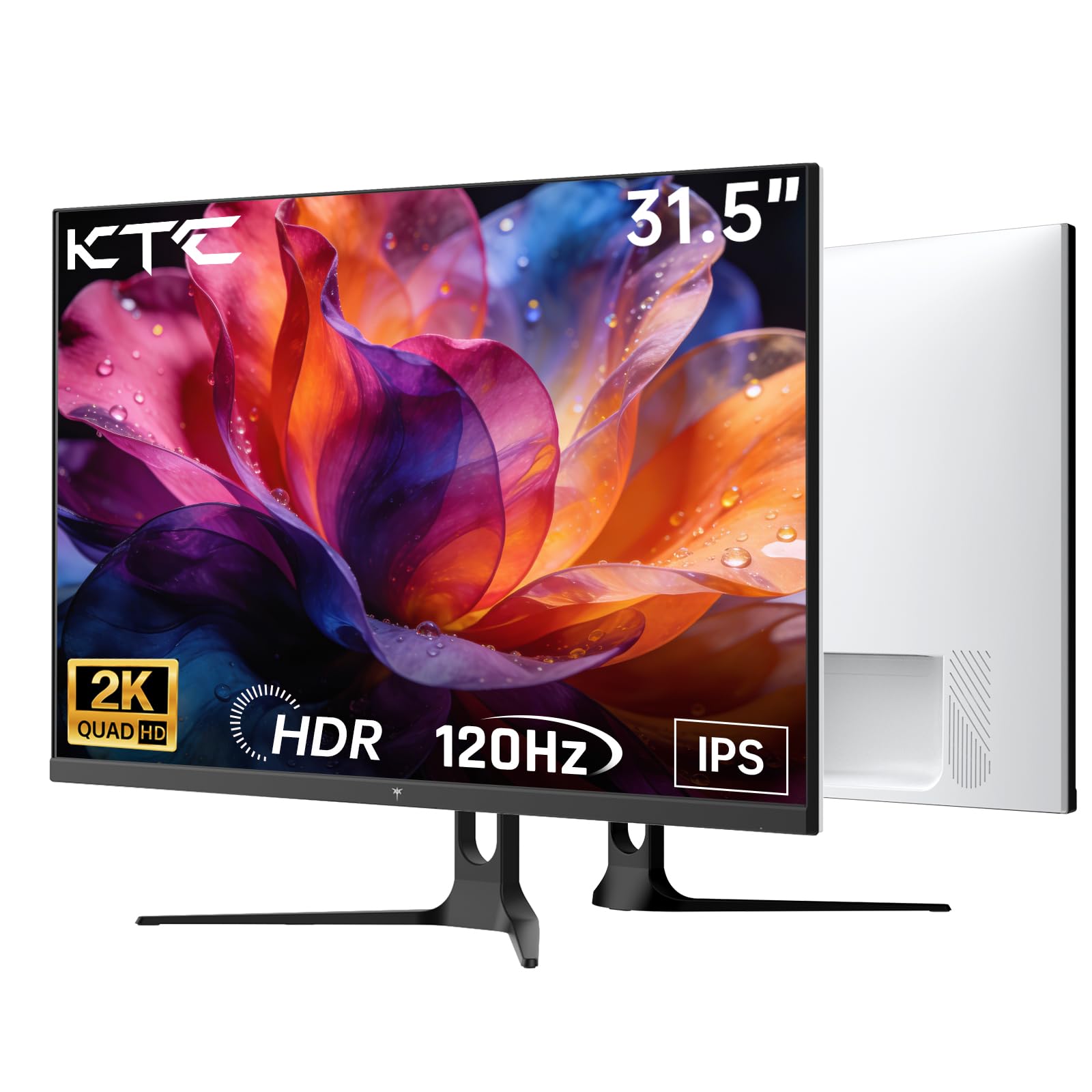
Front view of the KTC H32D6 31.5-inch monitor on its stand.
Connectivity
Connect your monitor to a power source and your computer using the appropriate cables:
- Connect the power adapter to the monitor's DC input port, then plug the power cord into an electrical outlet.
- For video input, connect one end of the HDMI or DisplayPort cable to your computer's graphics card and the other end to the corresponding port on the monitor.
- If desired, connect headphones or external speakers to the earphone jack.

Close-up of the monitor's rear panel, highlighting the HDMI 2.0 ports (x2), DisplayPort 1.4 (x1), and earphone jack.
This video provides an overview of the KTC 32 Inch 2K 120Hz Computer Monitor, showcasing its features and benefits in a dynamic presentation.
Operating Instructions
Power On/Off
Press the power button (usually located on the back or bottom right of the monitor) to turn the monitor on or off. The power indicator light will illuminate when the monitor is on.
On-Screen Display (OSD) Menu Navigation
The monitor features an intuitive OSD menu for adjusting various settings. Use the joystick or buttons (depending on your model) on the back of the monitor to navigate the menu:
- Press the joystick/button to open the OSD menu.
- Move the joystick up/down or left/right to select menu options.
- Press the joystick/button again to confirm a selection or enter a sub-menu.
- To exit the OSD menu, navigate to the 'Exit' option or hold the joystick/button for a few seconds.
Adjusting Display Settings
Within the OSD menu, you can adjust settings such as:
- Resolution: Set to QHD (2560x1440) for optimal clarity.
- Refresh Rate: Adjust to 120Hz for ultra-smooth visuals.
- Brightness & Contrast: Fine-tune for your preferred viewing experience.
- Color Settings: Adjust color temperature, gamma, and other color parameters.

An image demonstrating the superior clarity of QHD (2560x1440) resolution compared to FHD (1920x1080) on the monitor screen.

A visual representation of smooth motion on the monitor, illustrating the benefit of a 120Hz refresh rate for seamless visuals.
Adaptive Sync
This monitor supports Adaptive Sync technology (FreeSync, G-Sync Compatible) to eliminate screen tearing and stuttering during gaming or fast-paced video. Ensure Adaptive Sync is enabled in both your monitor's OSD settings and your graphics card control panel for optimal performance.

A side-by-side comparison showing the visual difference with Adaptive Sync ON (smooth image) and OFF (screen tearing) during fast-paced action.
HDR10 Support
The monitor supports HDR10, providing a wider range of colors and contrast for a more immersive viewing experience. To utilize HDR10, ensure your content and graphics card support HDR, and enable it in your operating system display settings.

An image highlighting the enhanced color and contrast provided by HDR10 technology.
Eye Care Features
The KTC H32D6 monitor includes Low Blue Light and Flicker-Free technologies to reduce eye fatigue during prolonged use. These features are designed to provide a more comfortable viewing experience.

An image illustrating the eye care features, including low blue light and flicker-free technology, designed to reduce eye strain.
Tilt Adjustment
The monitor stand allows for tilt adjustment from -5° to 20°. Gently adjust the monitor panel to your desired viewing angle for ergonomic comfort.

An image demonstrating the wide 178-degree viewing angle provided by the IPS panel, ensuring consistent image quality from various positions.
Maintenance
Proper maintenance ensures the longevity and optimal performance of your monitor.
- Cleaning the Screen: Gently wipe the screen with a soft, dry, lint-free cloth. For stubborn marks, lightly dampen the cloth with water or a screen-cleaning solution specifically designed for monitors. Never spray liquid directly onto the screen.
- Cleaning the Casing: Use a soft, dry cloth to clean the monitor's casing. Avoid abrasive cleaners or solvents.
- Power Off When Not in Use: Turn off the monitor when not in use to save energy and extend its lifespan.
- Avoid Obstructions: Ensure that the ventilation openings on the monitor are not blocked to prevent overheating.
Troubleshooting
If you encounter issues with your monitor, refer to the following common problems and solutions:
| Problem | Possible Solution |
|---|---|
| No image on screen | Ensure the power cable is securely connected and the monitor is turned on. Check that the video cable (HDMI/DP) is firmly connected to both the monitor and your computer. Select the correct input source via the OSD menu. |
| Image is flickering or unstable | Check the video cable connection. Ensure your graphics card drivers are up to date. Verify that the refresh rate is set correctly in your computer's display settings. Enable Adaptive Sync if supported by your graphics card. |
| Colors appear incorrect | Adjust color settings (brightness, contrast, color temperature) in the OSD menu. Ensure HDR is correctly configured in your operating system if you are using HDR content. |
| Monitor not recognized by computer | Restart your computer. Try a different video port or cable. Update your graphics card drivers. |
Specifications
Key technical specifications for the KTC H32D6 monitor:
| Feature | Specification |
|---|---|
| Brand | KTC |
| Model Number | H32D6 |
| Screen Size | 31.5 Inches |
| Resolution | QHD Wide 1440p (2560 x 1440 Pixels) |
| Refresh Rate | 100 Hz (up to 120Hz overclocked) |
| Display Type | IPS |
| Response Time | 7 Milliseconds |
| Aspect Ratio | 16:9 |
| Brightness | 350 Candela (cd/m²) |
| Contrast Ratio | 1000:1 |
| Viewing Angle | 178 Degrees |
| Color Gamut | 109% sRGB |
| Picture Quality Enhancement | HDR10 |
| Connectivity | 2 x HDMI 2.0, 1 x DisplayPort 1.4, Earphone Jack |
| Adaptive Sync | FreeSync, G-Sync Compatible |
| Additional Features | Eye Care, Flicker-Free, Tilt Adjustment, VESA 100x100mm Compatible |
| Power Consumption | 48 Watts |
| Item Dimensions (D x W x H) | 7.09"D x 28.23"W x 20.08"H |
Warranty and Support
Warranty Information
This KTC H32D6 monitor comes with a 3-Year Manufacturer Warranty. This warranty covers defects in materials and workmanship under normal use. Please retain your proof of purchase for warranty claims.
The warranty does not cover damage caused by misuse, accidents, unauthorized modifications, or external factors such as power surges.
Customer Support
For technical assistance, warranty claims, or any other inquiries, please contact KTC customer support through the official website or the contact information provided with your purchase. You may also refer to the Quick Start Guide for additional support resources.