
Introduction
Thank you for choosing the ONIKUMA GAMING T27 2.4G Wireless Gaming Earbuds. These earbuds are designed to provide a high-quality audio experience for gaming and communication, featuring ultra-low latency and Environmental Noise Cancellation (ENC) microphone technology. This manual will guide you through the setup, operation, and maintenance of your new earbuds.
Setup
1. Charging the Earbuds and Case
Before first use, ensure both the earbuds and the charging case are fully charged. The charging case features a USB-C port for convenient charging.
- Connect the provided USB-C charging cable to the charging port on the case and to a power source.
- Place the earbuds into the charging case. The LED indicators on the case and earbuds will show charging status.
- A full charge typically takes approximately 1.5 hours for the case. The earbuds provide 4-6 hours of battery life, with the charging case extending total usage to about 28 hours.
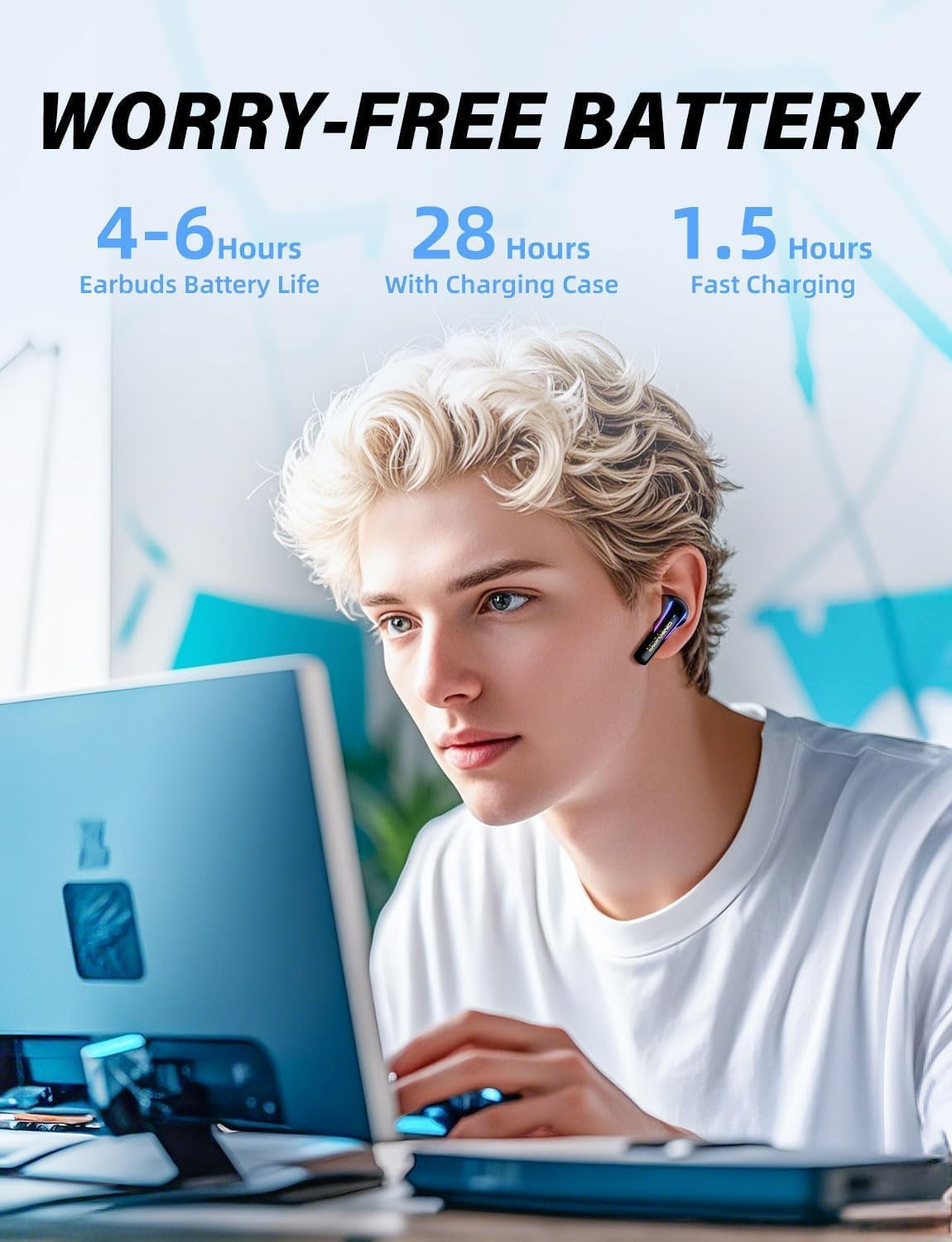
Image: The ONIKUMA GAMING T27 earbuds and charging case, illustrating battery life: 4-6 hours for earbuds, 28 hours with charging case, and 1.5 hours for fast charging.
2. Connecting via 2.4GHz USB-C Dongle (Gaming Mode)
For ultra-low latency gaming, use the 2.4GHz USB-C dongle.
- Remove the USB-C dongle from its storage slot within the charging case.
- Plug the USB-C dongle into a compatible device (PC, PS4, PS5, VR Headsets, Nintendo Switch, etc.).
- Take the earbuds out of the charging case. They will automatically attempt to connect to the dongle.
- Once connected, the earbuds will enter gaming mode, indicated by specific LED patterns (refer to LED indicator section for details).
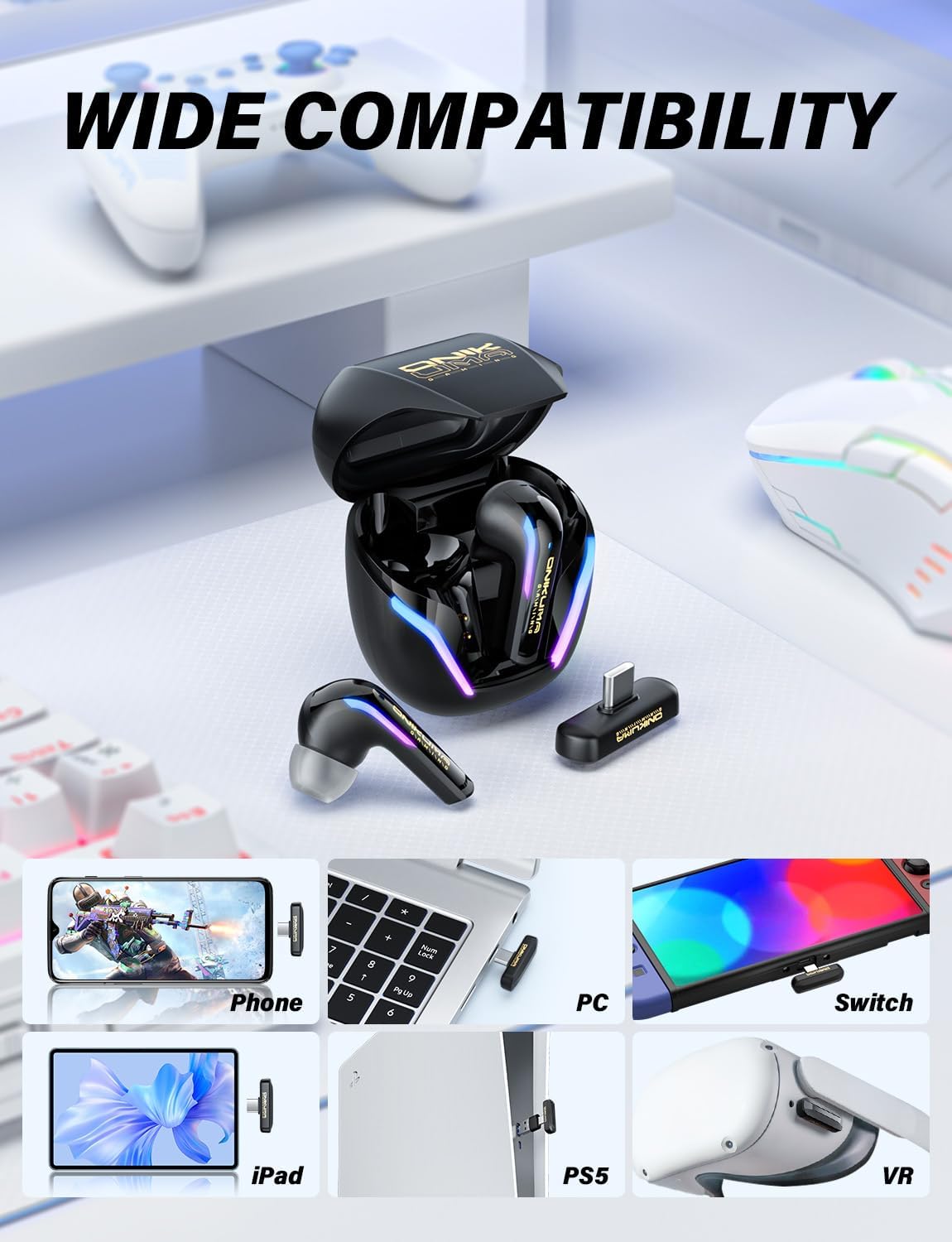
Image: The ONIKUMA GAMING T27 earbuds and charging case with the USB-C dongle, showcasing compatibility with various devices including phones, PCs, Nintendo Switch, iPads, PS5, and VR headsets.
3. Connecting via Bluetooth 5.3 (Music/Call Mode)
For general use with mobile devices or other Bluetooth-enabled systems, use Bluetooth mode.
- Ensure the earbuds are out of the charging case.
- On your device, enable Bluetooth and search for available devices.
- Select "ONIKUMA T27" from the list of discovered devices to pair.
- Once paired, the earbuds will enter music/call mode.

Image: A person wearing the ONIKUMA GAMING T27 earbuds with a VR headset, illustrating the dual-mode smart switch for gaming via dongle and calls via Bluetooth.
Operating Instructions
Power On/Off
- Power On: Open the charging case, and the earbuds will automatically power on. Alternatively, press and hold the touch control area on both earbuds for 3 seconds.
- Power Off: Place the earbuds back into the charging case and close the lid. Alternatively, press and hold the touch control area on both earbuds for 5 seconds.
Touch Controls
The ONIKUMA GAMING T27 earbuds feature intuitive touch controls for various functions:
| Function | Action |
|---|---|
| Play/Pause Music | Single tap on either earbud. |
| Next Track | Double tap on the right earbud. |
| Previous Track | Double tap on the left earbud. |
| Answer/End Call | Single tap on either earbud. |
| Reject Call | Press and hold on either earbud for 2 seconds. |
| Activate Voice Assistant | Triple tap on either earbud. |
| Switch Gaming/Music Mode | Press and hold on the right earbud for 2 seconds (when connected via dongle). |
Microphone Usage (ENC Mic)
The earbuds are equipped with an Environmental Noise Cancellation (ENC) microphone, featuring two built-in AI advanced mics for clear calls and noise reduction. This ensures your voice is transmitted clearly during communication, even in noisy environments.
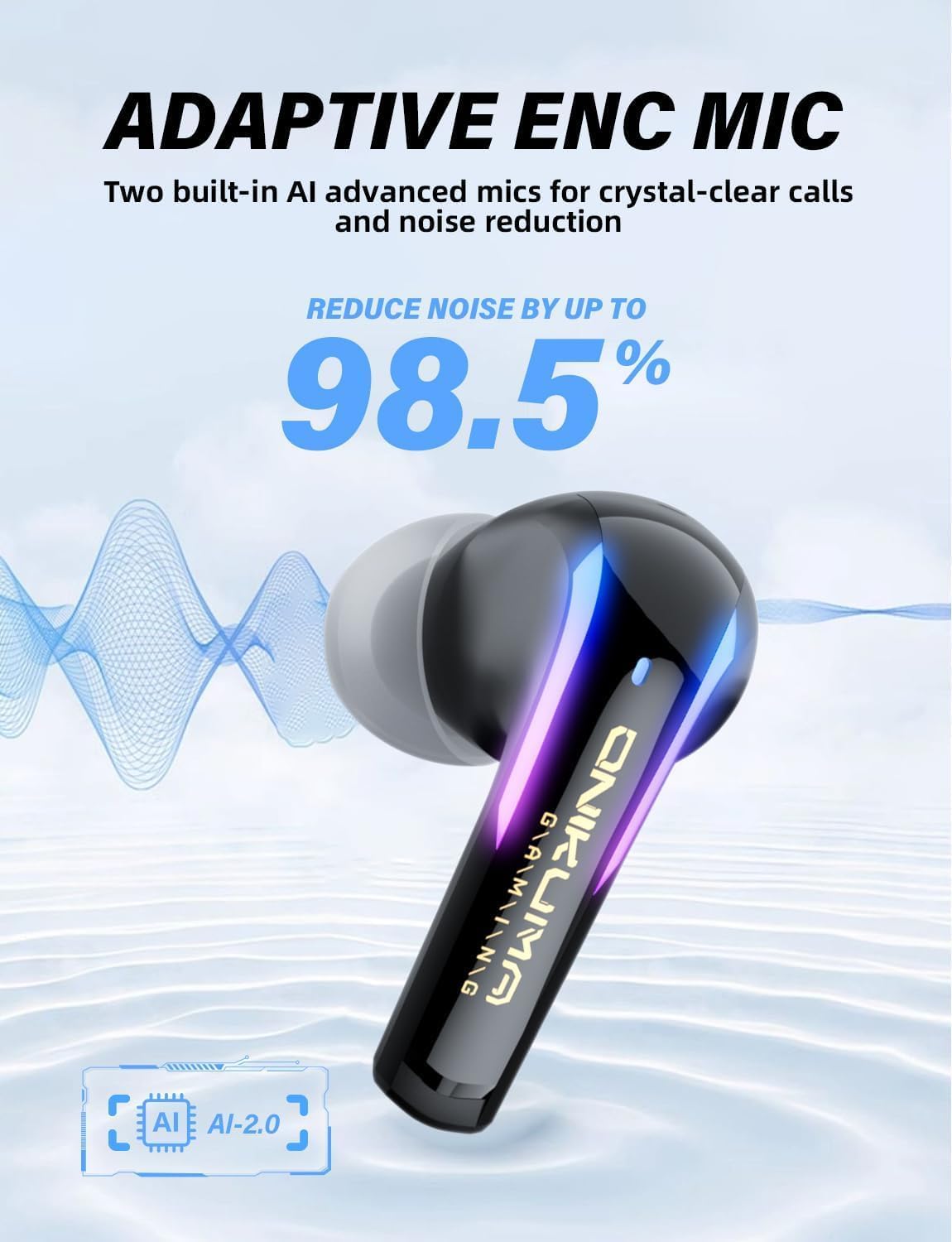
Image: A close-up of an ONIKUMA GAMING T27 earbud, highlighting the adaptive ENC microphone technology for crystal-clear calls and up to 98.5% noise reduction.
Audio Quality
The T27 earbuds feature 13mm custom drivers for crisp, hi-res sound. They are designed to deliver clear audio with a tactical-level sound positioning system, enhancing your gaming experience.
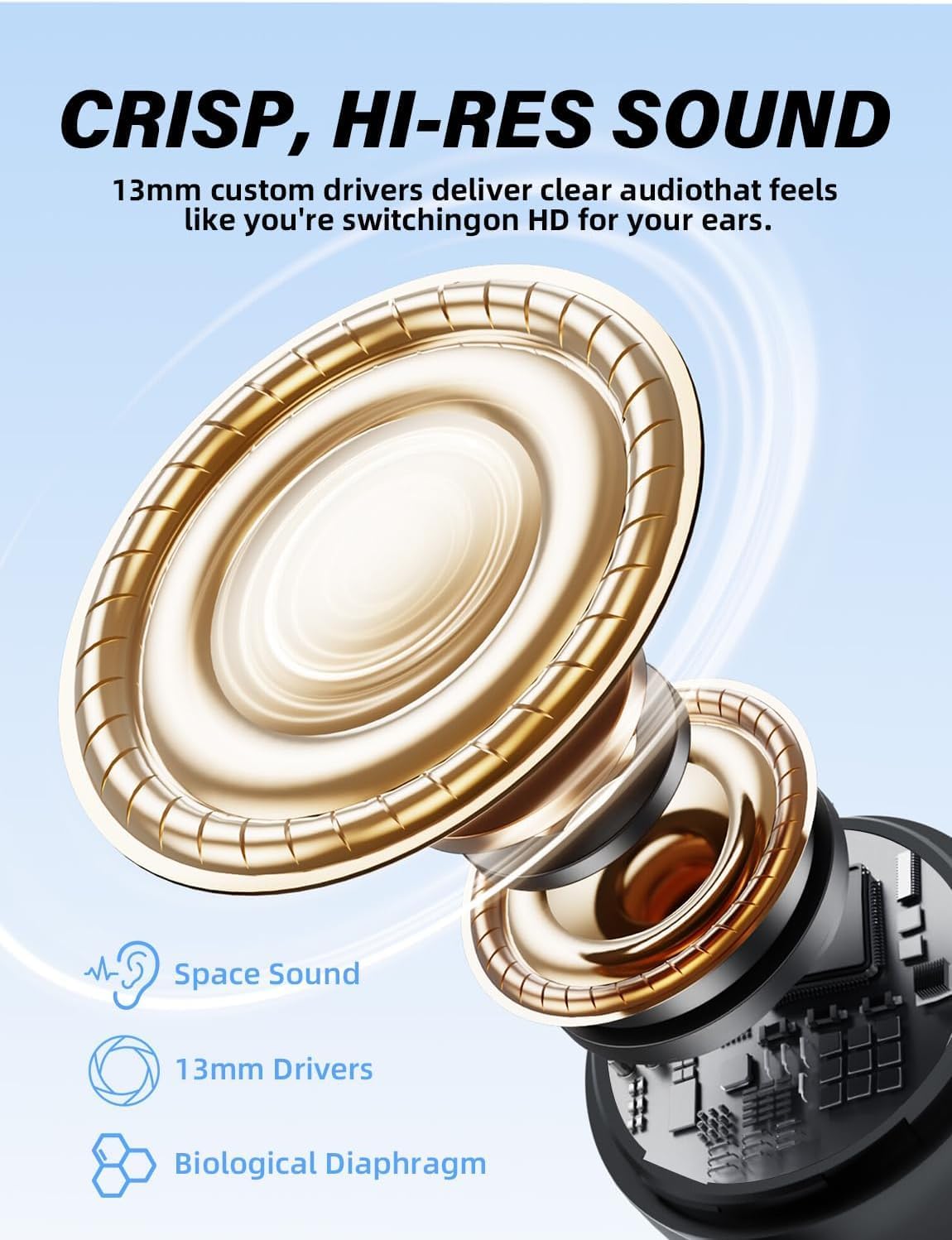
Image: An illustration of the 13mm custom drivers within the ONIKUMA GAMING T27 earbuds, emphasizing crisp, hi-res sound and space sound technology.
Maintenance
Cleaning
- Regularly clean the earbuds and charging case with a soft, dry, lint-free cloth.
- Do not use harsh chemicals, cleaning solvents, or strong detergents.
- Gently remove any earwax or debris from the ear tips and speaker mesh using a small, soft brush or cotton swab.
- Ensure the charging contacts on both the earbuds and the case are clean and dry to maintain proper charging.
Storage
- When not in use, always store the earbuds in their charging case to protect them and keep them charged.
- Store the device in a cool, dry place, away from extreme temperatures and direct sunlight.
Troubleshooting
If you encounter issues with your ONIKUMA GAMING T27 earbuds, please refer to the following common solutions:
Earbuds Not Connecting/Pairing
- Check Battery: Ensure both earbuds and the charging case have sufficient charge.
- Re-pair:
- Place earbuds back into the charging case, close the lid, and wait a few seconds.
- Remove them from the case and try pairing again.
- For Bluetooth, forget "ONIKUMA T27" from your device's Bluetooth settings and re-pair.
- Dongle Connection: Ensure the 2.4GHz USB-C dongle is fully inserted into the device's port. Try a different USB-C port if available.
- Interference: Move away from other wireless devices that might cause interference.
No Sound or Low Volume
- Volume Levels: Adjust the volume on both your connected device and the earbuds.
- Earbud Placement: Ensure earbuds are correctly seated in your ears.
- Clean Earbuds: Check for any debris blocking the speaker mesh.
Microphone Issues
- Microphone Blockage: Ensure the microphone ports are not obstructed.
- Device Settings: Check your device's audio input settings to ensure the earbuds' microphone is selected.
- ENC Function: The ENC mic is designed to reduce environmental noise, but extreme noise levels may still affect clarity.
Controls Not Responding
- Restart: Place earbuds back in the case, close, then reopen to reset.
- Clean Touch Area: Ensure the touch control areas are clean and dry.
Specifications
| Feature | Detail |
|---|---|
| Brand | ONIKUMA GAMING |
| Model Number | T27 |
| Ear Placement | In Ear |
| Form Factor | In Ear |
| Noise Control | Active Noise Cancellation (ENC Mic) |
| Control Method | Push Button (Touch Controls) |
| Connectivity Technology | Wireless (Bluetooth, 2.4GHz) |
| Bluetooth Version | 5.3 |
| Bluetooth Range | 10 Meters |
| Battery Average Life (Earbuds) | 4-6 Hours |
| Battery Average Life (with Case) | 28 Hours |
| Charging Time (Fast Charging) | 1.5 Hours |
| Frequency Range | 50Hz-25KHz |
| Audio Driver Type | Dynamic Driver (13mm) |
| Compatible Devices | PC, PS4, PS5, VR Headsets, Nintendo Switch, Mobile Devices |
| Water Resistance Level | Water Resistant |
| Additional Features | ENC Mic, Dual-Mode 2.4GHz + BT5.3, USB-C Dongle, Tactical-level sound Positioning System, Ultra-Competitive Dual-Domain Parallel Protocol, All-Platform Compatible Engine, Dual-mode AI Microphone Array |
Warranty Information
The ONIKUMA GAMING T27 Wireless Gaming Earbuds come with a 2-year warranty from the date of purchase. This warranty covers manufacturing defects and ensures the product meets its specified performance standards under normal use. Please retain your proof of purchase for warranty claims. For detailed terms and conditions, please refer to the official ONIKUMA GAMING website or contact customer support.
Customer Support
For further assistance, technical support, or warranty inquiries, please contact ONIKUMA GAMING customer service through their official website or the contact information provided with your product packaging.
Website: ONIKUMA GAMING Official Store
