
1. Introduction
Welcome to the user manual for your MAGIC-REFINER X68 HE Wired Magnetic Keyboard. This manual provides essential information for setting up, operating, maintaining, and troubleshooting your new device. Please read it thoroughly to ensure optimal performance and longevity of your keyboard.
The MAGIC-REFINER X68 HE is a high-performance 68-key TKL (Tenkeyless) keyboard designed for precision and speed, featuring Hall Effect magnetic switches, adjustable actuation, and dynamic RGB backlighting.
2. Product Overview
The MAGIC-REFINER X68 HE keyboard integrates advanced features for a superior typing and gaming experience. Key highlights include:
- Compact UK QWERTY Layout: A 68-key TKL design that retains essential keys while minimizing desk footprint, featuring an authentic UK layout.
- 0.01mm RT Sensitivity: Adjustable actuation points from 0.1mm to 3.4mm in 0.01mm increments for precise control and zero dead zone.
- Ultra-Fast Hall Effect Magnetic Switches: Delivers an 8000Hz polling rate and 128,000-point scan frequency for ultra-low latency of 0.125ms.
- Web Driver Customization: Intuitive software for key remapping, advanced macros, and RGB lighting personalization.
- Dynamic Keystroke Features: Supports Snap Tap for faster direction changes, Rapid Trigger for fluid movements and instant resets, and Dynamic Keystroke for analog input and up to 4 actions per keypress.
- Dynamic RGB Backlighting: South-facing RGB with customizable effects and colors via the driver software.
- Hot-Swappable Switches: Supports North-Pole-Down magnetic switches for easy replacement and customization.

Figure 2.1: The MAGIC-REFINER X68 HE Wired Magnetic Keyboard, showcasing its compact design and RGB lighting.

Figure 2.2: Overview of the X68 HE highlighting its mechanical magnetic switches, essential for esports players.

Figure 2.3: Detailed view of the Rapid Trigger Hall Effect Magnetic Switch, showing linear switch type, 40±5gf operation force, 100M click lifespan, 0.1-3.4mm actuation point, and zero dead zone.
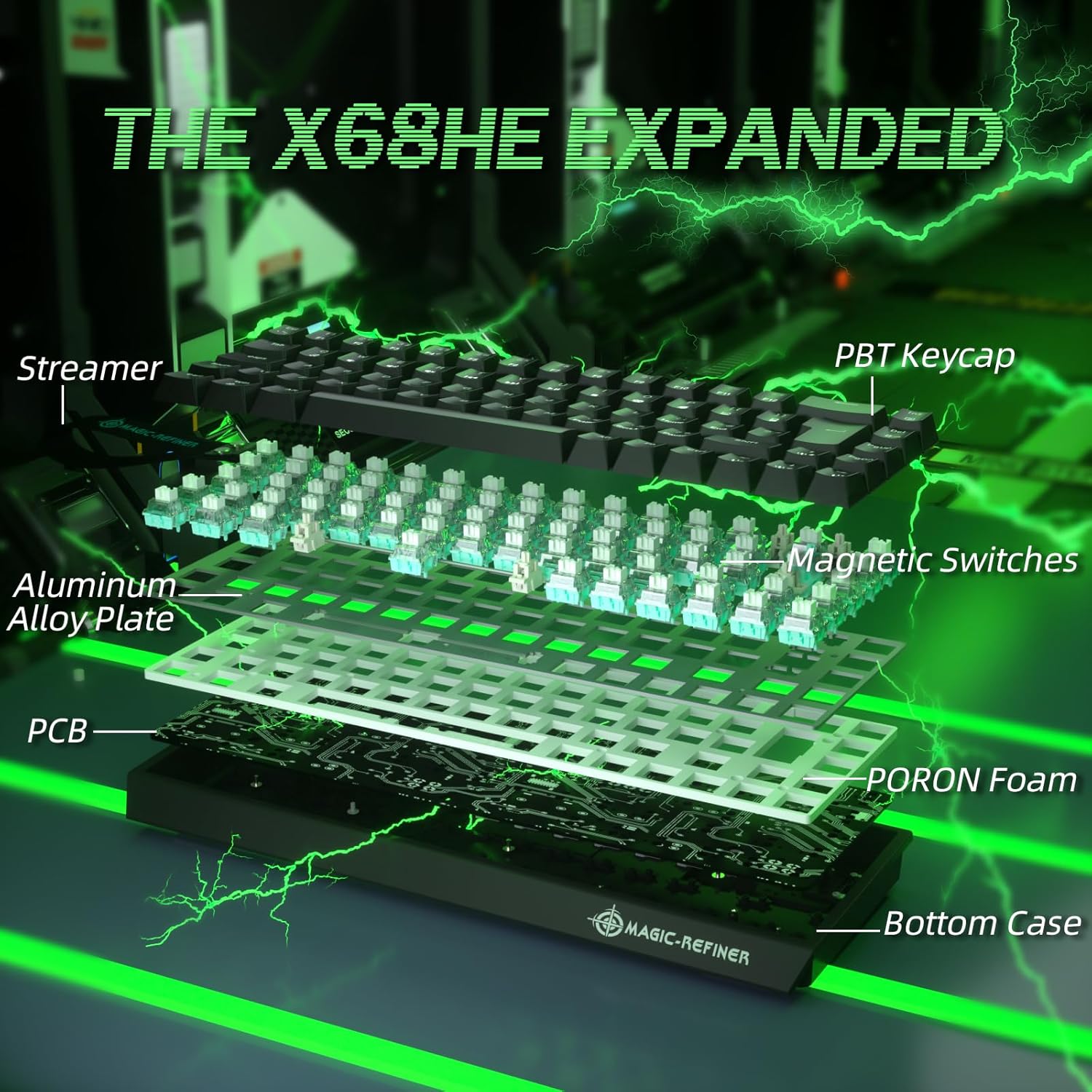
Figure 2.4: Exploded diagram illustrating the internal components of the X68 HE, including PBT keycaps, streamer, aluminum alloy plate, magnetic switches, PCB, and PORON foam.
3. Setup Instructions
- Unpack the Keyboard: Carefully remove the keyboard and its accessories from the packaging.
- Connect to PC: Connect the provided USB-C cable to the keyboard's USB-C port and the other end to an available USB port on your computer. The keyboard is plug-and-play.
- Driver Installation (Optional but Recommended): For full customization, including key remapping, advanced macros, and RGB lighting effects, download and install the dedicated Web Driver. The link for the driver is typically provided on the manufacturer's official website or in the product packaging.
- Placement: Position the keyboard comfortably on your desk. You may adjust the keyboard's angle using the integrated risers on the underside.

Figure 3.1: The compact UK layout of the X68 HE keyboard, showing its dimensions (12.80in width, 4.53in depth, 1.57in height).
4. Operating Instructions
4.1 Basic Keyboard Functions
The X68 HE keyboard operates as a standard QWERTY keyboard. Due to its compact 68-key layout, some functions are accessed via the Function (Fn) key combinations.
- Fn + F1-F12: Access multimedia controls and system functions as indicated by the icons on the keycaps.
- Fn + Arrow Keys: May control backlight brightness or speed, depending on the specific model and driver settings.
- Fn + DEL: Switch RGB colors.
- Fn + INS: Switch RGB light modes.
4.2 Advanced Gaming Features
- Rapid Trigger: This feature allows keys to reset instantly upon release, enabling faster repeated inputs and more fluid movements in games. The actuation point is dynamically adjusted, meaning a key press registers as soon as it passes the set actuation point, and deactivates as soon as it rises above it, without needing to return to the full reset position.
- Snap Tap: Designed for quick direction changes, Snap Tap optimizes the response for rapid key presses and releases, crucial for competitive gaming.
- Dynamic Keystroke (DKS): This feature allows for analog input, enabling up to four different actions to be assigned to a single keypress based on the depth of the press. This can be configured via the Web Driver.

Figure 4.1: Visual comparison demonstrating the 0.04mm RT accuracy of the X68 HE's rapid trigger mechanism compared to a regular switch, showing faster reset and activation points.

Figure 4.2: Illustration of the keyboard's 8000Hz polling rate, ultra-low latency of 0.125ms, and high scan rate of 128K, indicating up to 8 times faster performance.
5. Customization
The MAGIC-REFINER X68 HE keyboard offers extensive customization options through its dedicated Web Driver software.
- Adjustable Actuation Point: Fine-tune the actuation point of each key from 0.1mm to 3.4mm in 0.01mm increments to match your preferred typing or gaming style. This allows for extreme sensitivity or a more deliberate press.
- Key Remapping and Macros: Reassign key functions and create complex macros for enhanced productivity or in-game advantages.
- RGB Lighting Customization: Personalize the south-facing RGB backlighting with a wide array of colors, effects, and brightness levels. The software provides granular control over lighting zones and patterns.
- Advanced Technologies: The driver supports technologies like SOCD (Simultaneous Opposite Cardinal Directions), TGL (Toggle), DKS (Dynamic Keystroke), MPT (Multi-Press Tap), and MT (Mod Tap) for advanced control.
For driver download and detailed instructions on customization, please visit the official MAGIC-REFINER website or refer to the link provided in your product documentation.
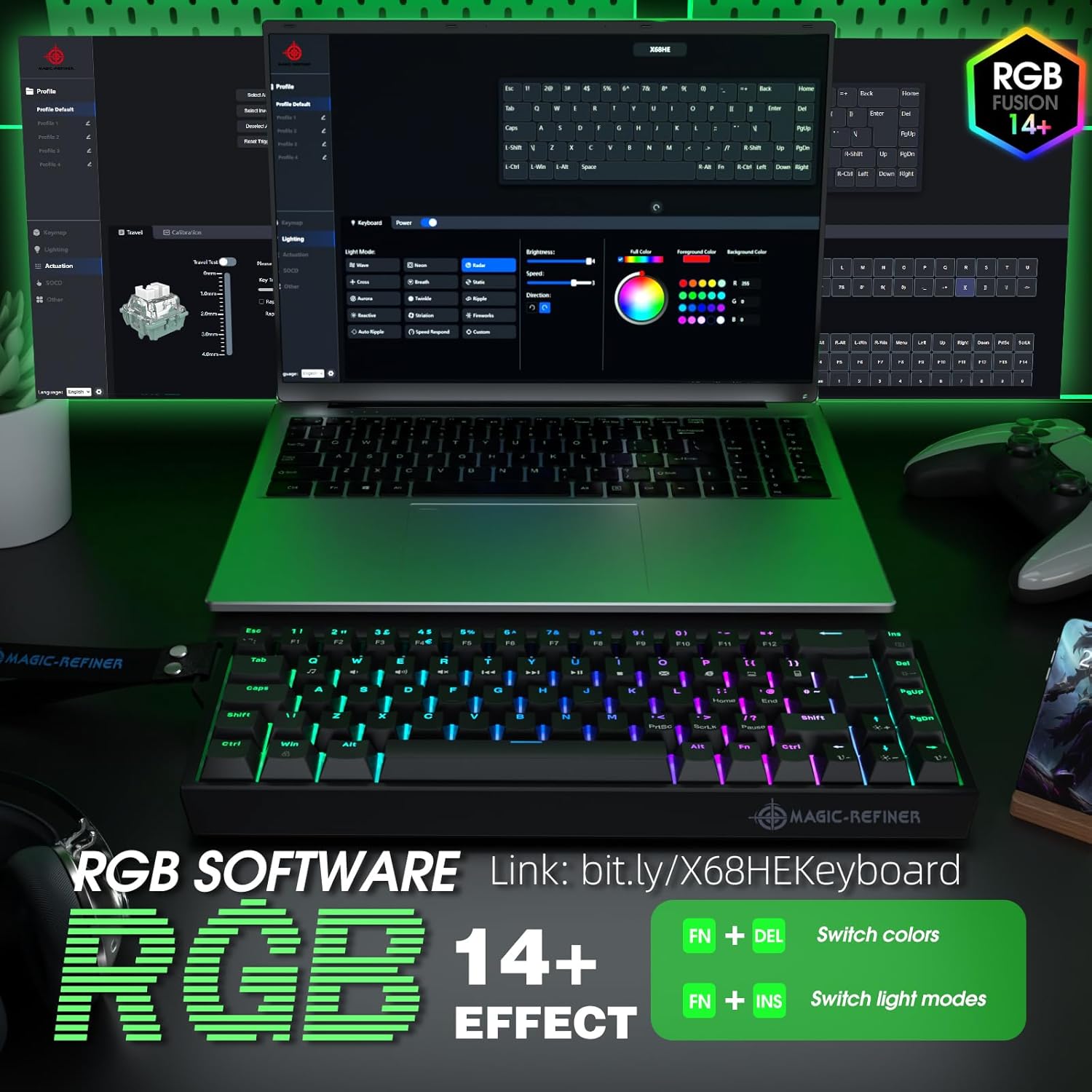
Figure 5.1: Screenshot of the RGB software interface, demonstrating options for profile management, lighting modes, brightness, color selection, and key assignments. Also shows quick RGB controls: Fn + DEL for color, Fn + INS for light modes.
6. Maintenance
6.1 Cleaning
- General Cleaning: Use a soft, lint-free cloth slightly dampened with water or a mild cleaning solution to wipe the keycaps and keyboard surface. Avoid excessive moisture.
- Dust Removal: Use compressed air to remove dust and debris from between the keycaps.
- Deep Cleaning: For thorough cleaning, keycaps can be carefully removed using a keycap puller. Clean the keycaps separately and wipe the switch stems. Ensure all parts are completely dry before reassembling.
6.2 Hot-Swappable Switches
The X68 HE features hot-swappable North-Pole-Down magnetic switches, allowing you to easily replace individual switches without soldering. This is useful for customizing the feel of specific keys or replacing a faulty switch.
- Remove Keycap: Use a keycap puller to gently remove the keycap from the desired switch.
- Remove Switch: Use a switch puller to carefully grip the top and bottom clips of the switch and pull it straight up.
- Insert New Switch: Align the pins of the new switch with the holes on the PCB. Press the switch firmly until it clicks into place. Ensure it is seated correctly and not bent.
- Replace Keycap: Press the keycap onto the new switch stem.
Always handle switches and keycaps with care to avoid damage.

Figure 6.1: The X68 HE keyboard demonstrating its hot-swappable feature, allowing for easy removal and replacement of individual magnetic switches.
7. Troubleshooting
- Keyboard Not Responding:
- Ensure the USB-C cable is securely connected to both the keyboard and the computer.
- Try connecting the keyboard to a different USB port on your computer.
- Test the keyboard on another computer to rule out system-specific issues.
- Restart your computer.
- RGB Lighting Not Working/Incorrect:
- Ensure the keyboard is properly connected.
- Use Fn + DEL and Fn + INS combinations to cycle through colors and modes.
- Check the Web Driver software for lighting settings and ensure they are correctly configured.
- Reinstall the Web Driver software if issues persist.
- Keys Not Registering or Double-Typing:
- Clean the affected key and switch area for any debris.
- If the switch is hot-swappable, try removing and reinserting the switch. If the problem continues, replace the switch with a spare one.
- Check the actuation settings in the Web Driver software; a very low actuation point might cause unintended triggers.
8. Specifications
| Brand | MAGIC-REFINER |
| Model | X68 HE |
| Connectivity Technology | Wired (USB-C) |
| Keyboard Layout | UK QWERTY (68-key TKL) |
| Switch Type | Hall Effect Magnetic Switches (Hot-swappable) |
| Actuation Point | Adjustable from 0.1mm to 3.4mm (0.01mm increments) |
| Polling Rate | 8000Hz |
| Latency | 0.125ms |
| Backlighting | Dynamic RGB (South-facing) |
| Compatible Devices | PC |
| Color | Black |
| Power Source | USB |
| Special Features | Rapid Trigger, Snap Tap, Dynamic Keystroke, Web Driver Customization |
9. Warranty and Support
9.1 Warranty Information
The MAGIC-REFINER X68 HE keyboard comes with a manufacturer's warranty of 6 months from the date of purchase. This warranty covers defects in materials and workmanship under normal use. It does not cover damage caused by misuse, accidents, unauthorized modifications, or normal wear and tear.
Please retain your proof of purchase for warranty claims.
9.2 Customer Support
For technical assistance, warranty claims, or any questions regarding your MAGIC-REFINER X68 HE keyboard, please contact the seller or manufacturer's customer support. Refer to the contact information provided with your product packaging or on the official MAGIC-REFINER website.
When contacting support, please have your product model (X68 HE) and proof of purchase readily available.


