
Introduction
This comprehensive guide provides step-by-step instructions for setting up, operating, and troubleshooting your HP 15.6" touchscreen laptop with Windows 11. It is designed for new users, including beginners and seniors, to ensure a smooth and confident experience with your device. This manual covers essential functions from initial unboxing to advanced customization and problem-solving.
The information within this guide is applicable to the HP 15.6" laptop series, specifically covering models such as the 15-fc0399nr, and similar configurations running Windows 11.
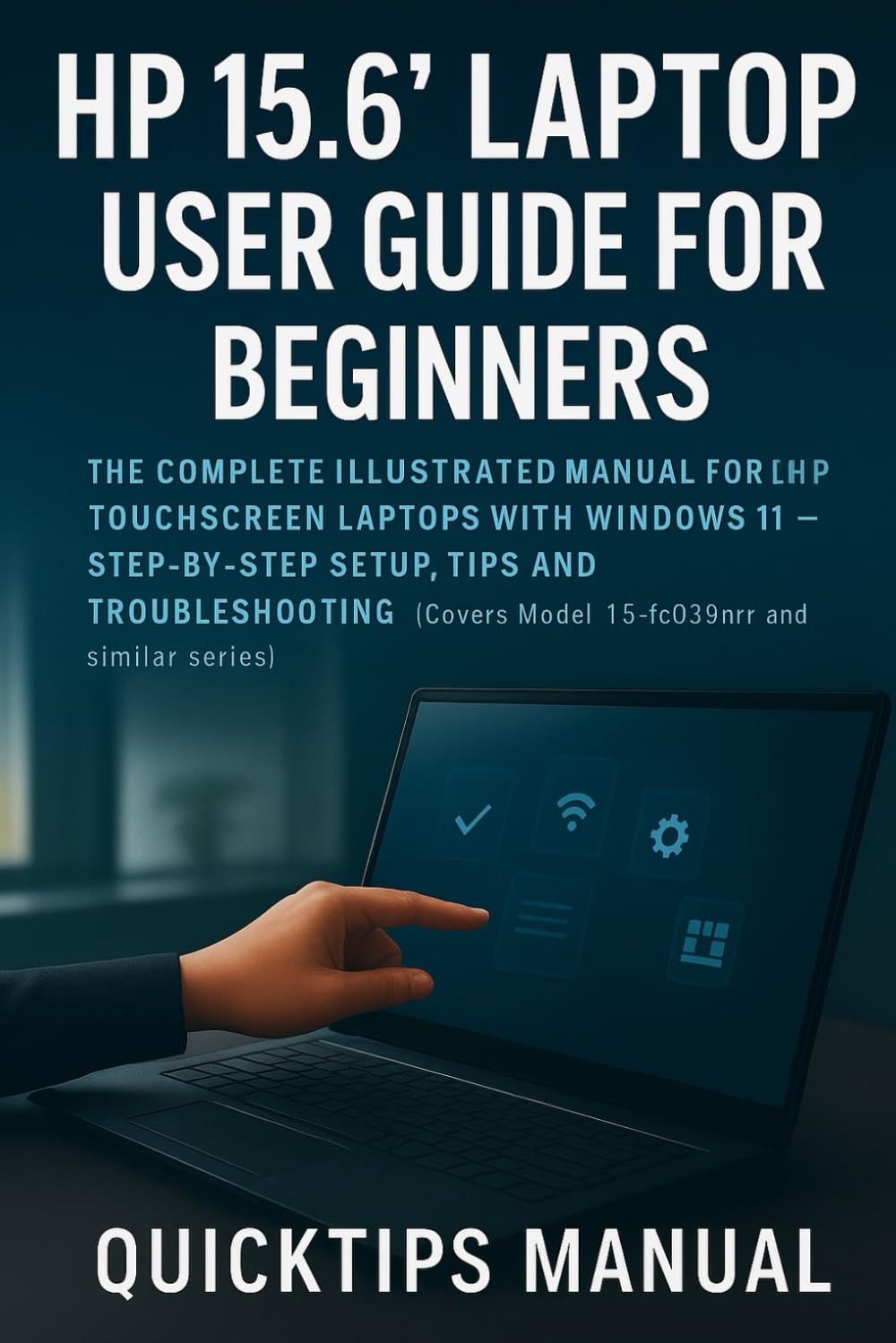
Image: Front cover of the user guide book. This image displays the title "HP 15.6\" Laptop User Guide for Beginners and Seniors" on a dark background.
1. Initial Setup
1.1 Unboxing and Power Connection
Carefully remove your HP laptop from its packaging. Ensure all components, including the laptop, power adapter, and any documentation, are present. Connect the power adapter to the laptop's charging port and then plug it into a wall outlet. It is recommended to fully charge the laptop before its first use.
1.2 First Boot and Windows 11 Installation
Press the power button, usually located on the keyboard or side of the laptop. The laptop will boot up, and you will be guided through the initial Windows 11 setup process. Follow the on-screen prompts to:
- Select your region and keyboard layout.
- Connect to a Wi-Fi network.
- Accept the Microsoft Software License Terms.
- Sign in with your Microsoft account or create a new one.
- Set up a PIN for quick login.
- Choose your privacy settings.
Ensure you have a stable internet connection during this process for updates and account synchronization.
1.3 Connecting to Wi-Fi and Bluetooth
Wi-Fi Connection: During initial setup, you will be prompted to connect to Wi-Fi. If you need to connect later or change networks:
- Click the Network icon (Wi-Fi symbol) in the bottom-right corner of the taskbar.
- Select your desired Wi-Fi network from the list.
- Enter the network security key (password) if prompted, then click Connect.
Bluetooth Pairing: To connect Bluetooth devices (e.g., headphones, mouse):
- Go to Settings > Bluetooth & devices.
- Ensure Bluetooth is turned On.
- Put your Bluetooth device into pairing mode.
- Click Add device and select Bluetooth.
- Choose your device from the list and follow any on-screen instructions.
2. Operating Your HP Laptop
2.1 Touchscreen and Gestures
Your HP 15.6" laptop features a touchscreen for intuitive interaction. Common gestures include:
- Tap: Equivalent to a mouse click.
- Double-tap: Opens an item or selects text.
- Tap and hold: Equivalent to a right-click, often brings up a context menu.
- Pinch to zoom: Place two fingers on the screen and move them apart to zoom in, or together to zoom out.
- Swipe: Drag a finger across the screen to scroll or navigate.
2.2 Customizing Settings
Personalize your Windows 11 experience through the Settings menu (accessible via the Start button).
- Wallpaper: Go to Personalization > Background to change your desktop image.
- Taskbar: Under Personalization > Taskbar, you can adjust its alignment, hide/show icons, and manage widgets.
- Display: In System > Display, you can adjust brightness, night light settings, and display resolution.
2.3 Managing Performance and Storage
To optimize your laptop's performance and manage storage:
- Disk Cleanup: Search for "Disk Cleanup" in the Start menu to remove temporary files and system files.
- Storage Sense: Enable Storage Sense in Settings > System > Storage to automatically free up space.
- Startup Apps: Disable unnecessary programs from launching at startup via Task Manager (Ctrl+Shift+Esc) > Startup tab.
3. Maintenance and Care
3.1 Battery Care
Proper battery care extends its lifespan:
- Avoid extreme temperatures.
- Do not consistently drain the battery to 0% or keep it at 100% for extended periods. Aim for a charge between 20% and 80% for daily use.
- Use the original HP charger.
3.2 Keeping Your System Updated
Regularly update Windows and drivers to ensure optimal performance and security. Go to Settings > Windows Update and click Check for updates.
3.3 Cleaning Your Laptop
Use a soft, lint-free cloth for cleaning the screen and exterior. For the screen, a specialized screen cleaner or a slightly damp cloth (water only) is recommended. Avoid harsh chemicals. Use compressed air to clear dust from keyboard crevices and vents.
4. Troubleshooting Common Issues
4.1 Laptop Not Turning On
- Ensure the power adapter is securely connected to both the laptop and the wall outlet.
- Check if the power outlet is working by plugging in another device.
- Try a different power outlet or adapter if available.
- Perform a hard reset: Disconnect all peripherals, unplug the power adapter, hold the power button for 15 seconds, then reconnect power and try to turn it on.
4.2 Wi-Fi Connection Problems
- Restart your router and modem.
- Ensure Wi-Fi is enabled on your laptop (check the Network icon in the taskbar).
- Forget the network and reconnect: Go to Settings > Network & internet > Wi-Fi, click on your network, then Forget. Then reconnect.
- Run the Windows Network Troubleshooter: Search for "Network troubleshooter" in the Start menu.
4.3 Slow Performance
- Close unnecessary applications running in the background.
- Check for and install any pending Windows updates.
- Run a disk cleanup (as described in Section 2.3).
- Scan for malware using Windows Security.
- Consider restarting your laptop regularly.
5. Specifications (User Guide Book)
The following specifications pertain to the physical user guide book itself, not the HP laptop.
| Feature | Detail |
|---|---|
| ASIN | B0FZ3FS2CB |
| Publisher | Independently published |
| Publication Date | November 1, 2025 |
| Language | English |
| Print Length | 122 pages |
| ISBN-13 | 979-8272473011 |
| Item Weight | 6.2 ounces |
| Dimensions | 6 x 0.28 x 9 inches |

Image: Back cover of the user guide book, showing the ISBN barcode and publication details.
6. Official Product Videos
There are no official product videos available for embedding at this time. Please refer to the written instructions and images provided in this manual for guidance.
7. Warranty and Support
This document is a user guide for an HP laptop. For specific warranty information regarding your HP 15.6" laptop, please refer to the documentation included with your device or visit the official HP support website. For support related to the content of this user guide, please contact the publisher, QUICKTIPS MANUAL, through their official channels.
For general HP product support, visit: support.hp.com


