
1. Introduction
The iPazzPort 7200 Mini Air Mouse Remote with Keyboard is a versatile input device designed for seamless control of various smart devices. It features dual-mode connectivity (2.4GHz wireless and Bluetooth), a full QWERTY keyboard, a 6-axis gyroscope for air mouse functionality, and a 7-color backlit keyboard for use in low-light conditions. This manual provides instructions for setup, operation, maintenance, and troubleshooting to ensure optimal performance.
2. Package Contents
- iPazzPort 7200 Mini Air Mouse Remote with Keyboard
- USB Receiver (for 2.4GHz wireless mode)
- User Manual
Note: 2 x AAA batteries are required and are NOT included in the package.
3. Product Overview
The iPazzPort 7200 features a dual-sided design with a remote control interface on one side and a full QWERTY keyboard on the other.
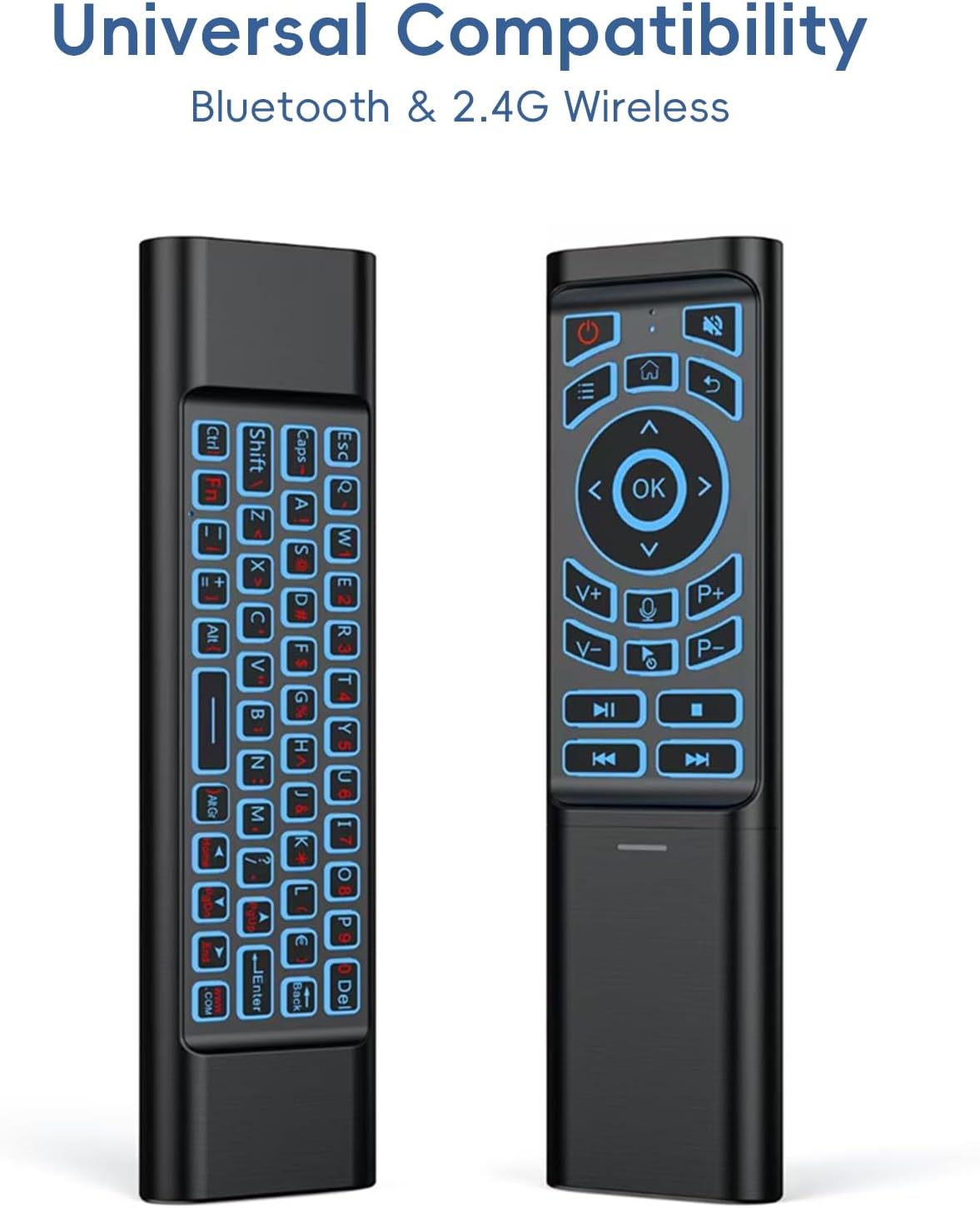
Figure 1: Front (Remote) and Back (Keyboard) Views of the iPazzPort 7200

Figure 2: Product Dimensions
4. Setup
4.1 Battery Installation
- Open the battery compartment cover on the back of the remote.
- Insert two (2) AAA batteries, ensuring correct polarity (+/-).
- Close the battery compartment cover.
4.2 2.4GHz Wireless Connection
This mode uses the included USB receiver for connection.
- Locate the USB receiver, usually stored inside the battery compartment or a dedicated slot on the remote.
- Plug the USB receiver into an available USB port on your device (Smart TV, Android Box, PC, etc.).
- The remote should automatically connect. If not, ensure the remote is powered on.
4.3 Bluetooth Connection
This mode allows connection without the USB receiver.
- Ensure the remote is powered on.
- On your device, navigate to the Bluetooth settings.
- Search for available devices. The remote should appear as "M3" or "iPazzPort Bluetooth".
- Select the remote to pair.
- Once paired, the remote is ready for use.
Note: To switch between 2.4GHz and Bluetooth modes, press and hold the 'Home' and 'OK' buttons simultaneously until the indicator light blinks, then release. This will initiate Bluetooth pairing mode if the USB dongle is not detected.
4.4 IR Learning Function (Power Key)
The power button on the iPazzPort 7200 can learn the IR signal from your TV's power button.

Figure 3: IR Learning Function
- Press and hold the power key on the iPazzPort 7200 until the indicator light flashes rapidly, then release. This enters IR learning mode.
- Align the IR emitter of your TV remote with the IR receiver of the iPazzPort 7200 (typically at the top ends of the remotes), keeping them a few centimeters apart.
- Press and hold the power key on your TV remote. The indicator light on the iPazzPort 7200 will flash rapidly several times, indicating successful learning.
- Release the button on your TV remote. The power key on the iPazzPort 7200 is now programmed.
Note: To restore factory settings for the IR learning function, long press the "OK" + "P+" keys simultaneously. All learned key values will be invalidated.
5. Operating Instructions
5.1 Air Mouse Function
The 6-axis gyroscope sensor allows for precise air mouse control.

Figure 4: Air Mouse in Use
- To activate the air mouse, press the mouse cursor button (usually indicated by a mouse icon).
- Move the remote in the air to control the cursor on your screen.
- Press the 'OK' button to click.
- To deactivate the air mouse, press the mouse cursor button again.
5.2 Keyboard Usage
Flip the remote to access the full QWERTY keyboard for text input.
- The keyboard side automatically activates when facing upwards.
- Type characters using the responsive light-press buttons.
- Use 'Shift', 'Caps', 'Alt', and 'Fn' keys for special characters and functions.
5.3 Backlight Control
The keyboard features a 7-color backlight for visibility in dark environments.

Figure 5: 7-Color Backlight Options
- To turn on/off the backlight or change colors, press and hold the 'Fn' key and then tap the 'Space' key.
- Repeat the 'Fn' + 'Space' combination to cycle through the available 7 colors.
5.4 Compatibility Notes
The iPazzPort 7200 is widely compatible with Smart Android TV Boxes, PC Laptops, and Projectors.

Figure 6: Wide Device Compatibility
- Limited Compatibility: Some devices using proprietary software (e.g., certain LG/Samsung smart TVs, Fire TV/Samsung TV/LG TV) may have limited functionality. It is recommended to test with a wired keyboard first to confirm compatibility.
- Voice Input: Voice input functionality depends on the operating system and application support of the connected device.
6. Maintenance
- Keep the remote clean by wiping it with a soft, dry cloth. Avoid using harsh chemicals or abrasive cleaners.
- Do not expose the remote to extreme temperatures, direct sunlight, or moisture.
- If the remote will not be used for an extended period, remove the AAA batteries to prevent leakage.
- Replace batteries when the remote's performance degrades or the indicator light signals low power.
7. Troubleshooting
| Issue | Possible Cause | Solution |
|---|---|---|
| Remote is unresponsive | Low batteries; Remote not paired/connected; USB receiver not plugged in (2.4GHz mode) | Replace batteries; Re-pair via Bluetooth or re-insert USB receiver; Ensure remote is powered on. |
| Air mouse cursor is erratic or not moving | Air mouse not activated; Interference; Remote needs calibration | Press the mouse cursor button to activate; Move closer to the device; Try recalibrating by placing the remote on a flat surface for a few seconds. |
| IR learning for power button fails | Incorrect procedure; Remotes not aligned; Weak IR signal | Ensure correct IR learning steps are followed (Section 4.4); Align remotes closely; Try in a darker environment to reduce interference. |
| Lost Bluetooth connectivity | Device out of range; Interference; Pairing lost | Move closer to the device; Re-initiate Bluetooth pairing by holding 'Home' and 'OK' buttons until the indicator light blinks, then re-pair with your device. |
| Keyboard backlight not working or changing colors | Backlight off; Incorrect key combination | Press and hold 'Fn' then tap 'Space' to activate or cycle colors. |
8. Specifications
| Feature | Detail |
|---|---|
| Model Number | iPazzPort 7200 |
| Connectivity Technology | Bluetooth, 2.4G USB Wireless |
| Compatible Devices | Laptop, Personal Computer, Projector, Smart TV, Android Box |
| Special Features | Backlit, Lightweight, 6-Axis Gyroscope, IR Learning (Power Key) |
| Color | Black |
| Product Dimensions | 6.2 x 0.32 x 0.28 inches (157.5 x 8.1 x 7.1 mm) |
| Item Weight | 2.4 ounces (68 grams) |
| Power Source | 2 x AAA Batteries (Not Included) |
9. Warranty and Support
The iPazzPort 7200 remote comes with a worry-free warranty. For technical assistance, troubleshooting, or warranty claims, please contact iPazzPort customer support through the retailer's platform or the official iPazzPort website. Please have your model number (iPazzPort 7200) and purchase information ready when contacting support.
10. Product Videos
10.1 Backlit Air Mouse Remote with Keyboard, Bluetooth & 2.4G Overview
This video demonstrates the dual-mode functionality (Bluetooth and 2.4G wireless) of the iPazzPort 7200. It shows how to connect the device via Bluetooth, use the air mouse for navigation, type on the backlit keyboard, and change the backlight colors. It provides a visual guide to the remote's key features and operation.
