
1. Introduction
This manual provides detailed instructions for the installation, operation, and maintenance of your dehateo 7-inch Double Din Car Radio Stereo. This unit is specifically designed for Nissan Murano Z50 models manufactured between 2003 and 2008. It features a 2GB RAM and 32GB ROM configuration, running on Android 13, and includes Wireless CarPlay, Android Auto, Bluetooth, WiFi, GPS Navigation, and support for a backup camera.
Please read this manual thoroughly before installation and use to ensure proper functionality and to avoid damage.
2. Setup and Installation
2.1 Package Contents
Verify that all components are present in the package:
- 7-inch Double Din Car Radio Stereo Unit
- Mounting Frame
- Power Cables (various types)
- RCA Input/Output Cables
- USB Cables
- Reverse Camera Extension Cable
- Reverse Camera Voltage Cable
- GPS Antenna
- Backup Camera
- Instruction Manual
- Accessories (mounting brackets, screws)

Image: Included components for the dehateo car stereo system.
2.2 Vehicle Compatibility Check
Before proceeding with installation, confirm your vehicle's year, center console dimensions, and shape to ensure compatibility with the Nissan Murano Z50 (2003-2008) model. Incompatible installations may lead to improper fit or damage.

Image: Comparison of a Nissan Murano Z50 dashboard before and after the dehateo car stereo installation.
2.3 Wiring Connections
Refer to the included wiring diagram in the separate instruction manual for specific connections. Key connections include:
- Power Cables: Connect to the vehicle's power supply, ground, and accessory wires.
- RCA Cables: For audio output to external amplifiers or video input.
- USB Cables: For connecting USB devices or wired CarPlay/Android Auto.
- GPS Antenna: Connect the GPS antenna and mount it in a location with a clear view of the sky for optimal signal reception.
- Backup Camera: Connect the provided backup camera using the extension and voltage cables. Ensure proper routing to avoid interference.
2.4 Backup Camera Installation
This head unit supports OEM CVBS 720P backup cameras. 360-degree panoramic cameras are not supported. If your vehicle's OEM backup camera is not compatible, use the included backup camera. Connect the camera to the designated video input and power source, ensuring the trigger wire is connected to the reverse light circuit for automatic activation.
3. Operating Instructions
3.1 Basic Operation
Power On/Off: Press and hold the power button on the unit or use the vehicle's ignition. The unit will boot up to the Android home screen.
Touchscreen: The IPS touchscreen offers rapid touch responses and vivid displays. Navigate the interface by tapping, swiping, and pinching. Adjust brightness settings for day and night viewing in the system settings.

Image: Main interface of the dehateo car stereo with various application icons.
3.2 Wireless CarPlay & Android Auto
The unit supports both wired and wireless CarPlay and Android Auto connections via Bluetooth. This allows seamless integration of your smartphone for navigation, music, calls, and messaging.
- For Wireless CarPlay: Enable Bluetooth on your iPhone, pair it with the car radio, then open the 'CarLink' app on the head unit.
- For Wireless Android Auto: Turn on Bluetooth on your Android phone, search for devices, and select the car radio for pairing.
You can access your phone's features via voice assistant control (Siri or Google Assistant) for hands-free operation.
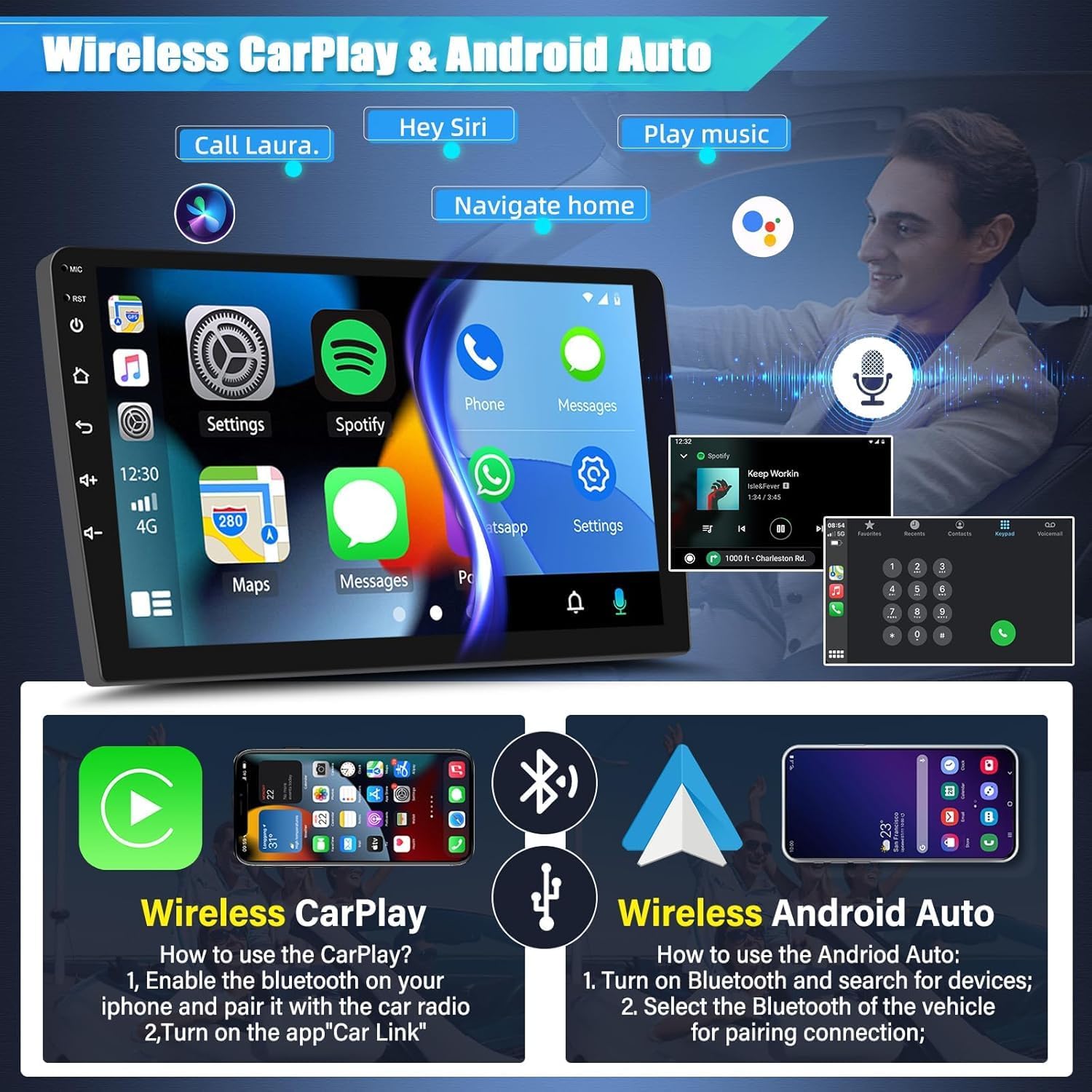
Image: Wireless CarPlay and Android Auto functionality overview.
3.3 Mirror Link
Mirror Link allows you to project your phone's screen content onto the head unit's display. This feature enables sharing videos, photos, and other content directly from your smartphone.

Image: Wireless Apple CarPlay, Android Auto, and Mirror Link features.
3.4 GPS Navigation & WiFi Connection
The unit comes with a built-in offline map of North America. After connecting to the internet via WiFi or a mobile hotspot, you can use online maps (e.g., Waze, Navitel) for real-time traffic information and navigation updates. The WiFi connection also allows you to install Android apps directly from the Google Play Store.

Image: GPS Navigation with online and offline map capabilities.
3.5 FM/RDS Radio and Bluetooth
Tune into your favorite FM radio stations. The RDS (Radio Data System) feature displays station information where available. Connect your phone via Bluetooth for hands-free calling and audio streaming.
3.6 Split Screen Function
Utilize the split-screen function to run two applications simultaneously, such as navigation on one side and music playback on the other, enhancing multitasking capabilities.

Image: Split Screen Functionality.
4. Maintenance
To ensure the longevity and optimal performance of your car stereo, follow these maintenance guidelines:
- Cleaning: Use a soft, dry cloth to clean the screen and unit exterior. Avoid abrasive cleaners or solvents.
- Software Updates: Periodically check for available software updates through the system settings or the manufacturer's website to ensure you have the latest features and bug fixes.
- Environmental Conditions: Avoid exposing the unit to extreme temperatures, direct sunlight for prolonged periods, or excessive moisture.
5. Troubleshooting
If you encounter issues with your car stereo, refer to the following common troubleshooting steps:
- Unit Not Powering On: Check all power connections, including the fuse. Ensure the vehicle's ignition is on.
- No Sound: Verify speaker connections, volume levels, and audio source selection. Check if the mute function is active.
- GPS Signal Issues: Ensure the GPS antenna is properly connected and mounted in a location with a clear view of the sky. Try restarting the unit.
- Backup Camera Not Displaying: Confirm the camera is correctly wired and powered. Ensure the reverse gear is engaged. If using an OEM camera and it's not compatible, use the included camera. If issues persist, contact support.
- CarPlay/Android Auto Connection Problems: Ensure Bluetooth is enabled on both the phone and the head unit. Try forgetting the device and re-pairing. Check for any software updates for your phone or the head unit.
- Touchscreen Unresponsive: Try restarting the unit. If the issue persists, a factory reset might be necessary (note: this will erase all user data).
For persistent issues not resolved by these steps, please contact customer support.
6. Specifications
| Brand | dehateo |
| Model Name | For 2003-2008 Nissan Murano Z50 (2+32G) |
| Operating System | Android 13 |
| RAM/ROM | 2GB RAM / 32GB ROM |
| Display | 7-inch IPS Touchscreen |
| Connectivity | Bluetooth, Wi-Fi (5G support), USB |
| Special Features | Wireless CarPlay & Android Auto, Mirror Link, GPS Navigation, FM/RDS Radio, AHD Backup Camera Support, Steering Wheel Control (SWC), Split Screen Function |
| Audio Output Mode | Stereo |
| Control Method | Touch |
7. Support and Warranty
7.1 Customer Support
For any questions, technical assistance, or support, please contact the seller, Shenzhen Guwang Smart Technology Co.,Ltd. You can typically find a 'Ask a question' link on the product page where you purchased the item.

Image: How to access customer support.
The manufacturer offers a Lifetime Technical Support Team to assist with any product-related inquiries.
7.2 Return Policy
This product is eligible for a 30-day refund or replacement policy from the date of purchase. Please refer to the retailer's specific return policy for detailed terms and conditions.