
Introduction
This manual provides detailed instructions for the setup, operation, maintenance, and troubleshooting of your Bowers & Wilkins Px8 S2 McLaren Edition Wireless Over-Ear Headphones. Please read this manual thoroughly to ensure optimal performance and longevity of your device.

Image: Bowers & Wilkins Px8 S2 McLaren Edition Wireless Over-Ear Headphones in McLaren Grey.
Product Overview
The Bowers & Wilkins Px8 S2 McLaren Edition headphones combine premium audio technology with a distinctive design. They feature custom 40mm drive units and advanced Digital Signal Processing (DSP) for high-resolution audio. Active Noise Cancellation (ANC) is integrated to minimize external distractions, while next-generation voice technology ensures clear call quality. The headphones are designed for comfort with memory foam Nappa leather ear cushions and a refined silhouette.
Video: An overview of the Bowers & Wilkins Px8 S2 McLaren Edition headphones, highlighting their design and features.
What's in the Box
- 1.2m USB-C to 3.5mm stereo jack audio cable
- 1.2m USB-C to USB-C cable
- Protective Case
- Literature pack (this manual and other documentation)
Setup
1. Charging the Headphones
Before initial use, fully charge your Px8 S2 headphones. Connect the supplied USB-C to USB-C cable to the headphone's USB-C port and a compatible USB power source. A full charge provides approximately 30 hours of playback with ANC enabled. A 15-minute fast charge can provide up to 7 hours of listening time.
2. Bluetooth Pairing
- Ensure the headphones are powered on.
- Activate Bluetooth on your device (smartphone, tablet, computer).
- Press and hold the Bluetooth pairing button on the headphones until the LED indicator flashes blue.
- Select "Bowers & Wilkins Px8 S2" from the list of available Bluetooth devices on your device.
- Once connected, the LED indicator will turn solid blue.
The Px8 S2 supports Bluetooth 5.3 with aptX Lossless and Adaptive codecs for high-fidelity audio. Multipoint connectivity allows seamless switching between two paired devices. The headphones also support Apple MFi and Google Fast Pair for quick and easy pairing with compatible devices.
3. Wired Connection
For a wired connection, use the supplied 1.2m USB-C to 3.5mm stereo jack audio cable or the 1.2m USB-C to USB-C cable. Connect the appropriate cable to the headphone's USB-C port and your audio source. This allows for 24-bit audio playback with zero latency.

Image: The Bowers & Wilkins Px8 S2 headphones shown with their included USB-C to USB-C and USB-C to 3.5mm audio cables, illustrating connectivity options.
Operating the Headphones
Controls
The Px8 S2 headphones feature tactile buttons for intuitive control:
- Power/Bluetooth Button: Used to power on/off and initiate Bluetooth pairing.
- Volume Up/Down: Adjusts the listening volume.
- Multi-function Button (textured): Controls playback (play/pause), track skipping, and call management.
- ANC/Transparency Button: Toggles between Active Noise Cancellation and Transparency modes.
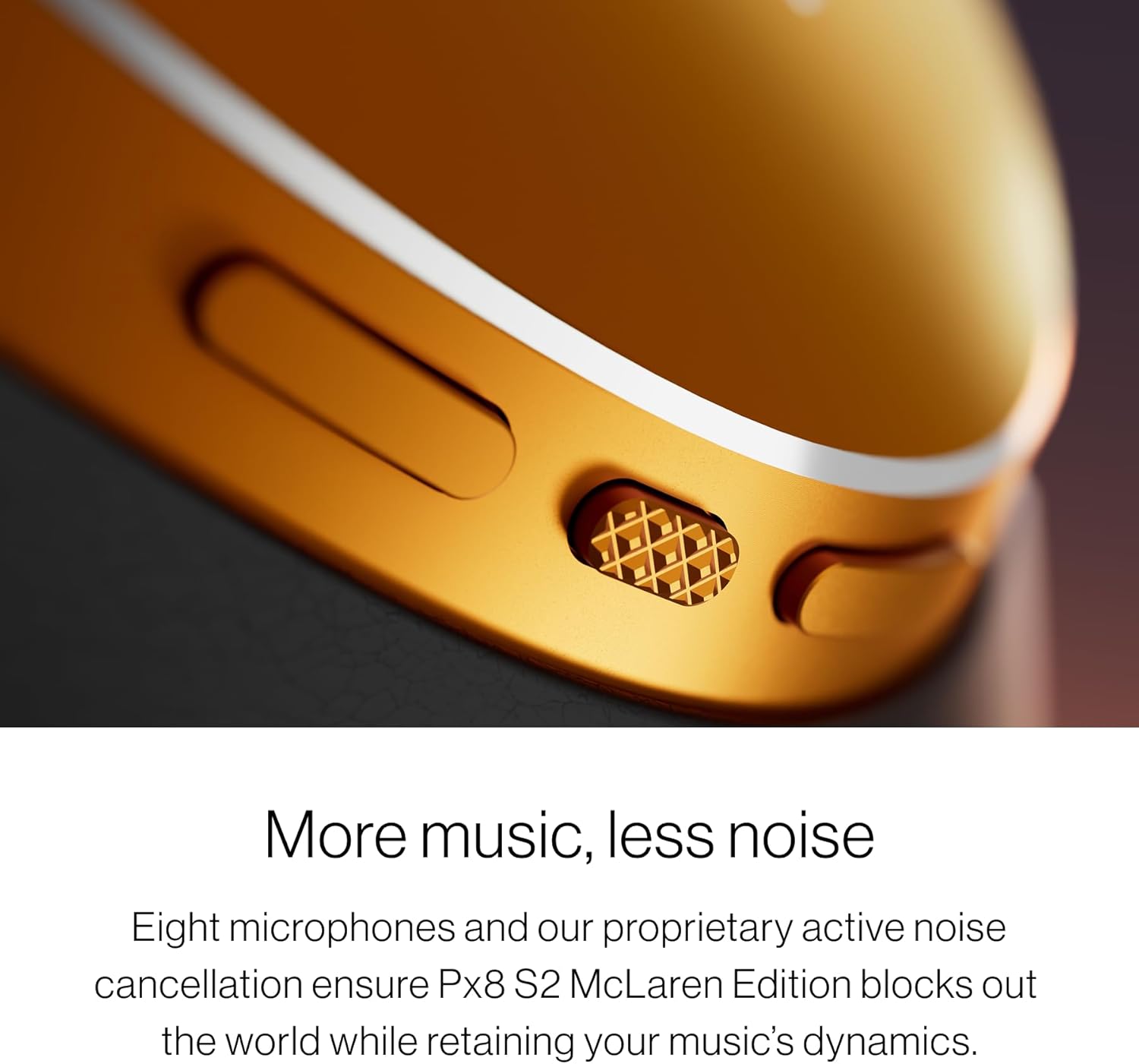
Image: A detailed view of the tactile control buttons on the Bowers & Wilkins Px8 S2 headphones, including the textured play/pause button.
Active Noise Cancellation (ANC) and Transparency Mode
The headphones utilize eight precision microphones for advanced Active Noise Cancellation, effectively blocking out ambient noise while preserving audio dynamics. Transparency Mode allows you to hear your surroundings without removing the headphones, ideal for situational awareness.

Image: The Bowers & Wilkins Px8 S2 headphones, illustrating their noise-cancelling capabilities in various environments.
Call Quality
Next-generation voice technology and precisely positioned microphones ensure crystal-clear call quality, even in noisy environments.

Image: A close-up of the Bowers & Wilkins Px8 S2 headphones, emphasizing their microphone system for clear communication.
Bowers & Wilkins Music App
The dedicated Bowers & Wilkins Music app provides full control over your listening experience. You can fine-tune EQ settings with a five-band equalizer, activate TrueSound mode, and integrate voice assistants for hands-free operation.

Image: The Bowers & Wilkins Music app interface displayed on multiple smartphones, showing control over Px8 S2 headphones and music selection.
Video: A detailed review of the Bowers & Wilkins Px8 S2 headphones, covering sound quality, features, and user experience.
Comfort and Design
The Px8 S2 McLaren Edition headphones are crafted for all-day comfort and durability. They feature luxurious memory foam Nappa leather ear cushions and a refined, ergonomic silhouette. The design incorporates slim aluminum arms and exposed cable detailing, reflecting McLaren's aesthetic.

Image: A close-up of the soft memory foam Nappa leather ear cushions on the Bowers & Wilkins Px8 S2 headphones, highlighting comfort.

Image: The headband of the Bowers & Wilkins Px8 S2 headphones, showcasing its comfortable padding and adjustable design.

Image: A close-up of the embossed McLaren logo on the headband of the Bowers & Wilkins Px8 S2 McLaren Edition headphones.
Maintenance
To maintain the performance and appearance of your headphones:
- Wipe the earcups and headband with a soft, dry cloth.
- Avoid using abrasive cleaners, alcohol, or chemical solvents.
- Store the headphones in their protective case when not in use to prevent damage.
- Keep the charging port clean and free of debris.
Troubleshooting
No Power
- Ensure the headphones are charged. Connect them to a power source using the USB-C cable.
- Press and hold the Power/Bluetooth button for a few seconds to ensure they are powered on.
Cannot Pair via Bluetooth
- Make sure the headphones are in pairing mode (LED flashing blue).
- Ensure Bluetooth is enabled on your device and it is within range (typically 10 meters).
- Try forgetting the device from your device's Bluetooth settings and re-pairing.
- Restart both your headphones and your device.
Poor Sound Quality
- Check the audio source and ensure the volume is not too low or too high, causing distortion.
- Ensure the headphones are within Bluetooth range and there are no obstructions.
- If using a wired connection, ensure the cables are securely connected and undamaged.
- Adjust EQ settings in the Bowers & Wilkins Music app.
Specifications
| Feature | Detail |
|---|---|
| Brand | Bowers & Wilkins |
| Model Name | Px8 S2 |
| Model Number | 301165-06-00-308 |
| Color | McLaren Grey |
| Ear Placement | Over Ear |
| Noise Control | Active Noise Cancellation |
| Connectivity Technology | Wireless (Bluetooth 5.3) |
| Audio Driver Type | Dynamic Driver (40mm custom drive units) |
| Frequency Range | 20Hz - 40,000Hz |
| Battery Average Life | 30 Hours |
| Battery Charge Time | 15 minutes (for 7 hours playback) |
| Control Method | App, Voice, Tactile Buttons |
| Headphone Jack | 3.5 mm Jack, USB-C |
| Item Weight | 0.31 Kilograms |
| Material | Leather, Foam, Metal |
| UPC | 714346351763 |
Warranty Information
Your Bowers & Wilkins Px8 S2 McLaren Edition Wireless Over-Ear Headphones come with a 2-year limited warranty. This warranty covers manufacturing defects and workmanship under normal use. Please retain your proof of purchase for warranty claims. For full terms and conditions, please refer to the warranty card included in your literature pack or visit the official Bowers & Wilkins website.
Support
For further assistance, product registration, or to download the latest version of the Bowers & Wilkins Music app, please visit the official Bowers & Wilkins support website. You can also find FAQs and contact customer service there.