
Introduction
This manual provides instructions for the proper setup, operation, and maintenance of your XuanPad K1 Mini Projector. Please read this manual thoroughly before using the device to ensure optimal performance and longevity. The XuanPad K1 is a portable projector featuring Android 14, Full HD 1080P resolution, Wi-Fi 6, Bluetooth 5.4, and automatic vertical keystone correction.

Image: The XuanPad K1 Mini Projector, a compact white device with a lens, projecting an image onto a screen.
What's in the Box
- 1080P Projector
- HDMI Cable
- User Manual
- Power Cord
- Remote Control
Setup
1. Placement
Position the projector on a stable, flat surface. The 210° rotatable stand allows for projection onto walls or ceilings. Ensure adequate ventilation around the device.
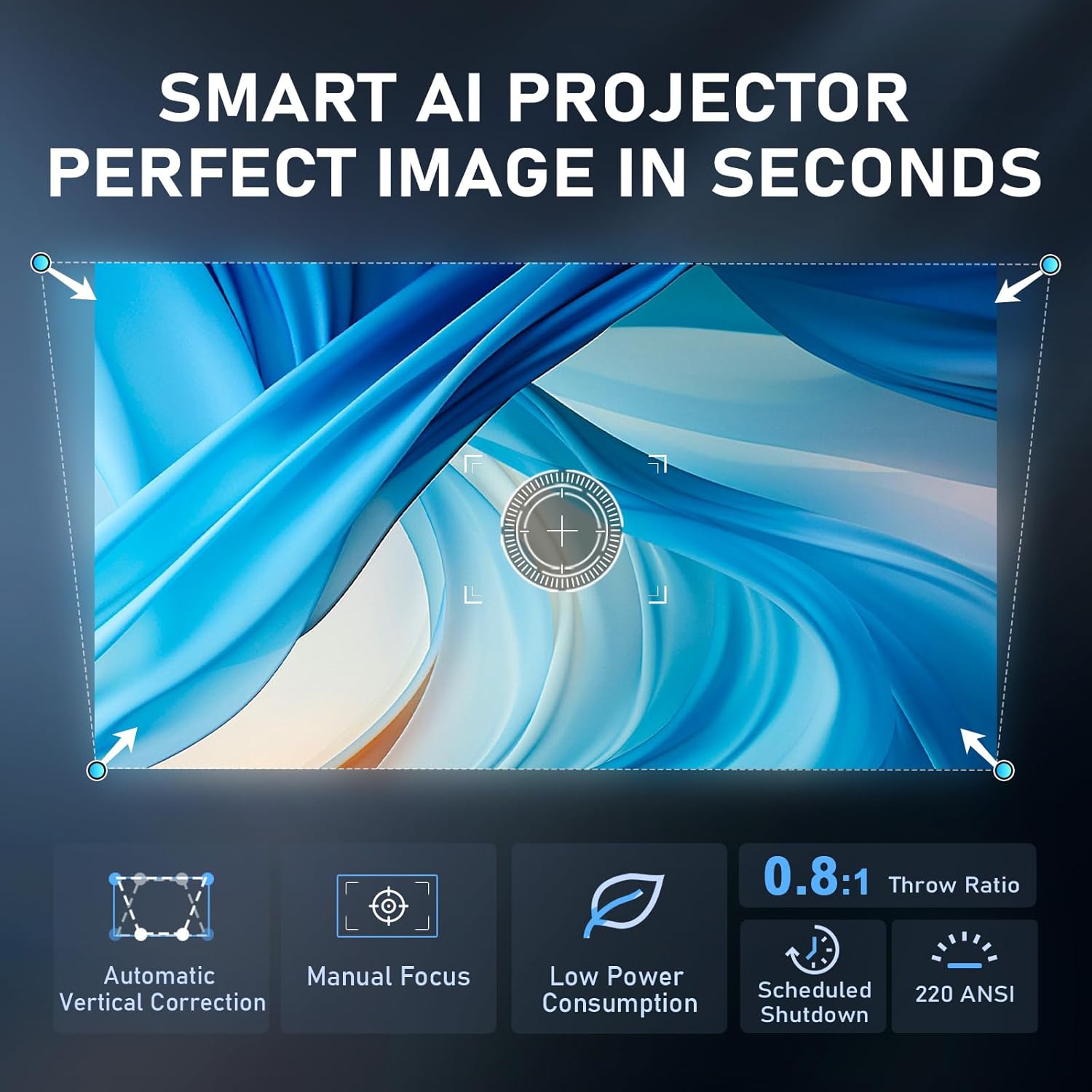
Image: The XuanPad K1 Mini Projector shown with its adjustable stand, illustrating its 210-degree rotation capability for flexible projection angles.
2. Power Connection
Connect the provided power cord to the projector's power input and then to a power outlet.
3. Network and Bluetooth Connection
- Wi-Fi: Navigate to the settings menu on the projector, select 'Network', and connect to your desired Wi-Fi 6 or Wi-Fi 5G network.
- Bluetooth: To pair external audio devices, go to 'Settings', select 'Bluetooth', and choose your device from the available list.
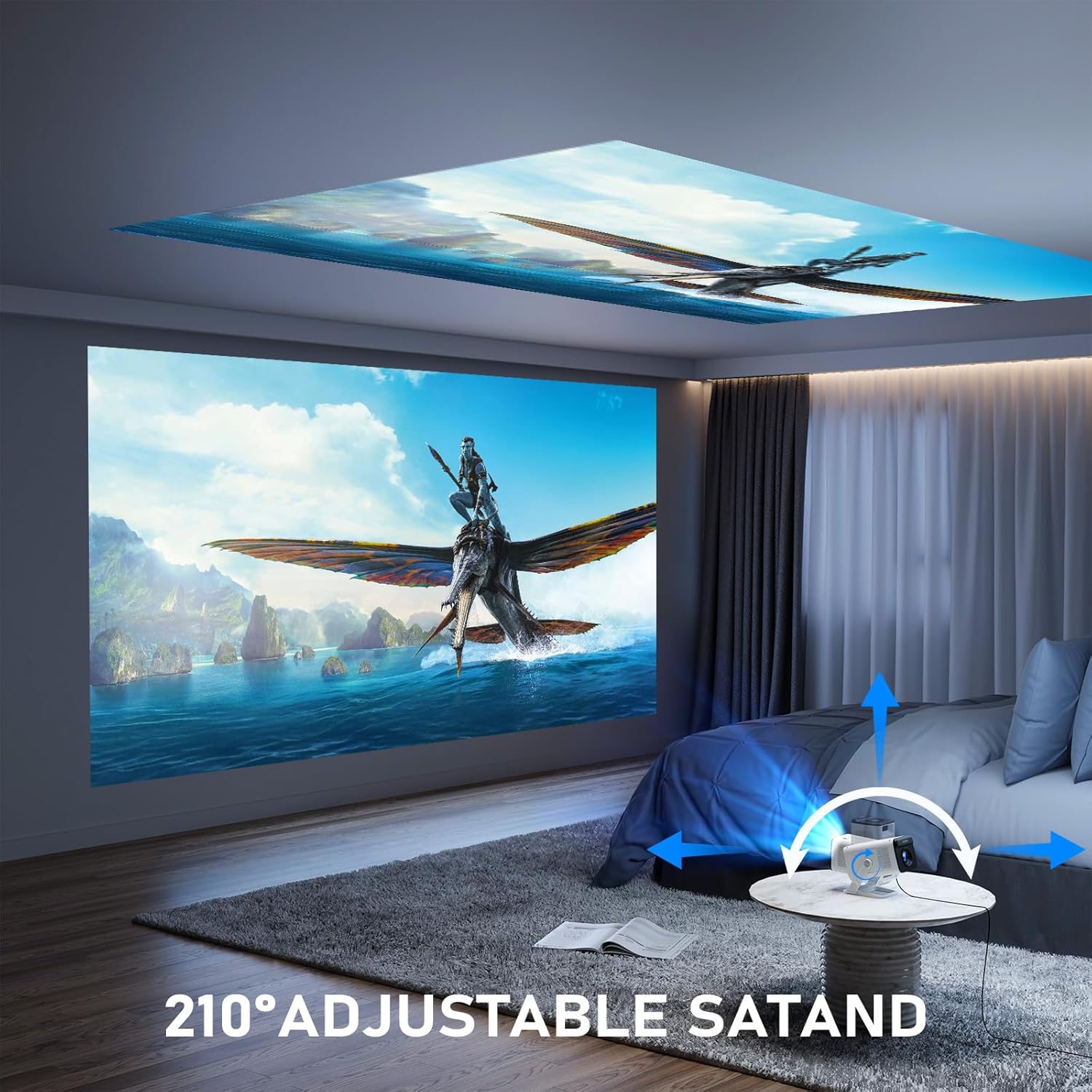
Image: A visual representation of the XuanPad K1 Mini Projector connected to a Wi-Fi 6 network, showing faster speeds compared to Wi-Fi 5G.
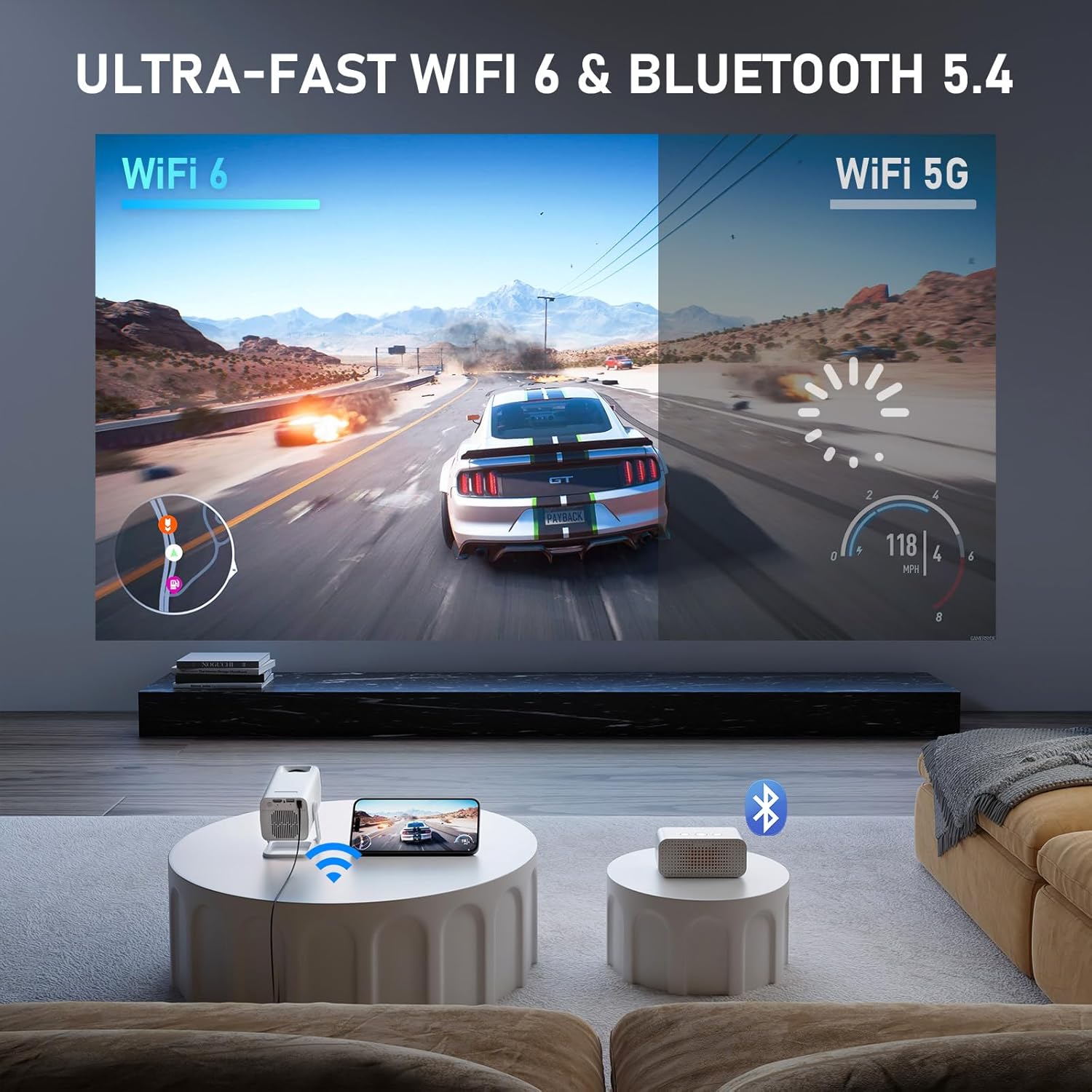
Image: The XuanPad K1 Mini Projector wirelessly connected to an external Bluetooth speaker, highlighting Bluetooth 5.4 capabilities.
4. Image Adjustment
- Automatic Vertical Keystone Correction: The projector automatically adjusts vertical image distortion.
- Manual Focus: Use the focus ring on the projector to achieve a clear image.
- Zoom: Adjust the screen size from 50% to 100% via the projector settings without moving the unit.

Image: A split image comparing the clarity and detail of XuanPad's Full HD 1080P projection (left) against a standard 720P projection (right).
Video: A short video showcasing the visual capabilities and features of the XuanPad Projector. This video provides a quick overview of the product's performance.
Operating
1. Android 14 Interface
The projector runs on Android 14, providing a smart interface with pre-installed streaming applications such as YouTube and Prime Video. Access additional apps through the integrated app store.

Image: The projector's screen showing the Android 14 home interface with icons for popular streaming services and applications.
2. Connecting External Devices
- HDMI: Connect devices like TV sticks, gaming consoles, or laptops using an HDMI cable. Select the HDMI input source from the projector's menu.
- USB: Insert USB drives to play media files directly.
- Wired Screen Mirroring: Connect your smartphone or laptop for wired screen mirroring (specific cable may be required, not included).
3. Audio Output
- Built-in Speaker: The projector includes an integrated Hi-Fi speaker for direct audio playback.
- Bluetooth Audio: For enhanced audio, pair Bluetooth speakers or headphones as described in the Setup section.
Maintenance
To ensure the longevity and optimal performance of your XuanPad K1 Mini Projector, follow these maintenance guidelines:
- Cleaning the Lens: Gently wipe the projector lens with a soft, lint-free cloth specifically designed for optical surfaces. Avoid abrasive materials or harsh chemicals.
- Cleaning the Exterior: Use a soft, dry cloth to clean the exterior of the projector. Do not use liquid cleaners directly on the device.
- Ventilation: Ensure that the ventilation openings are not blocked to allow for proper heat dissipation. The projector features an efficient heat dissipation system, but clear airflow is essential.
- Storage: When not in use, store the projector in a cool, dry place, away from direct sunlight and extreme temperatures.
Troubleshooting
If you encounter issues with your projector, refer to the following common problems and solutions:
- No Image or Distorted Image:
- Check power connection and ensure the projector is turned on.
- Verify the input source is correctly selected (e.g., HDMI 1, USB).
- Adjust the manual focus ring until the image is clear.
- Ensure the projector is placed on a stable surface. The automatic vertical keystone correction should adjust vertical distortion; if not, check settings.
- No Sound:
- Check the volume level on the projector and the connected source device.
- If using Bluetooth audio, ensure the external device is properly paired and connected.
- Confirm that the audio output setting on the projector is correct (e.g., internal speaker, Bluetooth).
- Connectivity Issues (Wi-Fi/Bluetooth):
- Ensure the projector is within range of your Wi-Fi router or Bluetooth device.
- Restart the projector and your network devices.
- Re-enter Wi-Fi passwords or re-pair Bluetooth devices.
- Remote Control Not Responding:
- Check and replace the batteries in the remote control.
- Ensure there are no obstructions between the remote and the projector's IR receiver.
Specifications
| Feature | Description |
|---|---|
| Brand | XuanPad |
| Model Number | K1 |
| Operating System | Android 14 |
| Display Resolution | 1920 x 1080 (Full HD) |
| Brightness | 220 ANSI Lumens |
| Connectivity Technology | Wi-Fi 6, Bluetooth 5.4, HDMI, USB |
| Special Features | Built-in apps, Short Throw Function, 210° Rotatable Stand, Auto Vertical Correction, Manual Focus, 50%-100% Zoom, Built-in Speaker, Portable Size |
| Item Weight | 1.7 pounds (0.78 kg) |
| Product Dimensions | 4.2 x 3.4 x 6.4 inches (10.7 x 8.6 x 16.3 cm) |
Warranty and Support
XuanPad stands behind the quality of its products. The XuanPad K1 Mini Projector comes with a 2-year reliability period. For technical support, warranty claims, or further assistance, please refer to the contact information provided with your purchase documentation or visit the official XuanPad website.

