
1. Introduction
Thank you for choosing the xinwld M17 Portable Bluetooth Speaker. This manual provides essential information for setting up, operating, and maintaining your speaker to ensure optimal performance and longevity. The M17 speaker features Bluetooth 5.4 connectivity, 20W HD stereo sound, IP7 waterproofing, LED lights, and TWS pairing for an enhanced audio experience.
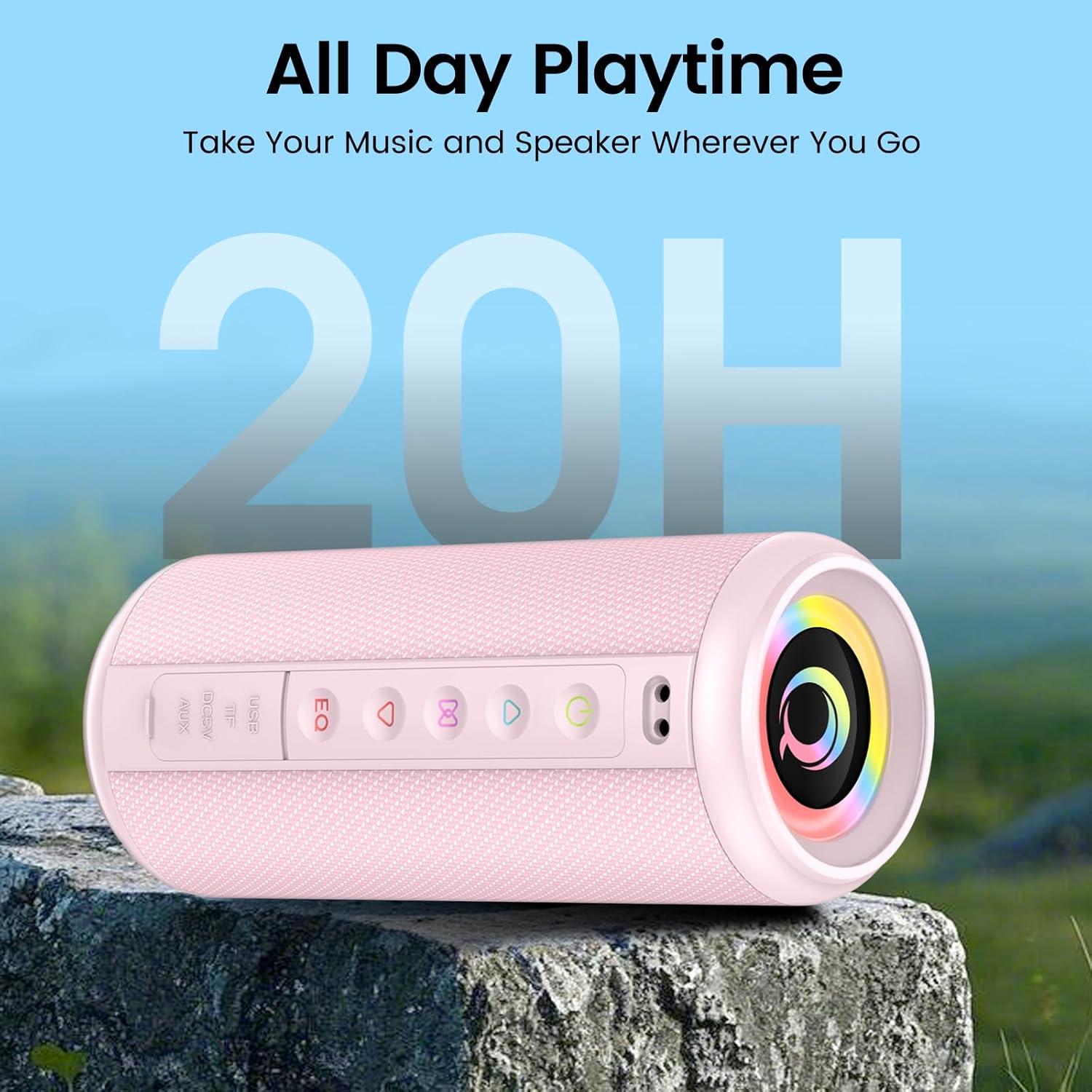
Figure 1: xinwld M17 Portable Bluetooth Speaker. This image shows the speaker's cylindrical design with control buttons on the side and the main speaker grille.
2. Setup
2.1 What's in the Box
Please check the package contents upon unboxing:
- 1 x xinwld M17 Portable Bluetooth Speaker
- 1 x USB-C Charging Cable
- 1 x User Manual
2.2 Charging the Speaker
Before first use, fully charge the speaker. Connect the provided USB-C cable to the speaker's charging port and the other end to a compatible USB power adapter (not included). The charging indicator light will show the charging status. A full charge provides up to 15 hours of playback at 50% volume.
2.3 Powering On/Off
- To power on: Press and hold the Power button (⏻) for 2-3 seconds. You will hear an audible prompt.
- To power off: Press and hold the Power button (⏻) for 2-3 seconds. You will hear an audible prompt.
2.4 Bluetooth Pairing
The M17 speaker uses Bluetooth 5.4 for a stable and fast connection.
- Ensure the speaker is powered on and in Bluetooth pairing mode (indicated by a flashing LED).
- On your device (smartphone, tablet, etc.), enable Bluetooth and search for available devices.
- Select "M17" from the list of devices.
- Once connected, the speaker will emit an audible confirmation, and the LED indicator will become solid.

Figure 2: Bluetooth 5.4 connectivity. This image illustrates the speaker's compatibility with various connection modes including AUX, TF Card, Bluetooth, and USB, and shows a phone successfully paired with "M17".
2.5 True Wireless Stereo (TWS) Pairing
For an immersive stereo sound experience, you can pair two M17 speakers together.
- Ensure both M17 speakers are powered on and not connected to any Bluetooth device.
- On one speaker (this will be the primary speaker), double-press the TWS button (often indicated by a chain link icon or similar). The speaker will enter TWS pairing mode.
- The two speakers will automatically connect to each other. You will hear a confirmation tone.
- Once paired, connect your device to the primary speaker via Bluetooth as described in Section 2.4.

Figure 3: True Wireless Stereo pairing. This image depicts two M17 speakers wirelessly connected to a smartphone via Bluetooth 5.4, creating a stereo sound setup.
3. Operation
3.1 Basic Controls
The speaker features intuitive buttons for control:
- Power Button (⏻): Press and hold to power on/off.
- Play/Pause Button (▶/‖): Press once to play or pause music.
- Volume Up Button (+): Press once to increase volume. Press and hold for next track.
- Volume Down Button (-): Press once to decrease volume. Press and hold for previous track.
- EQ Button: Press to cycle through equalizer presets.
- Light Mode Button: Press to change RGB lighting modes.
3.2 Connectivity Modes
In addition to Bluetooth, the M17 supports multiple playback options:
- TF Card: Insert a TF (microSD) card with audio files into the designated slot. The speaker will automatically switch to TF card playback.
- AUX Input: Connect an audio device using a 3.5mm AUX cable (not included) to the AUX port. The speaker will switch to AUX mode.
- USB Playback: Insert a USB flash drive with audio files into the USB port. The speaker will automatically switch to USB playback.
3.3 Equalizer (EQ) Tuning
The speaker features a 3-band equalizer for customizable sound profiles. Press the EQ button to cycle through different sound modes (e.g., Bass Boost, Vocal, Balanced) to match your music genre or preference.

Figure 4: Deep Bass Stereo Sound. This cutaway view illustrates the internal dual 52mm full-range drivers responsible for delivering clear highs and rich midranges.
3.4 RGB Lighting Modes
The M17 speaker includes 8 dynamic RGB lighting modes that pulsate with your music. Press the Light Mode button to cycle through the available lighting effects. To turn off the lights, continue pressing the button until the lights are off.
3.5 Hands-Free Calling
With its built-in HD noise-canceling microphone, you can answer calls directly through the speaker when connected via Bluetooth.
- Answer Call: Press the Play/Pause button once.
- End Call: Press the Play/Pause button once during a call.
- Reject Call: Press and hold the Play/Pause button for 2 seconds.
4. Maintenance
4.1 Waterproofing (IP7 Rating)
The M17 speaker is IP7 waterproof, meaning it can withstand immersion in water up to 1 meter for 30 minutes. It is also dustproof and sandproof. However, do not intentionally immerse the speaker in water for extended periods or at depths greater than 1 meter. Ensure all port covers are securely closed before exposing the speaker to water.
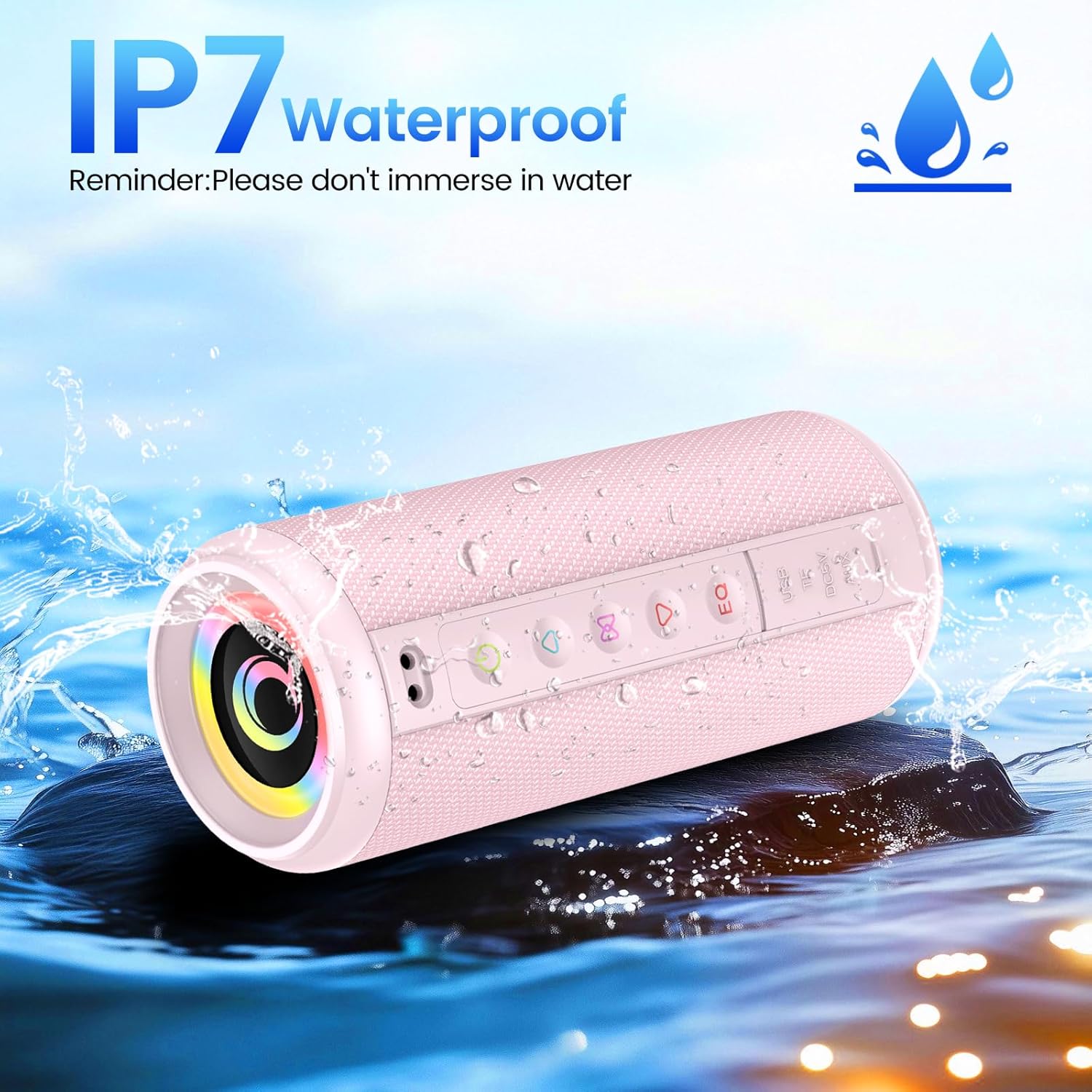
Figure 5: IP7 Waterproof. This image shows the M17 speaker being splashed with water, highlighting its IP7 waterproof capability. A reminder states: "Please don't immerse in water."
4.2 Cleaning and Storage
- Clean the speaker with a soft, damp cloth. Do not use abrasive cleaners or solvents.
- Ensure the speaker is completely dry before charging or using it after exposure to water.
- Store the speaker in a cool, dry place away from direct sunlight and extreme temperatures when not in use for extended periods.
5. Troubleshooting
| Problem | Possible Cause | Solution |
|---|---|---|
| Speaker does not power on. | Low battery; Power button not pressed correctly. | Charge the speaker fully. Press and hold the Power button for 2-3 seconds. |
| Cannot pair via Bluetooth. | Speaker not in pairing mode; Device Bluetooth off; Speaker already connected to another device. | Ensure speaker is in pairing mode. Turn Bluetooth off/on on your device. Disconnect from other devices. |
| No sound. | Volume too low; Incorrect input mode; Device not playing audio. | Increase speaker and device volume. Check if the correct input mode (Bluetooth, AUX, TF, USB) is selected. Ensure audio is playing on your source device. |
| TWS pairing fails. | Speakers too far apart; One speaker already paired to a device. | Ensure speakers are close to each other. Disconnect both speakers from any Bluetooth devices before initiating TWS pairing. |
6. Specifications
| Feature | Detail |
|---|---|
| Model Name | M17 |
| Brand | xinwld |
| Speaker Type | Portable Speaker |
| Connectivity Technology | Bluetooth 5.4 |
| Speaker Maximum Output Power | 20 Watts |
| Product Dimensions (Diameter x Height) | 8cm (3.15") x 19cm (7.48") |
| Item Weight | 555g (1.22 lbs) |
| Maximum Range | 98 Feet |
| Waterproof Rating | IP7 |
| Battery Capacity | 3600mAh |
| Playback Time | Up to 15 hours (at 50% volume) |
| Included Components | Speaker, USB-C cable, Manual |

Figure 6: Size Parameters. This image provides detailed dimensions (8cm diameter, 19cm height) and weight (555g) of the M17 speaker.
7. Warranty & Support
7.1 Warranty Information
The xinwld M17 Portable Bluetooth Speaker comes with a standard manufacturer's warranty. Please refer to the warranty card included in your package or contact xinwld customer support for specific warranty terms and conditions.
7.2 Customer Support
For any questions, technical assistance, or support regarding your xinwld M17 speaker, please contact our customer service team. Contact details can typically be found on the product packaging, the official xinwld website, or through your purchase platform.