
1. Introduction
This manual provides essential information for the safe and efficient operation of your Artilume U1 Laser Engraver Infrared 1000mW. Please read it thoroughly before use to ensure proper functionality and safety.
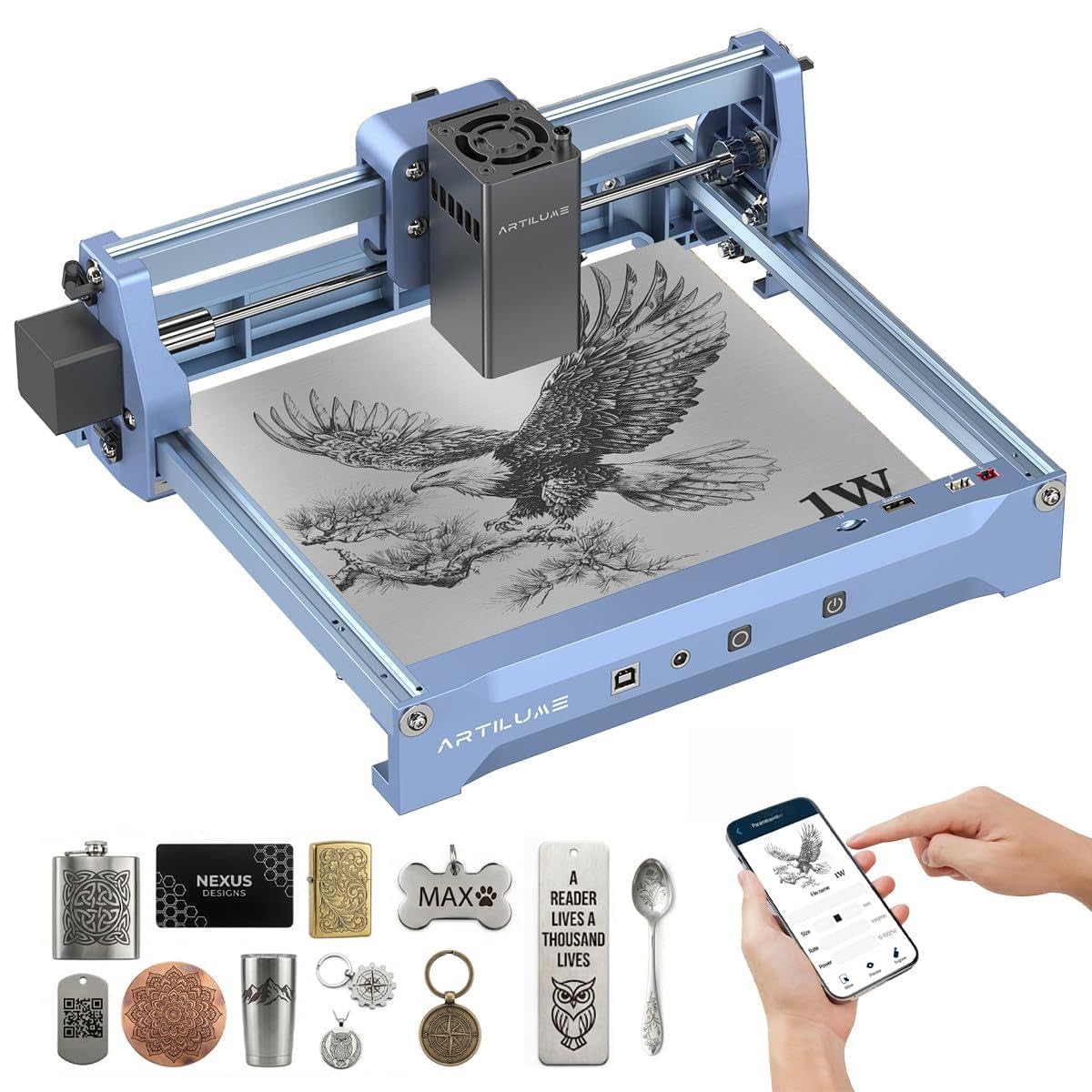
Image 1.1: The Artilume U1 Laser Engraver Infrared 1000mW.
2. Safety Information
Operating a laser engraver requires strict adherence to safety guidelines. Failure to follow these instructions may result in injury or damage to the device.
- Eye Protection: Always wear the provided laser safety goggles when the machine is in operation. Never look directly at the laser beam.
- Ventilation: Use the engraver in a well-ventilated area to dissipate fumes and smoke produced during engraving.
- Fire Safety: Keep a fire extinguisher nearby. Do not leave the machine unattended during operation, especially when engraving flammable materials.
- Emergency Stop: Familiarize yourself with the emergency shutdown feature.
- Motion Protection: The machine includes motion protection features to stop operation if unexpected movement occurs.
- Overheating Prevention: The device detects and prevents overheating. Ensure proper airflow around the machine.
- Children and Pets: Keep children and pets away from the operating area.

Image 2.1: The Artilume U1 Laser Engraver features multiple safety protections, including an anti-laser protective cover, premium laser filter glasses, and tilt protection.
3. Package Contents
Verify that all items listed below are included in your package. If any items are missing or damaged, please contact customer support.
- Artilume U1 Laser Engraver Machine x 1
- User Manual x 1
- Marker Pen x 1
- Cleaning Brush x 1
- Black Card (Square, 80x81.3x0.3mm) x 1
- Kraft Paper (80x80x0.46mm) x 2
- Plywood (100x100x3mm) x 2
- Type-B (2.0) USB Cable x 1
- 4GB TF Card x 1
- Laser Safety Goggles (151x57x55mm) x 1 pair

Image 3.1: All components included in the Artilume U1 Laser Engraver package.
Video 3.1: An unboxing and review of the Artilume U1 Laser Engraver, demonstrating the included components and initial setup.
4. Setup
The Artilume U1 Laser Engraver arrives almost fully assembled and calibrated, making it user-friendly for beginners. Follow these steps for initial setup:
- Placement: Place the engraver on a stable, level surface in a well-ventilated area.
- Power Connection: Connect the power adapter to the DC24V port on the engraver and then to a power outlet.
- Laser Module: Ensure the laser module is securely attached.
- Connectivity: Choose your preferred connection method: USB, TF card, or WiFi.
- Software Installation: Install the engraving software (LaserGRBL, LightBurn, or CutLabX) on your computer or mobile device.

Image 4.1: Overview of the Artilume U1 Laser Engraver's ports and features, including TF card slot, roller, cover, fan, Type-B USB, DC24V power, offline engraving button, and power button.
5. Operating Instructions
5.1 Software and Connectivity
The Artilume U1 offers flexible connectivity and broad software compatibility:
- Connection Methods: Supports USB, TF card, WiFi, and App connections for both online and offline use.
- Compatible Software: Works with popular engraving software such as LaserGRBL (Windows), LightBurn (Windows, macOS), and CutLabX (Windows, macOS, Android, iOS).
- Supported File Formats: Compatible with NC, DXF, BMP, SVG, JPG, JPEG, and PNG files.
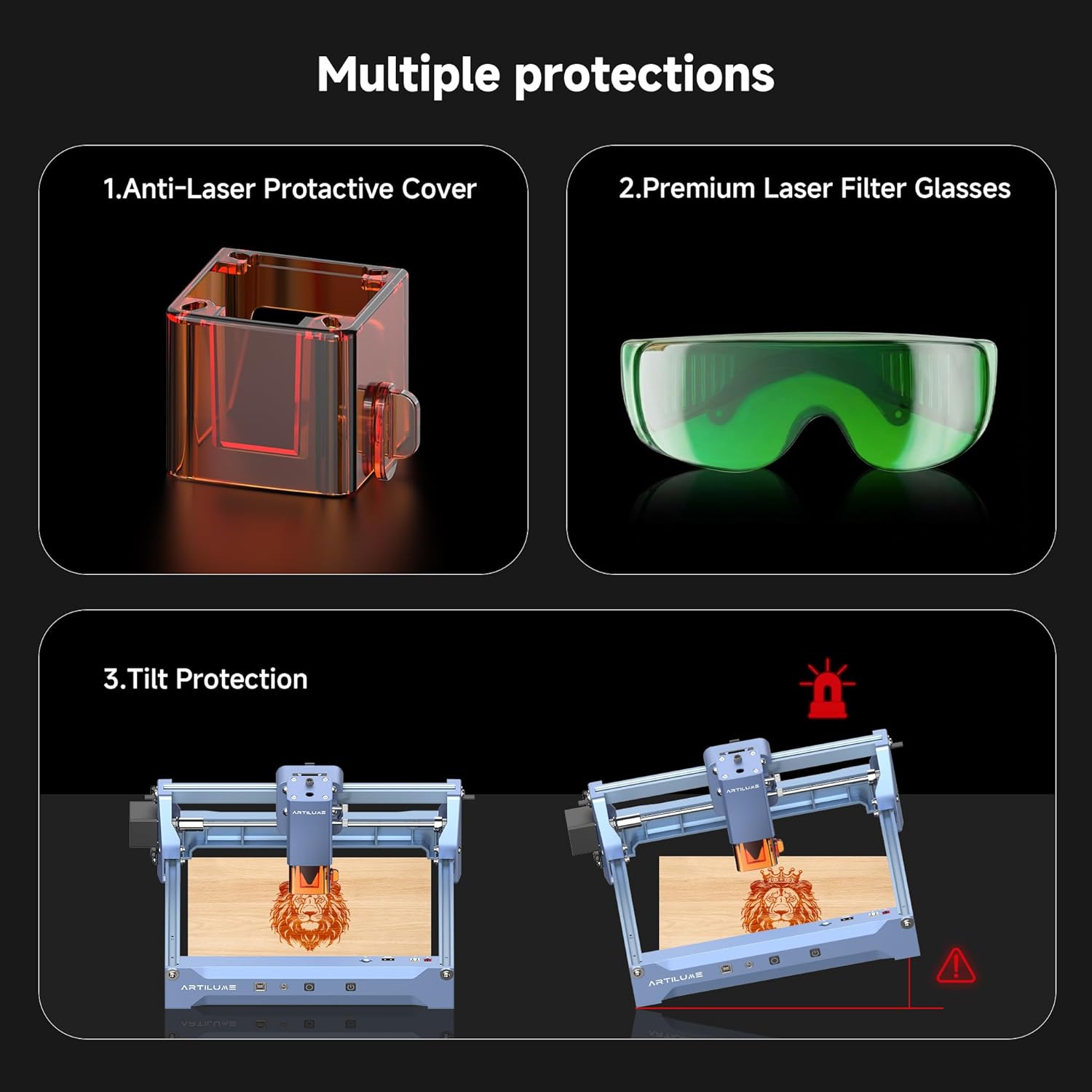
Image 5.1: The Artilume U1 Laser Engraver's compatible software and communication methods.
5.2 Engraving Precision and Working Area
The U1 Laser Engraver is designed for high precision and a generous working area:
- Precision: Features 0.04x0.04mm ultra-fine compressed spot laser technology, achieving an engraving precision of up to 0.01mm. This allows for intricate designs and fine details.
- Working Area: Provides a large working area of 150 x 200mm (approximately 6 x 8 inches).

Image 5.2: Dimensions and large working area of the Artilume U1 Laser Engraver.
5.3 Supported Materials and Laser Types
The Artilume U1 can engrave a variety of materials. The Infrared 1000mW model (U1-IR1W) is specifically designed for engraving, with a unique advantage for metals.
- Engravable Materials: Wood, leather, acrylic, ceramics, stone, aluminum, stainless steel, and copper.
- Infrared Laser (1W): This model excels at engraving metals like aluminum, stainless steel, and copper, which diode lasers typically cannot engrave effectively.

Image 5.3: Examples of various materials that can be engraved with the Artilume U1 Laser Engraver.
Video 5.1: Demonstration of the Artilume U1 Laser Engraver crafting a design onto a wooden plate.
Video 5.2: The Artilume U1 Laser Engraver in action, engraving intricate patterns onto wooden coasters.
5.4 Laser Power Options (U1 Series)
The Artilume U1 series offers various laser power options. The U1-IR1W model features an Infrared 1W laser, ideal for engraving, especially on metals. Other models (3W, 7W, 12W) use diode lasers with different capabilities:
| Feature | IR 1W | 3W | 7W | 12W |
|---|---|---|---|---|
| Engrave | Yes | Yes | Yes | Yes |
| Cut | No | No | Yes | Yes |
| Solid Wood (Cutting Depth) | - | - | 3mm | 5mm |
| Plywood (Cutting Depth) | - | - | 5mm | 8mm |
| Black Acrylic (Cutting Depth) | - | - | 3mm | 4mm |
| Leather (Cutting Depth) | - | - | 1mm | 1mm |
| Wavelength | 1064nm | 455nm | 455nm | 455nm |
Table 5.1: Comparison of Artilume U1 Laser Engraver models, including engraving/cutting capabilities and one-pass cutting depths for various materials.
6. Maintenance
Regular maintenance ensures optimal performance and extends the lifespan of your Artilume U1 Laser Engraver.
- Cleaning the Lens: Periodically clean the laser lens with a soft, lint-free cloth and lens cleaning solution to maintain engraving quality.
- Cleaning the Machine: Use the provided cleaning brush to remove dust and debris from the machine's rails and moving parts.
- Ventilation: Ensure the fan and ventilation openings are clear of obstructions.
- Storage: When not in use, store the engraver in a clean, dry environment away from direct sunlight.
7. Troubleshooting
If you encounter issues with your Artilume U1 Laser Engraver, refer to the following common troubleshooting tips:
- Machine Not Powering On: Check the power cable connection and ensure the power button is pressed. Verify the power outlet is functional.
- Laser Not Firing: Ensure the laser module is correctly installed and connected. Check software settings to confirm the laser is enabled and power is set appropriately.
- Poor Engraving Quality: Clean the laser lens. Adjust focus, laser power, and speed settings in your software. Ensure the material is flat and properly secured.
- Connection Issues (USB/WiFi): For USB, try a different port or cable. For WiFi, ensure the engraver is within range of your router and connected to the correct network. Restart both the engraver and your device.
- Software Not Recognizing Engraver: Ensure the correct drivers are installed. Restart the software and the engraver.
For persistent issues, please consult the official Artilume support resources or contact customer service.
8. Specifications
| Feature | Detail |
|---|---|
| Model Number | U1-IR1W |
| Product Dimensions | 13.4 x 11.4 x 5.8 inches |
| Item Weight | 3.5 pounds |
| Engraving Precision | 0.01mm |
| Laser Spot Size | 0.04 x 0.04mm |
| Working Area | 150 x 200mm (6 x 8 inches) |
| Laser Module Lifespan | > 10,000 hours |
| Connectivity | USB, TF Card, WiFi, App |
| Supported Software | LaserGRBL, LightBurn, CutLabX |
| Supported File Formats | NC, DXF, BMP, SVG, JPG, JPEG, PNG |
| Manufacturer | Artilume |
9. Warranty and Support
For warranty information, technical support, or service inquiries, please refer to the warranty card included with your product or visit the official Artilume website. Keep your purchase receipt as proof of purchase.
Artilume Official Store: Visit the Artilume Store on Amazon


