
1. Introduction
This manual provides essential information for the safe and efficient operation of your Philips TAZ4300 Portable CD Player Boombox. Please read these instructions carefully before using the device and retain them for future reference.
The Philips TAZ4300 is a versatile portable audio system offering multiple playback options including CD, FM radio, USB, Bluetooth, and Aux input. It features 4W RMS stereo sound and is designed for both AC and battery power for portability.
2. What's in the Box
- Main Unit (Philips TAZ4300 Portable CD Player Boombox)
- Power Cord
- User Manual

Video: Unboxing the Philips TAZ4300 CD Player Boombox. This video demonstrates the unboxing process, showing the contents of the package including the main unit, power cord, and user manual.
3. Product Overview
The Philips TAZ4300 features a compact design with clearly labeled controls for ease of use. Key components include:
- Top-loading CD Compartment: For playing CDs.
- Speakers: Dual 2.5-inch full-range speakers for stereo sound.
- Control Panel: Buttons for power, function/EQ, volume, track navigation, scan, repeat, and memory.
- Display Screen: Shows current mode, track number, frequency, or volume level.
- USB Port: For playing audio from USB drives.
- AUX Input: For connecting external audio devices.
- Headphone Jack: For private listening.
- Telescopic FM Antenna: For improved radio reception.
- Carry Handle: For easy portability.

Image: Front view of the Philips TAZ4300 with key controls labeled, including the power button, function/EQ, volume controls, track navigation, USB port, AUX port, and headphone jack.
4. Setup
4.1 Power Supply
Your Philips TAZ4300 can be powered by either AC power or batteries.
AC Power
- Ensure the unit is switched off.
- Connect the supplied AC power cord to the AC IN socket on the unit.
- Plug the other end of the power cord into a wall outlet.
Battery Power
For portable use, the unit requires 4 x C batteries (not included).
- Open the battery compartment cover located on the bottom of the unit.
- Insert 4 C-size batteries, ensuring correct polarity (+/-).
- Close the battery compartment cover securely.
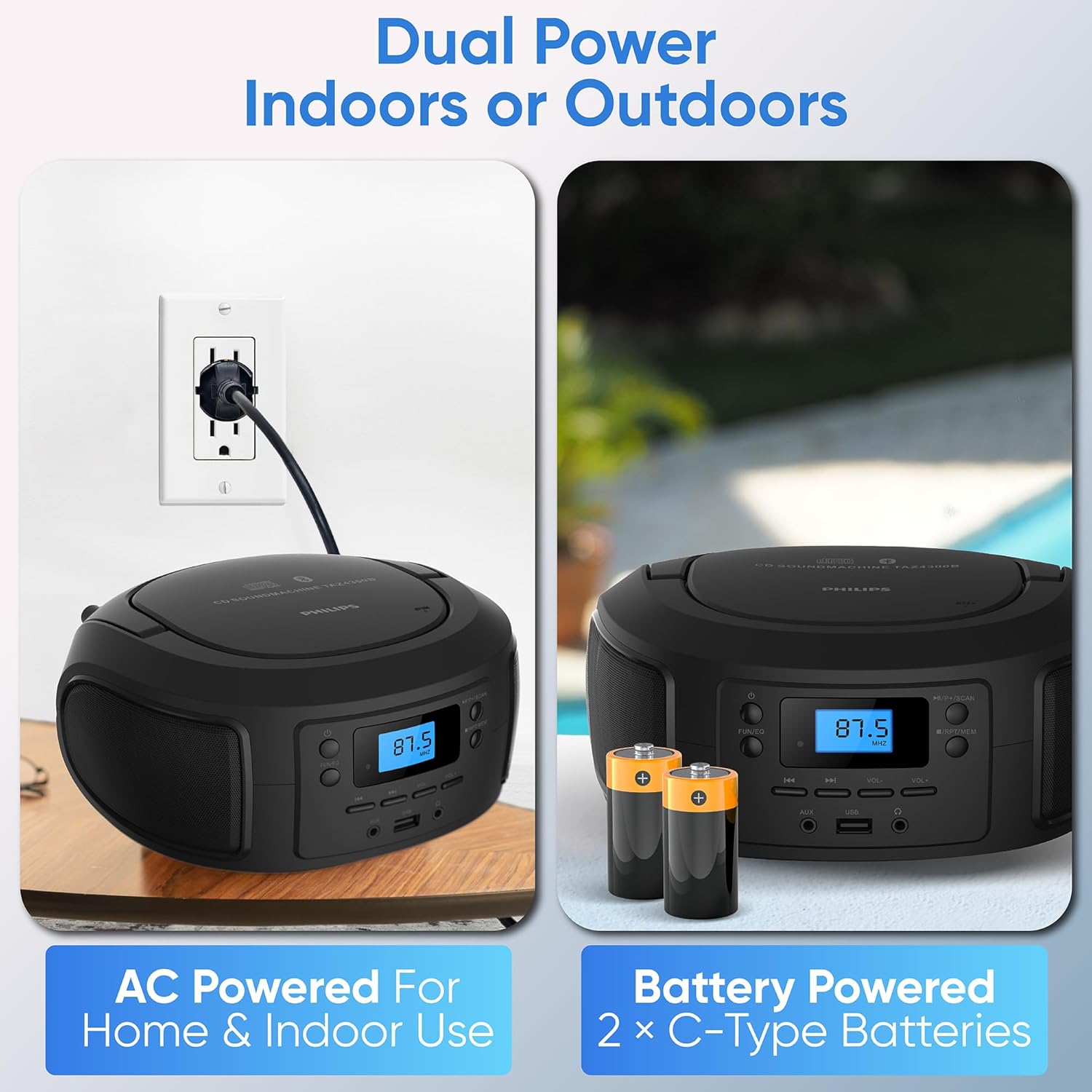
Image: Demonstrates the two power options for the Philips TAZ4300: connecting to an AC outlet and inserting C-type batteries.
4.2 FM Antenna
For optimal FM radio reception, fully extend the telescopic antenna. Adjust its position for the best signal.
5. Operating Instructions
5.1 Power On/Off
Press the Power button to turn the unit on or off.
5.2 Adjusting Volume
Use the VOL- and VOL+ buttons to decrease or increase the volume level.
5.3 Selecting a Source
Press the FUN/EQ button repeatedly to cycle through available sources: CD, Bluetooth, FM Radio, USB, and AUX.
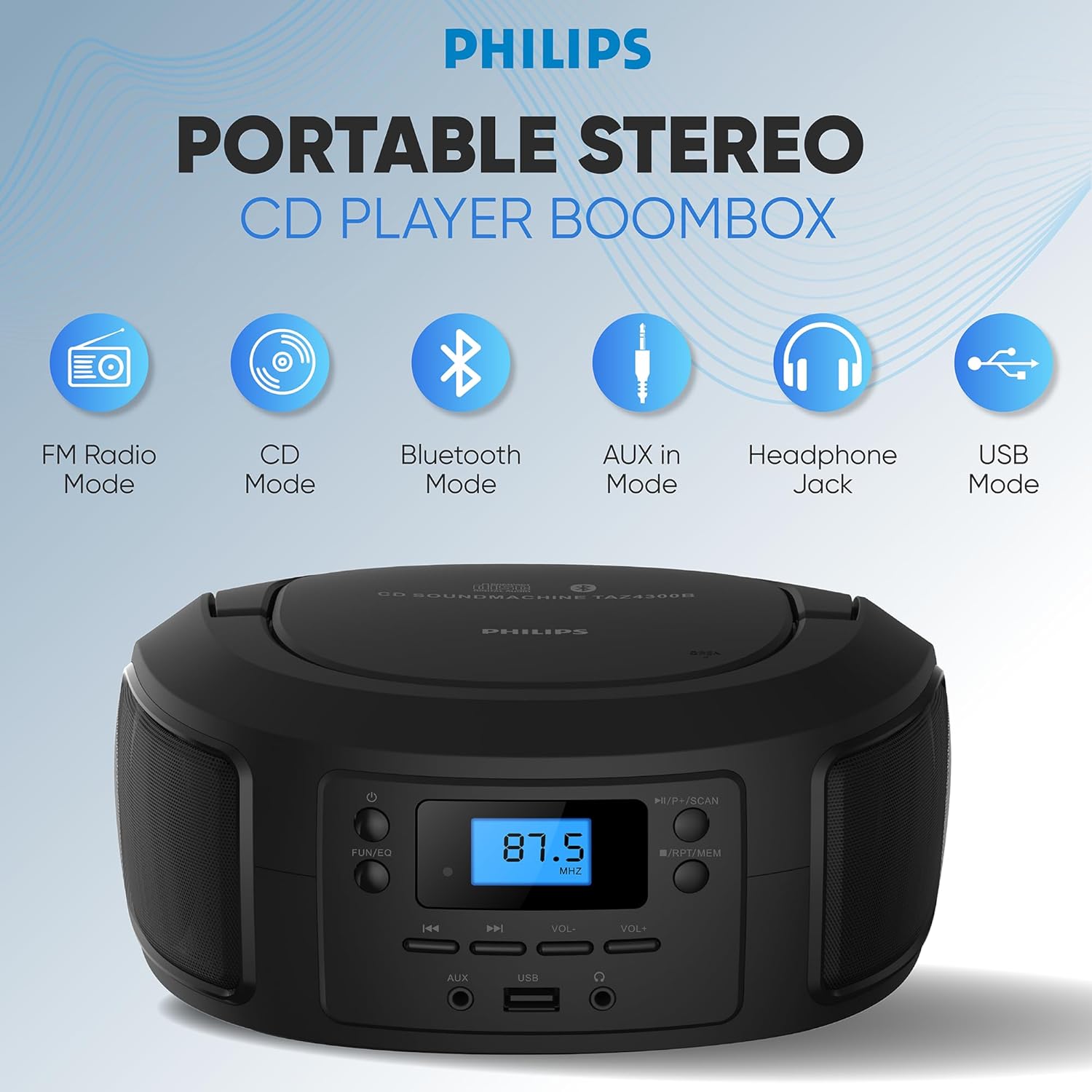
Image: Illustrates the different playback modes available on the Philips TAZ4300: FM Radio, CD, Bluetooth, AUX in, Headphone Jack, and USB Mode.
5.4 CD Playback
The unit supports CD, CD-R, CD-RW, and MP3 discs.
- Open the top-loading CD compartment.
- Place a CD with the label side facing up.
- Close the CD compartment.
- Select CD mode using the FUN/EQ button.
- The CD will begin playing automatically. If not, press the Play/Pause button.
- Use the Skip Forward or Skip Backward buttons to navigate tracks.
5.5 Bluetooth Pairing
Stream audio wirelessly from your Bluetooth-enabled device.
- Select Bluetooth mode using the FUN/EQ button. The display will show "BT" and flash, indicating it's in pairing mode.
- On your mobile device, enable Bluetooth and search for available devices.
- Select "Philips TAZ4300" from the list.
- Once paired, the display will stop flashing and you can play audio from your device.

Image: A smartphone wirelessly connected to the Philips TAZ4300 via Bluetooth, demonstrating music streaming.
5.6 FM Radio
Enjoy your favorite radio stations with the digital FM tuner.
- Select FM Radio mode using the FUN/EQ button.
- Extend the telescopic antenna for best reception.
- Press the Scan button to automatically search and store available stations.
- Use the Skip Forward or Skip Backward buttons to manually tune or select preset stations.

Image: Highlights the digital FM tuner with 30 presets and a telescopic antenna for strong reception on the Philips TAZ4300.
5.7 USB Playback
Play audio files from a USB drive (up to 128 GB).
- Insert a USB drive into the USB port.
- Select USB mode using the FUN/EQ button.
- The unit will automatically detect and play audio files.
- Use the Skip Forward or Skip Backward buttons to navigate tracks.
5.8 AUX Input
Connect external audio devices using a 3.5mm audio cable (not included).
- Connect one end of a 3.5mm audio cable to the AUX IN port on the unit.
- Connect the other end to the headphone jack or audio output of your external device.
- Select AUX mode using the FUN/EQ button.
- Control playback and volume from your external device.
5.9 Headphone Use
For private listening, plug 3.5mm headphones into the headphone jack. The speakers will automatically mute.
6. Maintenance
6.1 Cleaning the Unit
Wipe the unit with a soft, damp cloth. Do not use abrasive cleaners or solvents. Ensure the unit is unplugged before cleaning.
6.2 CD Lens Care
To ensure optimal CD playback, occasionally clean the CD lens using a commercially available CD lens cleaner. Avoid touching the lens directly.
6.3 Battery Replacement
If using battery power, replace all batteries when the unit's performance diminishes. Do not mix old and new batteries or different types of batteries.
7. Troubleshooting
If you encounter issues with your Philips TAZ4300, refer to the following common problems and solutions:
| Problem | Possible Cause | Solution |
|---|---|---|
| Unit does not power on. | No AC power or dead batteries. | Check AC power connection or replace batteries. |
| No sound. | Volume too low; headphones connected; incorrect source selected. | Increase volume; disconnect headphones; select correct source. |
| CD skips or does not play. | Dirty or scratched CD; CD inserted incorrectly; dirty CD lens. | Clean or replace CD; reinsert CD correctly; clean CD lens. |
| Bluetooth device cannot pair. | Bluetooth not enabled on device; unit not in pairing mode; device too far. | Ensure Bluetooth is on and unit is in pairing mode; move device closer. |
| Poor FM radio reception. | Antenna not extended or positioned incorrectly. | Fully extend and adjust the telescopic antenna. |
8. Specifications
- Product Dimensions: 8 x 6 x 5 inches
- Item Weight: 2.65 pounds
- Item Model Number: TAZ4300
- Brand: Philips
- Connectivity Technology: Auxiliary, Bluetooth, USB
- Color: Black
- Speaker Type: Stereo
- Manufacturer: PHILIPS
- CD Compatibility: CD, CD-R, CD-RW, MP3
- Bluetooth Version: 5.3
- Power Output: 4W RMS
- Power Source: AC or 4 x C batteries (not included)
9. Warranty and Support
For warranty information, product registration, or additional support, please visit the official Philips support website. Keep your purchase receipt as proof of purchase.


