
Introduction
The QUJUSO Rux AI Desktop Robot is an advanced artificial intelligence companion designed for interactive engagement and practical assistance. Featuring a powerful A55 central processor, 4GB RAM, and 32GB ROM, Rux offers a seamless and responsive user experience.
This desktop robot is capable of free movement and provides a range of functions including entertainment, life assistance, protection, and work support. It operates on both Android and Linux dual systems, allowing for flexible application expansion and Python programming for advanced users.
Equipped with a 5-megapixel wide-angle camera, Rux enables remote monitoring, video calls, and two-way voice and video communication via mobile applications. It supports ten language environments: English, German, Italian, French, Spanish, Japanese, Russian, Korean, Portuguese, and Chinese, making it a versatile companion for a global audience.
What's in the Box
- Rux AI Robot
- User Manual
Setup
- Unboxing: Carefully remove the Rux AI Robot and all accessories from its packaging.
- Initial Charge: Connect the Rux AI Robot to a power source using the provided charging cable. Ensure it is fully charged before first use. The robot includes one Lithium Ion battery.
- Power On: Locate the power button (refer to the physical robot for exact location) and press and hold it for a few seconds until the display activates.
- App Installation: Download the dedicated mobile application for the Rux AI Robot from your device's app store (Android or iOS).
- Pairing: Follow the on-screen instructions in the app to pair your mobile device with the Rux AI Robot via Bluetooth.
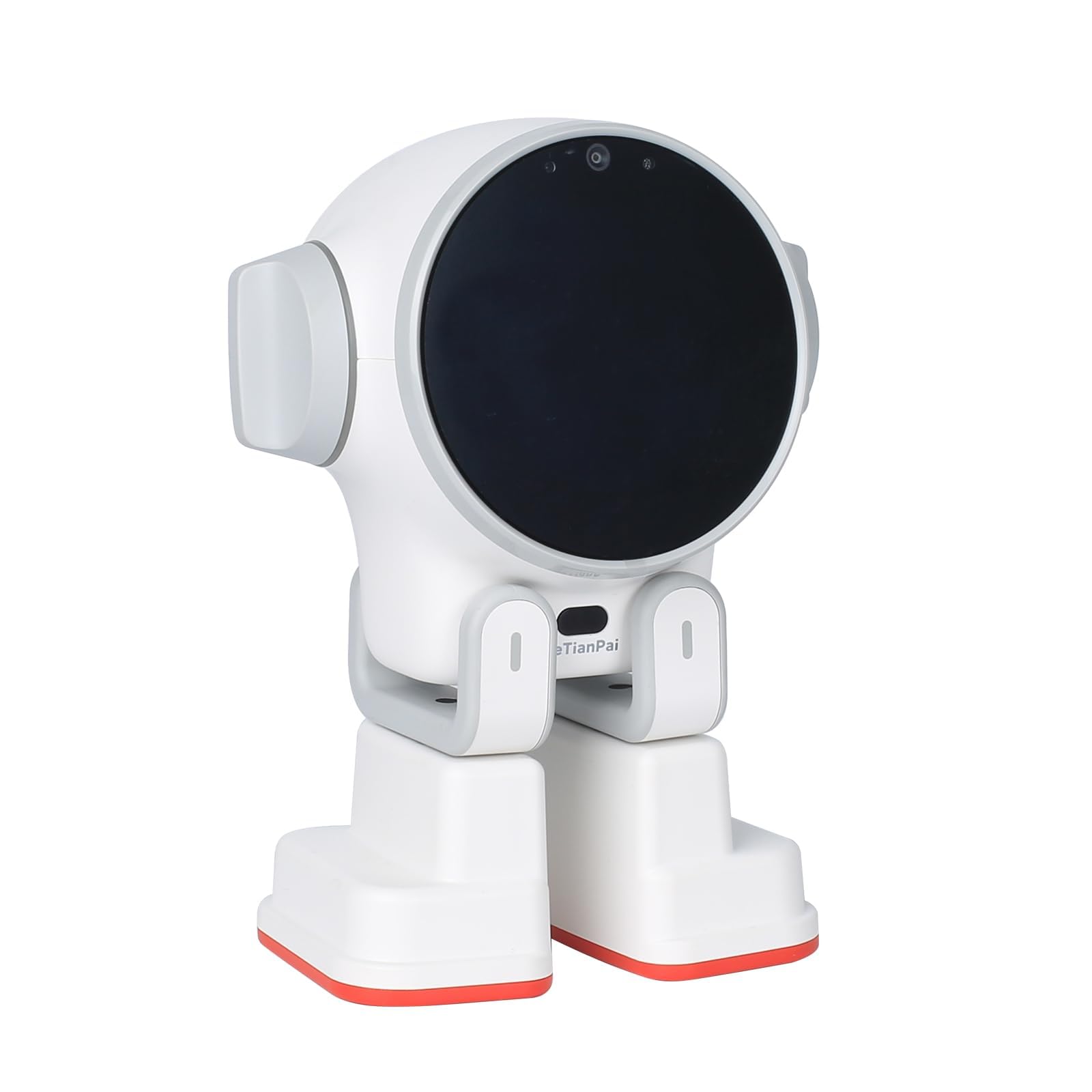
Figure 1: The Rux AI Desktop Robot, showcasing its sleek white design and compact form factor suitable for any desk.
Video 1: An official product video demonstrating the Rux AI Robot's features and interactions, including setup and basic functions.
Operating Instructions
Voice Dialogue
Engage with Rux using natural language voice commands. The robot's advanced AI allows for intelligent conversations and can respond to a wide range of queries and requests. Speak clearly and directly to Rux for optimal interaction.
Remote Monitoring & Communication
Utilize the 5-megapixel wide-angle camera for remote monitoring of your home or office. Through the companion app, you can initiate two-way voice and video calls, effectively using Rux as a home walkie-talkie or surveillance device.
Dual Operating Systems
Rux supports both Android and Linux operating systems. The Android system allows for the installation of various applications to expand the robot's functionalities. For advanced users, the Linux system supports Python programming, offering extensive customization and control over the robot's behavior and capabilities.
Language Support
Rux is designed to operate in ten different language environments: English, German, Italian, French, Spanish, Japanese, Russian, Korean, Portuguese, and Chinese. Language settings can be adjusted via the companion app.
Features Overview
- AI Desktop Companion: Interactive robot with voice dialogue and remote monitoring capabilities.
- Processor & Memory: A55 central processor, built-in 4GB RAM / 32GB ROM.
- Mobility: Desktop robots can walk freely.
- Functions: Provides entertainment, life assistance, protection, and work support.
- Dual Systems: Android and Linux dual systems for flexible app installation and Python programming.
- Camera: 5-megapixel wide-angle camera for remote monitoring, video calls, and two-way communication.
- Multi-Language Support: Supports English, German, Italian, French, Spanish, Japanese, Russian, Korean, Portuguese, and Chinese.
- Interactive Display: 2.1 inch super color screen for higher contrast and sharpness.
- Motors: 6 groups of power micro servo motors for precise movement.
- Speaker: 3W high power speaker for loud and full sound.
- Connectivity: USB-C port for convenient charging.
- Sensors: 18 sensitive sensors for sound, light, space, and multi-dimensional perception.

Figure 2: Detailed view of the Rux AI Desktop Robot's key features, including its display, processor, camera, and various sensors.
Maintenance
- Cleaning: Use a soft, dry cloth to clean the robot's exterior. Avoid using abrasive cleaners or solvents.
- Software Updates: Regularly check the companion app for available firmware and software updates to ensure optimal performance and access to new features.
- Battery Care: To prolong battery life, avoid fully discharging the robot frequently. Charge it regularly, especially if it will be stored for an extended period.
Troubleshooting
- Robot Unresponsive: Ensure the robot is charged. Try restarting the robot by holding the power button.
- App Connectivity Issues: Check your device's Bluetooth settings and ensure Rux is paired. Restart both the app and the robot if issues persist.
- Voice Command Not Recognized: Speak clearly and ensure there is minimal background noise. Verify the language setting in the app matches your spoken language.
- Movement Problems: Check for any obstructions around the robot's wheels or sensors. Ensure the robot is on a flat, stable surface.
Specifications
| Feature | Detail |
|---|---|
| Brand Name | QUJUSO |
| Model Name | Rux |
| Toy Figure Type | Interactive Gaming Figure |
| Processor | A55 Central Processor |
| RAM | 4GB |
| ROM | 32GB |
| Camera | 5-megapixel wide-angle |
| Operating Systems | Android, Linux |
| Supported Languages | English, German, Italian, French, Spanish, Japanese, Russian, Korean, Portuguese, Chinese |
| Material Type | Plastic |
| Color | White |
| Item Dimensions (L x W x H) | 4.53" x 4.57" x 5.71" |
| Power Source | Rechargeable Lithium-ion battery (1 included) |
| Manufacturer Minimum Age | 60 Months |

Figure 3: Dimensions of the Rux AI Desktop Robot, illustrating its compact and portable size.
Warranty and Support
For warranty information and technical support, please refer to the official QUJUSO website or contact customer service through the companion application. Keep your purchase receipt for warranty claims.