
Introduction
The Chargeworx Kids Digital Watch is designed to provide children with a simple, durable timepiece while offering parents the added security of Apple Find My tracking. This watch combines essential functions with a robust, water-resistant build and a comfortable silicone strap, making it suitable for daily wear and active play. It is an alternative to complex smartwatches, focusing on core utility and location tracking without distractions.
This manual provides instructions for setting up, operating, maintaining, and troubleshooting your Chargeworx Kids Digital Watch.
Product Overview
The Chargeworx Kids Digital Watch features a bright digital display, easy-to-use buttons, and a built-in Apple Find My tracker. It includes a light, stopwatch, and alarm functions. The watch is designed for durability and comfort, with a soft silicone strap and water-resistant construction.

Image: Overview of the Chargeworx Kids Digital Watch highlighting its key features such as the Find My button, mode switching, light, stopwatch, reset button, and bright digital display.
Setup
1. Battery Installation/Activation
Your Chargeworx Kids Digital Watch comes with a non-standard battery included. If the watch display is not active, the battery may need to be activated or replaced. This watch uses a replaceable coin cell battery.
- Carefully remove the back cover of the watch using a small screwdriver (not included).
- If a plastic tab is present, gently pull it out to activate the pre-installed battery.
- If replacing the battery, insert a new compatible coin cell battery, ensuring correct polarity (+/-).
- Securely reattach the back cover.
2. Setting Time and Date
The watch features easy-to-use buttons for setting the time and date.
- Press the MODE button repeatedly until the time setting mode is displayed (usually indicated by flashing digits).
- Use the RESET button to adjust the flashing digit (hours, minutes, etc.).
- Press the ST/STP button to move to the next setting (e.g., from hours to minutes, then to date).
- Repeat steps 2 and 3 until all time and date settings are correct.
- Press the MODE button to exit the setting mode.
3. Connecting to Apple Find My
The watch integrates with Apple's Find My network, allowing you to locate it using the Find My app on your iOS device.

Image: The Chargeworx Kids Digital Watch next to an iPhone displaying the Apple Find My app interface, showing the watch's location on a map.
- Ensure your iPhone or iPad is running the latest iOS/iPadOS version and has Bluetooth enabled.
- Open the Find My app on your iOS device.
- Tap the Items tab.
- Tap + Add Item and follow the on-screen instructions to add your Chargeworx watch.
- Press and hold the Find My button on the watch to put it into pairing mode if prompted.
- Once paired, you can view the watch's location on the map within the Find My app.
Operating Instructions
1. Basic Time Display
The watch defaults to displaying the current time (hours, minutes, seconds) and date.
2. Using the Light Function
To illuminate the display in low-light conditions:
- Press the ST/STP button briefly. The backlight will activate for a few seconds.
3. Stopwatch Mode
To use the stopwatch function:
- Press the MODE button until the stopwatch display appears (usually 00:00:00).
- Press ST/STP to start the stopwatch.
- Press ST/STP again to pause/resume.
- Press RESET to clear the stopwatch to zero.
- Press MODE to return to the time display.
4. Alarm Function
To set and activate the alarm:
- Press the MODE button until the alarm setting mode is displayed (usually indicated by 'AL' or a bell icon).
- Use the RESET button to adjust the alarm time.
- Press the ST/STP button to move between hours and minutes.
- Once the alarm time is set, press MODE to exit.
- To turn the alarm ON/OFF, in the alarm display mode, press ST/STP to toggle the alarm icon.
5. Using the Find My Button
The dedicated Find My button on the watch is primarily used for pairing and can also be used to trigger a sound on your iPhone if the watch is nearby and you are looking for your phone (if supported by the Find My app functionality for items).
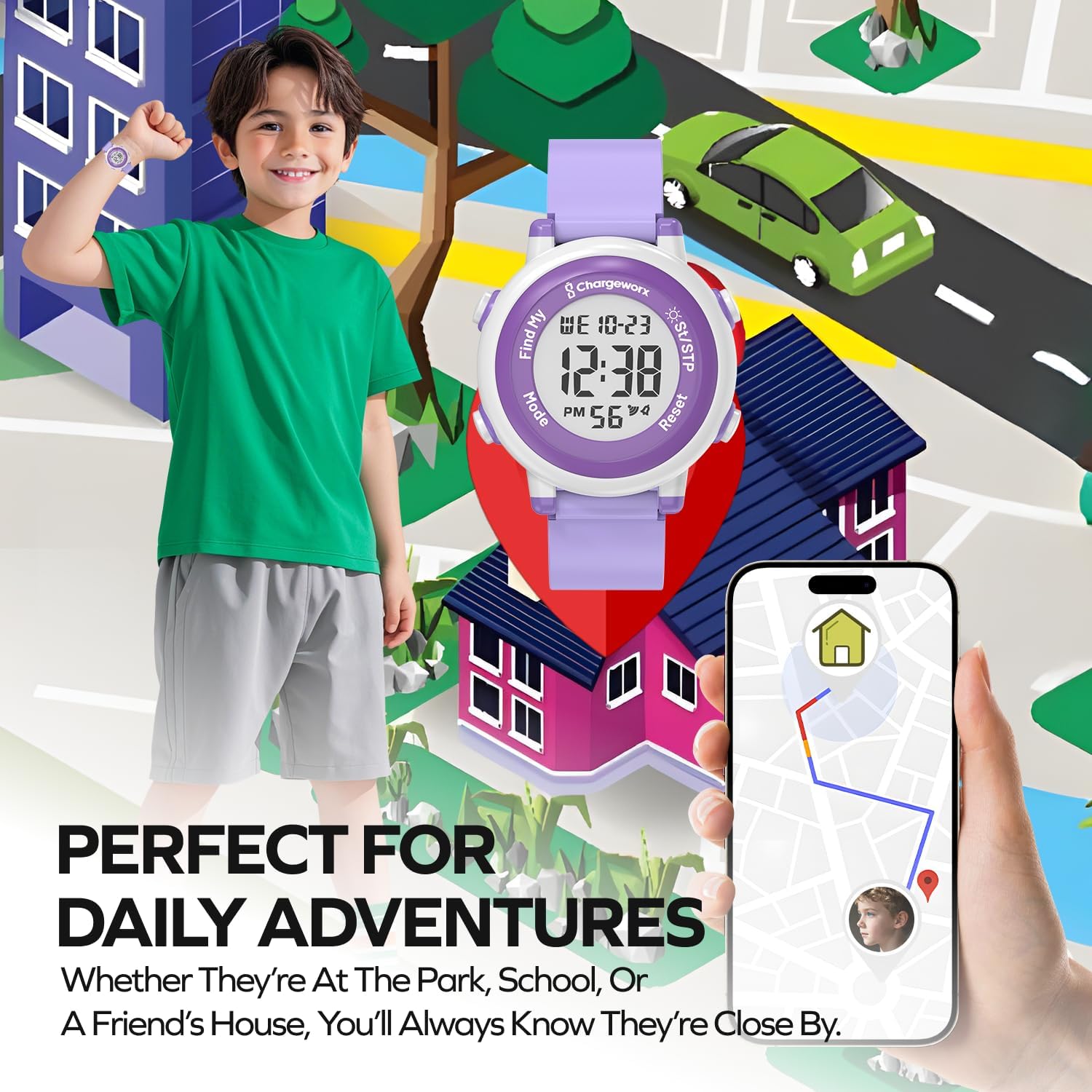
Image: A child wearing the Chargeworx watch in an outdoor setting, with an iPhone displaying the Find My map, illustrating the watch's use for daily adventures and location tracking.
Maintenance
1. Cleaning
To keep your watch clean:
- Wipe the watch and strap with a soft, damp cloth.
- Avoid using harsh chemicals or abrasive cleaners.
- Ensure the watch is dry before wearing.
2. Water Resistance
The Chargeworx Kids Digital Watch is water-resistant, meaning it can withstand splashes, rain, and brief immersion. It is suitable for everyday use, including hand washing and playing near water.

Image: The Chargeworx Kids Digital Watch being splashed with water, demonstrating its water-resistant design suitable for active children.
Important: Do not press buttons while the watch is submerged in water. Not suitable for swimming, diving, or hot water activities.
3. Battery Replacement
When the display dims or the watch stops functioning, it's time to replace the battery.
- Refer to the "Battery Installation/Activation" section under Setup for detailed steps.
- Use a compatible coin cell battery for replacement.
Troubleshooting
| Problem | Possible Cause | Solution |
|---|---|---|
| Watch not keeping correct time | Low battery; incorrect time setting | Replace battery; re-set time and date (refer to Setup section). |
| Display is dim or blank | Dead or low battery | Replace battery. |
| Buttons are unresponsive | Watch frozen; low battery | Try removing and reinserting the battery; replace battery. |
| Apple Find My not locating the watch | Watch out of range of Find My network; low watch battery; Bluetooth off on iPhone | Ensure watch battery is good; check iPhone Bluetooth; move watch closer to an iOS device with Find My enabled. |
Specifications
- Model Number: 643620045435
- Brand: Chargeworx
- Display Type: Digital
- Special Features: Apple Find My tracking, Alarm, Stopwatch, Light
- Water Resistance Level: Water Resistant (splashes, rain)
- Band Material: Silicone
- Clasp Type: Buckle
- Human Interface Input: Buttons
- Connectivity Technology: Bluetooth
- Compatible Devices: iOS Smartphones (for Find My functionality)
- Battery: 1 non-standard replaceable battery (included)
- Item Shape: Round
- Color: Purple
- Dimensions: Approximately 14.22 x 6.6 x 2.03 cm
- Weight: Approximately 54.43 grams
Warranty and Support
For warranty information or technical support, please refer to the product packaging or contact Chargeworx customer service directly. Contact details can typically be found on the manufacturer's website or through your retailer.