
HomeWizard HWE-KWH1
HomeWizard 1-Phase Wi-Fi kWh Meter (MID Certified) Instruction Manual
Model: HWE-KWH1
1. Introduction
The HomeWizard 1-Phase Wi-Fi kWh Meter is designed to provide accurate, real-time energy consumption data for single-phase electrical installations. This MID-certified meter is suitable for official billing purposes and offers comprehensive monitoring capabilities via the HomeWizard app. It is ideal for tracking energy usage of large consumers such as electric vehicle charging stations, heat pumps, and solar installations.
2. Safety Information
Warning: Installation of this device involves working with high voltage electricity. Improper installation can lead to serious injury or death.
- Installation must be performed by a qualified electrician in accordance with local electrical codes and regulations.
- Ensure the main power supply is disconnected before attempting any installation or maintenance.
- Do not open the device casing. There are no user-serviceable parts inside.
- Keep the device away from water and excessive moisture.
- Operate the device within its specified voltage and current ratings (100A, 230V).
3. Package Contents
Verify that all items are present in the package:
- HomeWizard 1-Phase Wi-Fi kWh Meter (Model: HWE-KWH1)
- Quick Start Guide
4. Product Overview
The HomeWizard kWh Meter is a compact device designed for DIN rail mounting, providing precise energy measurement and Wi-Fi connectivity for smart home integration.

Figure 4.1: HomeWizard kWh Meter showing its compact dimensions (10.6 x 3.6 x 6.6 cm).

Figure 4.2: Key features of the HomeWizard kWh Meter, including backlit LCD, intuitive button control, impulse LED, DIN rail mounting, and security seal orifice.
Key Features:
- MID Certified: Ensures accuracy for official billing and leasing purposes.
- Wi-Fi Connectivity: Real-time data access via the HomeWizard app.
- 1-Phase Measurement: Suitable for single-phase electrical systems.
- DIN Rail Mounting: Easy installation in standard electrical panels.
- Compact Design: Fits into most electrical cabinets.
- Backlit LCD Screen: Direct on-site display of measurements.
- Intuitive Button Control: Simple navigation.
- Impulse LED: Indicates current energy consumption.
- Security Seal Orifice: For protection against tampering.
5. Setup and Installation
The HomeWizard kWh Meter is designed for installation in your electrical panel. Due to the nature of electrical work, professional installation is highly recommended.
5.1. Installation Requirements
- Technical knowledge of electrical installations is required.
- Standard 35mm DIN rail for mounting.
- 2.4 GHz Wi-Fi network for app connectivity.
5.2. Installation Steps (Professional Installation Recommended)
- Disconnect Power: Before starting, ensure the main power supply to your electrical panel is completely switched off.
- Mount the Meter: Securely attach the HomeWizard kWh Meter onto a 35mm DIN rail within your electrical panel.
- Wire the Meter: Connect the meter according to the wiring diagram provided in the quick start guide and local electrical standards. Ensure correct phase and neutral connections, and connect the load.
- Restore Power: Once wiring is complete and verified, restore power to the electrical panel.
- Wi-Fi Connection: Follow the instructions in the Quick Start Guide to connect the meter to your 2.4 GHz Wi-Fi network.
- App Integration: Download the HomeWizard app from your device's app store and follow the in-app instructions to add and configure your new kWh meter.

Figure 5.1: The HomeWizard kWh Meter being installed on a DIN rail in an electrical cabinet. Professional installation is advised.
6. Operating Instructions
The HomeWizard kWh Meter provides real-time energy data directly on its LCD screen and through the HomeWizard mobile application.
6.1. On-Device Display
- The backlit LCD screen displays current energy consumption (kWh) and other relevant metrics.
- Use the intuitive button control to cycle through different display modes and view historical data directly on the device.
- The impulse LED will flash to indicate active energy consumption.
6.2. HomeWizard App Integration
The HomeWizard app is the primary interface for monitoring and managing your energy data.
- Download the App: Search for "HomeWizard" in your smartphone's app store (iOS or Android).
- Create Account: If you don't have one, create a HomeWizard account and log in.
- Add Device: Follow the in-app instructions to add your kWh meter. Ensure your phone is connected to the same 2.4 GHz Wi-Fi network as the meter during setup.
- Monitor Consumption: View real-time and historical energy consumption data, including grid draw, grid feed-in, and consumption by specific appliances (if configured with other HomeWizard devices).
- Insights and Optimization: The app provides insights into your energy usage patterns, helping you identify large consumers and optimize your energy consumption.

Figure 6.1: The HomeWizard app interface showing real-time energy consumption data, including grid usage and solar production.

Figure 6.2: A smartphone displaying the HomeWizard app, illustrating its user-friendly interface for energy monitoring.
6.3. Applications
The HomeWizard kWh Meter is versatile and can be used to monitor various high-consumption devices and energy sources:
- Heat Pumps
- Electric Vehicle (EV) Charging Stations
- Air Conditioners
- Solar Panels (for production monitoring)
- Electric Water Heaters
- Induction Hobs
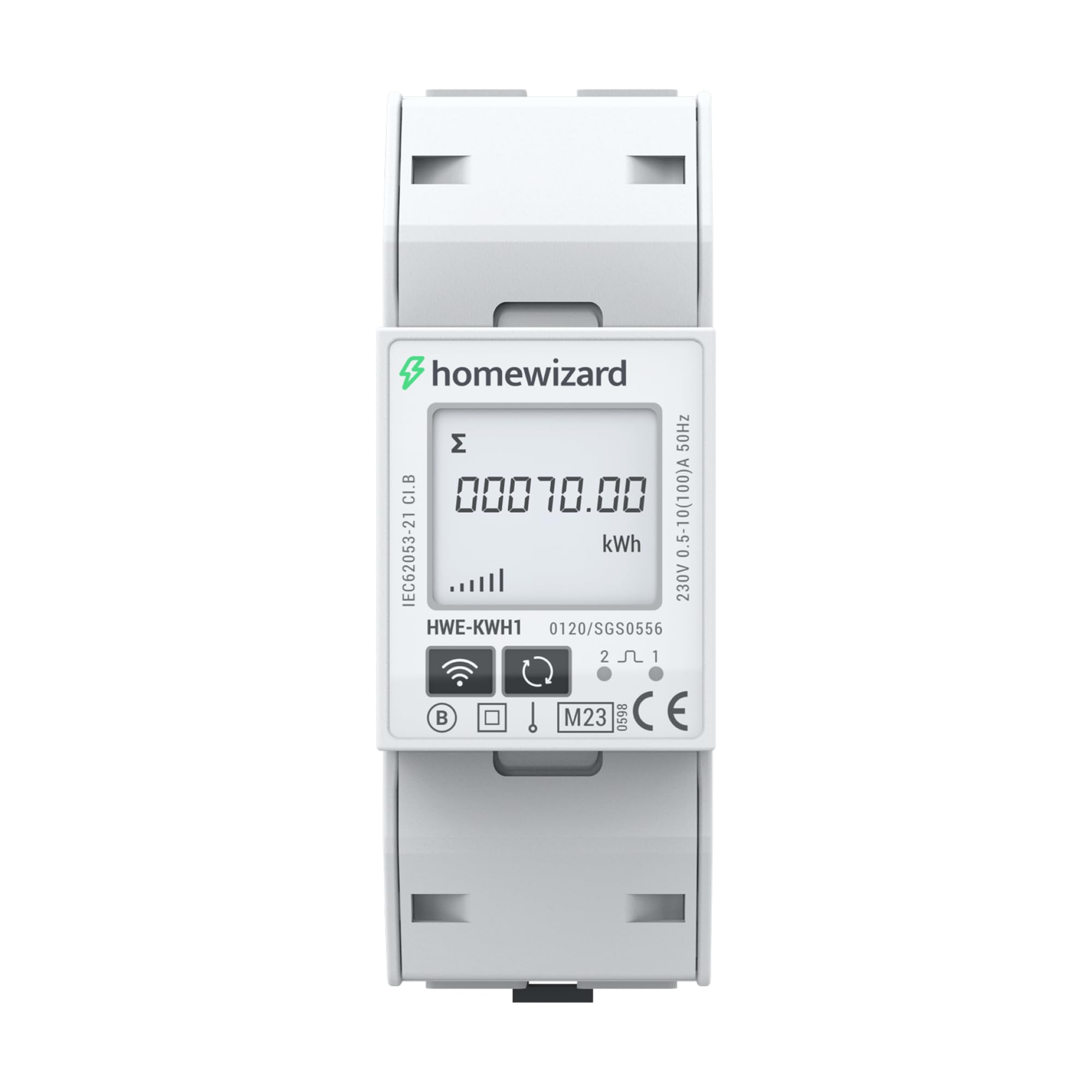
Figure 6.3: The HomeWizard kWh Meter monitoring an electric vehicle charging station and solar panel output.
7. Maintenance
The HomeWizard kWh Meter is designed for maintenance-free operation.
- Cleaning: If necessary, gently wipe the exterior of the device with a dry, soft cloth. Do not use liquid cleaners or solvents.
- Firmware Updates: Ensure your device's firmware is up to date through the HomeWizard app to benefit from the latest features and improvements.
- No User Serviceable Parts: Do not attempt to open or repair the device. Refer to qualified personnel for any issues.
8. Troubleshooting
If you encounter issues with your HomeWizard kWh Meter, try the following steps:
- No Power/Display Off:
- Check the main power supply to the electrical panel.
- Ensure all wiring connections are secure (consult a qualified electrician).
- No Wi-Fi Connection:
- Verify your Wi-Fi network is 2.4 GHz. The device does not support 5 GHz networks.
- Ensure the Wi-Fi signal strength is adequate at the meter's location.
- Restart your Wi-Fi router.
- Attempt to re-pair the device with the HomeWizard app.
- Incorrect Readings:
- Confirm that the meter is correctly wired according to the installation diagram.
- Ensure the meter is MID certified for accurate measurements.
- App Not Displaying Data:
- Check your internet connection on your smartphone.
- Ensure the HomeWizard app is updated to the latest version.
- Log out and log back into the HomeWizard app.
- If the issue persists, contact HomeWizard support.
9. Specifications
| Brand | HomeWizard |
| Model | HWE-KWH1 |
| Product Dimensions (L x W x H) | 10.6 x 3.6 x 6.6 cm |
| Item Weight | 167 grams |
| Color | Grey |
| Material | Plastic |
| Voltage | 230 Volts |
| Current Rating | 100 A |
| Power Consumption | 2 Watts |
| MID Certified | Yes |
| Batteries Included | No |
| Batteries Required | No |
| First Available | November 19, 2025 |
10. Warranty and Support
10.1. Warranty Information
The HomeWizard kWh Meter comes with a 2-year availability for spare parts. For specific warranty terms and conditions, please refer to the documentation provided with your purchase or visit the official HomeWizard website.
10.2. Software Updates
Software updates are provided to enhance functionality and security. Information regarding guaranteed software updates is not available in the provided data. Please check the HomeWizard app or website for the latest information.
10.3. Customer Support
For technical assistance, troubleshooting, or any other inquiries, please contact HomeWizard customer support.
- Manufacturer: HomeWizard
- Seller: HomeWizard BV (on Amazon.fr)
- Refer to the HomeWizard website for contact details and support resources.
Ask a question about this manual
Ask about setup, troubleshooting, compatibility, parts, safety, or missing instructions. Manuals+ will review the question and use this page’s manual context to help answer it.