
1. Product Overview
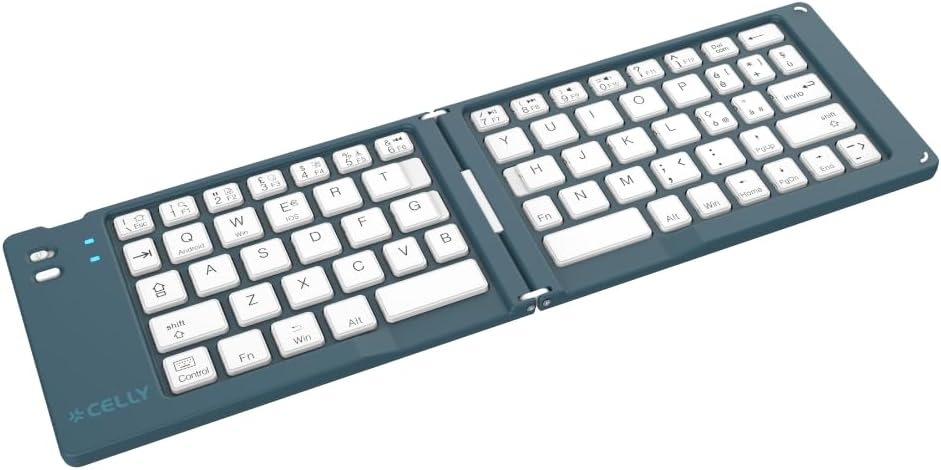
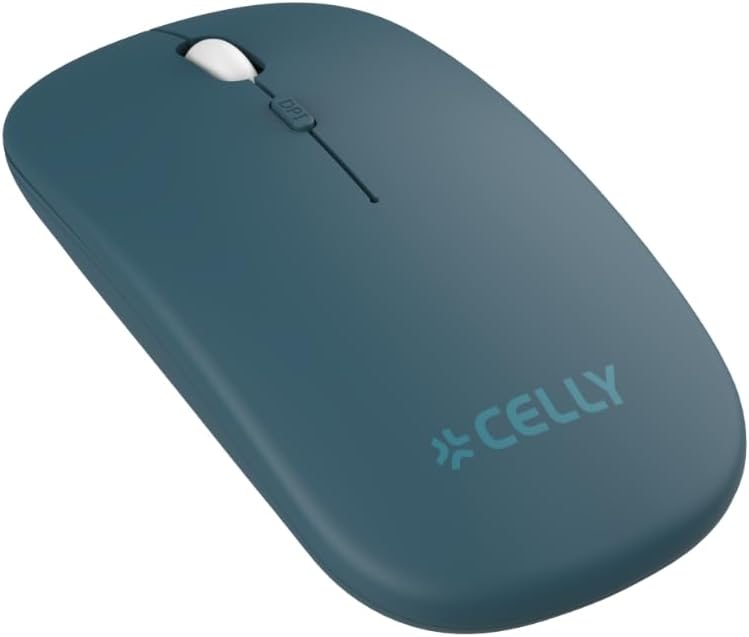
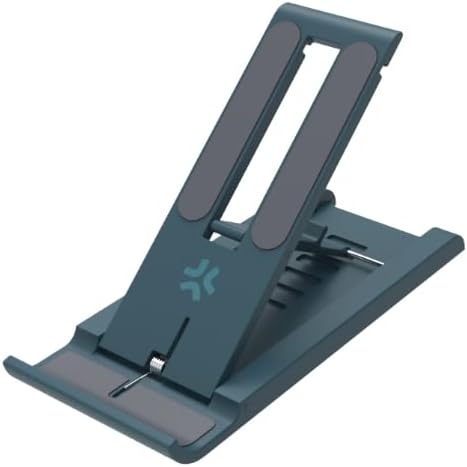
The Celly Kit Travel is an essential set designed for on-the-go work. It provides a complete mobile workstation solution, combining portability with functionality. The kit includes a foldable wireless keyboard, a compact wireless mouse, a USB-C charging cable, an adjustable smartphone stand, and a mouse pad, all housed within a durable EVA hard case.
- Optimal Organization: The rigid EVA case protects your keyboard, mouse, and accessories from bumps, water, and dust during travel.
- Complete Productivity Kit: Includes a foldable wireless keyboard, a compact wireless mouse, a Type-C cable, an adjustable smartphone stand, and a practical mouse pad.
- Maximum Flexibility: Transforms any location into a mobile office. Ideal for those who need a complete, lightweight, and easily transportable workstation with a wireless keyboard and mouse.
- Universal Compatibility: This wireless keyboard and mouse set is compatible with various devices and operating systems, allowing you to work efficiently wherever you are.
2. Package Contents
Ensure all items are present in your Celly Kit Travel package:
- Foldable Wireless Keyboard
- Wireless Mouse
- EVA Hard Case
- USB-C Charging Cable
- Adjustable Smartphone Stand
- Mouse Pad



3. Setup Guide
3.1. Wireless Mouse Setup
- Install Battery: The mouse operates on a single AAA battery (included). To install, gently lift the magnetic top cover of the mouse and insert the AAA battery, ensuring correct polarity. Replace the cover.
- Select Mode: On the underside of the mouse, locate the ON/OFF switch and a mode selection button. Toggle the switch to 'ON'. Press the mode button to switch between Bluetooth mode (indicated by a blue light) and USB wireless mode (indicated by a green light).
- USB Wireless Connection: If using USB wireless mode, remove the USB receiver from its storage slot inside the mouse (under the magnetic cover). Insert the USB receiver into an available USB port on your computer. The mouse should connect automatically.
- Bluetooth Connection: If using Bluetooth mode, ensure the mouse is in Bluetooth mode (blue light blinking). On your device (smartphone, tablet, or computer), go to Bluetooth settings and search for available devices. Select 'Celly Mouse' (or similar name) from the list to pair.
Video: General demonstration of a wireless keyboard and mouse set, showing low-profile keys, 2.4GHz connectivity, USB receiver usage, DPI settings, and ergonomic design. While not specific to Celly, it illustrates common features and setup steps for such devices.
Video: Demonstration of a foldable Bluetooth mouse, showing battery installation, mode selection between Bluetooth and USB wireless, and pairing with an iPad and a laptop. This video provides a visual guide for setting up the Celly wireless mouse.
3.2. Foldable Wireless Keyboard Setup
- Power On: Unfold the keyboard. The power switch is usually located on the side or back. Slide it to the 'ON' position.
- Bluetooth Pairing: Press and hold the 'Fn' key along with the '1' or '2' key (depending on which Bluetooth channel you want to use) for 3-5 seconds until the corresponding Bluetooth indicator light starts blinking. This indicates the keyboard is in pairing mode.
- Connect to Device: On your device (smartphone, tablet, or computer), go to Bluetooth settings and search for available devices. Select 'Celly Keyboard' (or similar name) from the list to pair. Follow any on-screen prompts, such as entering a pairing code.
- Switching Devices: To switch between paired devices, simply press 'Fn' + '1' or 'Fn' + '2' to select the desired channel.
Video: A visual guide demonstrating the setup and use of a mini portable keyboard. It shows how to unfold the keyboard, connect via Bluetooth to multiple devices (phone and tablet), switch between devices, and use various function keys for language input, screen brightness, and volume control. It also illustrates charging via a Type-C port.
Video: This video showcases a foldable Bluetooth keyboard, highlighting its compact design, scissor-switch keys for sensitive and silent typing, integrated touchpad and numeric keypad, and easy portability. It also demonstrates quick charging via a Type-C port and powerful Bluetooth connectivity for up to three devices simultaneously, suitable for work and home use.
Video: A quick start guide for a multi-device keyboard and mouse combo, demonstrating 2.4G USB receiver connection for the mouse and Bluetooth pairing for the keyboard. It shows how to switch between Bluetooth channels and highlights the built-in rechargeable battery.
3.3. Smartphone Stand Setup
The adjustable smartphone stand can be unfolded and adjusted to your preferred viewing angle. Place your smartphone or tablet securely in the stand to optimize your workspace.
4. Operating Instructions
4.1. Keyboard Functions
- Function Keys (Fn): Use the 'Fn' key in combination with the blue-labeled keys for special functions such as media control, screen brightness adjustment, and volume control. Refer to the keyboard's key labels for specific functions.
- Language Input: To change the input language, use the designated key combination (e.g., 'Fn' + 'Spacebar' or 'Ctrl' + 'Spacebar' depending on your device's operating system).
- Special Characters: Access special characters using 'Shift' or 'Alt Gr' combinations as indicated on the keycaps.
4.2. Mouse Functions
- DPI Adjustment: The mouse features adjustable DPI settings (e.g., 800/1200/1600 DPI) for varying cursor sensitivity. Press the DPI button (usually located near the scroll wheel) to cycle through the settings.
- Ergonomic Design: The mouse is designed for comfortable use over extended periods, reducing strain.
5. Maintenance
- Cleaning: Use a soft, dry cloth to clean the keyboard and mouse. For stubborn dirt, a slightly damp cloth with mild soap can be used, ensuring no liquid enters the devices.
- Storage: When not in use, store all components in the EVA hard case to protect them from dust, spills, and physical damage.
- Battery Care (Mouse): Replace the AAA battery when performance degrades. Dispose of used batteries responsibly.
- Charging (Keyboard): Recharge the keyboard using the provided USB-C cable when the battery indicator shows low power. Avoid overcharging.
6. Troubleshooting
6.1. Connectivity Issues
- Device Not Connecting:
- Ensure both the keyboard and mouse are powered on and in the correct mode (Bluetooth or USB wireless).
- For Bluetooth, ensure the device's Bluetooth is enabled and the keyboard/mouse is in pairing mode (blinking indicator light).
- For USB wireless, ensure the USB receiver is securely plugged into your device.
- Try restarting your device and the keyboard/mouse.
- Remove previous pairings from your device's Bluetooth settings and attempt to re-pair.
- Intermittent Connection:
- Ensure the devices are within the effective range (typically up to 10 meters/33 feet).
- Check for interference from other wireless devices.
- Ensure batteries are not low (for mouse) or keyboard is charged.
6.2. Keyboard/Mouse Not Responding
- No Power:
- Check the ON/OFF switch.
- Replace the mouse battery or charge the keyboard.
- Incorrect Input:
- Ensure the correct input language is selected on your device.
- Verify that the keyboard layout matches your device's settings.
7. Specifications
| Feature | Detail |
|---|---|
| Brand | Celly |
| Color | Blue |
| Connectivity Technology | Bluetooth |
| Special Features | Foldable, Wireless, Hard Case, Smartphone Stand |
| Keyboard Description | Foldable, Wireless |
| Power Source | Battery Powered |
| Batteries Included | Yes |
| Lithium Battery Capacity | 1.85 Watt-hours |
| Lithium Battery Packaging | Batteries contained in equipment |
| Number of Lithium Ion Cells | 2 |
| Item Weight | 590 g |
| Package Dimensions | 27 x 18 x 5 cm |
8. Warranty and Support
For warranty information and customer support, please refer to the documentation included in your product packaging or visit the official Celly website. Keep your proof of purchase for any warranty claims.
Celly is committed to producing innovative and high-quality accessories. For further assistance, please contact Celly customer service.