
Introduction
This manual provides detailed instructions for the installation, operation, and maintenance of your PHEZEN 10.1 Inch Android 13 Car Stereo. This unit is designed for a seamless upgrade in Dodge RAM 1500, 2500, and 3500 models from 2006 to 2008, offering advanced features like Android 13, wireless CarPlay, Android Auto, GPS navigation, Bluetooth, and a backup camera.
Setup and Installation
Before beginning installation, ensure your vehicle is compatible with this unit. The 10.1-inch display is designed for a direct fit into the specified Dodge RAM models.
Package Contents
Verify that all components are present in the package:
- 1 x Car Stereo Unit
- 1 x Power Cable
- 1 x GPS Antenna
- 2 x USB Cable
- 1 x RCA Cable
- 1 x Backup Camera
- 1 x User Manual (this document)
- Fixed brackets

Image: Included components for the PHEZEN Car Stereo.
Wiring Diagram
Connect the provided cables according to the wiring diagram. Ensure all connections are secure to prevent malfunctions.

Image: Rear wiring connections for the car stereo.
Installation Steps
- Carefully remove your vehicle's original radio unit.
- Connect the power cable, GPS antenna, USB cables, RCA cable, and backup camera cable to the corresponding ports on the new stereo unit.
- Mount the new stereo unit into the dashboard opening, ensuring a secure fit.
- Test all functions before fully reassembling the dashboard.
Operating Instructions
Basic Interface and Controls
The unit features a 10.1-inch capacitive touchscreen for intuitive operation. You can also utilize your vehicle's existing steering wheel controls for common functions like volume and track changes.
Wireless CarPlay & Android Auto
Connect your smartphone wirelessly to access essential apps directly on the stereo display. This feature supports both Apple CarPlay and Android Auto for integrated navigation, communication, and entertainment.

Image: Wireless CarPlay and Android Auto functionality.
GPS Navigation and WiFi
The stereo includes built-in GPS for navigation. Connect to a WiFi hotspot to access online maps and other internet-dependent applications.

Image: GPS Navigation and WiFi function display.
Bluetooth Connectivity
Pair your mobile device via Bluetooth 5.2 for hands-free calling and audio streaming. Access your phone's contacts and call history directly from the stereo.
FM/RDS Radio
Tune into your favorite FM radio stations. The RDS (Radio Data System) feature provides additional information such as station name and song titles where available.
Backup Camera Display
When shifting into reverse, the stereo automatically displays the view from the included high-definition backup camera, providing clear visibility for safer parking and maneuvering.

Image: Reverse display and steering wheel control interface.
Voice Control
Utilize voice commands for various functions, enhancing safety by allowing you to keep your hands on the wheel and eyes on the road.
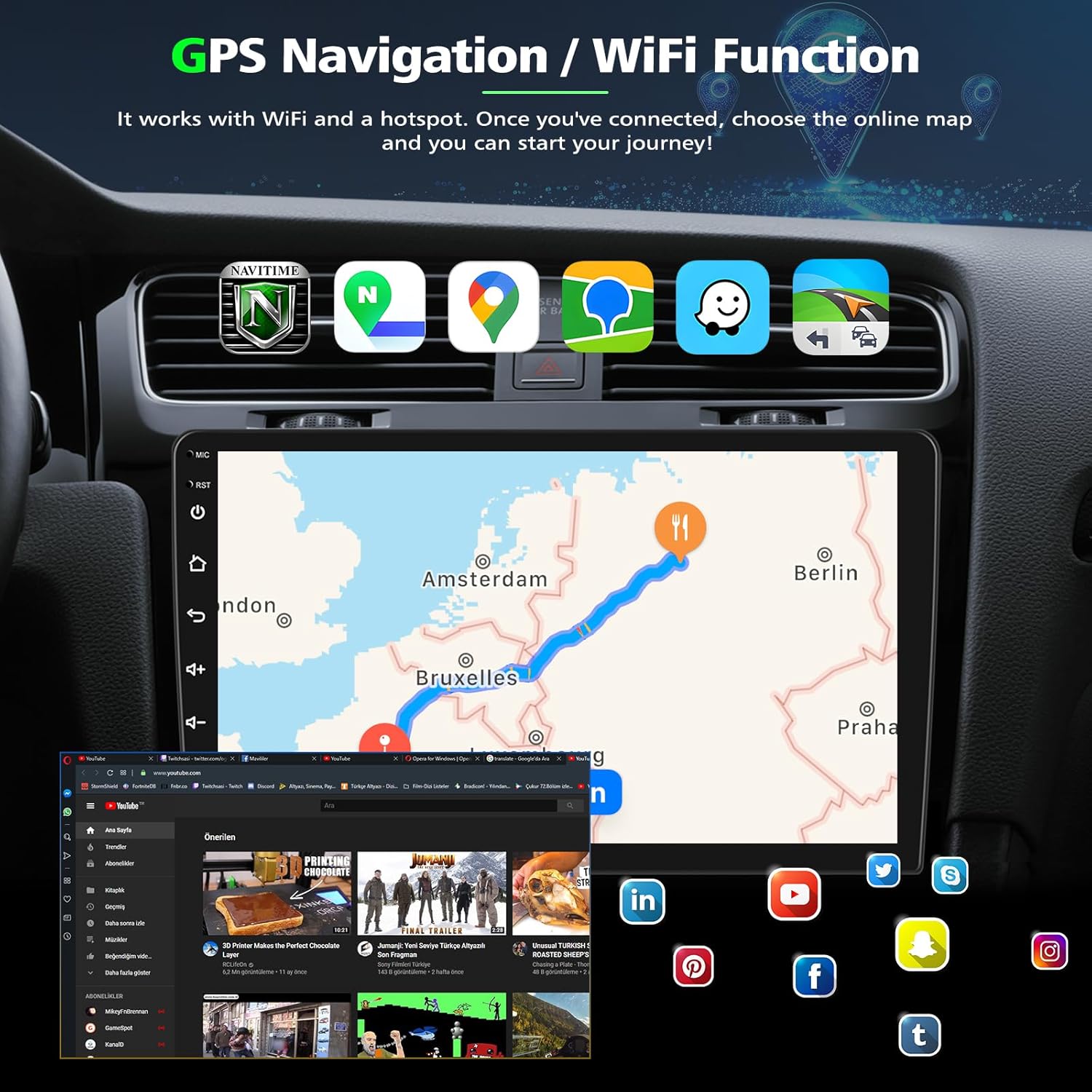
Image: Bluetooth, Split Screen, FM/RDS Radio, and Voice Control features.
Maintenance
Screen Cleaning
To clean the touchscreen, power off the unit and gently wipe the screen with a soft, lint-free cloth. For stubborn smudges, use a screen cleaner specifically designed for electronic displays. Avoid abrasive materials or harsh chemicals.
Software Updates
Periodically check for available software updates to ensure optimal performance and access to the latest features. Updates can typically be downloaded via a WiFi connection or USB, following on-screen instructions.
Troubleshooting
If you encounter issues with your car stereo, refer to the following common problems and solutions:
| Problem | Possible Cause | Solution |
|---|---|---|
| Unit does not power on | Loose power connection, blown fuse | Check power cable connections. Inspect vehicle's fuse box for blown fuses. |
| No sound | Volume too low, incorrect audio source, loose speaker wires | Increase volume. Select correct audio source. Check speaker wire connections. |
| GPS signal lost or inaccurate | GPS antenna obstruction, poor satellite reception | Ensure GPS antenna has a clear view of the sky. Move to an open area. |
| Bluetooth not connecting | Device not in pairing mode, incorrect pairing process | Ensure Bluetooth is enabled on both devices and in pairing mode. Follow pairing instructions in the manual. |
| Backup camera not displaying | Loose camera connection, faulty camera | Check the backup camera's video input cable connection. Ensure the vehicle is in reverse. |
If the problem persists after attempting these solutions, please contact customer support.
Specifications
| Feature | Detail |
|---|---|
| Display Size | 10.1 Inches |
| Operating System | Android 13 |
| Memory Storage Capacity | 64 GB |
| Connectivity Technology | Bluetooth, USB, Wi-Fi |
| Special Features | Bluetooth, Touchscreen, Wireless CarPlay, Android Auto, GPS Navigation, FM/RDS Radio, Backup Camera Support, Steering Wheel Control Compatibility |
| Human Interface Input | Touchscreen |
| Map Type | Worldwide |
Warranty Information
This PHEZEN Car Stereo unit comes with a 1-year warranty from the date of purchase, covering manufacturing defects. Please retain your proof of purchase for warranty claims. The warranty does not cover damage caused by improper installation, misuse, accidents, or unauthorized modifications.
Customer Support
For technical assistance, warranty claims, or any questions regarding your PHEZEN Car Stereo, please contact the seller, UZZO-PHEZEN, directly through the Amazon platform. Provide your order number and a detailed description of the issue for prompt support.

Image: How to contact UZZO-PHEZEN for support.