
1. Product Overview
The HP DesignJet Z6 24-inch Large Format PostScript Inkjet Printer is designed for professional use, including photographers, graphic designers, and print service providers. It produces consistent and accurate indoor prints with high-definition output.
Key features include new high-definition HP printheads for clear color and sharp details, HP Pixel Control technology for smooth gradients, and an integrated vertical trimmer for efficient finishing. The printer handles complex files and supports various media types and sizes from 11 to 24 inches.
This printer includes robust security features such as HP Secure Boot, Whitelisting, and Role Based Access Control, along with secure disk and file erase capabilities.
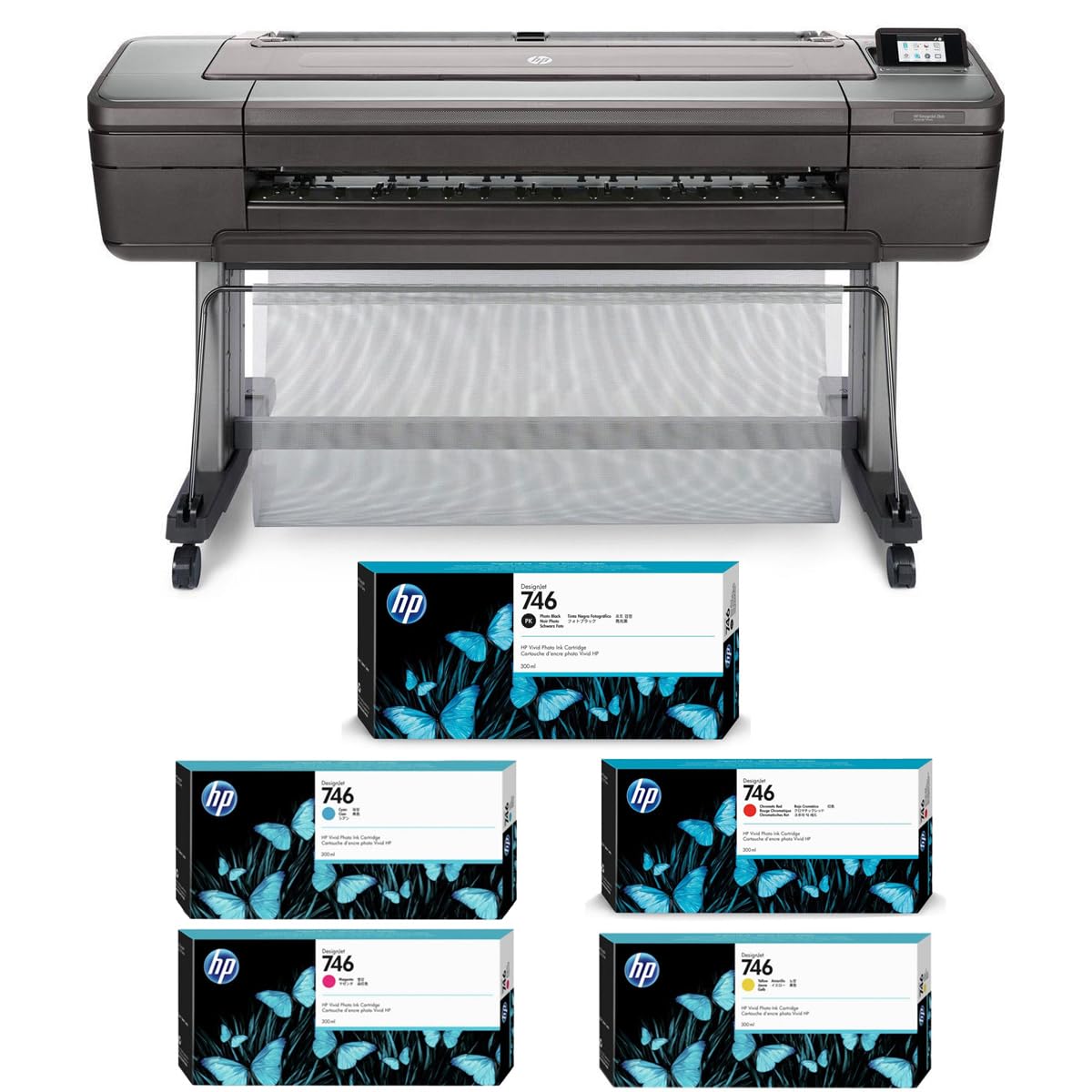
Figure 1.1: HP DesignJet Z6 24-inch Large Format PostScript Inkjet Printer.
Included Components:
- HP DesignJet Z6 24-inch Printer
- Printheads
- Introductory Ink Cartridges
- Printer Stand
- Media Output Bin
- Spindle
- Adapter
- Setup Guide
- Power Cord
- Warranty Documentation
- Additional Ink Bundle: Magenta, Yellow, Cyan, Red, and Black ink packs
2. Initial Setup
2.1 Unpacking and Assembly
- Carefully remove the printer and all components from the packaging.
- Assemble the printer stand according to the instructions provided in the setup guide.
- Attach the media output bin and spindle to the printer stand.
- Place the printer securely onto the assembled stand.
2.2 Power Connection
- Connect the power cord to the printer and then to a grounded electrical outlet.
- Press the power button to turn on the printer.
2.3 Ink Cartridge Installation
- Open the ink cartridge access door.
- Insert the provided ink cartridges into their corresponding slots. Ensure each cartridge clicks into place.
- Close the ink cartridge access door. The printer will perform an initial ink system setup.
2.4 Media Loading
- For roll media, load the roll onto the spindle and feed the leading edge into the printer's media path.
- For sheet media, use the top sheet feed slot.
- Follow the on-screen prompts on the printer's control panel to confirm media type and size.
2.5 Connectivity
The printer supports various connectivity options:
- Ethernet: Connect an Ethernet cable from the printer to your network router or switch.
- USB Type-A Host Port: For direct printing from USB drives.
Install the necessary printer drivers and software on your computer from the HP support website to enable full functionality.
3. Operating the Printer
3.1 Loading Media
The HP DesignJet Z6 supports both roll and sheet media. Ensure the media is loaded correctly to prevent jams and ensure print quality.
- Roll Feed: Insert the media roll onto the spindle. Guide the media into the printer until it is detected. The printer will automatically align and trim the leading edge if necessary.
- Top Sheet Feed: For individual sheets, insert them into the designated top feed slot. Ensure the sheet is straight and aligned with the guides.
3.2 Printing from a Computer
- Open the document or image you wish to print on your computer.
- Select Print from the application's menu.
- Choose the HP DesignJet Z6 printer from the list of available printers.
- Access the printer properties or preferences to adjust print settings such as media type, print quality, and color management.
- Confirm settings and send the print job to the printer.
3.3 Using the Integrated Vertical Trimmer
The integrated vertical trimmer automatically cuts prints after completion, streamlining your workflow. Ensure the trimmer is enabled in the printer settings if automatic trimming is desired.
3.4 Mobile Printing
The printer supports direct printing from mobile applications for iOS devices. Refer to the HP Smart app or other compatible mobile printing solutions for detailed instructions.
4. Maintenance
4.1 Replacing Ink Cartridges
When an ink cartridge is low or empty, the printer's control panel will display a notification. Use genuine HP DesignJet 746 series ink cartridges for optimal performance and print quality.
- Ensure the printer is powered on.
- Open the ink cartridge access door.
- Press the release tab on the empty cartridge and pull it out.
- Unpack the new HP DesignJet 746 ink cartridge.
- Insert the new cartridge into the correct slot until it clicks into place.
- Close the ink cartridge access door. The printer will automatically detect the new cartridge.

Figure 4.1: Magenta Ink Cartridge

Figure 4.2: Yellow Ink Cartridge
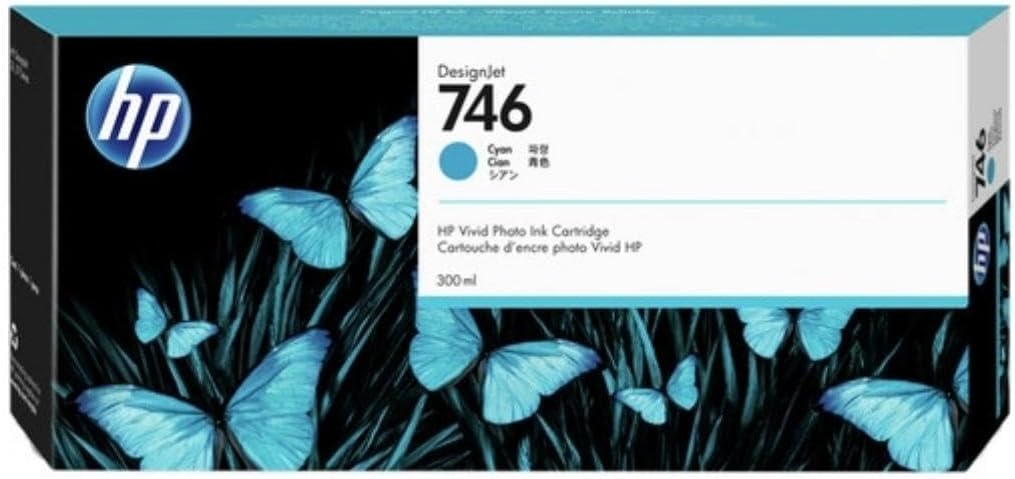
Figure 4.3: Cyan Ink Cartridge

Figure 4.4: Red Ink Cartridge

Figure 4.5: Photo Black Ink Cartridge
4.2 Printhead Maintenance
The printer automatically performs printhead maintenance as needed. If print quality issues arise, you can initiate printhead cleaning or alignment from the printer's control panel or through the printer software on your computer.
4.3 Cleaning Procedures
Regularly clean the exterior of the printer with a soft, damp, lint-free cloth. Avoid using abrasive cleaners or solvents. Refer to the printer's internal menu for options to clean the print path or rollers if necessary.
5. Troubleshooting
This section provides solutions to common issues you might encounter with your HP DesignJet Z6 printer.
5.1 Print Quality Issues
- Faded or Streaky Prints: Check ink levels and replace any low or empty cartridges. Perform a printhead cleaning cycle from the printer's control panel.
- Incorrect Colors: Ensure the correct media type is selected in the print settings. Perform a printhead alignment.
- Grainy Prints: Select a higher print quality setting in your printer preferences.
5.2 Connectivity Problems
- Printer Not Detected: Verify that the Ethernet cable is securely connected to both the printer and the network. Restart the printer and your computer. Ensure printer drivers are correctly installed.
- Network Connection Lost: Check your network router and ensure it is functioning correctly. Reconfigure network settings on the printer if necessary.
5.3 Media Handling Issues
- Paper Jams: Follow the on-screen instructions to clear any jammed media. Ensure media is loaded correctly and is not wrinkled or damaged.
- Media Not Feeding: Check that the media is properly loaded and aligned. Ensure the media type selected in the printer settings matches the loaded media.
5.4 Error Messages
If an error message appears on the control panel, consult the printer's digital user guide or the HP support website for specific error code explanations and solutions.
6. Technical Specifications
| Feature | Specification |
|---|---|
| Model Name | HP DesignJet Z6 |
| Print Technology | Thermal Inkjet |
| Print Resolution | Up to 2400 x 1200 optimized dpi |
| Print Speed | Up to 720 sq ft/hr (on plain media) |
| Media Width | 11 to 24 inches |
| Media Handling | Roll feed, Top sheet feed, Media output bin, Automatic horizontal cutter, Integrated vertical trimmer |
| Connectivity | Ethernet, Fast Ethernet, Gigabit Ethernet, 10/100/1000Base-T Ethernet (802.3, 802.3u, 802.3ab), USB Type-A host port |
| Security Features | HP Secure Boot, Whitelisting, Role Based Access Control, SNMPv3, HTTPS, IPsec/Firewall, Secure disk erase, Secure file erase |
| Ink Type | HP Vivid Photo Inks (DesignJet 746 series) |
| Item Weight | 215 Pounds |
| Color | Dark Gray |
| UPC | 192223252608 |
7. Warranty and Support
7.1 Product Warranty
This HP DesignJet Z6 printer comes with a standard manufacturer's warranty. Please refer to the warranty documentation included with your product for specific terms, conditions, and duration of coverage. Keep your proof of purchase for warranty claims.
7.2 Technical Support
For technical assistance, driver downloads, and additional product information, please visit the official HP support website. You can also find contact information for HP customer service in your region on their website.
HP Support Website: www.hp.com/support


