
TRAUSI TG08
TRAUSI TG08 Smartwatch User Manual
Model: TG08
1. Introduction
Thank you for choosing the TRAUSI TG08 Smartwatch. This manual provides essential information for setting up, operating, and maintaining your device. Please read it carefully to ensure optimal performance and longevity of your smartwatch.
The TRAUSI TG08 Smartwatch features a 1.83-inch HD display, Bluetooth calling, 120 sports modes, IP67 waterproofing, and comprehensive health monitoring including heart rate and sleep tracking.

Image 1.1: TRAUSI TG08 Smartwatch overview, displaying various functions like time, date, activity tracking, and incoming call interface.
2. What's in the Box
Please check the contents of your package. If any items are missing or damaged, contact customer support.
- Watch Dial
- Watch Band
- Owner's Manual (this document)
- Magnetic 2-Pin Charging Cable
3. Setup Guide
3.1 Initial Charging
Before first use, fully charge your smartwatch. Connect the magnetic charging cable to the charging contacts on the back of the watch and plug the USB end into a standard USB power adapter (not included).
- Charging time: Approximately 1.5 hours.
- Battery capacity: 350mAh.
- Expected active use: 5-7 days.
- Expected standby time: Up to 30 days.

Image 3.1: The TRAUSI TG08 Smartwatch connected to its magnetic charging cable, illustrating the charging process.
3.2 App Installation & Pairing
- Download the App: Scan the QR code in the manual or on the watch screen, or search for the companion app (e.g., 'FitCloudPro' or similar, refer to packaging for exact name) in your smartphone's app store (Apple App Store for iOS, Google Play Store for Android).
- Install and Register: Install the app and follow the on-screen instructions to create an account and set up your profile.
- Enable Bluetooth: Ensure Bluetooth is enabled on your smartphone.
- Pair the Device: Open the app, navigate to the 'Device' or 'My Device' section, and select 'Add Device'. The app will search for your smartwatch. Select 'TG08' from the list of available devices to pair.
- Confirm Pairing: A pairing request may appear on your watch and phone. Confirm on both devices.
3.3 Wearing the Smartwatch
Wear the smartwatch snugly on your wrist, about one finger's width from your wrist bone. Ensure the sensors on the back of the watch are in contact with your skin for accurate health monitoring.
4. Operating Instructions
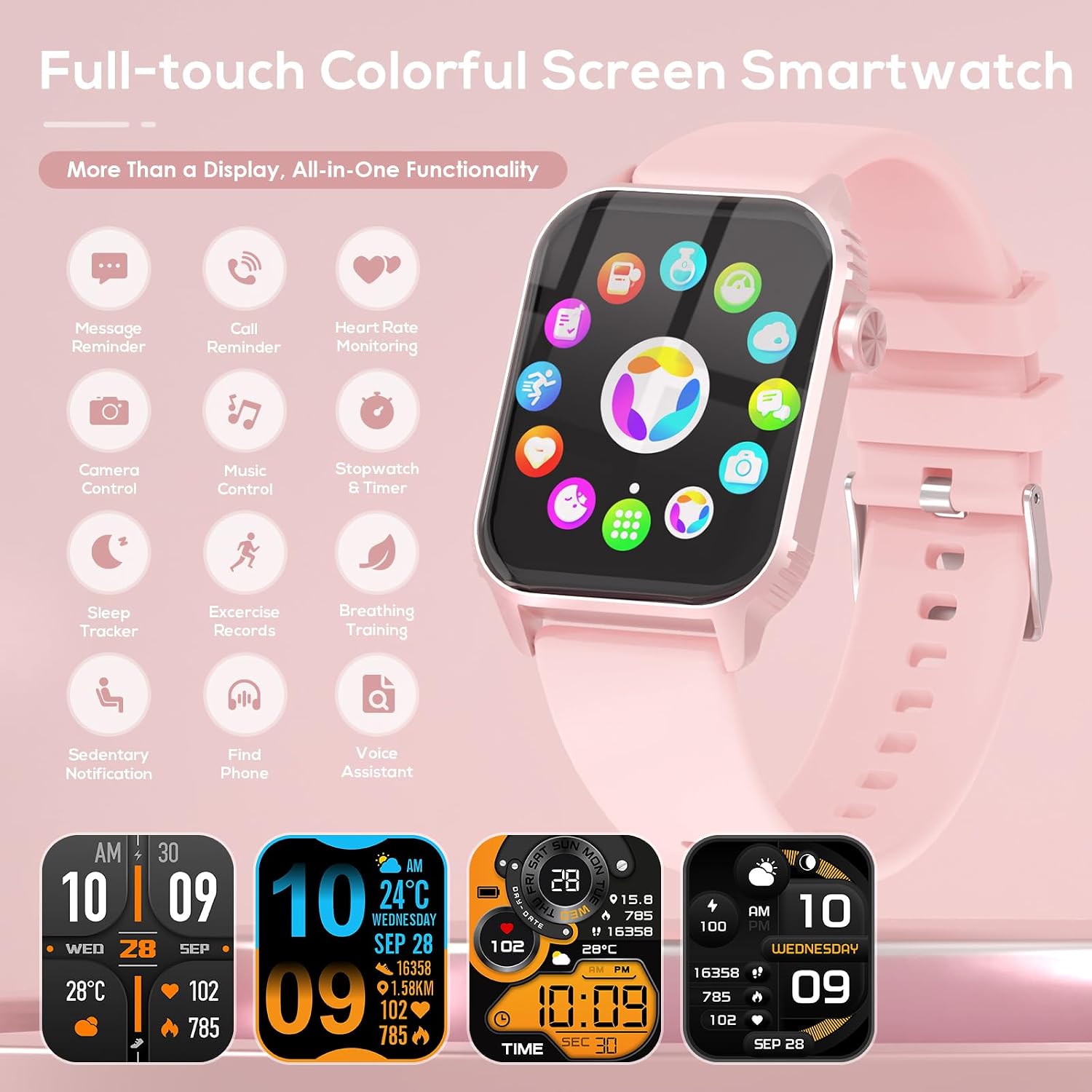
Image 4.1: The TRAUSI TG08 Smartwatch's main menu, showing icons for various functions and features.
4.1 Basic Navigation
- Touch Screen: The 1.83" HD display is fully touch-sensitive. Tap to select, swipe to navigate.
- Side Button: Press the side button to return to the main watch face or to turn the screen on/off. A long press may access power options.
- Swipe Down: Access quick settings (e.g., brightness, DND mode).
- Swipe Up: View notifications.
- Swipe Left/Right: Cycle through widgets like activity data, heart rate, weather, etc.

Image 4.2: Close-up of the 1.83-inch touchscreen, highlighting key functions like sleep tracking, heart rate monitoring, phone calls, and exercise modes.
4.2 Bluetooth Calling
Once paired with your smartphone, you can make and receive calls directly from your smartwatch.
- Making Calls: Access the 'Phone' function on your watch. You can dial a number or select from recent calls/contacts (if synced).
- Receiving Calls: When a call comes in, the watch will display the caller ID. Tap the green icon to answer or the red icon to reject.
4.3 Music Control
Control music playback on your smartphone from your smartwatch.
- Access the 'Music' function on your watch.
- Play, pause, skip tracks, and adjust volume for music playing on your connected phone.
4.4 Sports Modes
The TG08 Smartwatch supports 120 sports modes to track various physical activities.
- Selecting a Mode: Navigate to the 'Exercise' or 'Sports' menu on your watch. Choose your desired activity (e.g., running, cycling, swimming).
- Tracking: The watch will track duration, steps, distance, calories burned, and heart rate during your workout.
- Ending a Workout: Swipe right or press the side button to pause/end the workout. Confirm to save the data.

Image 4.3: The smartwatch tracking a running session, demonstrating its 120 sports modes capability with examples of various activities.
4.5 Health Monitoring
The smartwatch provides continuous heart rate and sleep monitoring.
- Heart Rate: Access the 'Heart Rate' function on your watch to view your current heart rate. The app provides historical data and analysis.
- Sleep Monitoring: Wear the watch to bed for automatic sleep tracking. The app will display sleep stages (deep, light, REM) and duration.

Image 4.4: The smartwatch actively monitoring sleep, with a corresponding mobile application interface displaying detailed sleep analysis.
4.6 Notifications
Receive real-time notifications from your smartphone directly on your smartwatch.
- Ensure notification permissions are enabled in the companion app and your phone's settings.
- Supported apps include Facebook, WhatsApp, Twitter, Instagram, and more.

Image 4.5: The smartwatch interface showing various social media and communication app icons, illustrating its notification capabilities.
4.7 Customizing Watch Faces
Personalize your smartwatch with various watch faces.
- Long-press the watch face on the main screen to access watch face options.
- Swipe left/right to browse pre-installed faces or use the companion app to download more.
5. Maintenance
5.1 Cleaning
- Wipe the watch screen and band regularly with a soft, dry cloth.
- For stubborn dirt, use a slightly damp cloth and then dry thoroughly.
- Avoid using harsh chemicals or abrasive materials.
5.2 Water Resistance
The TRAUSI TG08 Smartwatch has an IP67 waterproof rating.
- It is resistant to splashes, sweat, and brief submersion in shallow water.
- Do not use it for diving, hot showers, saunas, or high-pressure water activities.
- After contact with water, especially saltwater, dry the watch thoroughly.

Image 5.1: The smartwatch being splashed with water, highlighting its IP67 water resistance and battery life features.
5.3 Battery Care
- Avoid fully discharging the battery frequently.
- Charge the watch using the provided magnetic cable and a compatible USB power source.
- Store the watch in a cool, dry place when not in use for extended periods.
6. Troubleshooting
| Issue | Possible Solution |
|---|---|
| Watch does not turn on | Ensure the watch is fully charged. Connect to the charger for at least 30 minutes. |
| Cannot pair with smartphone | Ensure Bluetooth is enabled on your phone. Restart both the watch and phone. Make sure the app is installed and running. Check if the watch is already paired with another device. |
| Inaccurate health data (Heart Rate/Sleep) | Ensure the watch is worn snugly on your wrist, with sensors in full contact with your skin. Avoid excessive movement during measurements. |
| Notifications not received | Check app notification settings on your phone and within the companion app. Ensure the watch is connected via Bluetooth. |
| Short battery life | Reduce screen brightness, disable continuous heart rate monitoring if not needed, limit frequent notifications, and ensure proper charging. |
7. Specifications
| Feature | Detail |
|---|---|
| Model Number | TG08 |
| Display Size | 1.83 Inches |
| Battery Capacity | 350 mAh |
| Water Resistance | IP67 |
| Connectivity | Bluetooth |
| Operating System Compatibility | iPhone (iOS 9.0+), Android (5.0+) |
| Special Features | Bluetooth Call, Message Reminder, Heart Rate/Sleep Monitoring, Fitness Tracker, 120 Sports Modes, Music/Camera Control, Voice Assistant |
| Item Weight | 1 Grams (approx. 0.035 ounces) |
8. Warranty and Support
TRAUSI products are designed and manufactured to the highest quality standards. This product is covered by a limited warranty from the date of purchase. For specific warranty terms and conditions, please refer to the warranty card included with your product or visit the official TRAUSI website.
For technical support, troubleshooting assistance, or to inquire about replacement parts, please contact TRAUSI customer service through the contact information provided on our official website or your purchase platform.
Ask a question about this manual
Ask about setup, troubleshooting, compatibility, parts, safety, or missing instructions. Manuals+ will review the question and use this page’s manual context to help answer it.