
Vratzn 4Core 64GB Touch Screen Radio
Vratzn 4Core 64GB Touch Screen Radio User Manual
Model: 4Core 64GB Touch Screen Radio
Introduction
This manual provides detailed instructions for the installation, operation, and maintenance of your Vratzn 4Core 64GB Touch Screen Radio. This Android head unit is designed to upgrade the infotainment system in compatible vehicles, offering features such as Wireless CarPlay, Wired Android Auto, GPS navigation, Bluetooth 5.0, and a built-in DSP for enhanced audio.
Applicable Vehicle Models
This unit is compatible with various Chevrolet, GMC, and Buick models. Please verify your vehicle's compatibility before installation.
- For Chevrolet:
- Silverado 1500HD, 2500HD, 3500HD (2007-2013) (Second Generation) - Note: Not fit 07 Silverado Classic
- Tahoe (2007-2014) (Second Generation)
- Suburban (2007-2012) (Tenth Generation)
- Avalanche (2007-2013)
- Express Van (2008-2019)
- Impala (2006-2013)
- For GMC:
- Sierra (2007-2013)
- Savana (2008-2019)
- Yukon (2007-2014)
- Acadia (2007-2012)
- For Buick:
- Enclave (2008-2012)

Figure 1: Compatible Chevy Tahoe models (2007-2013).

Figure 2: Compatible GMC Sierra models.
What's in the Box (Parts List)
Verify that all components are present before beginning installation.

Figure 3: Included components with the Vratzn Touch Screen Radio.
- Vratzn Touch Screen Radio Head Unit
- User Manual
- Power Cable
- Reversing Radar (if applicable)
- Original Car USB Cable (if applicable)
- Radio Antenna
- Reverse Kit
- Microphone
- RCA Cable
- Crowbar (for trim removal)
- CANBUS Decoder
- GPS Antenna
- USB Cable
- 1080P Waterproof Backup Camera
Setup and Installation
Professional installation is recommended. Ensure the vehicle's battery is disconnected before starting any electrical work.
General Wiring Diagram
Refer to the following diagram for general wiring connections. Specific vehicle harnesses may vary.

Figure 4: Main wiring diagram for the head unit.
- Power Connections: Connect B+ (Battery Positive), ACC (Accessory), and GND (Ground) wires to the corresponding vehicle circuits.
- Speaker Connections: Connect FR+, FR-, FL+, FL-, RR+, RR-, RL+, RL- to your vehicle's speaker wires.
- CANBUS: Connect the CANBUS decoder as per the diagram to ensure integration with vehicle systems like steering wheel controls.
- GPS Antenna: Connect the GPS antenna and mount it in a location with a clear view of the sky.
- USB Ports: Connect the provided USB cables for data transfer and charging. Note that the Type-C port is for charging only.
Backup Camera Installation
The included 1080P waterproof backup camera enhances safety by providing a clear view when reversing.

Figure 5: Backup camera wiring diagram.
- Connect the video signal cable from the camera to the "Camera In" port on the head unit.
- Connect the red wire of the camera's power cable to the positive electrode (+12V) of the vehicle's reversing light.
- Connect the black wire of the camera's power cable to the negative electrode (ground) of the vehicle's reversing light or chassis ground.
- Ensure the camera is mounted securely and provides an unobstructed view.
Operating Instructions
Touch Screen Interface
The 7-inch touchscreen provides an intuitive interface for controlling all functions. Navigate through menus by tapping and swiping. The optimized UI ensures clear visibility and responsive control.

Figure 6: Vratzn Touch Screen Radio interface.
Wireless CarPlay & Wired Android Auto
Connect your smartphone for seamless integration of navigation, communication, and entertainment features.

Figure 7: Wireless CarPlay and Wired Android Auto functionality.
- Wireless CarPlay: For iPhone users, connect via Bluetooth and Wi-Fi. Once paired, CarPlay will launch automatically, providing access to Apple Maps, Siri, calls, messages, and music.
- Wired Android Auto: For Android users, connect your phone via a USB cable. Android Auto will launch, offering Google Maps, Google Assistant, calls, messages, and media playback.
- Voice Assistant: Utilize Siri or Google Assistant for hands-free control of functions, enhancing driving safety.
GPS Navigation
The unit supports online navigation via Wi-Fi. Download and stream navigation apps for real-time traffic updates and route planning.

Figure 8: GPS Navigation interface.
Bluetooth 5.0 & FM Radio
Stay connected and entertained with Bluetooth and FM radio capabilities.
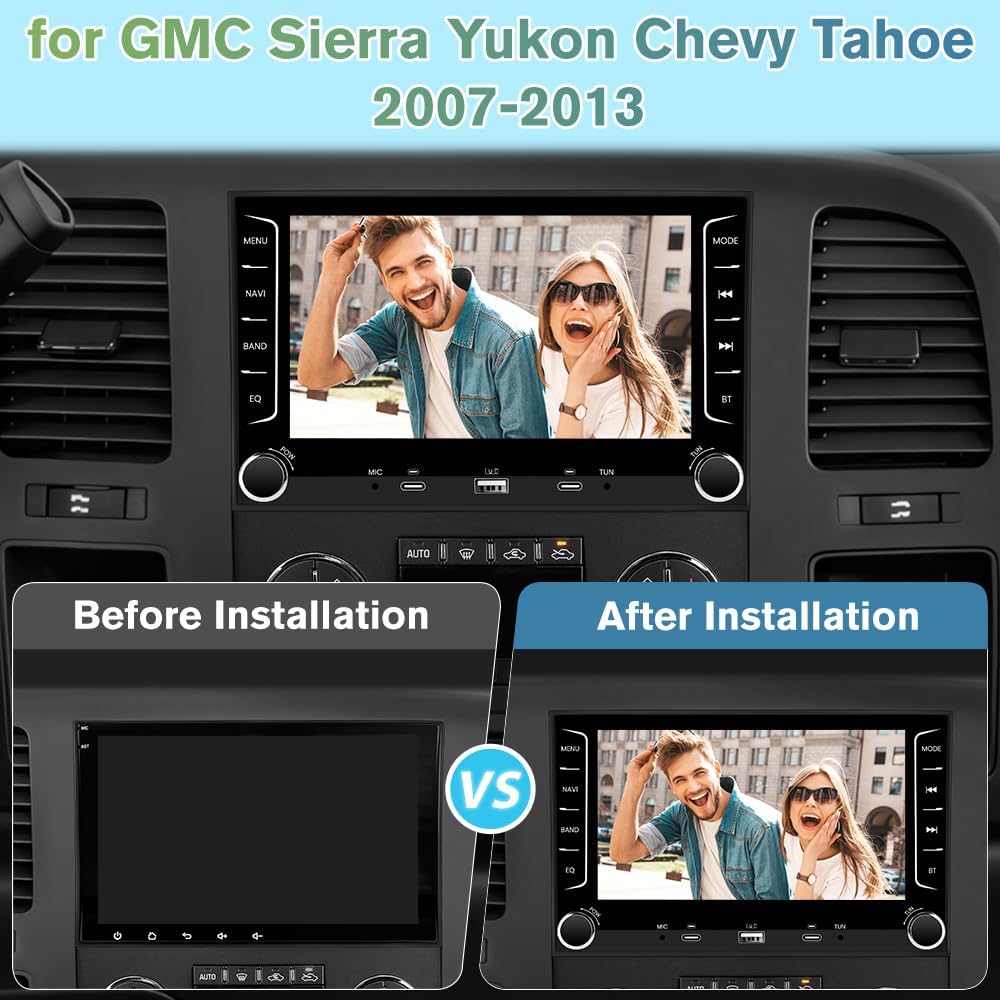
Figure 9: Bluetooth connectivity features.
- Bluetooth: Pair your phone for hands-free calls, contact synchronization, and wireless audio streaming.
- FM/AM Radio: Access preset stations and receive news updates.
Built-in DSP (Digital Signal Processor)
Fine-tune your audio experience with the integrated DSP equalizer. Adjust sound effects and EQ settings to match your preferences for various music genres.

Figure 10: Built-in DSP audio settings.
Steering Wheel Control (SWC)
If your vehicle supports it and the CANBUS is correctly installed, you can control essential functions directly from your steering wheel. This includes adjusting volume, switching tracks, and answering calls.

Figure 11: Steering Wheel Control setup.
Refer to the unit's settings menu for SWC learning and configuration if automatic detection does not occur.
Additional Multimedia Features
- USB Playback: Connect USB drives to play videos, music, and view photos.
- Mirror Link: Mirror your smartphone screen onto the head unit display (compatibility may vary by phone model).
- Wi-Fi Connectivity: Connect to a Wi-Fi hotspot to browse the internet, download apps, and stream online content.

Figure 12: Wi-Fi connectivity and app usage.
Maintenance
To ensure the longevity and optimal performance of your Vratzn Touch Screen Radio, follow these maintenance guidelines:
- Screen Cleaning: Use a soft, lint-free cloth to gently wipe the touchscreen. For stubborn smudges, slightly dampen the cloth with water or a screen-safe cleaner. Avoid abrasive materials or harsh chemicals.
- Software Updates: Periodically check for software updates through the unit's settings menu or the manufacturer's website to ensure you have the latest features and bug fixes.
- Avoid Extreme Temperatures: Do not expose the unit to extreme heat or cold for extended periods, as this can affect performance and lifespan.
- Cable Connections: Periodically check all cable connections to ensure they are secure and free from damage.
Troubleshooting
If you encounter issues, refer to the following common troubleshooting steps.
No Sound After Installation (or from Rear Speakers)
This is a common issue that can often be resolved by checking wiring connections.

Figure 13: Sound troubleshooting steps.
- Swap 16-pin Plugs: If your vehicle has two 16-pin plugs, try swapping their positions.
- Check Audio Cable: Ensure the RCA audio cables are correctly connected (IN to IN, OUT to OUT).
- Check AMP Cable: Verify that the AMP (amplifier) cable is properly connected, especially if your vehicle has a factory amplifier.
Other Common Issues
- Unit Not Powering On: Check power connections (B+, ACC, GND) and ensure the vehicle's fuse is intact.
- Touchscreen Unresponsive: Try restarting the unit. If the issue persists, ensure the screen is clean and free from debris.
- GPS Signal Loss: Ensure the GPS antenna is securely connected and mounted in a location with a clear view of the sky. Avoid obstructions.
- Bluetooth Connectivity Issues: Ensure Bluetooth is enabled on both the head unit and your phone. Try unpairing and re-pairing the devices.
- Lagging Performance: Close unnecessary background applications. If the issue persists, a factory reset might be necessary (back up important data first).
Specifications
| Feature | Specification |
|---|---|
| Display Size | 7 Inches |
| Operating System | Android (Specific version not provided, but implied by "Android Head Unit") |
| RAM | 2GB |
| ROM (Internal Storage) | 64GB |
| Connectivity | Bluetooth 5.0, Wi-Fi |
| Special Features | Wireless CarPlay, Wired Android Auto, GPS Navigation, Built-in DSP, Touchscreen, Steering Wheel Control Support |
| Included Components | Car radio, 1080P Backup Camera, Wiring Harnesses, GPS Antenna, USB Cables |
| Item Weight | 3.5 pounds |
| Package Dimensions | 12.36 x 11.69 x 4.06 inches |
Warranty Information
The Vratzn Touch Screen Radio comes with a 1-Year Warranty from the date of purchase. This warranty covers manufacturing defects and malfunctions under normal use. It does not cover damage caused by improper installation, misuse, accidents, or unauthorized modifications.
For warranty claims or service, please retain your proof of purchase and contact Vratzn customer support.
Customer Support
If you require further assistance with installation, operation, or troubleshooting, please contact Vratzn customer support. Refer to the product packaging or the official Vratzn website for contact details.
When contacting support, please have your product model number (4Core 64GB Touch Screen Radio) and purchase information ready.
Ask a question about this manual
Ask about setup, troubleshooting, compatibility, parts, safety, or missing instructions. Manuals+ will review the question and use this page’s manual context to help answer it.