
1. Introduction
This manual provides detailed instructions for the installation, operation, and maintenance of your Roinvou Android Car Radio. Please read this manual thoroughly before using the product to ensure proper function and safety. This device is designed for Jeep Wrangler models from 2009 to 2018.
2. Package Contents
Verify that all items listed below are included in your package:
- Radio for Jeep Wrangler 2009-2018
- Power Cable
- Radio Antenna
- Canbus Decoder
- RCA Cable
- Rear Camera Input Cable
- GPS Antenna
- USB Cable
- Backup Camera
- External Microphone
- User Manual
- Installation Tool

Figure 2.1: Package contents and main unit dimensions. This image provides a visual representation of the car radio's dimensions and lists all components included in the package, such as the power cable, GPS antenna, RCA cable, rear camera, and installation tool.
3. Vehicle Compatibility
This Roinvou Android Car Radio is specifically designed for the following vehicle models:
- Jeep Wrangler 2007-2017
- Jeep Cherokee 2007-2012
- Jeep Commander 2005-2010
- Jeep Compass 2011-2015
- Jeep Grand Cherokee 2005-2010
- Jeep Patriot 2007-2017
- Chrysler Sebring 2006-2010
- Dodge Avenger 2007-2011
- Dodge Caliber 2006-2010
- Dodge Nitro 2007-2011

Figure 3.1: Adaptable Vehicle Dashboards. This image illustrates the range of vehicle dashboards where the Roinvou Android Car Radio can be installed, including models like Jeep Wrangler, Cherokee, Compass, Grand Cherokee, Patriot, Dodge Avenger, Caliber, Nitro, and Sebring.
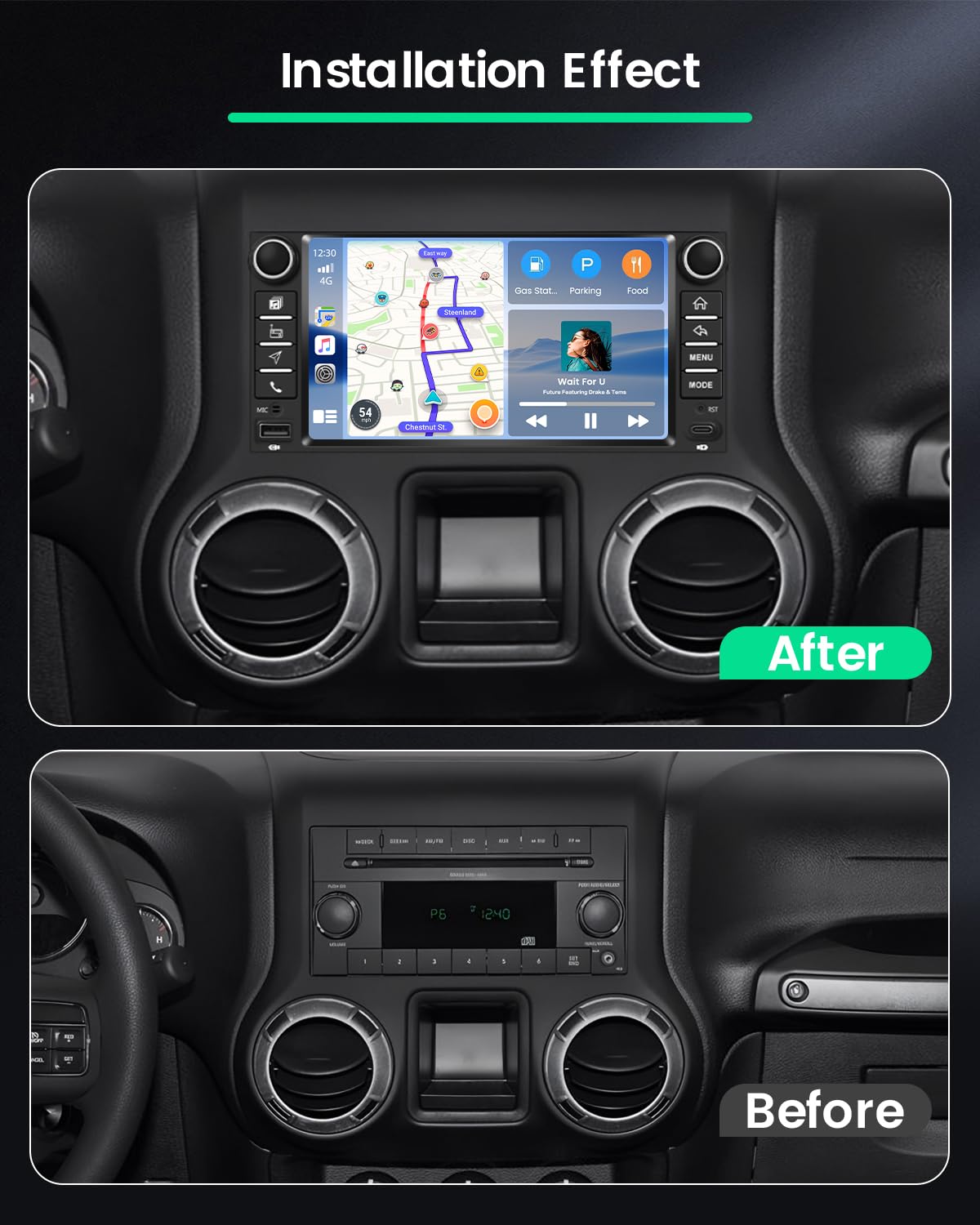
Figure 3.2: Installation Effect. This image demonstrates the visual transformation of the car's dashboard, showing the original radio ('Before') and the Roinvou Android Car Radio installed ('After'), highlighting the integrated look.
4. Setup and Installation
4.1 Wiring Port Connections
Carefully connect all necessary cables to the corresponding ports on the back of the car radio. Ensure secure connections to avoid malfunctions.

Figure 4.1: Wiring Port Diagram. This diagram illustrates the different wiring ports on the back of the car radio, including connections for power, RCA, USB, camera input, GPS antenna, and radio antenna, with clear labels for each.
4.2 Backup Camera Wiring
For enhanced safety, connect the included backup camera according to the diagram. Proper connection ensures a clear, wide-angle view when reversing.

Figure 4.2: Backup Camera Wiring. This detailed diagram provides step-by-step instructions for wiring the backup camera, showing connections to the car stereo, power source, and reversing lamp, along with routing options for the cable.
4.3 Steering Wheel Control (SWC)
The unit supports steering wheel controls for convenient operation. Follow the instructions based on whether your vehicle has a Canbus decoder:
- Without Canbus Decoder: Connect the steering wheel control wires (Key1/Key2) in the power cable to the corresponding port or wire of your original car. Then, go to 'steeringwheelkey' in the settings for manual matching to activate the button functions.
- With Canbus Decoder: Connect the Canbus decoder before powering on the machine. Then, navigate to Apps > Settings > Factory settings (1234) > CAN Settings to configure SWC. Select the brand of the Canbus decoder and then the matching model and year according to your vehicle.

Figure 4.3: Steering Wheel Control Setup. This image explains the setup for steering wheel controls, differentiating between vehicles with and without a Canbus decoder, and providing instructions for connecting the control wires and activating functions.
5. Operating Instructions
5.1 Display Features
The Roinvou car radio features a high-end 7-inch In-Cell Touch Screen with a 1280x720 resolution. This technology reduces glare, improves touch sensitivity, and provides crystal-clear visuals with true colors and high saturation.

Figure 5.1: In-Cell Touch Screen Technology. This graphic compares the Roinvou's In-Cell Touch Screen technology with traditional screens, emphasizing benefits like fast response, true color, and high saturation for a superior visual and interactive experience.
The user-friendly interface supports split-screen functionality, allowing you to perform multiple tasks simultaneously, such as navigating while listening to music.
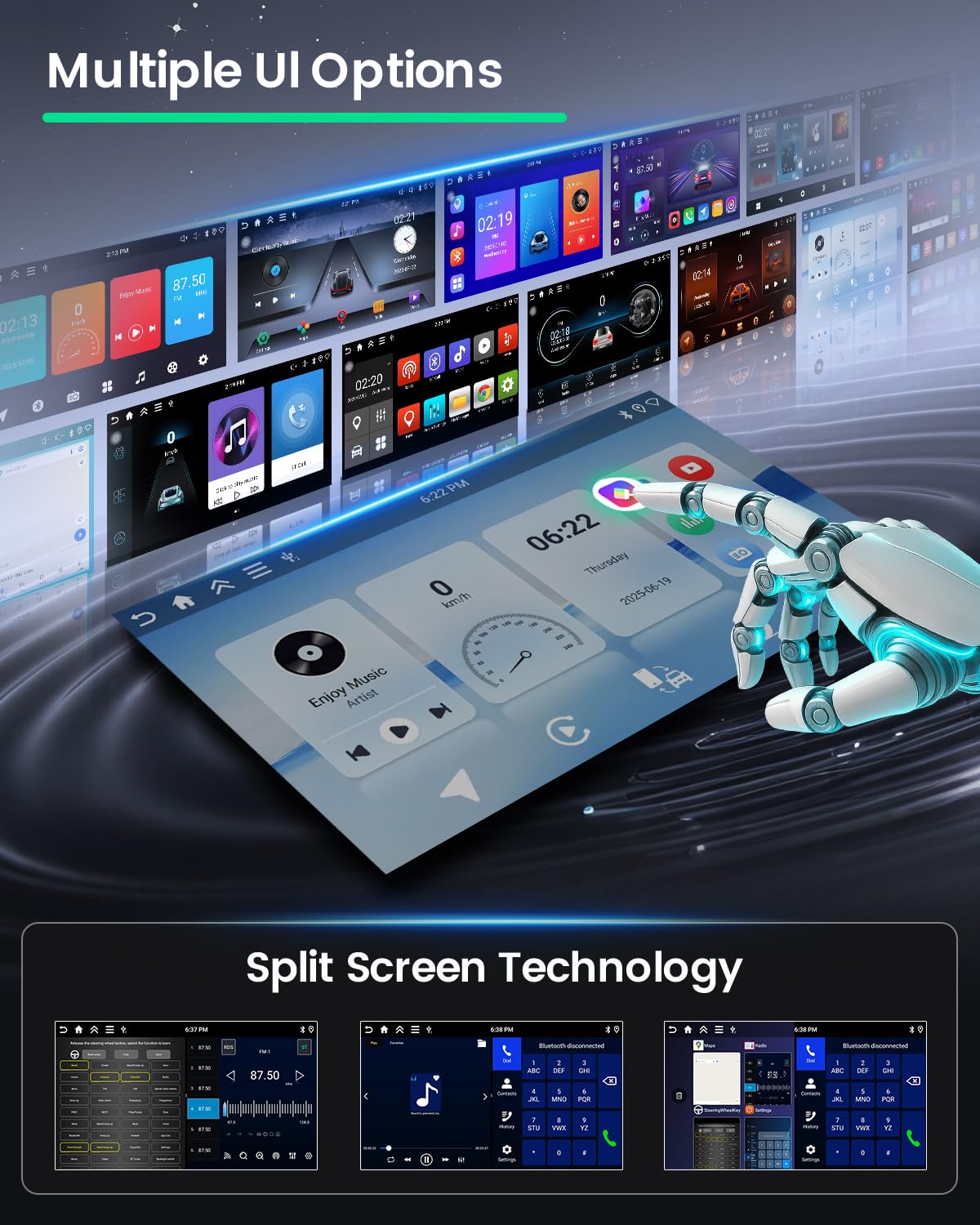
Figure 5.2: Multiple UI Options and Split Screen. This image demonstrates the customizable user interface options and the practical split-screen technology, allowing users to run two applications simultaneously, such as navigation and music.
5.2 Connectivity
- Wireless CarPlay & Android Auto: Enjoy effortless connectivity by wirelessly mirroring your iPhone or Android phone screen. Access navigation, calls, messages, and music directly on the car radio.
- Mirror Link: Supports both wired and wireless Mirror Link for broad smartphone compatibility.
- Bluetooth: Connect your smartphone for hands-free calling and audio streaming.
- Wi-Fi: Connect to a Wi-Fi hotspot for internet access, app downloads, and online services.
- FM/RDS Radio: Tune into your favorite radio stations with clear sound quality and RDS information display.
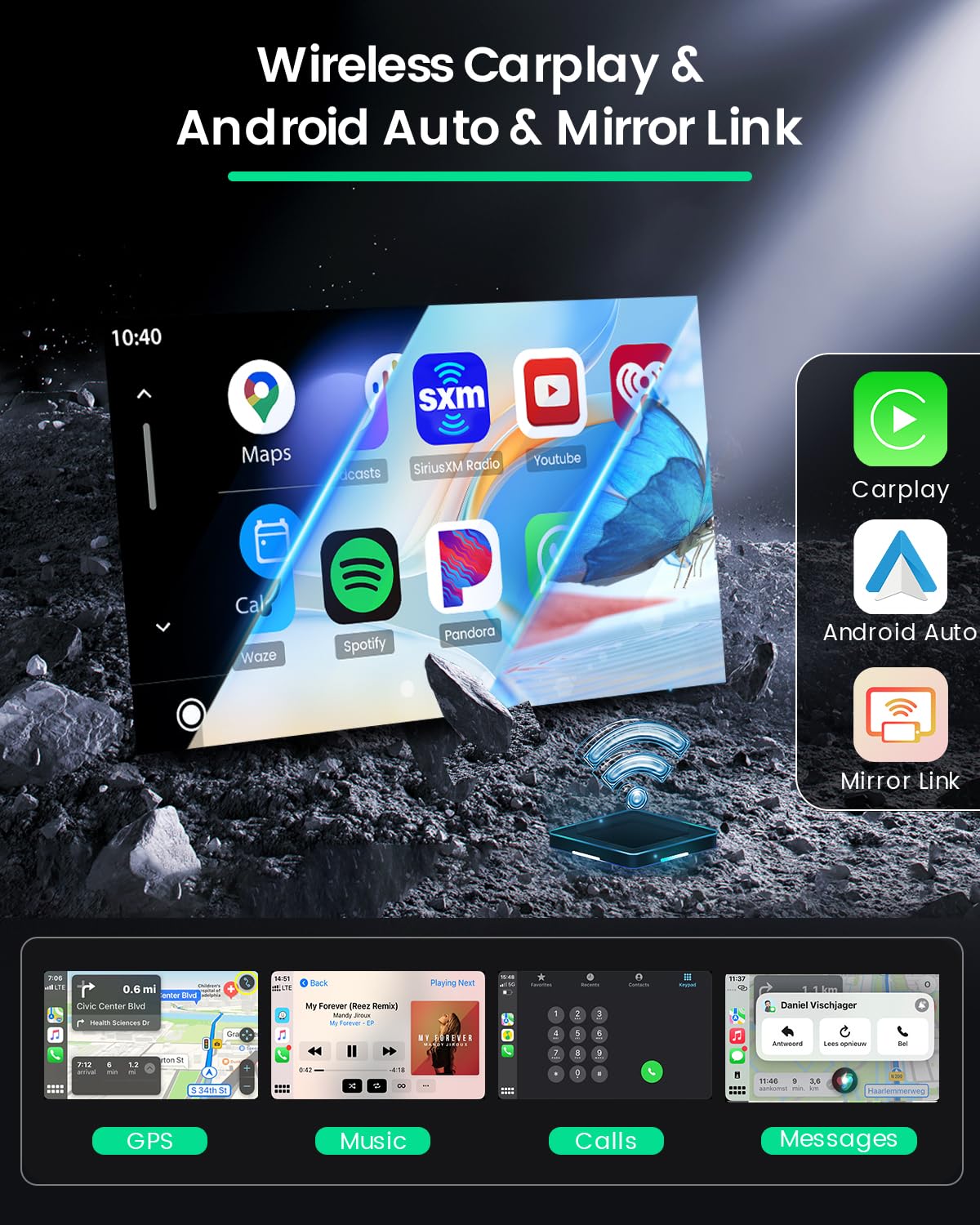
Figure 5.3: Wireless CarPlay and Android Auto. This image shows the seamless integration of Wireless CarPlay and Android Auto, allowing users to access navigation, music, calls, and messages directly from the car radio's display.
5.3 Multimedia and Navigation
The unit runs on Android 15 with a 4-core processor, 4GB RAM, and 128GB storage, ensuring fast and stable performance for multiple applications. It supports various internet services and media formats.
- Supported Internet Services: Netflix, YouTube, iTunes.
- Audio Output Mode: APE/FLAC/WAV/MP3/WMA.
- Video Encoding: MKV/RMVB/AVI/MP4/MDV.
- GPS: Integrated GPS functionality for reliable navigation.
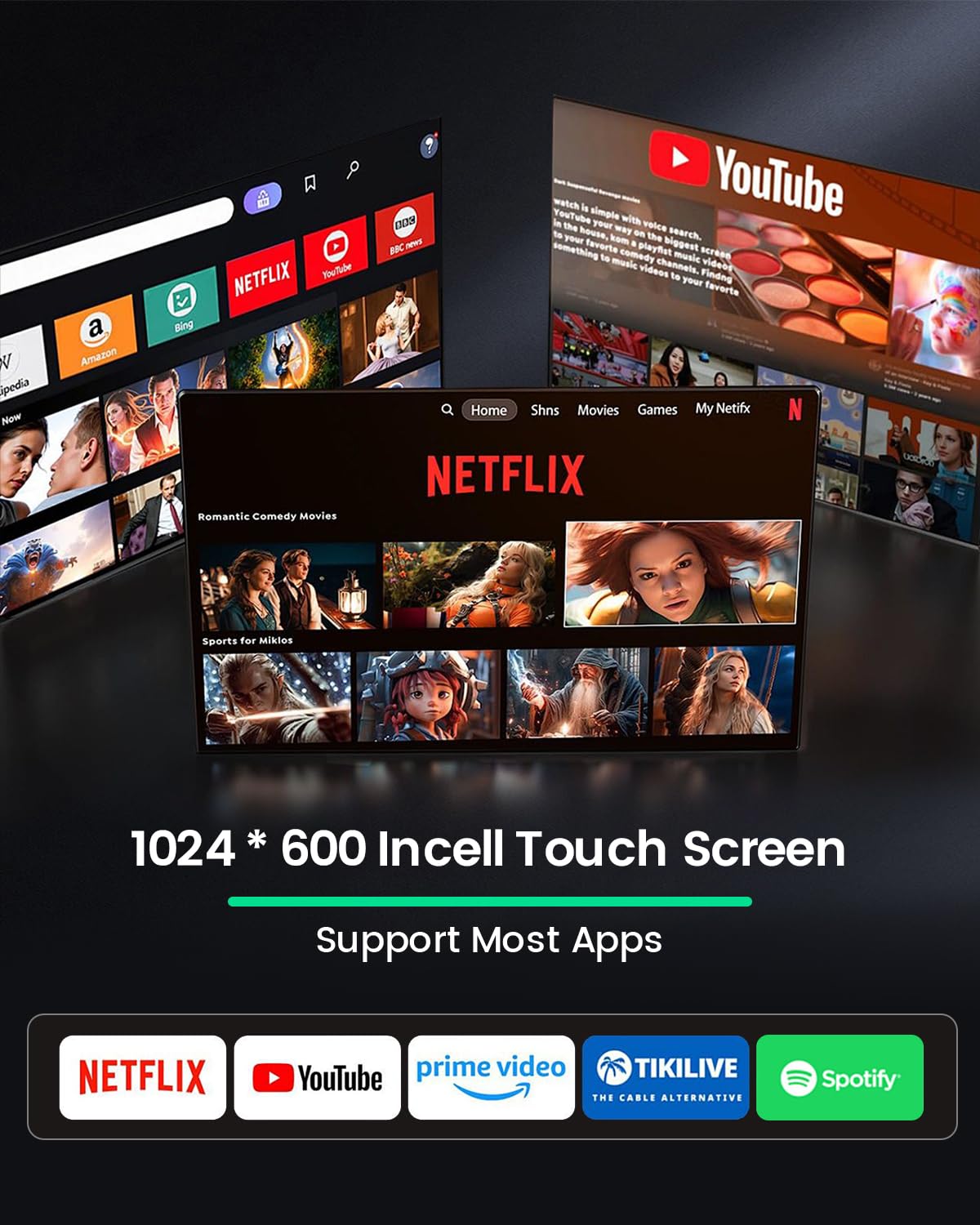
Figure 5.4: Supported Applications. This image highlights the multimedia capabilities of the Roinvou car radio, displaying popular streaming and entertainment applications accessible on its 1024x600 In-Cell Touch Screen.
5.4 Audio Customization
Refine your listening experience with the equalization (EQ) settings to achieve optimal sound quality.
6. Specifications
| Feature | Detail |
|---|---|
| Manufacturer | Roinvou |
| Model Number | Roinvou-A4443H1MI2EU31D |
| ASIN | B0FY2TVHRQ |
| Country of Origin | China |
| Connectivity Technology | Bluetooth, USB, WIFI, FM RDS |
| Controller Type | Android |
| Special Features | Carplay, Android Auto, Mirror Link, Bluetooth, EQ, FM/RDS, WIFI, GPS, UI, SWC, Touch Screen |
| Compatible Devices | Smartphone |
| Audio Output Mode | APE/FLAC/WAV/MP3/WMA |
| Surround Sound Channel Configuration | 4 |
| Video Encoding | MKV/RMVB/AVI/MP4/MDV |
| Wattage | 45 Watts |
| Supported Internet Services | Netflix, YouTube, iTunes |
| Number of Items | 1 |
| Spare Parts Availability | Information unavailable |
| Guaranteed Software Updates Until | Information unavailable |
7. Troubleshooting
If you encounter any issues with your Roinvou Android Car Radio, please refer to the following general troubleshooting steps:
- No Power: Check all power cable connections. Ensure the car's ignition is on. Verify the fuse in the power circuit.
- No Sound: Check speaker connections. Ensure volume is not muted or set too low. Verify audio settings and EQ.
- Touch Screen Unresponsive: Try restarting the unit. Ensure the screen is clean and free of debris.
- Bluetooth/Wi-Fi Connection Issues: Ensure the features are enabled in settings. Try restarting both the car radio and your mobile device.
- GPS Signal Loss: Ensure the GPS antenna is properly installed and has a clear view of the sky.
- Steering Wheel Controls Not Working: Recheck wiring connections (Key1/Key2). Reconfigure SWC settings as per Section 4.3.
For persistent issues, please contact Roinvou customer support.
8. Maintenance
To ensure the longevity and optimal performance of your Roinvou Android Car Radio, follow these maintenance guidelines:
- Cleaning: Use a soft, dry cloth to clean the screen and exterior. For stubborn smudges, lightly dampen the cloth with water or a screen-safe cleaner. Avoid abrasive materials or harsh chemicals.
- Software Updates: Periodically check for available software updates to ensure you have the latest features and bug fixes. Follow the on-screen instructions for any updates.
- Environmental Conditions: Avoid exposing the unit to extreme temperatures, direct sunlight for prolonged periods, or excessive moisture.
- Cable Connections: Periodically check that all cables are securely connected and free from damage.
9. Warranty and Support
Your Roinvou Android Car Radio comes with a 24-month warranty. Roinvou offers lifetime online assistance for inquiries and aims to respond within 24 hours.
For technical support, warranty claims, or any questions regarding your product, please refer to the contact information provided with your purchase or visit the official Roinvou website.


