
1. Product Overview
This manual provides essential information for the installation, operation, and maintenance of your HiLook by HIKVISION 4MP Smart Hybrid Light LAN/PoE PTZ Turret Camera. This QHD network camera offers advanced surveillance features for outdoor security applications.
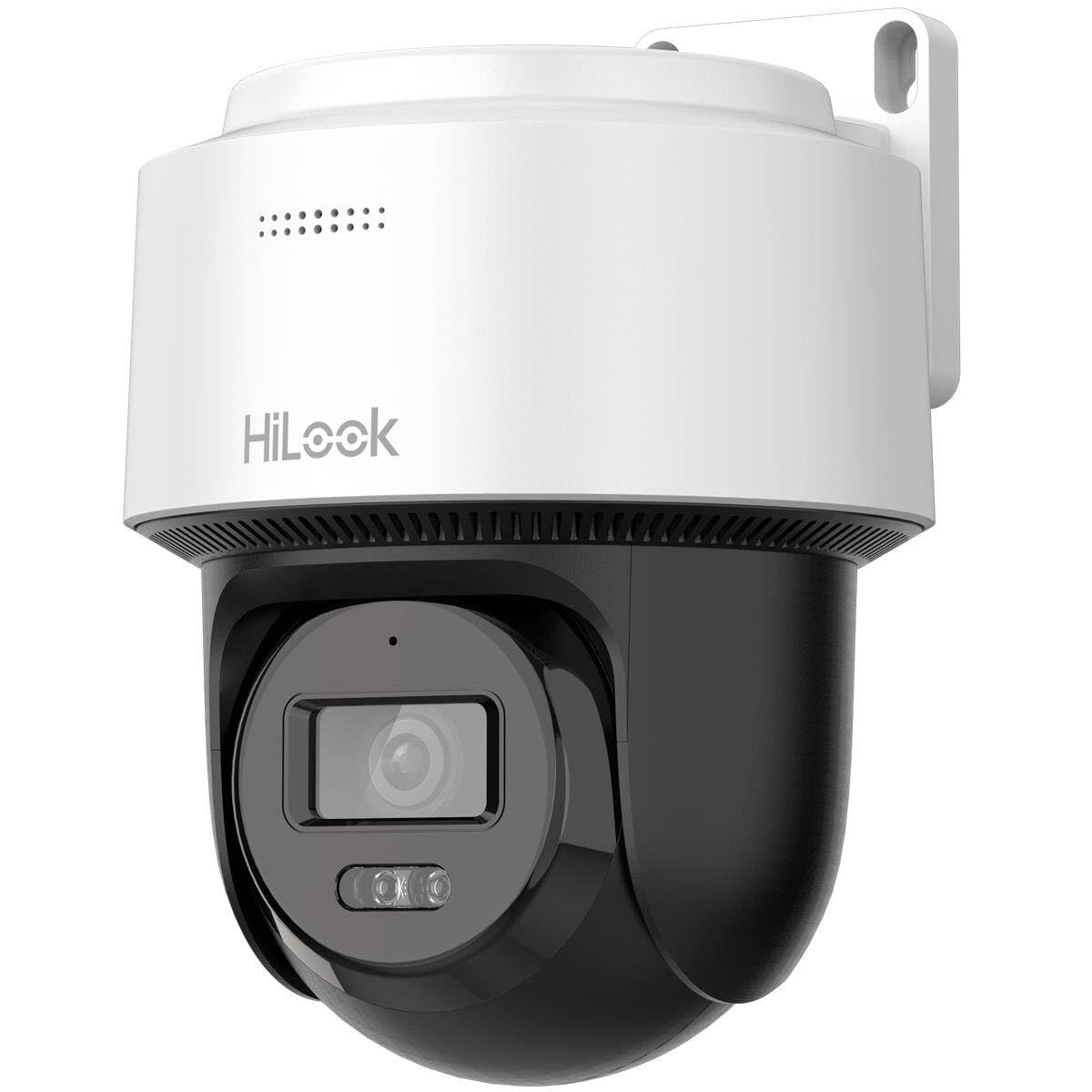
Figure 1: HiLook 4MP Smart Hybrid Light LAN/PoE PTZ Turret Camera
Key Features:
- 4MP QHD Resolution: Delivers clear 2560 × 1440 pixel images for detailed monitoring.
- PTZ and Auto-Tracking: Motorized pan, tilt, and zoom functions with automatic person tracking for continuous real-time surveillance.
- Smart Hybrid Light Technology: Provides color night vision up to 30 meters by intelligently switching between infrared and white light modes.
- Two-Way Audio: Built-in microphone and speaker enable real-time communication.
- Acoustic and Flashing Light Alarm: Active deterrence with sound and light signals.
- LAN/PoE Connectivity: Data and power transmission over a single Ethernet cable (IEEE 802.3af PoE standard).
- IP66 Weatherproof: Robust housing designed for durable outdoor use, protected against rain and dust.
- Flexible Storage: Supports microSD/SDHC/SDXC cards up to 512 GB.
2. Setup and Installation
2.1 Package Contents
Verify that all components are present:
- HiLook 4MP Smart Hybrid Light LAN/PoE PTZ Turret Camera
- Mounting accessories
- Quick Start Guide
2.2 Mounting the Camera
The camera is designed for outdoor use and features an IP66 weatherproof rating. Choose a suitable mounting location that provides the desired field of view and protection from direct impact.
- Mark the drilling positions on the wall or ceiling using the provided mounting template.
- Drill holes and insert wall plugs if necessary.
- Secure the mounting bracket to the surface using the screws.
- Attach the camera to the mounting bracket. Ensure it is firmly secured.

Figure 2: Camera mounted on an outdoor wall
2.3 Power and Network Connection
The camera supports Power over Ethernet (PoE) for simplified installation, allowing both power and data to be transmitted through a single Ethernet cable. Alternatively, it can be powered via a 12V DC adapter.
- PoE Connection: Connect an Ethernet cable from a PoE-enabled switch or NVR to the camera's RJ-45 port.
- 12V DC Connection: If not using PoE, connect a 12V DC power adapter (not always included) to the camera's power input and an Ethernet cable to the RJ-45 port for data.
2.4 Initial Configuration
After connecting the camera, use the HiLookVision software or Hik-Connect mobile app for initial setup. This typically involves:
- Discovering the camera on your network.
- Setting a strong password for security.
- Configuring network settings (IP address, etc.).
- Adjusting date and time settings.

Figure 3: HiLook app for full control
3. Operating the Camera
3.1 PTZ Control and Auto-Tracking
The camera's Pan-Tilt-Zoom (PTZ) functionality allows you to remotely adjust its viewing angle. The auto-tracking feature enables the camera to automatically follow detected moving objects, such as people or vehicles.
- Access PTZ controls via the HiLookVision software or Hik-Connect app.
- Manually pan (horizontal rotation), tilt (vertical movement), and zoom (optical/digital) the camera.
- Enable auto-tracking in the camera settings to automatically follow detected motion.

Figure 4: Intelligent PTZ control with automatic motion tracking
3.2 Smart Hybrid Light and Night Vision
The Smart Hybrid Light technology provides enhanced night vision capabilities:
- IR Mode: Default black and white night vision using infrared illumination.
- White Light Mode: When motion is detected, the camera can activate its white light to provide full-color images and act as a deterrent.
- Configure the Smart Hybrid Light mode in the camera settings (e.g., always IR, always white light, or smart mode).
3.3 Two-Way Audio and Alarms
Utilize the built-in microphone and speaker for two-way communication and the alarm features for active deterrence.
- Two-Way Audio: Speak through the camera's speaker and listen through its microphone using the mobile app or software.
- Motion Detection: Configure motion detection zones and sensitivity. The camera can distinguish between people and vehicles to reduce false alarms.
- Alarm Actions: Set up actions for detected events, such as triggering the flashing light, acoustic alarm, sending push notifications, or recording to the SD card/NVR.

Figure 5: AI-based person recognition for accurate alerts

Figure 6: Camera actively monitoring an area
4. Maintenance
4.1 Cleaning
Regular cleaning helps maintain optimal performance and image quality.
- Gently wipe the camera lens and housing with a soft, damp cloth.
- Do not use harsh chemicals or abrasive cleaners.
- Ensure no moisture enters the camera body.

Figure 7: Camera operating in rainy conditions (IP66 rated)
4.2 Firmware Updates
Periodically check for firmware updates from the manufacturer's official website or through the HiLookVision software/Hik-Connect app. Firmware updates can improve performance, add new features, and enhance security.
4.3 SD Card Management
If using a microSD card for local storage, ensure it is functioning correctly. Format the SD card periodically through the camera's settings to maintain optimal recording performance.
5. Troubleshooting
This section addresses common issues you might encounter.
| Problem | Possible Cause | Solution |
|---|---|---|
| No image/camera offline | No power, network cable disconnected, incorrect network settings. | Check power supply (PoE or 12V DC adapter). Verify Ethernet cable connection. Ensure correct IP address and network configuration. |
| Poor image quality at night (reddish reflection) | IR reflection from nearby surfaces, lens obstruction. | Ensure no objects are too close to the camera lens that could reflect IR light. Clean the lens. Adjust camera angle if possible. |
| PTZ motor noise/imprecision | Normal operational sound, mechanical wear. | Some motor noise is normal. If precision is significantly affected, contact support. |
| False motion alarms | High sensitivity, environmental factors (e.g., moving branches, shadows). | Adjust motion detection sensitivity. Configure detection zones to exclude areas with frequent non-threatening movement. Ensure person/vehicle detection is enabled. |
| Cannot access camera remotely | Network configuration issues, app settings, firewall. | Verify internet connection. Check router settings (port forwarding if necessary, though Hik-Connect often uses P2P). Ensure Hik-Connect app is correctly configured and camera is linked. |
6. Specifications
| Feature | Detail |
|---|---|
| Image Sensor | 2x 1/3", Progressive Scan CMOS |
| Max Resolution | 2560x1440 (4MP) |
| Lens Type | 2.8 mm, 4 mm |
| Field of View (FOV) | 2.8mm: H: 104.9°, V: 58.3°, D: 123.3° 4mm: H: 81.3°, V: 43.7°, D: 96.9° |
| Min Illumination | Color: 0.01 Lux @ F1.2 (AGC ON), B/W: 0 Lux with light |
| Additional Illumination | IR & White Light (up to 30 m) |
| WDR | Digital WDR |
| Video Compression | H.265/H.264/MJPEG |
| Audio Functions | Built-in Microphone & Speaker (Two-way audio), Noise Reduction |
| Storage | MicroSD/SDHC/SDXC up to 512 GB |
| Power Supply | 12V DC ± 25 %, 0.75 A, max. 9 W PoE: (IEEE 802.3af, 36 V to 57 V, 0.2 A to 0.3 A, max. 10.5 W) |
| Protection Rating | IP66 (Waterproof and Dustproof) |
| Operating Temperature | -10 °C to +40 °C, humidity ≤ 90 % |
| Dimensions (Camera) | 163.9 × 185.8 × 131.9 mm |
| Weight (Camera) | Approx. 600 g |
| Connections | 1 × RJ-45 (10/100M) self-adaptive Ethernet connector |
| Alarms & Events | Motion detection, tampering, targeted alarm activation (person/vehicle), flashing light, acoustic signals |
| Software & Integration | ONVIF (Profiles S/T/G), ISAPI, SDK, ISUP |
| Certifications | CE-EMC |
| Model Number | PTZ-N2C400M-DE(B) |
| Manufacturer | HiLook by HikVision |
7. Warranty Information
For detailed warranty information, please refer to the warranty card included with your product or visit the official HiLook website. Keep your proof of purchase for warranty claims.
8. Customer Support
If you require further assistance or encounter issues not covered in this manual, please contact HiLook customer support. You can find contact information on the official HiLook website or through your local distributor.
- Online Resources: Visit the HiLook official website for FAQs, software downloads, and additional documentation.
- Technical Support: Contact the technical support team for assistance with installation, configuration, or troubleshooting.


