
1. Introduction
This manual provides instructions for the installation, operation, and maintenance of your new Generic Laptop Keyboard, designed for CEPTER DREAMBOOK N530-04 and N53004 models with a German (GR) layout. Please read these instructions carefully before proceeding with installation or use.
2. Compatibility and Pre-Installation Notes
Before attempting installation, ensure this keyboard is compatible with your specific laptop model. Verify the model number (CEPTER DREAMBOOK N530-04 or N53004) and confirm that a German (GR) layout is desired. Laptop keyboard replacement can be a delicate process. If you are not comfortable performing the installation yourself, it is recommended to seek assistance from a qualified technician.
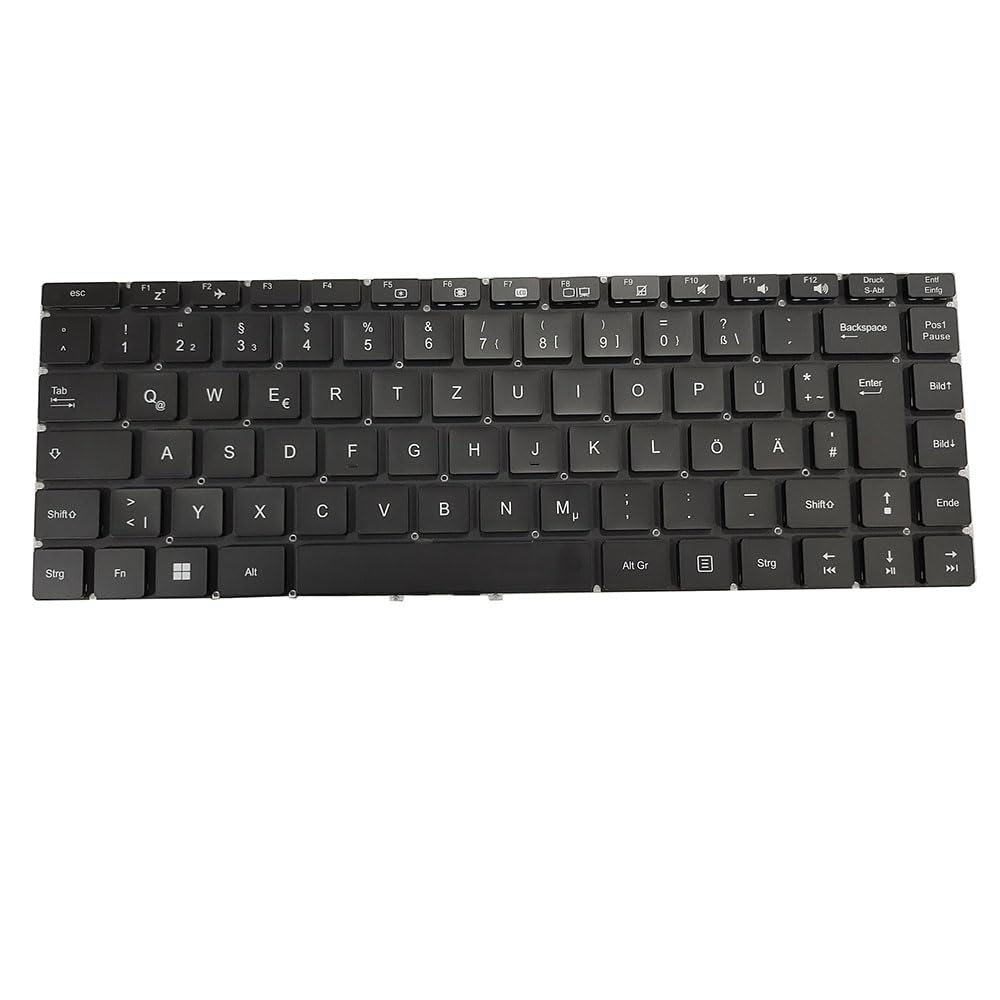
Image 1: Generic Laptop Keyboard. This image displays the German layout of the replacement keyboard, showing the key arrangement and overall design.
3. Setup and Installation
Disclaimer: Proceed with caution. Improper installation can damage your laptop. Disconnect all power sources (AC adapter and battery) before beginning.
- Power Off: Completely shut down your laptop and disconnect the AC adapter. Remove the laptop battery if it is external.
- Access Screws: Depending on your laptop model, you may need to remove screws from the bottom or sides of the laptop to release the keyboard. Consult your laptop's service manual for specific instructions.
- Remove Old Keyboard: Carefully pry up the old keyboard. It is usually held in place by clips or small screws. Be gentle to avoid damaging the laptop casing.
- Disconnect Ribbon Cable: Once the old keyboard is loose, carefully disconnect the ribbon cable that connects it to the motherboard. There is usually a small latch or clip that needs to be opened.
- Connect New Keyboard: Align the ribbon cable of the new keyboard with the connector on the motherboard. Gently push it in and secure the latch/clip. Ensure the cable is fully seated and not twisted.
- Position New Keyboard: Carefully place the new keyboard into its designated slot, ensuring all clips and mounting points align.
- Secure Keyboard: Re-fasten any screws or clips that hold the keyboard in place.
- Reassemble Laptop: Reinstall the battery (if removed) and reconnect the AC adapter.
- Test Functionality: Power on your laptop and test all keys to ensure they are functioning correctly.
4. Operating the Keyboard
This keyboard functions identically to the original German layout keyboard it replaces. All standard keys, function keys (F1-F12), and special characters specific to the German layout are present and operate as expected. Refer to your operating system's documentation for specific keyboard shortcuts or language settings.
- Standard Typing: Use for alphanumeric input.
- Function Keys (Fn): Many laptops require holding the 'Fn' key (usually located near the left Ctrl key) in combination with F1-F12 keys to access multimedia controls, brightness adjustments, volume, etc.
- Special Characters: Access German specific characters (e.g., ä, ö, ü, ß) directly or by using the Shift key as indicated on the keycaps.
5. Maintenance
To ensure the longevity and proper functioning of your keyboard, follow these maintenance guidelines:
- Cleaning: Use a soft, lint-free cloth slightly dampened with water or a mild cleaning solution (e.g., isopropyl alcohol) to wipe the keycaps. Avoid excessive moisture.
- Dust Removal: Use compressed air to remove dust and debris from between the keys. Hold the can upright to prevent propellant discharge.
- Avoid Spills: Keep liquids away from the keyboard to prevent damage to internal components.
- Gentle Use: Avoid excessive force when typing to prevent premature wear of the key mechanisms.
6. Troubleshooting
If you encounter issues with your keyboard, try the following troubleshooting steps:
- Keys Not Responding:
- Ensure the ribbon cable is securely connected to the motherboard.
- Restart your laptop.
- Check for any physical obstructions under the keys.
- Incorrect Characters:
- Verify that your operating system's keyboard language setting is set to 'German'.
- Ensure the keyboard layout matches the physical keys.
- Keyboard Not Detected:
- Power off the laptop, disconnect the battery and AC adapter, then reconnect the keyboard ribbon cable firmly.
- Check your laptop's BIOS/UEFI settings to ensure the keyboard is enabled.
If problems persist after attempting these steps, professional assistance may be required.
7. Specifications
- Brand: Generic
- Manufacturer: Generic
- Model Number: N53004-Keyboard German GR
- Item Weight: 0.3 Kilograms
- ASIN: B0FY2LJYVP
- Layout: German (GR)
- Compatibility: CEPTER DREAMBOOK N530-04, N53004
8. Warranty and Support
For information regarding warranty coverage, returns, or technical support, please refer to the seller's policies or contact the point of purchase. Keep your purchase receipt as proof of purchase.