
H-TECH HT-1015
H-TECH HT-1015 Car Radio User Manual
Model: HT-1015
Introduction
This manual provides detailed instructions for the installation, operation, and maintenance of your H-TECH HT-1015 Car Radio. This device features FM radio, Bluetooth connectivity, two USB-A ports (one for music playback, one for charging), and an auxiliary input. Please read this manual thoroughly before using the product to ensure proper function and safety.
Safety Information
- Do not operate the device in a manner that distracts you from driving.
- Ensure all wiring is correctly connected to prevent short circuits or damage.
- Avoid exposing the unit to extreme temperatures, direct sunlight, or moisture.
- Do not attempt to disassemble or modify the unit. Refer all servicing to qualified personnel.
- Keep the volume at a level that allows you to hear external traffic sounds.
Package Contents
Verify that all items are present in the package:
- 1x H-TECH HT-1015 Car Radio Unit
- 1x 16-Pin Wiring Harness
- 1x ISO Wiring Harness
- 1x Remote Control
- 1x User Manual (this document)
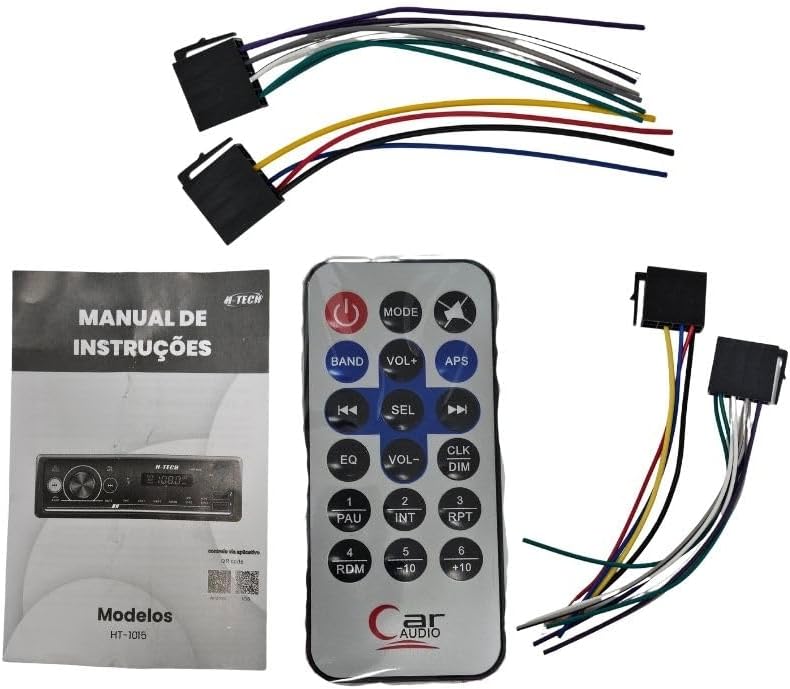
Image: Included components for the H-TECH HT-1015 car radio, showing the main unit, remote, and wiring harnesses.
Product Overview
Front Panel Controls

Image: Front view of the H-TECH HT-1015 car radio, displaying the main rotary knob, mode button, band button, track controls, APS button, mute button, numbered preset buttons, and two USB-A ports on the right side.
- MODE Button: Switches between FM, USB, AUX, and Bluetooth modes.
- Rotary Knob: Adjusts volume. Press to select menu options.
- BAND Button: Selects FM bands (FM1, FM2, FM3).
- APS Button: Automatic Preset Store (FM mode).
- Previous/Next Track Buttons: Skips tracks or tunes radio frequencies.
- MUTE Button: Mutes audio output.
- Numbered Buttons (1-6): Radio station presets; also used for folder navigation (USB).
- USB-A Port (Music): For connecting USB drives to play audio files.
- USB-A Port (Charge 2.1A): For charging mobile devices.
- AUX Input: 3.5mm jack for external audio devices.
- MIC: Built-in microphone for Bluetooth calls.
Rear Panel Connections

Image: Rear view of the H-TECH HT-1015 car radio, showing the main 16-pin wiring harness connector, antenna input, and two RCA audio output jacks (red and white).
- 16-Pin Wiring Harness Connector: Connects to the included wiring harnesses for power, speakers, and other functions.
- Antenna Input: For connecting the car's FM antenna.
- RCA Audio Outputs: Two outputs (Left/Right) for connecting to external amplifiers.
Setup and Installation
Professional installation is recommended. Ensure the vehicle's battery is disconnected before beginning installation.
Wiring Diagram
Use the provided 16-pin and ISO wiring harnesses to connect the car radio to your vehicle's electrical system and speakers. Refer to the color codes below:
| Wire Color | Function |
|---|---|
| Yellow | Constant Power (12V+) |
| Red | Accessory Power (ACC) |
| Black | Ground |
| Blue | Antenna/Amplifier Remote Turn-On |
| White | Front Left Speaker (+) |
| White/Black | Front Left Speaker (-) |
| Gray | Front Right Speaker (+) |
| Gray/Black | Front Right Speaker (-) |
| Green | Rear Left Speaker (+) |
| Green/Black | Rear Left Speaker (-) |
| Purple | Rear Right Speaker (+) |
| Purple/Black | Rear Right Speaker (-) |
Connect the antenna cable to the antenna input on the rear panel. If using external amplifiers, connect them to the RCA audio outputs.
Physical Installation
- Carefully remove the existing car radio from your vehicle's dashboard.
- Connect the wiring harnesses from the HT-1015 to your vehicle's wiring, matching the functions.
- Slide the HT-1015 into the dashboard opening until it clicks into place.
- Reconnect the vehicle's battery.
- Test the unit's functions before fully reassembling the dashboard.
Operating Instructions
Power On/Off and Volume
- Press the MODE button (or power button if separate) to turn the unit on.
- Press and hold the MODE button to turn the unit off.
- Rotate the Rotary Knob to adjust the volume level.
FM Radio Operation
- Press the MODE button until "FM" is displayed.
- Press the BAND button to switch between FM1, FM2, and FM3 bands.
- Press the Previous/Next Track Buttons to manually tune frequencies.
- Press and hold the Previous/Next Track Buttons for automatic station seeking.
- Press the APS button to automatically scan and store strong stations into presets.
- Press the Numbered Buttons (1-6) to select a stored preset station.
USB Playback
- Insert a USB flash drive into the USB-A (Music) port. The unit will automatically switch to USB mode and begin playback.
- If not, press the MODE button to select USB mode.
- Use the Previous/Next Track Buttons to skip tracks.
- Use the Numbered Buttons (e.g., 5/-10, 6/+10) to navigate folders or skip multiple tracks.
Auxiliary Input
- Connect an external audio device (e.g., smartphone, MP3 player) to the AUX Input using a 3.5mm audio cable.
- Press the MODE button to select AUX mode.
- Control playback from the connected external device.
Bluetooth Operation
- Press the MODE button to select Bluetooth mode. The display will show "BT" or "PAIRING".
- On your mobile device, enable Bluetooth and search for available devices.
- Select "HT-1015" from the list of devices to pair. A confirmation tone will sound upon successful pairing.
- Once paired, you can stream audio from your device to the car radio. Use the Previous/Next Track Buttons to control playback.
- For phone calls, the built-in microphone will be used. Press the Rotary Knob to answer/end calls.
USB Charging
- Connect your mobile device to the USB-A (Charge 2.1A) port using a compatible USB cable.
- The device will begin charging automatically. This port is designed for faster charging.
Remote Control and App Control
- The included remote control allows for convenient operation of various functions from a distance. Refer to the remote's button labels for specific actions.
- The unit also supports control via a mobile application. Scan the QR code provided on the product packaging or in the quick start guide to download the app for Android or iOS devices.
Maintenance
- Cleaning: Use a soft, dry cloth to wipe the unit's surface. Do not use abrasive cleaners or solvents.
- USB Ports: Keep USB ports free of dust and debris.
- General Care: Avoid dropping the unit or subjecting it to strong impacts.
Troubleshooting
| Problem | Possible Cause | Solution |
|---|---|---|
| No power | Incorrect wiring; Blown fuse; Vehicle battery disconnected. | Check power and ground connections. Inspect the fuse. Ensure battery is connected. |
| No sound | Volume too low; Mute activated; Speaker wires disconnected; Incorrect input mode. | Increase volume. Deactivate mute. Check speaker connections. Select correct input mode (FM, USB, AUX, BT). |
| Poor FM reception | Antenna not connected; Weak signal area; Damaged antenna. | Ensure antenna is securely connected. Try tuning to stronger stations. Consider a new antenna if damaged. |
| Bluetooth not pairing | Bluetooth not enabled on device; Unit not in pairing mode; Device too far. | Ensure Bluetooth is on and discoverable on your device. Select Bluetooth mode on the radio. Keep devices close. |
| USB not playing | Unsupported file format; USB drive corrupted; Unit not in USB mode. | Ensure audio files are in a supported format (e.g., MP3). Try a different USB drive. Select USB mode. |
Specifications
| Feature | Detail |
|---|---|
| Model Number | HT-1015 |
| Brand | H-TECH |
| Connectivity Technology | Bluetooth |
| Special Features | FM Tuner, USB Music Playback, USB Charging (2.1A), Auxiliary Input, Bluetooth Audio Streaming & Calls |
| Compatible Devices | Smartphone, USB Flash Drives |
| Connector Type | RCA, 16-pin harness |
| Audio Output Mode | Stereo |
| Output Power (RMS) | 4 x 25 Watts |
| Number of Channels | 4 |
| Supported Internet Services | Spotify (via connected smartphone) |
| External Test Certification | ANATEL: 07926-24-16671 |
| Included Components | Car radio, 16-pin harness, ISO harness, remote control, manual |
Warranty and Support
This H-TECH HT-1015 car radio comes with a 1-year warranty from the manufacturer against defects in materials and workmanship. Please retain your proof of purchase for warranty claims.
For technical support or warranty inquiries, please contact your retailer or the H-TECH customer service department. Contact information may be available on the product packaging or the official H-TECH website.
Related documentsHT-1015


Ask a question about this manual
Ask about setup, troubleshooting, compatibility, parts, safety, or missing instructions. Manuals+ will review the question and use this page’s manual context to help answer it.