
Introduction
This manual provides comprehensive instructions for the safe and effective use of your AMPBANK M256 Thermal Camera. The M256 is a compact thermal imager designed for use with Android smartphones, tablets, and PCs, offering a 256x192 IR resolution and a temperature range of -4°F to 842°F (-20°C to 450°C). Please read this manual thoroughly before operating the device.
Safety Information
Always observe the following safety precautions to prevent injury or damage to the device:
- Do not point the camera directly at intense heat sources, such as the sun or lasers, as this may damage the sensor.
- Do not expose the device to extreme temperatures, humidity, or corrosive environments.
- Avoid dropping or subjecting the device to strong impacts.
- Use only the provided accessories or those approved by AMPBANK.
- Keep the device out of reach of children.
- Refer to local regulations for proper disposal of electronic devices.
Package Contents
Verify that all items are present in your package:
- 1 x AMPBANK M256 Thermal Imaging Camera
- 1 x Multifunctional Adapter Cable (19.7-inch / 50cm USB extension cable)
- 1 x Cleaning Cloth
- 1 x Quick User Guide
- 1 x Carrying Bag
- 1 x Packing Box

Image: Contents of the AMPBANK M256 Thermal Camera package, including the camera, adapter cable, cleaning cloth, quick user guide, carrying bag, and packing box.
Product Overview
The AMPBANK M256 is a compact, plug-and-play thermal imaging camera designed to extend the capabilities of your Android smartphone or PC. It features a USB-C connector for direct attachment to compatible devices.

Image: Front view of the AMPBANK M256 Thermal Camera, showing its compact green and black design with a USB-C connector.
Key Features:
- High Resolution: 256x192 IR resolution for clear thermal images.
- Wide Temperature Range: Measures from -4°F to 842°F (-20°C to 450°C).
- Low Power Consumption: Operates efficiently at 0.35W.
- Compact and Portable: Weighs only 30g, easily fits in a pocket.
- Versatile Connectivity: Compatible with Android smartphones/tablets and PCs via USB-C.
Setup
1. App Installation (Android)
- Locate the "ThermCam" application on the Google Play Store.
- Download and install the application on your Android smartphone or tablet.
- Ensure your device supports OTG (On-The-Go) functionality for external device connection.

Image: Screenshot showing the ThermCam app available on Google Play, indicating where to download the required software for the thermal camera.
2. Connecting the Device
- For direct connection: Plug the USB-C connector of the M256 thermal camera directly into the USB-C port of your Android smartphone or tablet.
- For extended connection: Use the provided 19.7-inch (50cm) USB extension cable. Connect one end to your smartphone/tablet and the other end to the M256 camera. This offers greater flexibility during use.
- Once connected, open the "ThermCam" app. The app should automatically detect the camera and display the thermal image.

Image: A hand holding a smartphone with the AMPBANK M256 Thermal Camera connected to its USB-C port, displaying a thermal image on the phone screen.

Image: The AMPBANK M256 Thermal Camera connected to a laptop and a tablet using the 19.7-inch USB extension cable, demonstrating its versatility.
3. PC Software Installation
- For PC usage, download the "TCView 2.0" software from the official AMPBANK website.
- Install the software on your Windows PC.
- Connect the M256 camera to your PC using the USB-C extension cable.
- Launch the TCView 2.0 software to begin thermal imaging on your PC.
Operation
1. Basic Temperature Measurement
- Once the app is open and the camera is connected, the thermal image will appear on your screen.
- The app displays real-time temperature readings.
- Adjust the camera's position to focus on the area of interest.

Image: A person using the AMPBANK M256 Thermal Camera with a smartphone to inspect a wall, showing the thermal image and temperature readings on the phone screen.
2. Measurement Modes and Color Palettes
- The ThermCam app offers various measurement modes, including Dot, Line, and Plane, for precise temperature monitoring.
- Select from 10 different color palettes to visualize temperature changes. Different palettes can highlight specific temperature variations more clearly.

Image: A smartphone screen displaying various color palettes and measurement settings within the ThermCam app, demonstrating customization options for thermal imaging.
3. 3D Thermal Analysis
- Utilize the advanced 3D editing features within the app or PC software for detailed temperature analysis from multiple perspectives.
- This feature assists in identifying subtle temperature anomalies and patterns.
4. Smart Alerts
- Configure smart alerts for high and low temperatures. The app will notify you when temperatures exceed or fall below predefined thresholds.
- This is useful for monitoring critical equipment or areas.
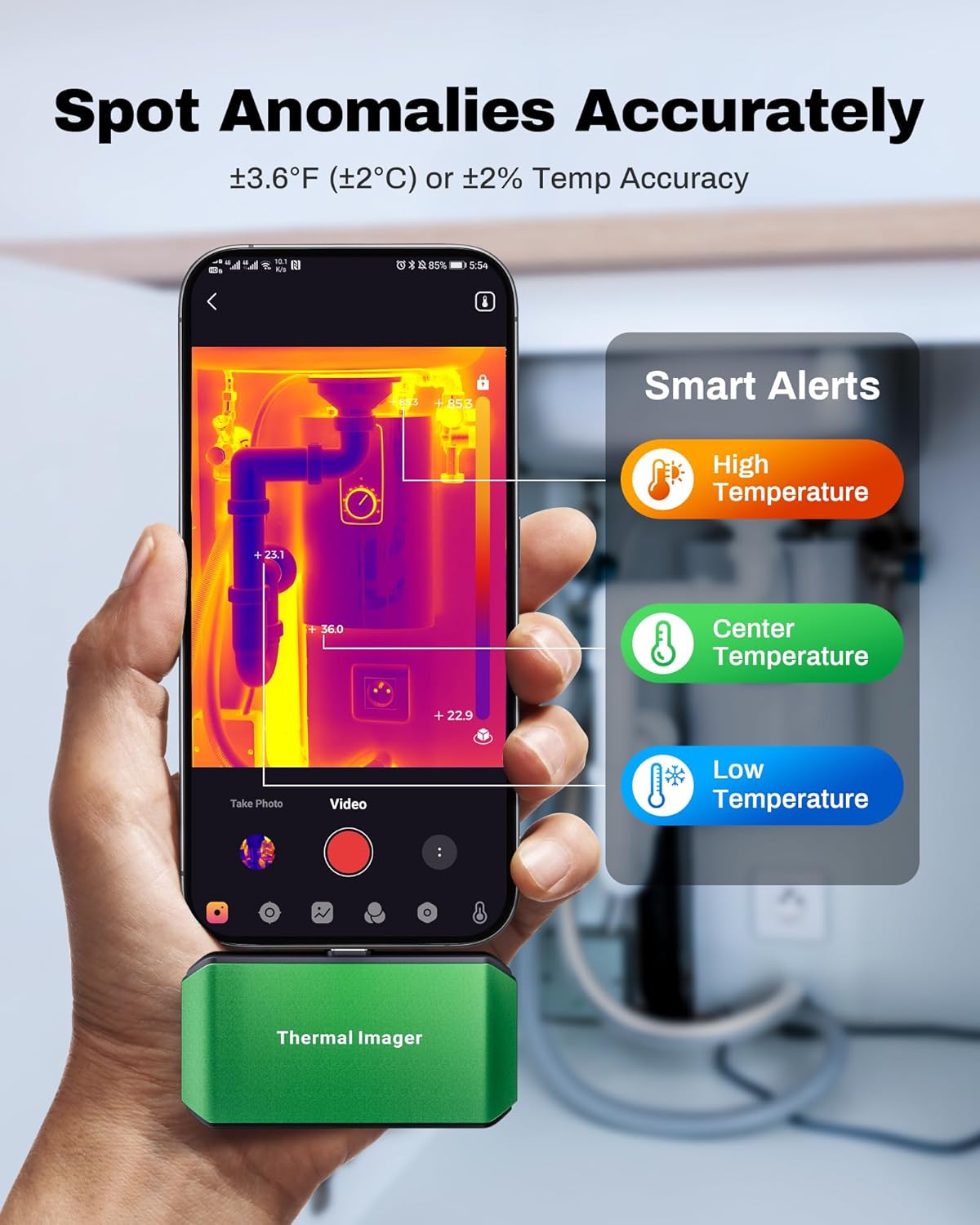
Image: A smartphone screen showing the ThermCam app with "Smart Alerts" for high, center, and low temperatures, indicating the camera's ability to detect anomalies.
5. Photo and Video Capture
- Capture still thermal images or record thermal videos directly through the app.
- These captures can be used for documentation, analysis, or sharing.

Image: Screenshots from the ThermCam app demonstrating options for video recording and photo capturing of thermal images.
6. Generating Professional Reports
- The ThermCam app and TCView 2.0 software allow you to generate professional field reports.
- Customize data, add watermarks, and adjust settings for seamless sharing of your thermal analysis.

Image: A smartphone screen displaying the ThermCam app's interface for generating professional reports, including options to customize data and share.
Maintenance
- Cleaning: Use the provided cleaning cloth to gently wipe the camera lens and body. Do not use abrasive cleaners or solvents.
- Storage: When not in use, store the thermal camera in its protective carrying bag to prevent dust and damage. Store in a cool, dry place away from direct sunlight.
- Software Updates: Regularly check the Google Play Store or AMPBANK website for updates to the ThermCam app or TCView 2.0 software to ensure optimal performance and access to new features.
Troubleshooting
| Problem | Possible Cause | Solution |
|---|---|---|
| Camera not detected by smartphone/PC. |
|
|
| Inaccurate temperature readings. |
|
|
| App crashes or freezes. |
|
|
Specifications
| Feature | Detail |
|---|---|
| Model | M256 |
| IR Resolution | 256x192 pixels |
| Temperature Range | -4°F to 842°F (-20°C to 450°C) |
| Temperature Accuracy | ±3.6°F (±2°C) or ±2% |
| Thermal Sensitivity (NETD) | <40mK |
| Refresh Rate | 25Hz |
| Power Consumption | 0.35W |
| Connectivity | USB-C |
| Compatibility | Android Smartphones/Tablets, Windows PC |
| Dimensions | 2.8 x 1.65 x 0.55 inches (70 x 44 x 14 mm) |
| Weight | 30g (0.07lb) |
| Manufacturer | AMPBANK |

Image: A visual summary of the AMPBANK M256 Thermal Camera's key features and specifications, including resolution, temperature range, and power consumption.
Warranty and Support
AMPBANK products are designed for reliability and performance. For warranty information, technical support, or service inquiries, please refer to the official AMPBANK website or contact their customer service department.
Please retain your proof of purchase for warranty claims.
Online Resources: Visit the AMPBANK Store on Amazon for additional product information and support.


