
Introduction
This manual provides detailed instructions for the KUAIVO Smart Food Scale KN2432LB. This digital kitchen scale is designed to accurately weigh food items and track nutritional information, including calories, fat, carbohydrates, and protein, through its integrated TFT display and companion mobile application.
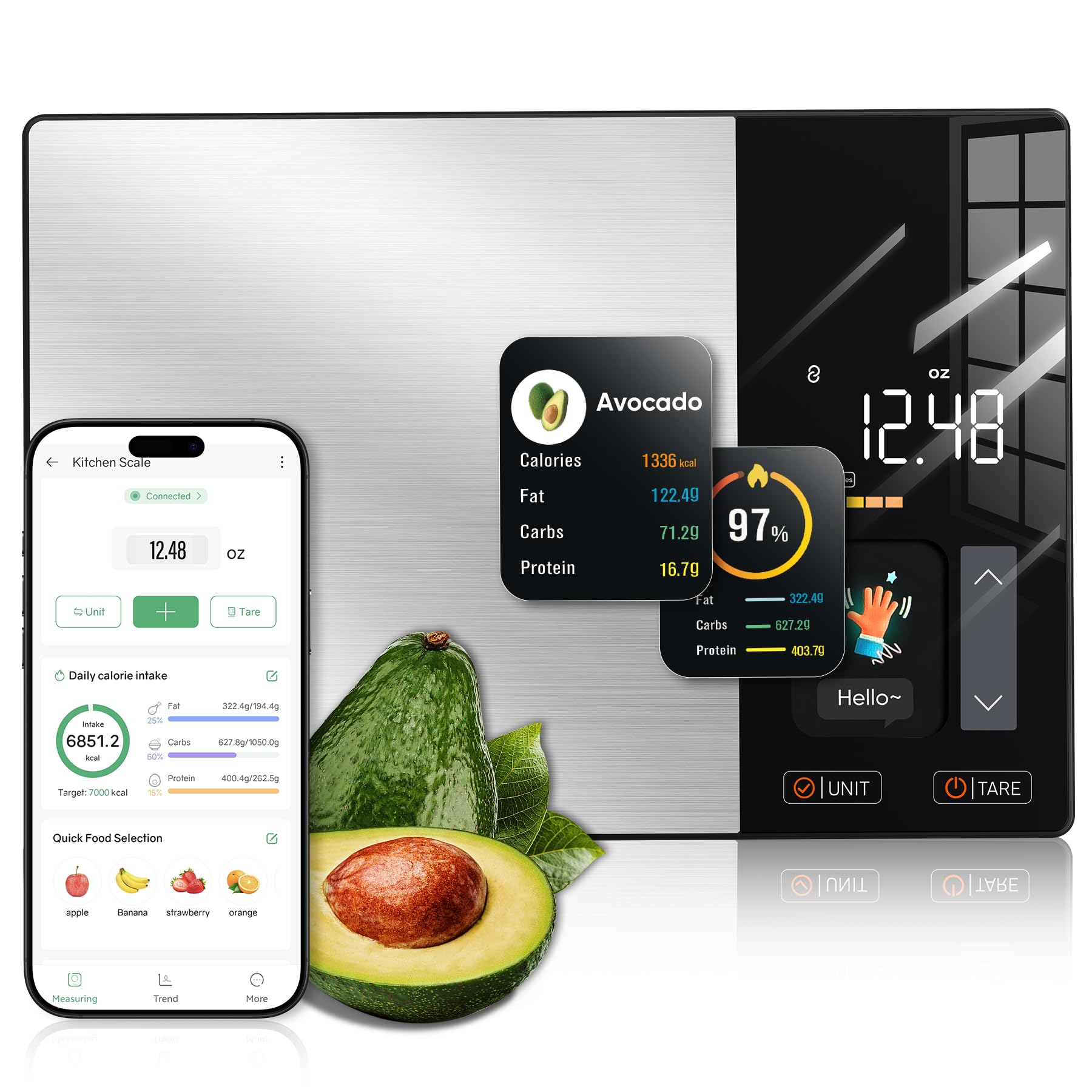
Image: The KUAIVO Smart Food Scale, showcasing its sleek design and TFT display with a bowl of salad on top.
Setup
1. Unpacking and Initial Inspection
Carefully remove the scale from its packaging. Inspect the device for any signs of damage. Ensure all included components are present: 1 food scale, 1 user manual.
2. Powering the Scale
The KUAIVO Smart Food Scale KN2432LB is designed to be ready for use. According to specifications, batteries are not explicitly required by the user, suggesting they are either included or the device is rechargeable. If the scale does not power on, please check for a battery compartment and insert 4 AAA batteries if necessary, or connect it to a power source if it is rechargeable (cable not specified in components).
3. App Installation and Pairing
- Download the App: Search for "Fitdays+" in your mobile device's app store (available on Google Play and Apple App Store).
- Create Account: Open the Fitdays+ app and follow the on-screen instructions to create a user account.
- Enable Bluetooth: Ensure Bluetooth is enabled on your mobile device.
- Pairing: Turn on the KUAIVO Smart Food Scale. Open the Fitdays+ app and navigate to the device pairing section. The app should detect the scale via Bluetooth. Follow the prompts to complete the pairing process.

Image: A user interacting with the Fitdays+ app on a smartphone, demonstrating the app's interface for tracking daily nutrition goals, with the scale visible.
Operating Instructions
1. Basic Weighing
- Power On: Place the scale on a flat, stable surface and press the power button (if applicable, or it may auto-on when weight is applied).
- Select Unit: Press the UNIT button to cycle through available measurement units: grams (g), milliliters (ml), ounces (oz), and pounds:ounces (lb:oz).
- Place Item: Gently place the item to be weighed onto the center of the scale platform. The weight will be displayed on the TFT screen.
2. Tare Function
The Tare function allows you to weigh ingredients in a container by subtracting the container's weight.
- Place Container: Place an empty container on the scale platform.
- Tare: Press the TARE button. The display will reset to zero.
- Add Ingredients: Add your ingredients to the container. The scale will display only the net weight of the ingredients.

Image: A visual guide demonstrating the three steps to use the Tare function for accurate weighing with a container.
3. Nutrition Tracking
The scale integrates with the Fitdays+ app to provide detailed nutritional information.
- Weigh Food: Place the food item on the scale.
- Select Food (App): In the Fitdays+ app, select the food item from the database (50 pre-loaded foods are available, with millions more searchable).
- View Nutrition: The scale's TFT display will show real-time nutritional data (calories, fat, carbs, protein, and up to 23 other nutrients) for the weighed food. The app will also record and display this information.

Image: The KUAIVO Smart Food Scale displaying calorie and macro information for an avocado, mirrored by the Fitdays+ app on a smartphone.

Image: The scale weighing a steak, with the Fitdays+ app on a smartphone demonstrating quick food selection from pre-loaded options.
4. Setting Daily Nutrition Targets
Within the Fitdays+ app, you can customize and set daily intake goals for calories, protein, carbohydrates, and fat. The app will track your progress and provide insights based on your recorded meals.
Maintenance
1. Cleaning
To clean the scale, wipe the surface with a soft, damp cloth. Do not immerse the scale in water or use abrasive cleaners. Ensure the scale is dry before storage or next use.
2. Storage
Store the scale in a cool, dry place. Avoid placing heavy objects on the scale when not in use to prevent damage to the sensors.
Troubleshooting
- Scale Not Powering On:
Check if batteries are correctly installed or if the device needs charging. Refer to the "Powering the Scale" section in Setup.
- Inaccurate Readings:
Ensure the scale is on a flat, stable surface. Avoid placing it near vibrating appliances. Recalibrate if necessary (refer to app or manufacturer support for calibration instructions, if available).
- App Connectivity Issues:
Ensure Bluetooth is enabled on your device and the scale is within range. Restart both the scale and the app. If issues persist, try unpairing and re-pairing the device in the Fitdays+ app settings.
- Scale Auto-Off Too Quickly:
The scale has an automatic shut-off feature to conserve power. Be prepared to add items promptly or check the app settings for any adjustable auto-off timers, if available.
Specifications
| Feature | Detail |
|---|---|
| Brand | KUAIVO |
| Model | KN2432LB |
| Item Weight | 470 g |
| Dimensions | 24.3 x 17.1 x 2.7 cm |
| Measurement Accuracy | 1 g |
| Display Type | TFT |
| Special Features | High Accuracy, Nutrition Tracking, Smart, TFT Display, Tare Function |
| Included Components | 1 food scale, 1 user manual |
| Batteries Required | No (Batteries are included or device is rechargeable) |
Product Videos
Detailed Operation Guide
Video: A comprehensive guide demonstrating the various functions and features of the KUAIVO Smart Food Scale, including setup, weighing, and nutrition tracking. (Duration: 7:34)
App Integration and Nutrition Tracking Overview
Video: An overview of how the KUAIVO Smart Food Scale integrates with the Fitdays+ app for advanced nutrition tracking and daily goal management. (Duration: 4:03)
Warranty Information
Specific warranty details are not provided in the product information. Please refer to the packaging or contact the manufacturer directly for warranty terms and conditions. Keep your purchase receipt as proof of purchase.
Customer Support
For further assistance, technical support, or inquiries regarding your KUAIVO Smart Food Scale KN2432LB, please contact KUAIVO customer service through their official website or the contact information provided on the product packaging.