
1. Introduction
This manual provides essential information for setting up, operating, maintaining, and troubleshooting your KAMRUI Hyper H2 Mini Gaming PC. Please read this manual thoroughly before using the device to ensure optimal performance and longevity.
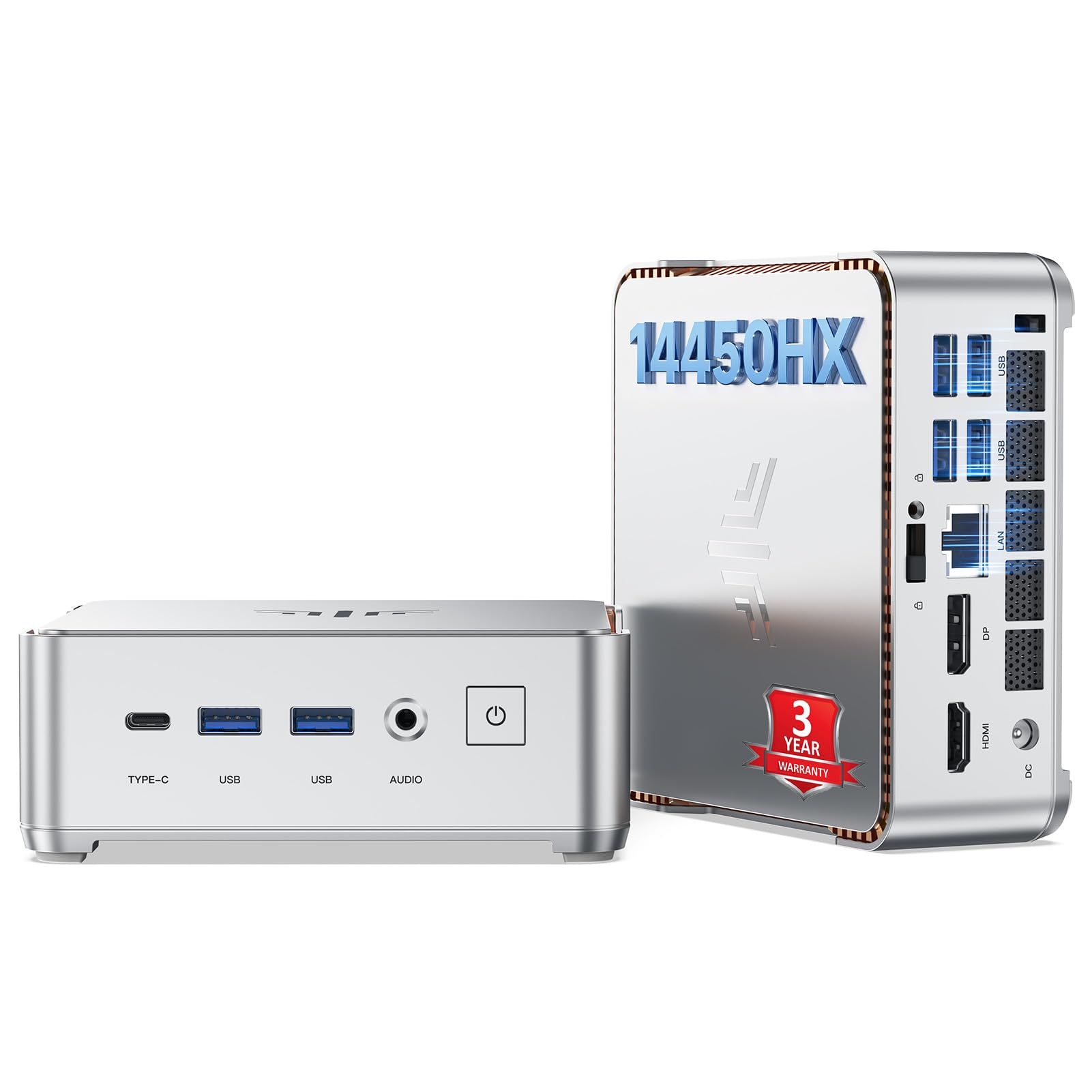
Image: The KAMRUI Hyper H2 Mini Gaming PC, a compact silver device with various ports.
2. Package Contents
Verify that all items are present in the package:
- KAMRUI Hyper H2 Mini PC
- Power Adapter
- HDMI Cable
- VESA Mount Bracket
- Screws for VESA Mount
- User Manual (this document)
Video: An overview of the KAMRUI Hyper H2 Mini Gaming PC, showcasing its features and components.
3. Setup Guide
3.1 Connecting Peripherals
Connect your monitor(s), keyboard, mouse, and other peripherals to the appropriate ports on the mini PC. The device supports triple 4K displays via HDMI 2.0, DP 1.4, and USB3.2 Gen2 Type-C.
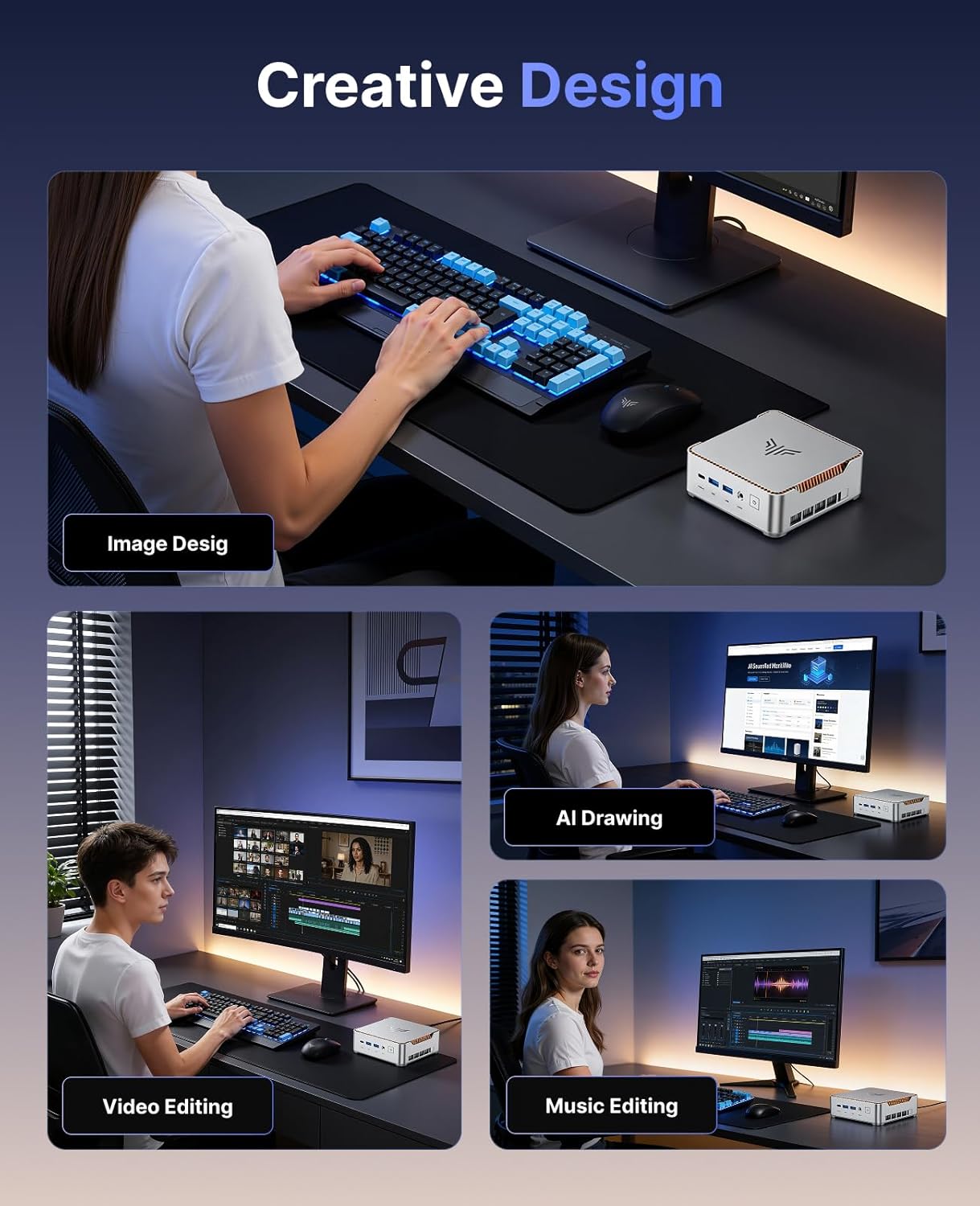
Image: Rear and side view of the KAMRUI Hyper H2 Mini PC, highlighting its various ports including USB, HDMI, DisplayPort, Ethernet, and Type-C.
3.2 Powering On
Connect the power adapter to the DC port on the mini PC and then to a power outlet. Press the power button located on the front of the device to turn it on.
3.3 Initial Boot and Operating System
The KAMRUI Hyper H2 Mini PC comes with Windows 11 Pro pre-installed. Follow the on-screen instructions for the initial Windows setup.
Video: Demonstrates how to configure the "Wake system from S5" and set a startup time in the BIOS settings for automatic power on/off.
4. Operating Instructions
4.1 Multi-Display Setup
The mini PC supports up to three 4K displays simultaneously (4K@60Hz) for enhanced productivity and immersive experiences. Connect monitors using the HDMI, DisplayPort, and USB Type-C outputs.

Image: A desk setup showing the KAMRUI Hyper H2 Mini PC connected to three monitors, demonstrating its triple 4K display capability.
Video: Demonstrates the triple 4K display output capabilities of the mini PC, showing various content across three screens.
4.2 Network Connectivity
Utilize the integrated WiFi 6 for fast wireless internet access or connect directly via the 1Gbps RJ45 Ethernet port for a stable wired connection. Bluetooth 5.2 allows for seamless connection to wireless peripherals.

Image: Illustrates the high-speed network capabilities including WiFi 6, Bluetooth 5.2, and 1Gbps LAN.
4.3 Performance and Applications
Powered by the Intel Core i5-14450HX processor, 32GB RAM, and a 1TB NVMe PCIe4.0 SSD, this mini PC is designed for high-intensity multitasking, 3A gaming, 3D rendering, video editing, and business applications.
Video: Shows gameplay footage of Counter-Strike, demonstrating the mini PC's gaming performance.
5. Maintenance
5.1 Storage and Memory Expansion
The mini PC features dual M.2 slots, allowing for storage expansion up to 4TB. The 32GB (16GB*2) dual-channel DDR4 memory can also be upgraded. Refer to the disassembly video for guidance on accessing internal components.
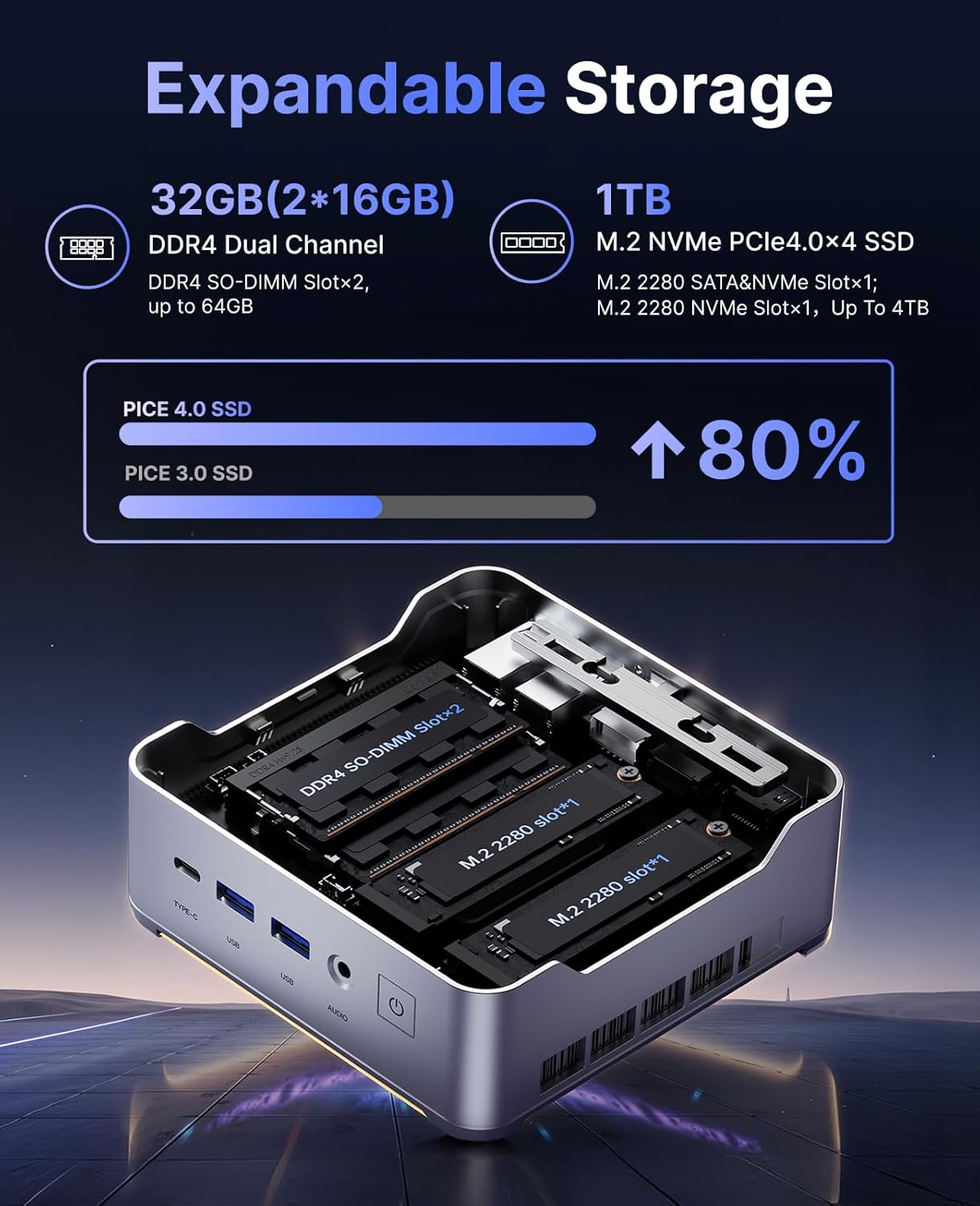
Image: An exploded view of the mini PC showing the internal layout for RAM and M.2 SSDs, illustrating expandable storage.
Video: A step-by-step guide on how to disassemble the mini PC to access and upgrade DDR RAM and SSD components.
5.2 Cooling System
The device is equipped with upgraded silent centrifugal fans, dual copper heat pipes, and dual fin-stack cooling modules to maintain optimal performance under heavy loads. Ensure proper ventilation around the unit.

Image: An exploded view highlighting the internal cooling components, including the silent high-speed fan, aluminum heat sink, and dual fins with copper tubes.
6. Troubleshooting
- No Display: Ensure all display cables (HDMI, DP, Type-C) are securely connected to both the mini PC and the monitor. Verify the monitor input source is correctly selected.
- No Power: Check that the power adapter is firmly connected to the mini PC and a working power outlet. Try a different outlet if necessary.
- Slow Performance: Close unnecessary applications. Check for background processes consuming high resources. Ensure sufficient free storage space. Consider upgrading RAM or SSD if performance issues persist during demanding tasks.
- Network Issues: For Wi-Fi, ensure the antenna is connected and the device is within range of your router. For wired connections, check the Ethernet cable and router status.
- Overheating: Ensure the mini PC has adequate ventilation and is not placed in an enclosed space. Clean any dust accumulation from the vents.
7. Specifications
| Feature | Detail |
|---|---|
| Processor | Intel Core i5-14450HX (10 Cores / 16 Threads, up to 4.8GHz, TDP 54W) |
| Graphics | Integrated Intel UHD Graphics for 14th Gen Intel Processors (up to 1.5GHz dynamic frequency) |
| RAM | 32GB (16GB*2) DDR4 Dual-Channel SODIMM (expandable up to 64GB) |
| Storage | 1TB NVMe PCIe4.0x4 SSD (expandable up to 4TB via dual M.2 slots) |
| Display Output | Triple 4K@60Hz (1x HDMI 2.0, 1x DP 1.4, 1x USB3.2 Gen2 Type-C) |
| Network | WiFi 6, Bluetooth 5.2, 1x RJ45 Gigabit Ethernet |
| USB Ports | 2x USB3.2 Gen2 (10Gbps), 4x USB3.2 Gen1 Type-A (5Gbps), 1x Type-C (10Gbps data transfer) |
| Audio | 1x 3.5mm Audio Jack |
| Operating System | Windows 11 Pro (pre-installed) |
| Dimensions | 5.04 x 5.04 x 1.63 inches (128.2 x 128.2 x 44mm) |
| Weight | 2.94 pounds |
8. Warranty and Support
KAMRUI offers a 3-year service warranty and lifetime technical support for your Hyper H2 Mini PC.
For technical assistance or warranty claims, please contact us through the following channels:
- Email: support@kamrui.com
- Phone: +1-833-670-1528 (US, Mon-Fri 9am-5pm EST)
- Online: Log in to your Amazon account, navigate to "Your Orders," and select "Ask Product Question" for assistance.

Image: Details KAMRUI's customer support options including email, phone, and online inquiry via Amazon.


