Introduction
This manual provides detailed instructions for the installation, operation, and maintenance of your Miden S9 Dual 4K Dash Cam. Please read this manual thoroughly before using the device to ensure proper functionality and to maximize your driving safety and recording experience.
Package Contents
Verify that all items listed below are included in your package. If any items are missing or damaged, please contact customer support.
- 1 x Miden 4K Dash Cam (Front Camera)
- 1 x 4K Rear Camera
- 1 x 64GB SD Card
- 1 x USB SD Card Reader
- 1 x Suction Mount
- 1 x Charging Cable
- 1 x Car Charger
- 1 x Wiring Crowbar
- 1 x Type-C Data Cable
- 1 x User Manual

Image: All components included in the Miden S9 Dual 4K Dash Cam package.
Product Overview
The Miden S9 Dual 4K Dash Cam is designed to provide comprehensive video surveillance for your vehicle, featuring both front and rear cameras for a wide field of view.
Key Features:
- Dual 4K UHD Recording: Captures Ultra HD 4K (3840×2160P) video from both front and rear cameras.
- Wide Angle Lenses: 176° front camera and 160° waterproof rear camera for extensive coverage.
- 3.5-inch IPS Screen: Large, clear display for easy operation and video playback.
- Advanced Sensor & Processor: Equipped with a Sony STARVIS IMX675 CMOS sensor and Novatek processor for superior image quality.
- WDR & HDR Technology: Enhances color accuracy and clarity in various lighting conditions.
- G-Sensor: Automatically detects collisions and locks video footage.
- Loop Recording: Continuously records, overwriting old files while protecting locked evidence.
- 24H Parking Monitor: Provides surveillance when the vehicle is parked, activating upon vibration detection.
- Reversing Image Assist: Aids in parking by displaying a wide-angle rear view with guidelines when reverse gear is engaged.

Image: Overview of the Miden S9 Dash Cam's powerful functions.

Image: The 3.5-inch IPS LCD screen displaying 4K Ultra HD video.

Image: Wide-angle coverage of the front (176°) and rear (160°) cameras.
Setup
1. Inserting the SD Card
Insert the provided 64GB SD card into the dash cam's SD card slot. Ensure the card is inserted correctly until it clicks into place. The dash cam supports up to 256GB Class 10 or higher Micro SD cards.
2. Mounting the Front Camera
Attach the suction mount to the front camera. Clean the windshield thoroughly where you intend to mount the dash cam. Press the suction cup firmly against the glass and flip the lever to secure it. Position the camera to ensure a clear view of the road without obstructing your driving vision.
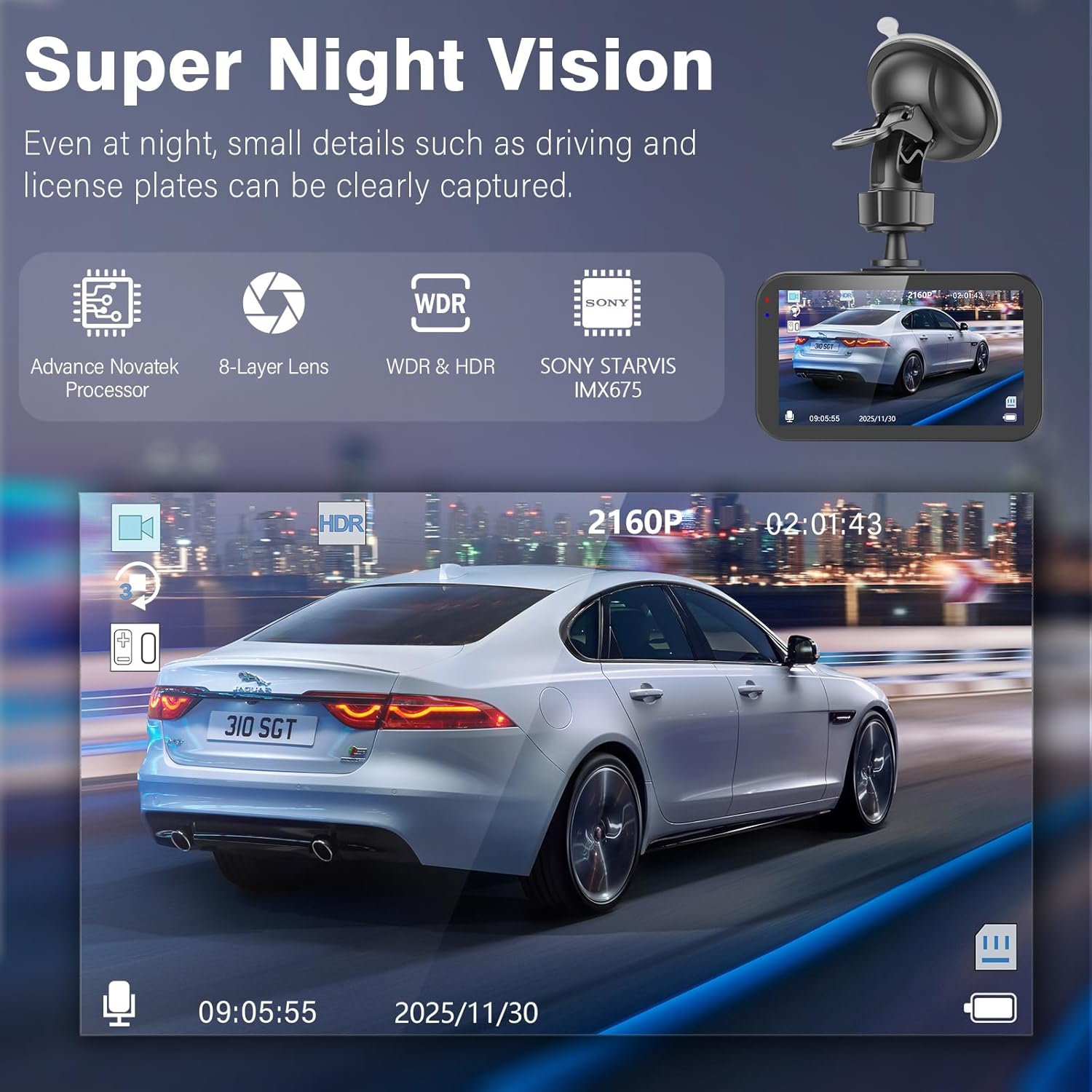
Image: Front camera mounted on the windshield.

Image: The dash cam mount allows for 360° rotation for optimal positioning.
3. Installing the Rear Camera
Connect the rear camera to the main dash cam unit using the provided cable. Route the cable neatly along the vehicle's interior trim. Mount the rear camera on the rear windshield, ensuring it has a clear view. The rear camera is waterproof and can also be mounted externally if preferred (professional installation recommended for external mounting).

Image: Connection diagram for front camera, rear camera, and car charger.
4. Power Connection
Connect the car charger to the dash cam's Type-C port and plug the other end into your vehicle's cigarette lighter socket. The dash cam will automatically power on and begin recording when the vehicle starts.
5. Initial Settings
Upon first use, or after a reset, you may need to set the date and time. Navigate through the menu using the buttons on the side of the device. Ensure the correct date and time are set for accurate timestamping of recordings.
Operating Instructions
1. Power On/Off
The dash cam typically powers on automatically when the vehicle starts and powers off when the engine is turned off. To manually power on/off, press and hold the power button located on the side of the device.
2. Recording
Once powered on, the dash cam will automatically begin loop recording. A red indicator light or icon on the screen will confirm recording is active. To manually stop/start recording, press the 'OK' button.
3. Menu Navigation
Use the 'Up' and 'Down' arrow buttons to navigate through menu options. Press the 'OK' button to select an option and the 'Menu' button to exit a menu or return to the previous screen.
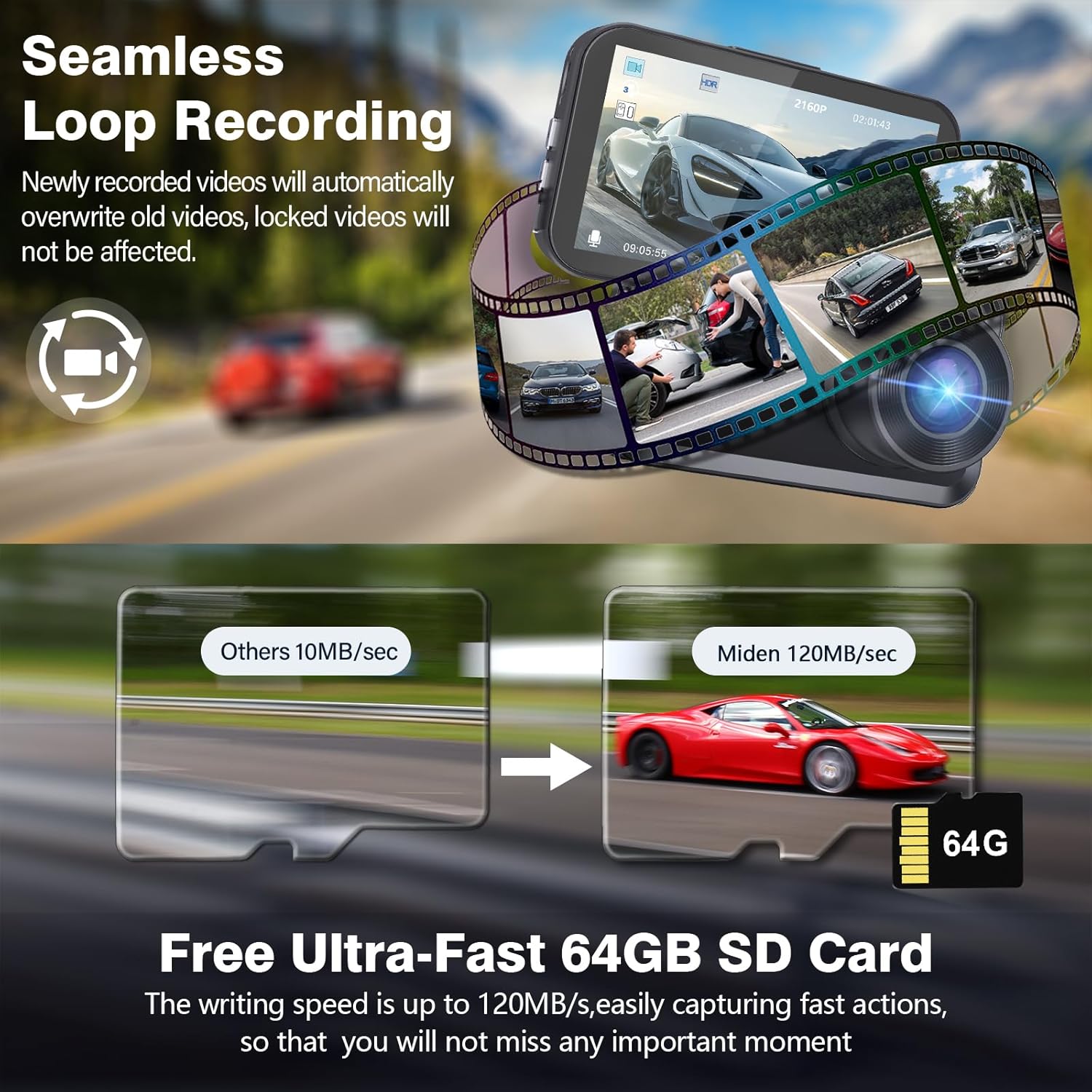
Image: The dash cam's 3.5-inch IPS screen displaying recording information and menu icons.
4. Screen Switching
The dash cam allows you to switch between different display modes on the 3.5-inch IPS screen:
- Default Display: Shows both front and rear views (split screen).
- Full Front Camera: Displays only the front camera view.
- Full Rear Camera: Displays only the rear camera view.
Press the designated screen switching button (refer to your device's button layout) to cycle through these display modes.

Image: Examples of screen switching options, including default, full front, and full rear views.

Image: Further illustration of screen switching options.
Advanced Features
1. Loop Recording & Evidence Protection
The dash cam records video in continuous loops. When the SD card is full, the oldest unlocked video files are automatically overwritten by new recordings. Important footage can be manually locked or automatically locked by the G-Sensor to prevent overwriting.

Image: Seamless loop recording process, showing how locked videos are preserved.

Image: G-Sensor automatically locks video during an accident.
2. G-Sensor & Accident Lock
The built-in 3-axis G-Sensor detects sudden movements or impacts. In the event of a collision, it automatically saves and locks the current video file, preventing it from being overwritten during loop recording. You can also manually lock a video by pressing the designated lock button.
3. 24H Parking Monitor
When your vehicle is parked, the parking monitor feature provides continuous protection. If the dash cam detects vibration or impact, it will automatically power on and begin recording. This feature requires a continuous power supply (e.g., hardwire kit, sold separately) to function for 24 hours.

Image: The 24-hour parking monitor provides continuous vehicle surveillance.
4. Super Night Vision & WDR/HDR
The Miden S9 dash cam features an f1.5 aperture, a large 1/2.7'' CMOS image sensor, and WDR (Wide Dynamic Range) and HDR (High Dynamic Range) technologies. These features work together to improve image clarity and color accuracy, ensuring clear recordings even in low-light conditions or at night, capturing details like license plates.

Image: Super Night Vision captures clear details in low light.

Image: HDR technology ensures balanced exposure in varying light conditions.
5. Reversing Image Assist
When the vehicle is shifted into reverse gear, the dash cam automatically switches to display the rear camera's view on the screen. This view includes parking guidelines, assisting the driver in safely reversing and parking.

Image: Reversing Image Assist with parking guidelines.
6. Official Product Video
Video: Miden S9 4K+4K Dash Cam Front and Rear with 64G SD Card. This video demonstrates the key features and functionality of the dash cam.
Maintenance
1. SD Card Formatting
It is recommended to format the SD card regularly (e.g., once a month) to ensure optimal performance and prevent data corruption. This can be done through the dash cam's menu settings. Formatting will erase all data on the card, so back up any important files first.
2. Cleaning the Lenses and Screen
Gently wipe the camera lenses and the IPS screen with a soft, lint-free cloth. Avoid using abrasive cleaners or solvents that could damage the surfaces.
Troubleshooting
- Dash Cam does not power on:
Ensure the car charger is properly connected to both the dash cam and the vehicle's power outlet. Check if the vehicle's power outlet is functioning. - Recording stops unexpectedly:
Check if the SD card is full or corrupted. Format the SD card. Ensure the SD card is a high-speed Class 10 or higher. - Video quality is poor:
Clean the camera lenses. Ensure the protective film has been removed from the lenses. Check menu settings for video resolution and adjust if necessary. - Date and time are incorrect:
Access the system settings in the menu to manually set the correct date and time. - Rear camera not displaying:
Ensure the rear camera cable is securely connected to both the rear camera and the main dash cam unit.
Specifications
| Feature | Detail |
|---|---|
| Model Name | S9 |
| Video Capture Resolution | 2160P+2160P (Dual 4K) |
| Front Field Of View | 176 Degrees |
| Rear Field Of View | 160 Degrees |
| Screen Size | 3.5 inches IPS |
| Connectivity Technology | Type-C |
| Image Sensor | Sony STARVIS IMX675 CMOS |
| Special Features | 4K+4K Front And Rear, Free 64G SD Card, UFO Rear Camera Design, Reversing Image Assist, Dual Parking Mode, Super Infrared Night Vision, F1.5 Super Aperture, 336° Super Wide Angle, Loop Recording, 3-Axis G-sensor, WDR & HDR |
| Mounting Type | Windshield Mount |
| Product Dimensions | 3 x 1.5 x 1 inches |
| Item Weight | 13.7 ounces |
| Batteries | 1 Lithium Ion battery (included) |
Warranty and Support
Miden provides a 10-year free warranty for this product. Additionally, lifetime professional technical support is available. If you encounter any issues or have questions regarding your Miden S9 Dual 4K Dash Cam, please do not hesitate to contact our customer service team for assistance.


