
Introduction
This manual provides detailed instructions for the setup, operation, and maintenance of your DEPGI 14-inch Triple Laptop Screen Extender, Model DE140N2. Please read this manual thoroughly before using the product to ensure proper functionality and to maximize your productivity.
Product Overview
The DEPGI 14-inch Triple Laptop Screen Extender is designed to enhance your mobile workstation by providing three additional 14-inch Full HD (1920x1080P) IPS screens. Its unique freestanding design eliminates strain on your laptop hinge and offers versatile display modes for various tasks.
- Enhanced Productivity: Connect to your laptop for three extra screens, enabling efficient multitasking without constant window switching.
- Freestanding Design: Features an integrated folding stand for secure placement on any desk, preventing screen wobble and laptop damage.
- Versatile Display Modes: Easily configure for Presentation Mode, Meeting Mode, or Portrait Mode to suit different work scenarios.
- Superior Visuals: Each 14-inch Full HD IPS panel offers a 178° ultra-wide viewing angle, vivid colors, 300 nits brightness, and a 1000:1 contrast ratio.
- Eye Comfort: Integrated hardware-level low blue light and anti-glare technology reduce eye strain.
- Plug & Play: Compatible with Windows and macOS (including M1, M2, M3, M4 chips). Requires one or two cables for connection; no drivers needed for Windows (automatic installation), manual driver installation for macOS.

Image: The DEPGI 14-inch Triple Laptop Screen Extender in its freestanding configuration, showcasing the three screens.
Package Contents
The package includes all necessary cables, a power adapter, and a protective carrying case to ensure your screen extender is ready for immediate use.
- DEPGI 14-inch Triple Laptop Screen Extender Unit
- Necessary Connection Cables (e.g., USB-C to USB-C, HDMI to HDMI, USB-A to USB-C)
- Power Adapter
- Protective Carrying Case
- User Manual (this document)
- USB Disk Drive (for macOS driver installation)
Compatibility
The DEPGI Triple Laptop Screen Extender is designed for broad compatibility with various operating systems and laptop models.
- Operating Systems:
- Windows 10 and above
- macOS 2019 and above (including M1, M2, M3, M4 chips)
- Laptop Ports: Your laptop must have a USB-C port or a USB-A port for connection.

Image: Visual guide for checking laptop compatibility, including OS versions and required USB-C or USB-A ports.
Driver Installation
- Windows: The system will automatically recognize and install the necessary drivers. Ensure Windows automatic updates are enabled.
- macOS: You must manually install the driver using the provided USB disk drive.

Image: Instructions for driver installation on Windows and macOS, and general compatibility notes.
Setup
Follow these steps to set up your DEPGI Triple Laptop Screen Extender:
- Place the freestanding screen extender on a stable surface next to your laptop.
- Connect the necessary cables from the screen extender to your laptop. Depending on your laptop's ports, you may need one or two cables to power and transmit video to all three screens.
- Connect the provided power adapter to the screen extender to ensure stable power delivery, especially when using all three screens simultaneously.
- For macOS users, install the driver from the provided USB disk drive. Windows users typically do not need manual driver installation.
- Once connected, your laptop should detect the external displays. You may need to adjust display settings in your operating system (e.g., display arrangement, resolution) to optimize your multi-monitor setup.

Image: The DEPGI screen extender connected to a laptop, illustrating the cable management and the need for PD power supply.
Operating Instructions
The DEPGI Triple Laptop Screen Extender offers various modes and controls for flexible use.
Display Modes
- Presentation Mode: Flip one screen 90° to share content with others across a table.
- Meeting Mode: Fold the screens into a triangular configuration for collaborative group discussions.
- Portrait Mode: Rotate a screen vertically, ideal for viewing long documents, code, or web pages.
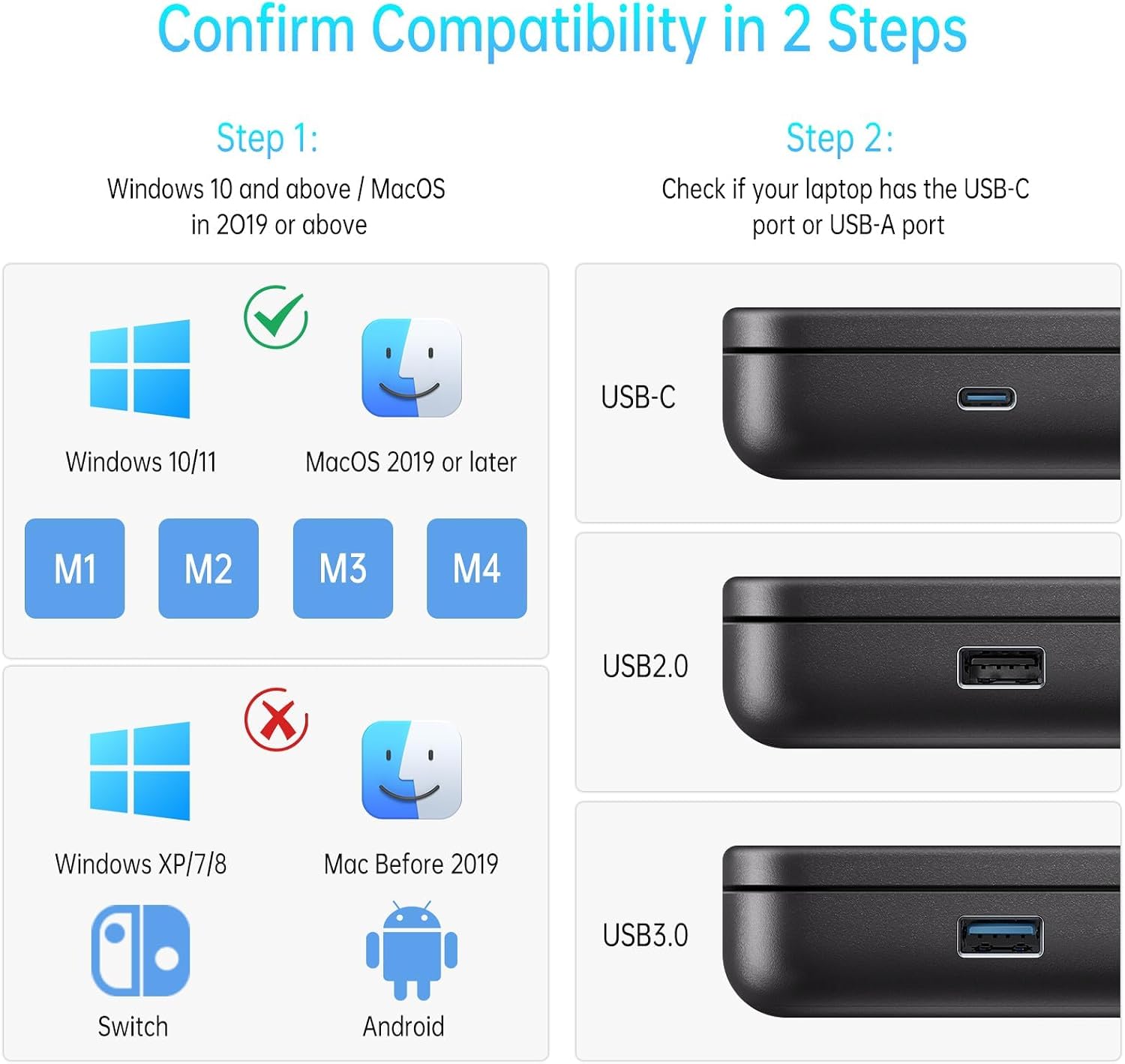
Image: Different configurations of the DEPGI screen extender, demonstrating how it can improve work efficiency.
Controls and Ports
The screen extender features intuitive controls and ports for connectivity.
- On/Off Button: Located on the side for powering the unit.
- Left/Right Buttons: For navigating the On-Screen Display (OSD) menu and adjusting settings.
- USB-C Charging Port: For power input.
- USB-A Ports: For connecting peripherals.

Image: A detailed view of the side of the DEPGI screen extender, highlighting the USB-C charging port, USB-A ports, and control buttons.
Maintenance
To ensure the longevity and optimal performance of your DEPGI Triple Laptop Screen Extender, follow these maintenance guidelines:
- Cleaning: Use a soft, lint-free cloth slightly dampened with water or a screen-cleaning solution to clean the display surfaces. Avoid harsh chemicals or abrasive materials.
- Storage: When not in use, store the screen extender in its protective carrying case to prevent dust accumulation and physical damage.
- Handling: Handle the unit with care. Avoid dropping it or subjecting it to strong impacts.
- Ventilation: Ensure the unit has adequate ventilation during operation. Do not block any vents.
Troubleshooting
If you encounter issues with your DEPGI Triple Laptop Screen Extender, refer to the following common troubleshooting steps:
- No Display:
- Ensure all cables are securely connected to both the screen extender and your laptop.
- Verify that the power adapter is connected and providing power to the unit.
- Check your laptop's display settings to ensure the external monitors are detected and enabled.
- For macOS, confirm that the necessary drivers have been installed.
- Flickering Screen or Unstable Display:
- Ensure the power adapter is connected. Insufficient power can cause instability.
- Try using different cables or ports on your laptop.
- Reduce the display resolution if it is set too high for the connection.
- Incorrect Resolution or Aspect Ratio:
- Adjust the display settings in your operating system. Set the resolution to 1920x1080 for optimal display.
- Screens Not Arranged Correctly:
- In your operating system's display settings, drag and drop the monitor icons to match their physical arrangement.
If these steps do not resolve the issue, please contact DEPGI customer support for further assistance.
Specifications
| Brand | DEPGI |
| Model Number | DE140N2 |
| Screen Size | 14 Inches (x3) |
| Resolution | FHD 1080p (1920 x 1080) |
| Aspect Ratio | 16:10 |
| Display Type | IPS |
| Viewing Angle | 178 Degrees |
| Refresh Rate | 60 Hz |
| Contrast Ratio | 1000:1 |
| Screen Finish | Glossy |
| Connectivity Technology | HDMI, USB Type C |
| Picture Quality Enhancement | Low Blue Light, Anti-Glare |
| Item Dimensions (D x W x H) | 14.8"D x 3.7"W x 9.1"H |
| Color | Black |

Image: Visual representation of the screen's technical specifications including low blue light, contrast ratio, view angle, brightness, and color depth.
Warranty Information
The DEPGI 14-inch Triple Laptop Screen Extender comes with a 1 Year Manufacturer Warranty. This warranty covers defects in materials and workmanship under normal use. Please retain your proof of purchase for warranty claims.
For detailed warranty terms and conditions, please refer to the warranty card included in your package or contact DEPGI customer support.
Support
For technical support, troubleshooting assistance, or warranty inquiries, please contact DEPGI customer service through the following channels:
- Website: Visit the official DEPGI website for FAQs and support resources.
- Email: Refer to your product packaging or warranty card for customer support email addresses.
- Phone: Refer to your product packaging or warranty card for customer support phone numbers.
When contacting support, please have your product model number (DE140N2) and proof of purchase ready.