
1. Introduction
This manual provides comprehensive instructions for the installation, operation, and maintenance of your SIXTOP 4 Channel Dash Cam. This device is designed to record video footage from multiple perspectives around and within your vehicle, enhancing driving safety and providing evidence in case of incidents.
Please read this manual thoroughly before using the product to ensure correct operation and to prevent damage.
2. Package Contents
Verify that all items listed below are present in your package:
- SIXTOP 4 Channel Dash Camera (Main Unit)
- Rear Camera
- Power Cable (3.4m)
- Extension Cord (5.5m) for Rear Camera
- Suction Cup Mount
- Anti-Slip Mats
- User Manual

Figure 2.1: Package Contents and Main Unit Overview
This image displays the complete set of items included with your SIXTOP 4 Channel Dash Cam. It shows the main dash camera unit with its multiple lenses, the separate rear camera, the power cable for connecting to the vehicle's power source, an extension cord for the rear camera, a suction cup mount for windshield attachment, anti-slip mats, and the user manual. The main unit also highlights key components like HD lenses, display screen, night vision lights, reset button, menu button, power button, flip up/down buttons, OK button, microphone, AV-IN port, TF card slot, holes for bracket, Type-C port, speaker, and brackets.
3. Setup and Installation
Follow these steps for proper installation of your dash cam:
- Prepare the Mounting Surface: Clean the area on your windshield where the dash cam will be mounted. Ensure it is free of dust and grease for optimal adhesion.
- Mount the Dash Cam: Attach the suction cup mount to the main dash cam unit. Press the suction cup firmly onto the cleaned windshield surface, ensuring a secure fit. Position the camera to provide a clear view of the road ahead without obstructing your driving vision.
- Connect Power: Route the power cable from the dash cam to your vehicle's 12V power outlet (cigarette lighter socket). Secure the cable along the windshield trim to avoid interference with driving controls.
- Install Rear Camera: Mount the rear camera on the rear windshield or license plate area. Connect the rear camera to the main dash cam unit using the provided extension cord. For reversing assist functionality, connect the red wire of the rear camera's power cable to your vehicle's reverse light power supply.
- Insert Micro SD Card: Insert a Class 10 or higher speed Micro SD card (up to 128GB, not included) into the designated TF card slot on the dash cam. Ensure the card is inserted correctly.
- Adjust Camera Angles: Power on the dash cam and adjust the angles of the front, inside, and rear cameras to ensure desired coverage. The 3-inch IPS screen will display the camera views.
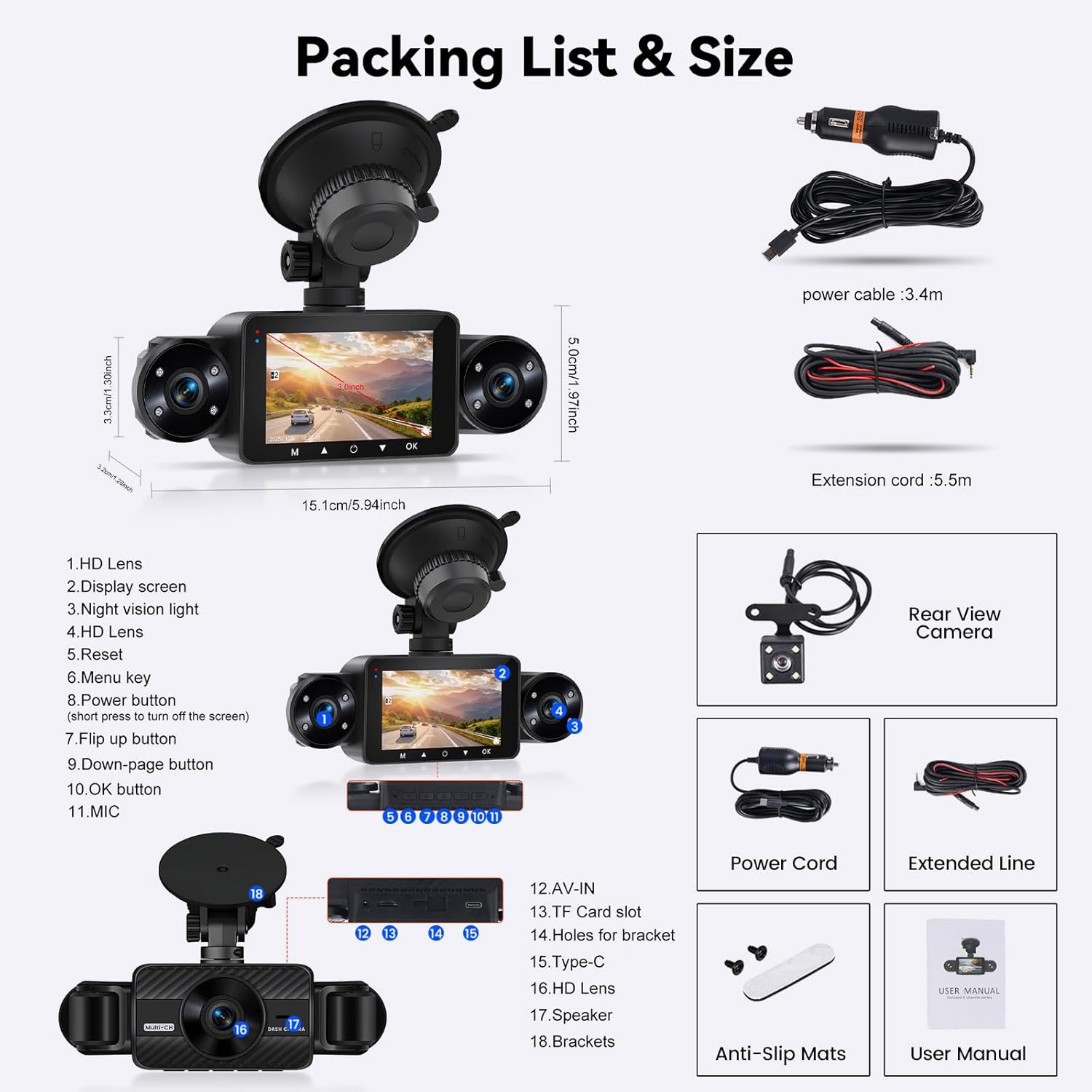
Figure 3.1: Dash Cam Installation Diagram
This diagram illustrates the recommended installation process for the dash cam. It shows the main logger display unit mounted on the front windshield, with the power cable routed to the vehicle's power supply. The rear camera is shown installed at the back of the vehicle, connected to the main unit via an extension cable, with a specific note to connect it to the reverse light anode for reversing assistance. The image also includes six smaller steps detailing how to clean the glass, mount the bracket, remove dust, connect the rear camera, connect the power supply, and adjust the angle.
4. Operating Instructions
4.1 Basic Operation
- Power On/Off: The dash cam will automatically power on and begin recording when the vehicle's ignition is turned on. To manually power off, press and hold the Power button.
- Recording: Once powered on, the dash cam automatically starts loop recording. A red indicator light or icon on the screen typically confirms recording is active.
- Screen Display Modes: The 3-inch IPS screen supports various display modes including full screen, front and rear split, 3-split screen, and 4-split screen. Use the menu buttons to cycle through these display options.
- Playback: To view recorded footage, stop recording (if active), then navigate to the playback menu using the menu buttons. Select the desired video file for playback.
4.2 Key Features Operation
- Loop Recording: The dash cam continuously records, overwriting the oldest unlocked files when the memory card is full. This ensures continuous recording without manual intervention.
- G-Sensor (Emergency Lock): In the event of a sudden impact or collision, the built-in G-sensor automatically detects the event and locks the current video file, preventing it from being overwritten by loop recording. This footage is saved as important evidence.
- 24-Hour Parking Monitoring: With an optional ACC hardwire kit (sold separately), the dash cam can monitor your vehicle even when parked. If an impact is detected, it will automatically record and save the footage. This feature helps protect your vehicle from vandalism or hit-and-runs.
- Reversing Assist: When the rear camera is correctly wired to the vehicle's reverse light, the dash cam screen will automatically display the rear view with parking guidelines when the vehicle is put into reverse gear, aiding in safe parking.
- Night Vision & Exposure Compensation: Equipped with 8 IR night vision lights and exposure adjustment, the dash cam captures clear video in low-light conditions and prevents overexposure in bright light, ensuring optimal recording quality day and night.

Figure 4.1: Parking Monitoring, G-Sensor, and Loop Recording
This image illustrates three key operational features: 24H Parking Monitoring, which requires an additional hardwire kit for continuous surveillance when the car is parked; the Built-in G-Sensor, which automatically locks video footage upon detecting a collision; and Loop Recording, which ensures continuous recording by overwriting the oldest files when the memory card is full.

Figure 4.2: Reversing Assistance
This image shows the Reversing Assistance feature in action. When the vehicle is in reverse, the dash cam's screen displays the rear camera feed with clear, colored parking guidelines, helping the driver to park safely and accurately.

Figure 4.3: Enhanced Night Vision
This image highlights the enhanced night vision capabilities of the dash cam. It contrasts a view without IR LEDs (Infrared) and a view with 8 IR LEDs, showing a clearer 720P image. It also compares a generic 2.1-inch screen product with the SIXTOP's 3-inch IPS Night Vision, demonstrating the superior full-color 1080P clarity provided by the SIXTOP dash cam in low-light conditions.
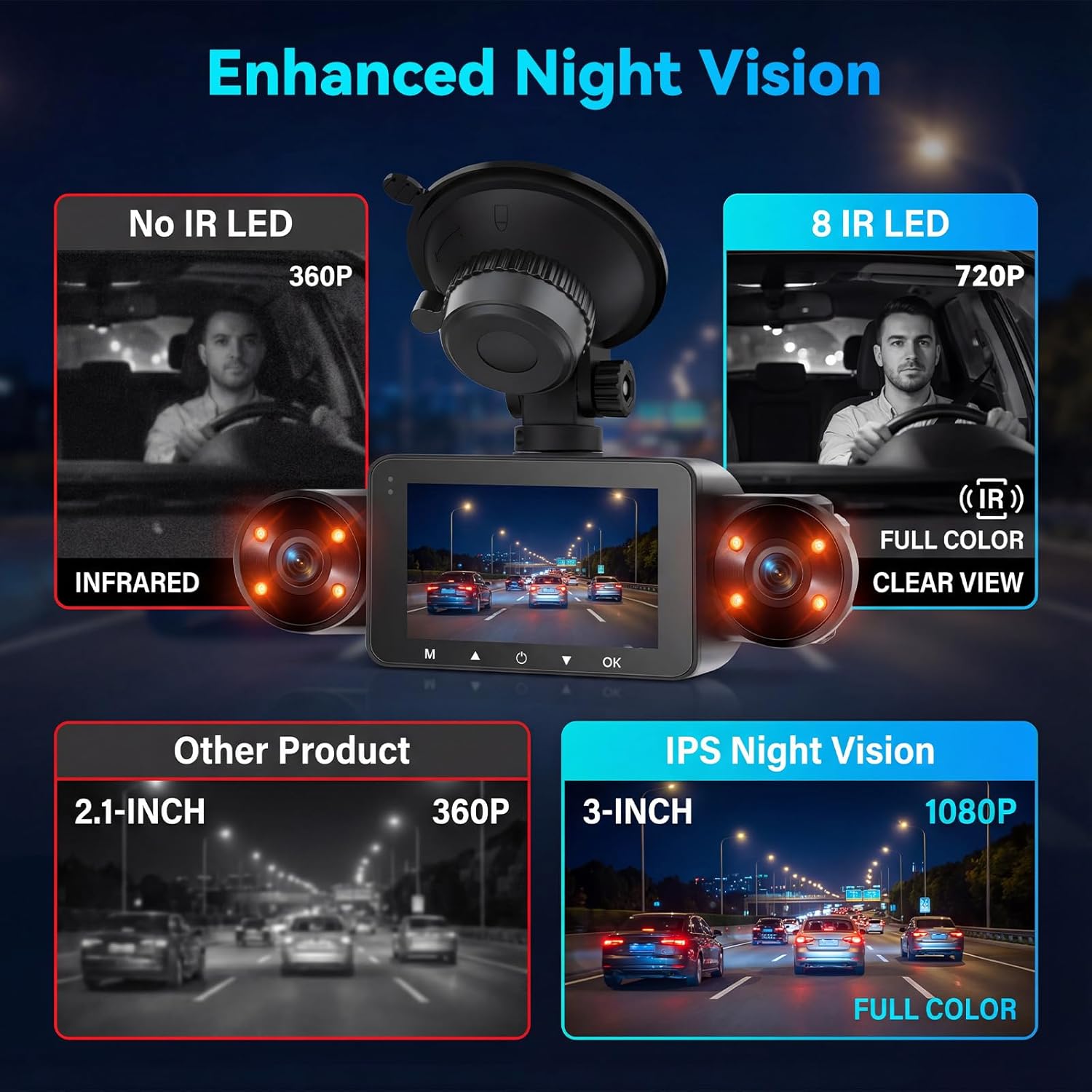
Figure 4.4: 4 Channel 360° View
This image illustrates the comprehensive 360-degree coverage provided by the 4-channel dash cam. It shows the individual fields of view for each camera: Front (150°), Rear (120°), Cabin Left (120°), and Cabin Right (120°). This multi-camera setup ensures all-around vehicle safety and recording from various angles simultaneously.
5. Maintenance
- Micro SD Card: Format the Micro SD card regularly (e.g., once a month) to ensure optimal performance and prevent data corruption. Use the format function in the dash cam's menu.
- Cleaning: Use a soft, dry cloth to clean the camera lenses and the display screen. Avoid using abrasive cleaners or solvents.
- Temperature: Avoid exposing the dash cam to extreme temperatures for extended periods.
- Firmware Updates: Check the manufacturer's website periodically for firmware updates to ensure your dash cam has the latest features and bug fixes.
6. Troubleshooting
| Problem | Possible Cause | Solution |
|---|---|---|
| Dash cam does not power on. | No power supply; faulty cable; loose connection. | Check power cable connection to the vehicle's 12V outlet and the dash cam. Ensure the vehicle's ignition is on. Test the power cable in another outlet if possible. |
| Recording stops or freezes. | SD card full; slow SD card; SD card error. | Format the Micro SD card. Ensure you are using a Class 10 or higher speed card. Replace the SD card if the issue persists. |
| Poor video quality. | Dirty lens; protective film on lens; incorrect settings. | Clean the camera lenses. Remove any protective film. Check video resolution settings in the menu. |
| Rear camera not displaying. | Loose connection; faulty cable. | Ensure the rear camera cable is securely connected to the main unit. Check the cable for any damage. |
| Parking monitor not working. | Hardwire kit not installed; feature disabled. | Verify that the ACC hardwire kit is correctly installed and connected. Check the dash cam settings to ensure parking monitoring is enabled. |
7. Specifications
| Feature | Detail |
|---|---|
| Model | B0FXR327SM |
| Display Screen | 3-inch IPS Screen |
| Video Capture Resolution | Front: 1080P, In-car (Left & Right): 720P, Rear: 480P |
| Field of View | Front: 150°, Rear: 120°, Cabin Left: 120°, Cabin Right: 120° (360° total coverage) |
| Night Vision | HD 8 IR Night Vision with Exposure Compensation |
| Special Features | G-Sensor, Loop Recording, 24H Parking Monitoring (requires hardwire kit), Reversing Assistance |
| Storage | Supports Micro SD card up to 128GB (Class 10 or higher, not included) |
| Connectivity | USB |
| Mounting Type | Windshield Mount |
| Product Dimensions | 1 x 1 x 1 inches |
| Item Weight | 1.1 pounds |
8. Warranty and Support
SIXTOP products are designed for reliability and performance. For warranty information and technical support, please refer to the following:
- Warranty: The product typically comes with a standard manufacturer's warranty. Please refer to the warranty card included in your package or contact customer support for specific details regarding coverage and duration.
- Technical Support: If you encounter any issues or have questions regarding your SIXTOP 4 Channel Dash Cam, please contact SIXTOP customer support.
- Contact Information: For online support, you may reach out to SIXTOP via the seller's contact information on the purchase platform or through the email provided in the product documentation.

Figure 8.1: SIXTOP Brand Commitment
This image highlights SIXTOP's dedication to integrating R&D, manufacturing, and sales, ensuring expert support and seamless partnerships. It emphasizes the brand's commitment to delivering driving pleasure.

Figure 8.2: Online Support Contact
This image provides an email address for online support: SIXTOP123@163.com. Users can contact this address for assistance with their product.