
1. Introduction
This manual provides detailed instructions for the setup, operation, maintenance, and troubleshooting of your TISHLED EK001 Ergonomic Mechanical Keyboard. Please read this manual thoroughly before using the product to ensure optimal performance and longevity.
The TISHLED EK001 is an ergonomic mechanical keyboard featuring a split key layout, a smart TFT color display, a Hall magnetic volume roller, and tri-mode connectivity (2.4G wireless, Bluetooth, and wired USB-C). It includes 106 hot-swappable low-profile switches, RGB backlighting, and web-based programmable functions.
2. Package Contents
- TISHLED EK001 Ergonomic Mechanical Keyboard
- USB-C Cable
- 2.4G USB Receiver
- Keycap Puller
- Switch Puller
- User Manual
3. Setup
3.1 Initial Charging
Before first use, connect the keyboard to a power source using the provided USB-C cable. The keyboard features a 4000mAh rechargeable lithium battery. The smart TFT display will indicate charging status.

Image: The keyboard's 4000mAh battery capacity is highlighted, indicating long battery life.
3.2 Adjustable Typing Angles
The keyboard features two-stage foldable feet on the underside. Adjust these feet to achieve your preferred typing angle: 3°, 6°, or 9°.
3.3 Connectivity Modes
The TISHLED EK001 supports three connectivity modes: 2.4G Wireless, Bluetooth, and Wired USB-C. Use the mode switch located on the keyboard to select your desired connection type.

Image: Close-up of the keyboard showing the physical switch for selecting 2.4G, USB (wired), or BT (Bluetooth) connectivity modes.
3.3.1 2.4G Wireless Connection
- Set the mode switch on the keyboard to '2.4G'.
- Insert the 2.4G USB receiver into an available USB port on your computer.
- The keyboard will automatically connect. The smart TFT display will show the connection status.
3.3.2 Bluetooth Connection
The keyboard can connect to up to three Bluetooth devices.
- Set the mode switch on the keyboard to 'BT'.
- Press FN + 1, FN + 2, or FN + 3 to select a Bluetooth channel. The smart TFT display will show the selected channel.
- On your device (computer, tablet, smartphone), enable Bluetooth and search for new devices.
- Select 'TISHLED EK001' from the list of available devices to pair.
- Repeat for additional Bluetooth devices on different channels.
3.3.3 Wired USB-C Connection
- Set the mode switch on the keyboard to 'USB'.
- Connect the USB-C cable to the keyboard and the other end to your computer's USB port.
- The keyboard will be recognized as a standard USB device.
4. Operating Instructions
4.1 Smart TFT Color Display
The integrated TFT screen provides real-time information such as time, date, and current operating mode. It also supports custom images or GIFs for personalization.

Image: A close-up of the keyboard's smart TFT color display, showing time, date, and connection mode, with example custom images floating above it.
4.2 Hall Magnetic Volume Roller
The Hall magnetic volume roller offers precise and durable control over audio volume. Rotate the roller to adjust volume levels.

Image: A close-up of the Hall magnetic volume roller on the keyboard, indicating its smooth operation and showing a digital volume display.
4.3 RGB Lighting and Ambient Light Bar
The keyboard features customizable RGB backlighting and an ambient light bar. Use the following key combinations to control lighting effects:
- FN + INS: Cycle through various lighting effects.
- FN + DEL: Toggle backlight on/off.

Image: The TISHLED EK001 keyboard on a desk, showcasing its vibrant RGB backlighting and the ambient light bar, enhancing the workspace ambiance.
4.4 Web-Based Programmable Features
Customize your keyboard's lighting, key remapping, and macro programming using the web-based driver. This feature is compatible with Windows, macOS, Android, and iOS devices.
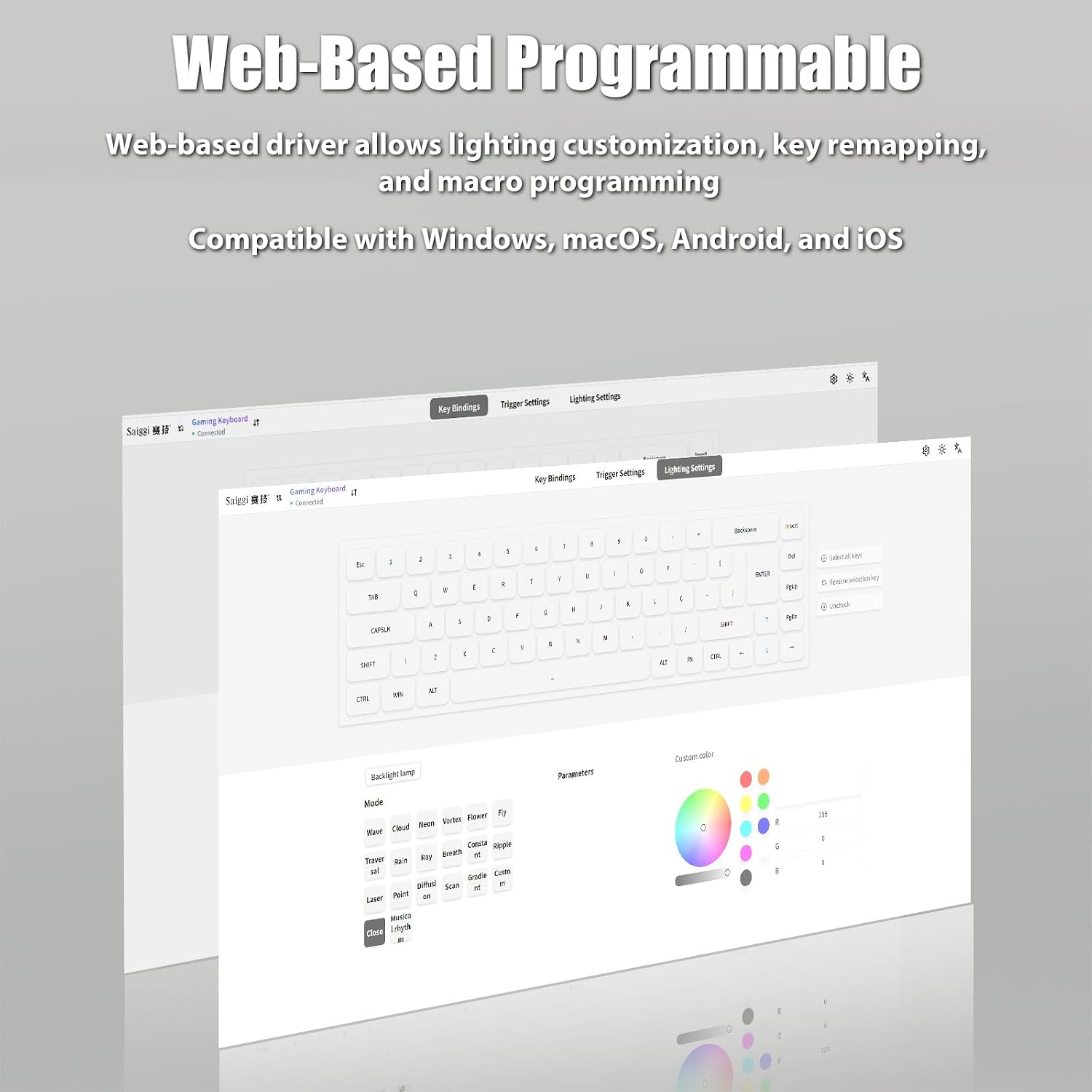
Image: Screenshot of the web-based programming interface, showing options for key binding, trigger settings, and lighting customization.
5. Maintenance
5.1 Cleaning
To clean your keyboard, disconnect it from all power sources. Use a soft, dry cloth to wipe the surface. For deeper cleaning, use a can of compressed air to remove dust and debris from between the keycaps. Avoid using liquid cleaners directly on the keyboard.
5.2 Hot-Swappable Switches and Keycaps
The TISHLED EK001 features 3-pin hot-swappable low-profile switches, allowing you to customize your typing experience without soldering. The keycaps are ABS double-shot, designed for durability and fade resistance.
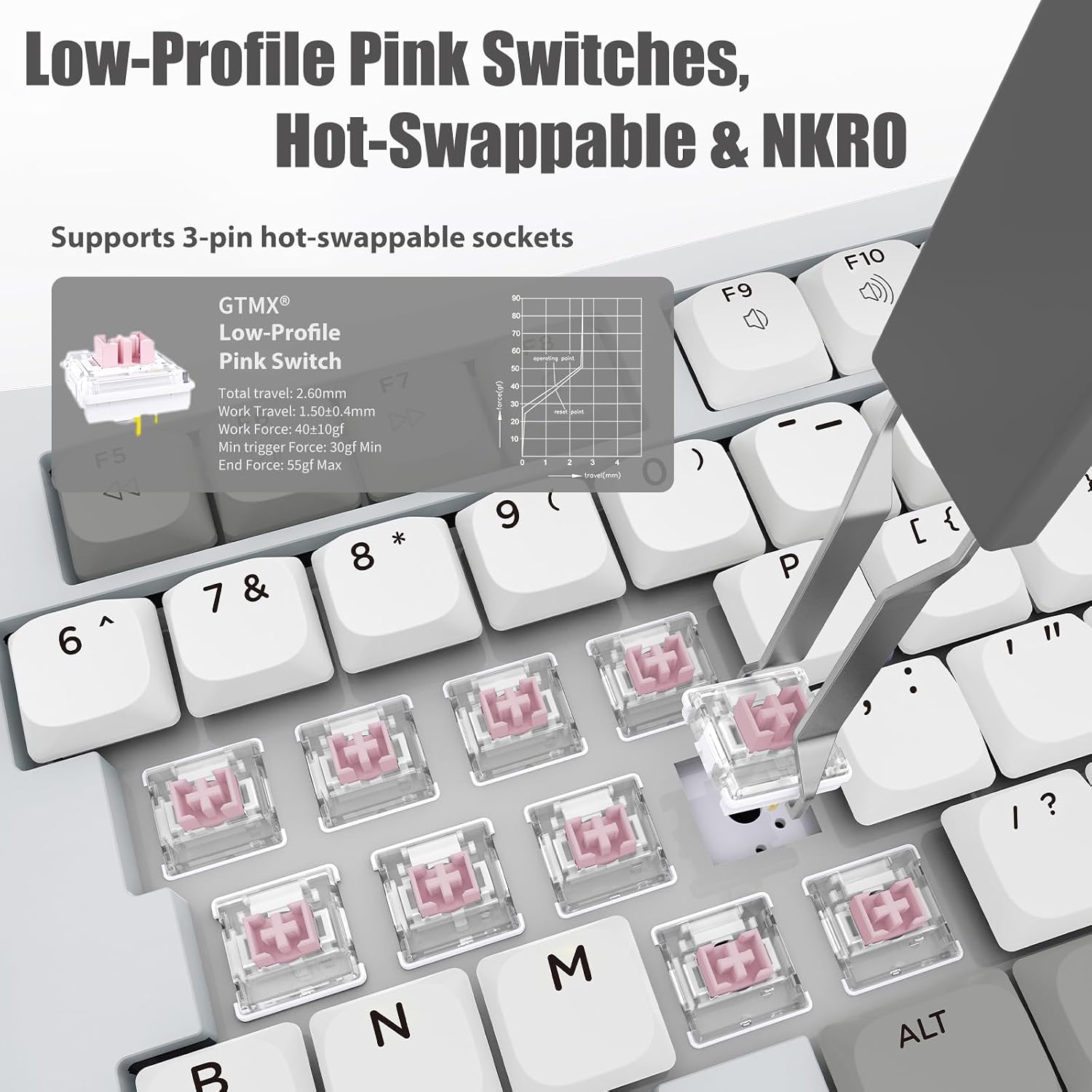
Image: A close-up view of the keyboard with a switch being removed using a switch puller, highlighting the hot-swappable low-profile pink switches and their specifications.

Image: A close-up of the keyboard's double-shot ABS keycaps, illustrating their construction and thickness for lasting clarity.
5.2.1 Replacing Switches
- Gently remove the keycap using the provided keycap puller.
- Use the switch puller to carefully grip the top and bottom clips of the switch.
- Pull the switch straight up to remove it from the PCB.
- Align the pins of the new 3-pin low-profile switch with the holes on the PCB.
- Press the new switch firmly into place until it clicks. Ensure it is seated correctly.
- Replace the keycap.
6. Troubleshooting
- Keyboard not responding:
Ensure the keyboard is charged. Check the connectivity mode switch (2.4G, BT, USB) matches your connection type. For 2.4G, ensure the USB receiver is properly inserted. For Bluetooth, re-pair the device. For wired, check the USB-C cable connection. - Keys not registering:
Check if any debris is under the keycap. If a specific key is not working, consider replacing the hot-swappable switch for that key. - Bluetooth connection issues:
Ensure the keyboard is in Bluetooth mode and selected the correct channel (FN+1/2/3). Remove the keyboard from your device's Bluetooth list and re-pair. Ensure your device's Bluetooth is enabled. - RGB lighting not working:
Press FN+DEL to ensure the backlight is not turned off. Try cycling through lighting effects with FN+INS. If issues persist, use the web-based software to check lighting settings. - Smart TFT display blank:
Ensure the keyboard is powered on and charged. If the issue persists, a factory reset via the web-based software might be necessary.
7. Specifications
| Brand | TISHLED |
| Model Number | EK001 |
| Connectivity Technology | Bluetooth, USB-C, Wireless 2.4GHz |
| Keyboard Description | Mechanical |
| Special Features | 3-Mode Connection, Ergonomic Split Keys Layout, Hall Magnetic Volume Roller, Smart TFT Color Screen, Wrist Rest |
| Color | Grey |
| Keyboard Backlighting | RGB |
| Material | Acrylonitrile Butadiene Styrene, Metal |
| Switch Type | Linear (Low-Profile Pink Switches) |
| Keyboard Layout | QWERTY |
| Battery Capacity | 4000mAh |
| Compatible Devices | Gaming Console, Laptop, PC, Smart TV, Smartphone |
8. Warranty and Support
8.1 Warranty Information
The TISHLED EK001 Ergonomic Mechanical Keyboard comes with a 30-day unconditional refund policy and a 12-month worry-free warranty from the date of purchase. This warranty covers manufacturing defects and malfunctions under normal use.
8.2 Customer Support
For technical assistance, warranty claims, or any questions regarding your TISHLED EK001 keyboard, please contact TISHLED customer support through the retailer's platform or visit the official TISHLED website for contact information.