
1. Product Overview
The camgeet Wired Remote Extension Button is designed to provide convenient desktop control for specific camgeet KVM switches. This remote allows users to switch between up to 8 connected computers with ease, enhancing workflow efficiency. It connects via a Micro USB port and features a 1.5-meter cable for flexible placement.
Compatibility: This remote extension button is exclusively compatible with camgeet KVM Switch models KVM801DP and KVM802DH.
2. Package Contents
- 1 x camgeet Wired Remote Extension Button (1.5m Micro USB cable attached)
- Note: KVM switch sold separately.
3. Product Features
- 8-Port Control: Seamlessly switch between up to 8 connected computers.
- Wired Connection: Ensures reliable and responsive switching.
- Desktop Placement: Compact design for convenient access on your desk.
- Extended Cable Length: 1.5-meter cable provides flexibility for remote placement.
- Micro USB Interface: Standard connection for compatibility with specified KVM models.
- Durable Construction: Made from aluminum for longevity.
4. Setup Instructions
- Identify KVM Switch: Ensure you are using a compatible camgeet KVM switch (models KVM801DP or KVM802DH).
- Locate Remote Port: On your KVM switch, identify the dedicated port for the wired remote control. This port is typically labeled "Wired Remote" or similar, and uses a Micro USB connector.
- Connect Remote Button: Plug the Micro USB connector of the wired remote extension button into the designated "Wired Remote" port on your KVM switch.
- Position Remote: Place the remote extension button on your desktop or any convenient location within the 1.5-meter cable reach.
- Verify Connection: Once connected, the remote button should be ready for use. No additional drivers or software are typically required.
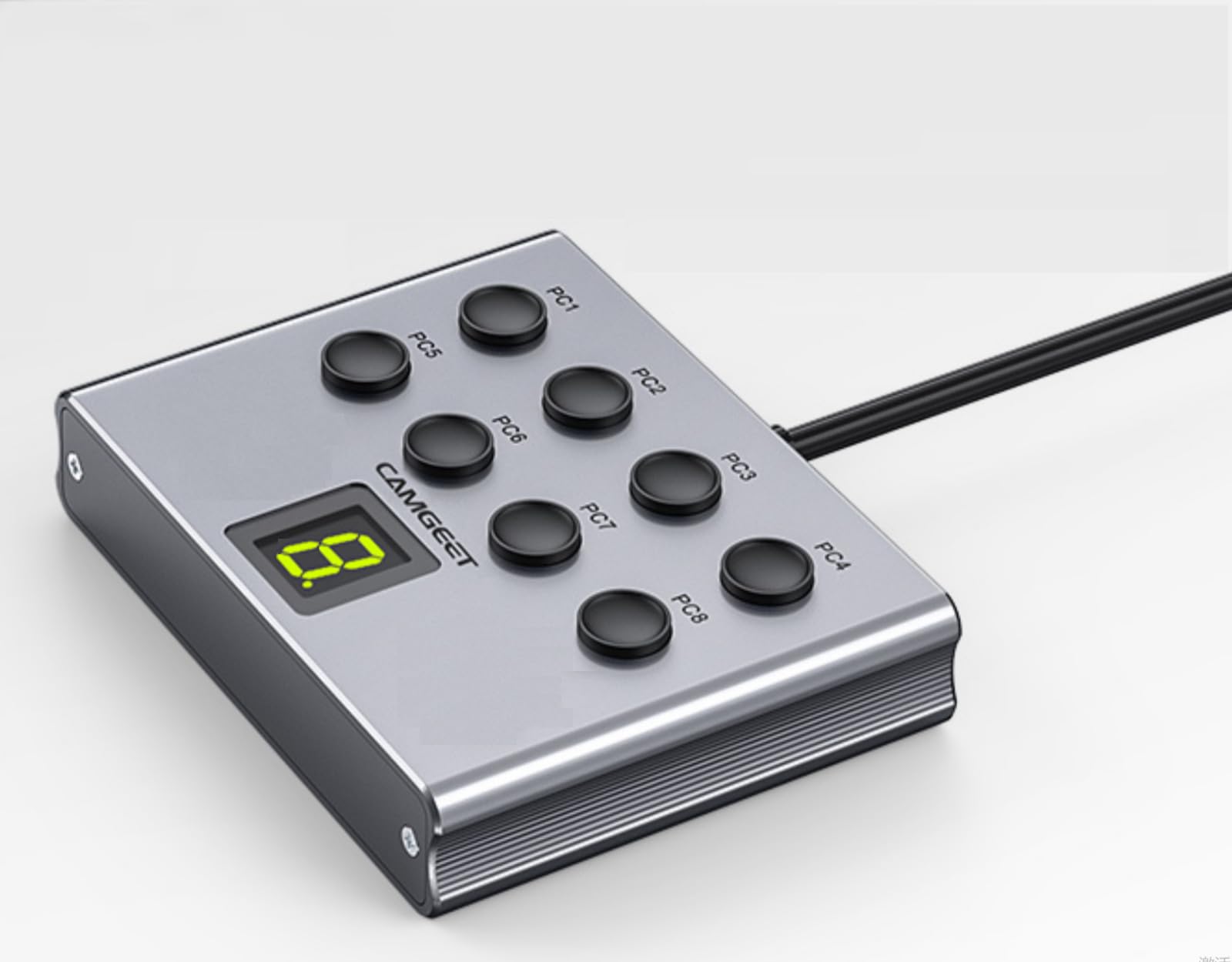
Image 1: The camgeet 8 Port KVM Switch shown with the wired remote extension button connected via its Micro USB cable. The remote button features 8 numbered buttons for switching between computers, mirroring the KVM switch's functionality.
5. Operating Instructions
After successful setup, the wired remote extension button provides a simple way to switch between your connected computers.
- Power On KVM Switch: Ensure your camgeet KVM switch is powered on and all computers are connected and active.
- Select Computer: Press the numbered button on the remote extension button that corresponds to the computer you wish to control. For example, press button "1" to switch to computer 1, button "2" for computer 2, and so on, up to 8 computers.
- Confirmation: The KVM switch will typically indicate the active port (e.g., via an LED indicator on the KVM switch itself).
The remote button functions identically to the physical buttons on the KVM switch, offering a convenient alternative for switching without reaching for the main unit.
6. Maintenance
- Cleaning: Use a soft, dry cloth to clean the surface of the remote button. Avoid using liquid cleaners or abrasive materials.
- Storage: Store the device in a cool, dry place away from direct sunlight and extreme temperatures when not in use for extended periods.
- Cable Care: Avoid bending or crimping the Micro USB cable excessively to prevent damage.
- Environmental Conditions: Do not expose the device to moisture, dust, or corrosive environments.
7. Troubleshooting
- Remote button not responding:
- Ensure the Micro USB cable is securely connected to both the remote button and the KVM switch's "Wired Remote" port.
- Verify that the KVM switch itself is powered on and functioning correctly.
- Confirm that your KVM switch model is KVM801DP or KVM802DH, as this remote is only compatible with these specific models.
- Intermittent switching:
- Check the Micro USB cable for any visible damage. If damaged, replace the remote button.
- Ensure there are no loose connections at either end of the cable.
8. Specifications
| Model | KVM Switch wired remote |
| Compatibility | camgeet KVM801DP, KVM802DH |
| Number of Ports Controlled | 8 |
| Cable Length | 1.5 meters |
| Connector Type | Micro USB |
| Material | Aluminum |
| Item Weight | 60 g |
| Product Dimensions (L x W x H) | 8 x 6 x 1 cm |
| Operating Voltage | 5 Volts |
| Current Rating | 2 Amps |
| Contact Type | Normally Open |
| International Protection Rating | IP54 |
| Certification | CE |
9. Warranty and Support
For warranty information and technical support, please refer to the documentation provided with your camgeet KVM switch or visit the official camgeet website. Please have your product model number (KVM Switch wired remote) and KVM switch model (KVM801DP or KVM802DH) available when contacting support.