
Introduction
Thank you for choosing the Acuvar Mini 4K Pocket Camera. This manual provides essential information for setting up, operating, and maintaining your camera. Please read it thoroughly before use to ensure optimal performance and longevity of your device.
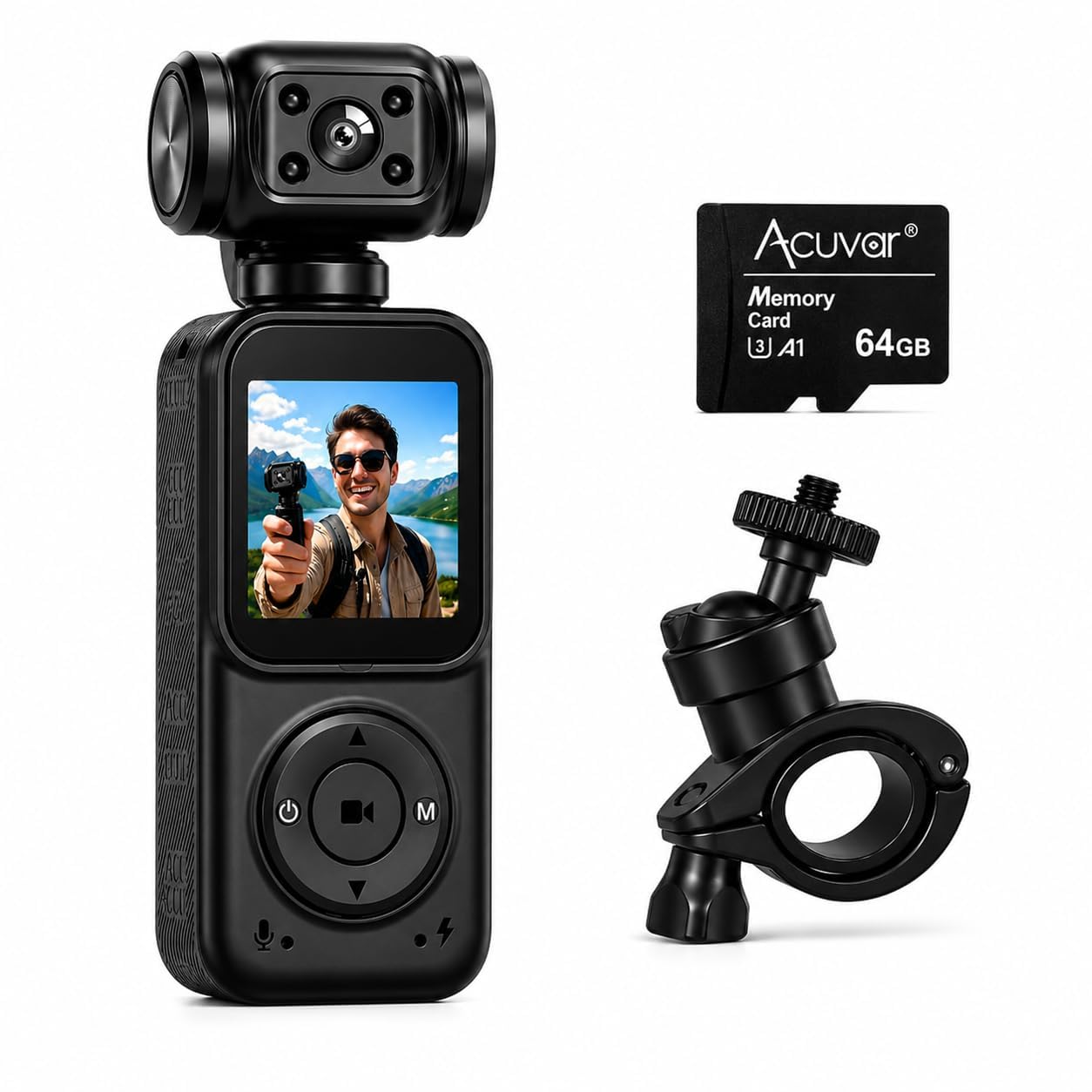
Image: The Acuvar Mini 4K Pocket Camera, demonstrating its compact design.
What's in the Box
Verify that all items are present in your package:
- 1 x 4K Action Body Camera
- 1 x 64GB SD Card
- 1 x Charging Cable
- 1 x Action Mount
- 1 x Neck Strap
Setup Guide
1. Charging the Camera
Before first use, fully charge the camera. Connect the provided charging cable to the camera's charging port and a USB power source (e.g., computer, wall adapter). The charging indicator light will show the charging status.
2. Inserting the SD Card
Locate the SD card slot on the camera. Insert the included 64GB Micro SD card with the gold contacts facing down until it clicks into place. Ensure the camera is powered off before inserting or removing the SD card.
3. Powering On/Off
To power on, press and hold the power button until the screen illuminates. To power off, press and hold the power button again until the screen shuts down.
Operating the Camera
1. Basic Video Recording
To start recording, ensure the camera is in video mode. Press the record button (often indicated by a red dot or camera icon). The recording indicator will flash, and a timer will appear on the screen. Press the record button again to stop recording.
Video: Demonstration of basic recording functions on the Acuvar 4K Pocket Vlogging Camera.
2. Taking Photos
Switch the camera to photo mode. Frame your shot using the LCD screen. Press the shutter button to capture a still image.
3. Using Wi-Fi Connectivity
The camera features built-in Wi-Fi for easy file transfer and remote control. Activate Wi-Fi in the camera settings. Connect your smartphone or compatible device to the camera's Wi-Fi network. Use the dedicated app (if available, refer to product packaging or manufacturer website for app details) to preview, transfer, and manage your media.

Image: Wi-Fi connectivity for quick wireless photo and video transfer to a smartphone.
4. Face Tracking Feature
Enable face tracking in the camera's menu. The camera will automatically detect and follow faces, keeping subjects in focus during recording. This is particularly useful for vlogging and dynamic shots.

Image: Smart LCD camera with automatic face tracking and focus for video recording.
5. Video Stabilization
The camera features built-in stabilization to reduce camera shake and produce smoother footage, especially during handheld recording or movement. This feature is active by default or can be toggled in settings.

Image: 3-Axis Gimbal Camera for smooth, cinematic shots and high-action stabilized video.
6. Audio Recording
The integrated microphone captures clear audio. Ensure the microphone is not obstructed during recording for optimal sound quality.
Maintenance
1. Cleaning
Use a soft, dry cloth to clean the camera body. For the lens and screen, use a specialized lens cleaning cloth and solution. Avoid abrasive materials or harsh chemicals.
2. Storage
Store the camera in a cool, dry place away from direct sunlight and extreme temperatures. Remove the SD card if storing for extended periods. Keep the camera in its protective casing when not in use.
Troubleshooting
- Camera Not Powering On: Ensure the battery is charged. Connect the camera to a power source and try again.
- Recording Issues: Check if the SD card is properly inserted and has sufficient free space. Ensure the camera is in the correct mode (video/photo).
- Poor Video Quality: Verify that the lens is clean. Ensure adequate lighting conditions. Check camera settings for resolution and frame rate.
- Wi-Fi Connection Problems: Ensure Wi-Fi is enabled on both the camera and your device. Try restarting both devices.
- Unusual Behavior: If the camera behaves unexpectedly, try performing a factory reset (refer to camera settings menu for this option).
Specifications
| Feature | Detail |
|---|---|
| Brand | Acuvar |
| Model Name | 4KPOCKETSC |
| Video Capture Resolution | 4K |
| Photo Sensor Technology | CMOS |
| Flash Memory Type | Micro SD |
| Flash Memory Installed Size | 64 GB |
| Connectivity Technology | Wi-Fi |
| Screen Size | 1.33 Inches |
| Image Stabilization | Yes (Optical) |
| Item Weight | 3 Ounces |
| Supported Audio Format | AAC, MP3 |
| Video Capture Format | MP4 |
| Supported Image Format | JPEG |
Warranty Information
The Acuvar Mini 4K Pocket Camera comes with a 90-day warranty from the date of purchase. This warranty covers manufacturing defects. Please retain your proof of purchase for warranty claims. For specific terms and conditions, refer to the warranty card included with your product or contact customer support.
Customer Support
If you encounter any issues not covered in this manual or require further assistance, please contact Acuvar customer support. Refer to the product packaging or the official Acuvar website for contact details.