
1. Introduction
This manual provides essential instructions for setting up, operating, and maintaining your Canon i-SENSYS MF664Cdw multifunction color laser printer. The MF664Cdw is designed for efficient office environments, offering fast, high-quality color printing, copying, and scanning capabilities. It features automatic duplex printing, a 250-sheet paper cassette, a 50-sheet Automatic Document Feeder (ADF), and various connectivity options including USB and Wi-Fi.
Key features include:
- Cloud Connectivity: Print or scan directly from Google Drive, Dropbox, and OneDrive.
- Mobile Printing: Supports Canon PRINT Business App, AirPrint (Apple), and Mopria (Android) for printing from smartphones.
- Workflow Automation: Customize tasks like printing stored forms, scanning to email, or copying documents using the Library application.
- Security Features: Includes secure PIN printing and system control at startup to protect against unauthorized access.
- Efficiency: Fast printing speeds of up to 25 pages per minute (color and monochrome), time-saving single-pass duplex scanning, and a large color touchscreen for intuitive operation.
2. Safety Information
Please read all safety instructions before using the printer to prevent injury or damage.
- Electrical Safety: Connect the printer to a grounded power outlet. Do not use damaged power cords. Avoid placing the printer in areas with high humidity or near water.
- Ventilation: Ensure adequate space around the printer for proper ventilation to prevent overheating.
- Toner Cartridges: Handle toner cartridges carefully. If toner spills, wipe it with a damp cloth. Do not inhale toner dust. Keep cartridges out of reach of children.
- Placement: Place the printer on a stable, level surface. Do not block ventilation openings.
- Moving the Printer: When moving the printer, ensure all cables are disconnected and secure any movable parts. The printer weighs approximately 22.6 kg (49.8 lbs), so use proper lifting techniques or assistance.
3. Package Contents
Verify that all items are included in the package:
- Canon i-SENSYS MF664Cdw Printer Unit
- Starter Toner Cartridges (Black, Cyan, Magenta, Yellow)
- Power Cord
- USB Cable (may not be included in all regions)
- Setup Guide / User Manual (this document)
- Driver CD-ROM (drivers also available online)
4. Setup
4.1 Unpacking and Placement
Carefully remove the printer from its packaging. Remove all protective tapes and packing materials from the exterior and interior of the printer. Place the printer on a sturdy, level surface with adequate space for ventilation and access to paper trays.
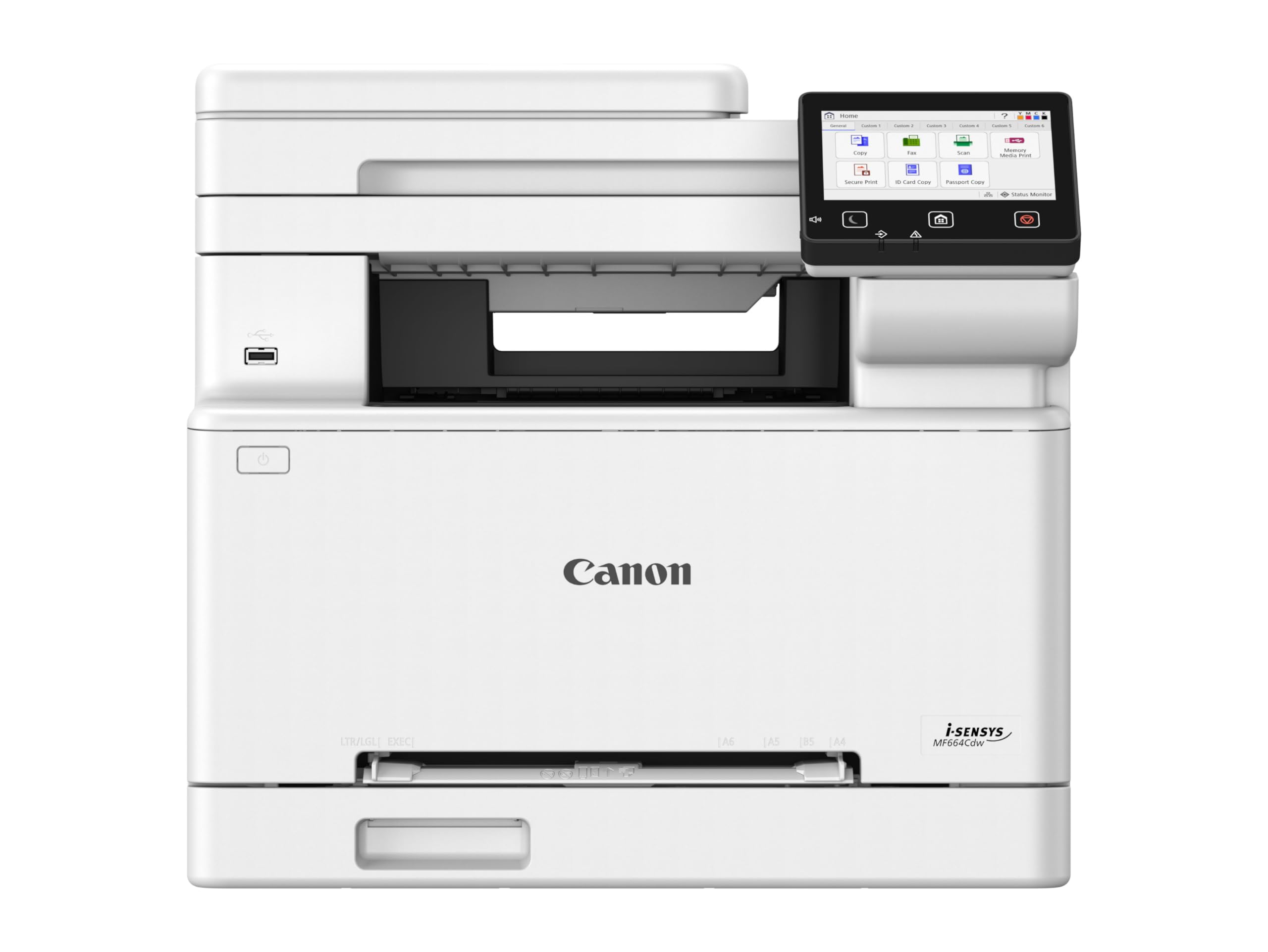
Image: Canon i-SENSYS MF664Cdw printer unit. This image shows the front view of the printer with its control panel and paper tray visible.
4.2 Connecting Power
Connect the power cord to the printer's power input and then to a grounded electrical outlet. Turn on the printer using the power button, usually located on the front or side panel.
4.3 Installing Toner Cartridges
Open the front cover of the printer. Remove each toner cartridge from its packaging, gently shake it horizontally a few times, and then insert it into its corresponding slot until it clicks into place. Ensure all four cartridges (Black, Cyan, Magenta, Yellow) are correctly installed.
4.4 Loading Paper
Open the paper cassette (Tray 1) and adjust the paper guides to the size of the paper you are loading (e.g., A4). Load up to 250 sheets of plain paper. For the multi-purpose tray, open it and load single sheets of special media like envelopes or labels. The printer supports paper sizes up to A3, though the standard cassette is A4.
4.5 Network Connection and Driver Installation
The MF664Cdw supports USB, Wi-Fi, and Ethernet (LAN) connectivity.
- Wi-Fi Connection: On the printer's touchscreen, navigate to the network settings and select Wi-Fi Setup. Follow the on-screen instructions to connect to your wireless network.
- USB Connection: Connect a USB 2.0 cable from the printer to your computer.
- Ethernet (LAN) Connection: Connect an Ethernet cable from the printer's LAN port to your network router or switch.
After connecting, install the printer drivers on your computer. You can use the provided CD-ROM or download the latest drivers from the official Canon support website. For mobile devices, download the Canon PRINT Business App from your device's app store.
5. Operating Instructions
5.1 Basic Printing
From your computer, open the document you wish to print. Select "Print" from the application's menu. Choose the Canon i-SENSYS MF664Cdw from the list of available printers. Adjust print settings such as paper size, orientation, and number of copies. For duplex printing, select the "Two-sided printing" or "Duplex" option in the print driver settings.
5.2 Copying Documents
Place your document face-up in the Automatic Document Feeder (ADF) or face-down on the scanner glass. On the printer's touchscreen, select the "Copy" function. Adjust settings such as number of copies, color/mono, and enlargement/reduction. Press the Start button to begin copying. The maximum copy speed is 25 ppm for black and white, with a resolution of 600 x 600 dpi.
5.3 Scanning Documents
Place your document in the ADF or on the scanner glass. On the touchscreen, select the "Scan" function. You can choose to scan to a computer, email, or cloud services like Google Drive, Dropbox, or OneDrive. Follow the on-screen prompts to configure scan settings and destination.
5.4 Mobile Printing and Cloud Connectivity
Use the Canon PRINT Business App on your smartphone or tablet to print documents and photos directly. The printer also supports AirPrint for Apple devices and Mopria for Android devices. For cloud printing, access the cloud services directly from the printer's touchscreen interface after configuring your accounts.
6. Maintenance
6.1 Replacing Toner Cartridges
When a toner cartridge is low or empty, a message will appear on the touchscreen. Open the front cover, remove the old cartridge by pulling it out, and insert a new Canon Cartridge 067 series cartridge (Black, Cyan, Magenta, or Yellow) until it clicks into place. Close the front cover.
6.2 Cleaning the Printer
Regularly clean the exterior of the printer with a soft, damp, lint-free cloth. For internal cleaning, refer to the printer's touchscreen menu for options like drum cleaning or fuser cleaning, if available. Clean the scanner glass with a soft cloth and glass cleaner.
6.3 Firmware Updates
Periodically check the Canon support website for firmware updates. Firmware updates can improve performance, add new features, or fix bugs. Follow the instructions provided by Canon for safe firmware installation.
7. Troubleshooting
This section addresses common issues you might encounter.
- Printer Not Responding:
- Check power connection and ensure the printer is turned on.
- Verify network connection (Wi-Fi or Ethernet) or USB cable connection.
- Restart the printer and your computer/device.
- Ensure printer drivers are correctly installed and updated.
- Print Quality Issues (Streaks, Fading, Incorrect Colors):
- Check toner levels and replace any low cartridges.
- Perform a print head cleaning or calibration from the printer's maintenance menu.
- Ensure you are using genuine Canon toner cartridges.
- Paper Jams:
- Follow the on-screen instructions on the printer's display to locate and clear the jammed paper.
- Ensure paper is loaded correctly and not overfilled in the trays.
- Use appropriate paper types and avoid wrinkled or damaged paper.
- Network Connection Problems:
- Verify your Wi-Fi password or Ethernet cable connection.
- Restart your router and the printer.
- Ensure the printer is within range of your Wi-Fi router.
- Check firewall settings on your computer that might be blocking communication.
8. Specifications
| Feature | Specification |
|---|---|
| Model Name | i-SENSYS MF664Cdw |
| Printing Technology | Color Laser |
| Functions | Print, Copy, Scan |
| Connectivity | USB 2.0, Wi-Fi, Ethernet (LAN) |
| Max Print Speed (Color/Mono) | 25 ppm |
| Print Resolution | Up to 1200 x 1200 dpi |
| Duplex Printing | Automatic |
| Scanner Type | ADF, Flatbed |
| Max Copy Speed (B&W) | 25 ppm |
| Max Copy Resolution | 600 x 600 dpi |
| Paper Input Capacity | 250 sheets (Standard Cassette), 50 sheets (ADF) |
| Max Media Size | A3 (via multi-purpose tray), A4 (Standard Cassette) |
| Compatible Cartridges | Canon Cartridge 067 series (Black, Cyan, Magenta, Yellow) |
| Item Weight | 22.6 Kilograms (approx. 49.8 lbs) |
| Dimensions (D x W x H) | 18.11"D x 17.76"W x 16.26"H |
| Power Consumption | 370 Watts (Operating), 50 Watts (Standby) |
| Special Features | Auto-Duplex, Scan To Email, Touch Screen, Energy Star |
9. Warranty and Support
Your Canon i-SENSYS MF664Cdw printer comes with a standard manufacturer's warranty. For detailed warranty information, please refer to the warranty card included in your product packaging or visit the official Canon support website.
For technical support, driver downloads, and additional resources, please visit the Canon support website or contact Canon customer service.
- Canon Support Website: www.canon.com/support
- Product Model Number: 6928C008AA