
1. Introduction
This manual provides essential information for setting up, operating, and maintaining your Minifire MFG27D1U 27-inch Dual Mode Gaming Monitor. Please read it thoroughly before use to ensure optimal performance and safety.

Image: Overview of the Minifire MFG27D1U monitor highlighting its dual mode capabilities (4K 160Hz and FHD 320Hz), Adaptive Sync, Fast IPS panel, and 1ms MPRT response time.
2. Package Contents
Before proceeding with the setup, ensure all items listed below are present in the package:
- Minifire MFG27D1U Monitor
- Fully Adjustable Stand (Base and Arm)
- Power Adapter
- HDMI Cable (High-Quality)
- DisplayPort Cable (High-Quality)
- Instruction Manual (this document)

Image: Visual representation of the monitor's package contents, including cables, power adapter, and the adjustable stand components.
3. Setup Instructions
3.1 Assembling the Stand
- Carefully remove the monitor and stand components from the packaging.
- Attach the stand base to the stand arm using the provided screws.
- Securely attach the assembled stand to the back of the monitor. Ensure it clicks into place or is fastened tightly.
3.2 Connecting the Monitor
- Connect the power adapter to the monitor's DC input port and then to a power outlet.
- Connect your computer or game console to the monitor using either an HDMI 2.1 cable (for 4K 120Hz support) or a DisplayPort 1.4 cable. The monitor features two HDMI 2.1 and two DisplayPort 1.4 inputs.
- If desired, connect external audio devices to the Audio Out port. The monitor also has built-in 2Wx2 speakers.

Image: Rear view of the monitor detailing the available input and output ports, including HDMI 2.1 and DisplayPort 1.4 connections.
3.3 Ergonomic Stand Adjustment
The monitor features a fully adjustable ergonomic stand to optimize your viewing experience and reduce strain:
- Height Adjustment: Adjust the monitor height by up to 130mm.
- Tilt: Tilt the screen from -5° to +22° to find your preferred vertical angle.
- Swivel: Swivel the monitor ±30° horizontally.
- Pivot: Rotate the screen 90° for portrait mode viewing.

Image: Visual guide to adjusting the monitor stand for height, tilt, swivel, and pivot.
The stand's compact design also helps maximize desk space, allowing for comfortable keyboard and mouse placement.

Image: Comparison demonstrating the space-saving benefits of the MFG27D1U monitor stand, providing more usable desk area.
4. Operating Instructions
4.1 Power On/Off and Menu Navigation
The monitor features a joystick control located on the rear for power and menu navigation.
- Power On/Off: Press and hold the joystick for 3 seconds.
- Menu: Press the joystick to open the On-Screen Display (OSD) menu.
- Navigation: Move the joystick up, down, left, or right to navigate through menu options.
- Select/Confirm: Press the joystick to confirm a selection.

Image: Illustration of the monitor's joystick control and its functions for menu access, input selection, and quick mode switching.
4.2 Dual Mode Switching (4K 160Hz / FHD 320Hz)
The monitor supports a unique dual mode feature, allowing you to switch between high-resolution 4K at 160Hz and ultra-high refresh rate FHD at 320Hz with a single button press. This optimizes performance for different gaming scenarios.
- To switch modes, locate the dedicated dual mode switch button (often integrated with the joystick or a separate button near it).
- Press the button to toggle between 4K 160Hz (3840x2160) and FHD 320Hz (1920x1080) modes.

Image: Demonstrates the monitor's dual mode capability, allowing users to switch between 4K 160Hz for high detail and FHD 320Hz for ultra-smooth motion.
4.3 Picture-in-Picture (PIP) and Picture-by-Picture (PBP)
The monitor supports PIP and PBP functions, allowing you to display content from two different sources simultaneously. This feature is ideal for multitasking or watching strategy guides while gaming.
- PBP (Picture-by-Picture): Divides the screen into two equal halves, displaying content from two sources side-by-side.
- PIP (Picture-in-Picture): Displays the main source in full screen and a secondary source in a smaller overlay window. The size and position of the PIP window can be customized.
- Note: These functions operate only in 4K resolution mode.

Image: Illustrates the PIP and PBP features, enabling simultaneous display of content from multiple sources on the monitor.
4.4 Image Modes
The monitor offers various preset image modes optimized for different content types:
- Movie Mode: Enhanced contrast and color for cinematic viewing.
- Office Mode: Balanced settings for general productivity.
- Reader Mode: Reduces blue light for comfortable reading.
- Power Saving Mode: Optimizes settings for reduced energy consumption.
- Game Modes (Gamer/FPS/RTS/RPG): Specific settings for different game genres, enhancing visibility and response.

Image: Displays various image modes available on the monitor, such as Movie, Office, Reader, and Power Saving, each tailored for specific viewing experiences.
5. Features
5.1 Display Technology
- Fast IPS Panel: Offers wide viewing angles (178°) and rapid response times for clear, vibrant images without color shift.
- 1ms MPRT Response Time: Minimizes motion blur, making fast-paced action appear sharp and clear.
- Adaptive Sync / VRR Support: Eliminates screen tearing and stuttering by synchronizing the monitor's refresh rate with your GPU's frame rate, providing a smooth gaming experience. Compatible with PS5, Xbox Series X, and other VRR-enabled devices.
- HDR400: Delivers enhanced contrast and color accuracy, reproducing deeper blacks and brighter whites for a more immersive visual experience.
- Wide Color Gamut: Supports 126% sRGB and 93% DCI-P3, along with 1.07 billion colors (8bit+FRC), for rich and accurate color reproduction.

Image: Highlights the Fast IPS panel's benefits, including wide viewing angles, flicker-free operation, and a non-glare surface for superior gaming visuals.

Image: Demonstrates the effectiveness of 1ms MPRT (Moving Picture Response Time) in reducing motion blur compared to 5ms, ensuring clear visuals during fast-paced scenes.

Image: Illustrates the benefit of AdaptiveSync technology, which eliminates screen tearing and stuttering for a smoother gaming experience.
5.2 AI-Powered Enhancements
The monitor incorporates AI technology to enhance both visual quality and user comfort:
- AI Auto-Dimming (AI Eye Saver): Automatically detects ambient light and adjusts the monitor's brightness and color temperature to reduce eye strain.
- AI Image Enhancement (AI PQ): Real-time analysis of content to enhance contrast, saturation, and sharpness for vivid images.
- AI Aiming Reticle: In FPS games, an AI-powered reticle automatically adjusts its color based on the background to improve visibility.
- Sniper Scope: Magnifies a target area in 4K mode for improved precision.

Image: Highlights the monitor's AI processor and its functions, including AI-powered image quality enhancements and game assistance features.
5.3 Game Assistant Functions
Dedicated game assistant features are available to enhance your gaming experience:
- Timer: Helps track in-game events or skill cooldowns.
- Night Vision: Brightens dark areas to reveal hidden enemies or items.
- Counter: Monitors the current frame rate to optimize performance.

Image: Illustrates the Game Assistant features, including a timer, night vision mode, and a frame rate counter, to enhance gameplay.
5.4 Eye Care Technology
The monitor is designed with features to protect your eyes during extended use:
- TüV Blue Light Reduction: Filters harmful blue light emissions.
- Flicker-Free: Eliminates screen flickering, reducing eye fatigue.
6. Maintenance
6.1 Cleaning the Monitor
- Always power off the monitor and unplug the power cord before cleaning.
- Use a soft, lint-free cloth slightly dampened with water or a mild, non-abrasive screen cleaner.
- Do not spray cleaner directly onto the screen.
- Avoid using alcohol, ammonia, or abrasive cleaners, as they can damage the screen surface.
6.2 General Care
- Keep the monitor away from direct sunlight, excessive heat, and humidity.
- Ensure proper ventilation around the monitor to prevent overheating.
- Avoid placing heavy objects on the monitor or its cables.
- If the monitor will not be used for an extended period, unplug it from the power outlet.
7. Troubleshooting
If you encounter issues with your monitor, refer to the following common troubleshooting steps:
| Problem | Possible Cause | Solution |
|---|---|---|
| No image on screen | Power cable disconnected; Video cable disconnected; Incorrect input source selected. | Check power and video cable connections; Ensure monitor is powered on; Select correct input source via OSD menu. |
| Image flickering or unstable | Video cable loose or damaged; Graphics card driver issue; Refresh rate mismatch. | Secure or replace video cable; Update graphics drivers; Enable Adaptive Sync/VRR; Adjust refresh rate in display settings. |
| No sound from speakers | Volume too low or muted; Audio output not selected; External speakers connected. | Increase monitor volume; Ensure monitor is selected as audio output device in OS settings; Disconnect external speakers if using built-in. |
| Cannot switch to 320Hz | Not in FHD mode; Graphics card limitation; Cable bandwidth limitation. | Ensure monitor is set to FHD (1920x1080) resolution; Verify graphics card supports 320Hz at FHD; Use the provided high-quality DisplayPort or HDMI 2.1 cable. |
If the problem persists after trying these steps, please contact Minifire customer support.
8. Specifications
| Feature | Specification |
|---|---|
| Model Number | MFG27D1U |
| Screen Size | 27 inches |
| Panel Type | Fast IPS |
| Resolution (Dual Mode) | 4K UHD (3840x2160) @ 160Hz / FHD (1920x1080) @ 320Hz |
| Aspect Ratio | 16:9 |
| Response Time | 1ms (MPRT) / 1ms (OD) |
| Brightness | 400 cd/m² |
| Contrast Ratio | 1000:1 |
| HDR Support | VESA DisplayHDR 400 |
| Color Gamut | 126% sRGB, 93% DCI-P3 |
| Color Depth | 1.07 Billion Colors (8bit + FRC) |
| Viewing Angle | 178° (H/V) |
| Video Inputs | 2 x HDMI 2.1 (FRL), 2 x DisplayPort 1.4 |
| Audio Output | Audio Out, Built-in Speakers (2Wx2) |
| Ergonomics | Height Adjustment (130mm), Swivel (±30°), Tilt (-5° to +22°), Pivot (90°) |
| VESA Mount | 100x100mm |
| Dimensions (WxHxD) | 613 x 216 x 523 mm |
| Weight | 5.2 kg |
| Power Consumption | <60W |
9. Warranty and Support
Minifire is committed to providing excellent customer service and product support.
9.1 Warranty Information
- 5-Year Repair Warranty: The monitor is covered by a 5-year repair warranty from the date of purchase.
- 1-Month Exchange Policy: If any defect occurs within one month of the purchase date, an exchange for a new product is possible.
- 1-Year Zero Bright Dot Warranty: The monitor is covered by a 1-year warranty against bright dots on the screen.
9.2 Technical Support
- Lifetime Technical Support: Minifire provides lifetime technical support for this product.
- Contact Information: If you have any questions, problems, or require technical assistance, please do not hesitate to contact Minifire customer support.
- Business Hours: Monday - Friday: 9:00 AM - 5:00 PM (Japan Standard Time). Closed on Saturdays, Sundays, and public holidays.
- Product Replacement: In cases where repair is not possible, a new product will be sent as a replacement.
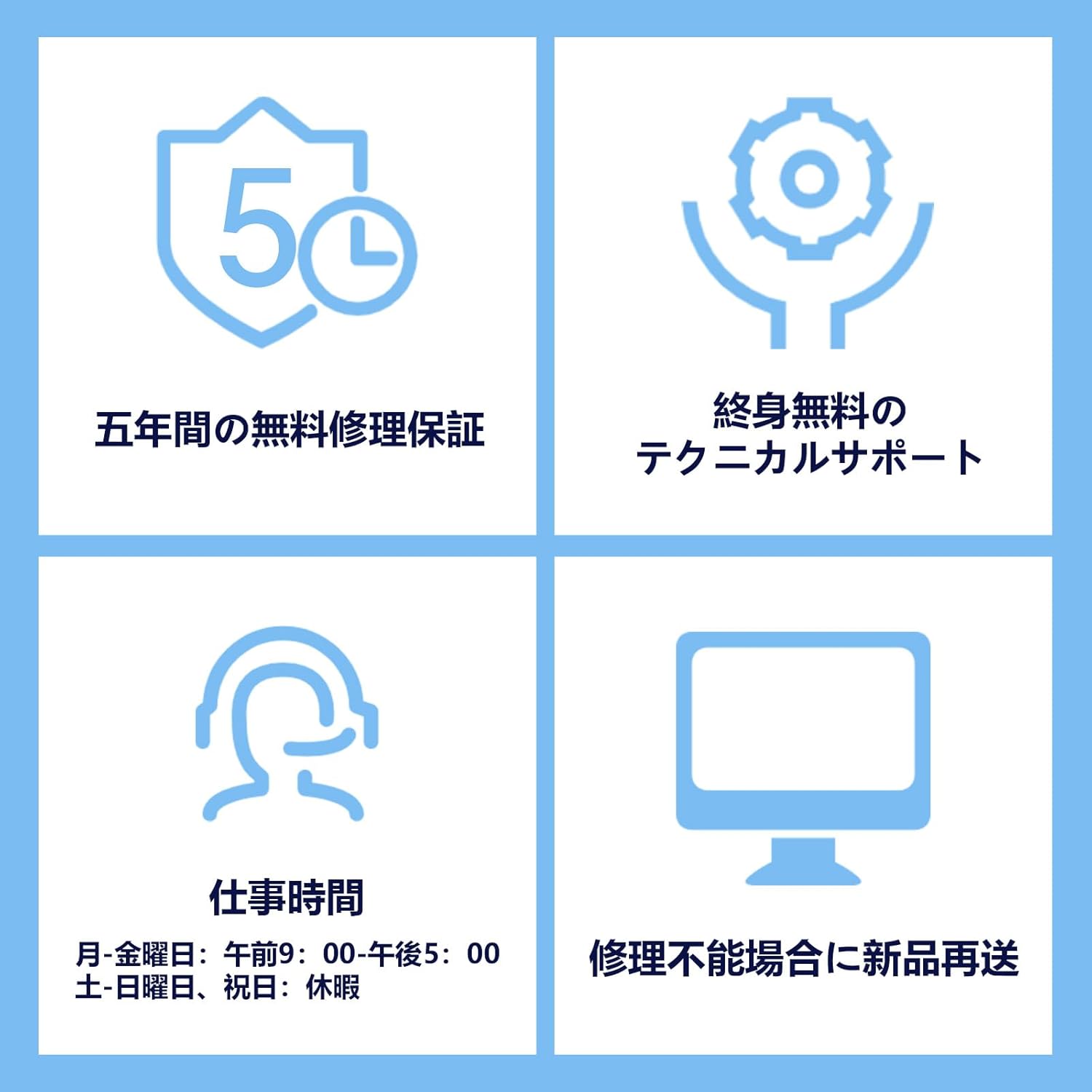
Image: Details of Minifire's customer support, including warranty periods, technical support availability, and replacement policy.