
1. Product Overview
This manual provides instructions for the dehateo Android 14 Double Din Car Stereo, designed specifically for Chevrolet Impala models from 2014 to 2020. This head unit features a 7-inch touchscreen, wireless Apple CarPlay and Android Auto, Bluetooth, DSP sound processing, Wi-Fi, GPS navigation, FM/RDS radio, and supports a backup camera and steering wheel controls.
1.1 Included Components
Please verify that all the following components are included in your package:
- 1 x Car MP5 Player (Main Unit)
- 1 x Power Cable
- 1 x GPS Antenna
- 1 x AHD Backup Camera
- 1 x RCA Input and Output Cable
- 1 x External Microphone
- 2 x USB Cables
- 1 x Instruction Manual
- 1 x Radio Adapter
- 1 x Sound Amplifier
- 1 x Canbus Box (if applicable for your vehicle model)

Image 1.1: Main unit and included accessories, including power cable, RCA cables, USB cables, camera, GPS antenna, and instruction manual.
2. Safety Information
Read all instructions carefully before installation and use. Failure to follow these instructions may result in injury or damage to the device or vehicle.
- Professional Installation Recommended: Due to the complexity of car electrical systems, professional installation is highly recommended.
- Power Source: Connect the unit only to a 12V DC power supply with a negative ground.
- Wiring: Ensure all wiring is correctly connected to prevent short circuits or damage. Insulate all exposed wires.
- Driving Safety: Do not operate the unit in a way that distracts you from driving. Always prioritize road safety.
- Temperature: Avoid exposing the unit to extreme temperatures or direct sunlight for prolonged periods.
3. Installation Guide
This section provides general guidance for installing the car stereo. Specific vehicle wiring may vary. Consult your vehicle's service manual or a professional installer if you are unsure.
3.1 Pre-Installation Checks
- Disconnect the vehicle's negative battery terminal to prevent electrical shorts.
- Remove the factory radio from your Chevrolet Impala (2014-2020).
- Verify the dashboard opening matches the double din size of the new unit.

Image 3.1: Examples of compatible Chevrolet Impala dashboards (2014-2020).
3.2 Wiring Connections
Connect the included wiring harnesses to the corresponding ports on the car stereo and your vehicle's wiring. Refer to the wiring diagram provided with the power cable for detailed connections.
- Power Cable: Connect to vehicle's power, ground, and accessory wires.
- GPS Antenna: Mount the GPS antenna in a location with a clear view of the sky, typically on the dashboard or under the windshield.
- USB Cables: Route the USB cables to a convenient location for connecting external devices.
- RCA Input/Output: Connect to external amplifiers, subwoofers, or video input sources as needed.
- External Microphone: Connect the external microphone for improved call quality and voice commands. Position it near the driver.
- Backup Camera: Connect the backup camera to the dedicated camera input. Ensure the camera's power is connected to the reverse light circuit for automatic activation.
- Canbus Box: If your vehicle requires a Canbus decoder for steering wheel controls or other vehicle data, connect the Canbus box as per its instructions.
3.3 Mounting the Unit
Secure the car stereo into the dashboard opening using the provided mounting brackets. Ensure it is firmly in place and does not obstruct any vehicle controls.
3.4 Post-Installation
Reconnect the vehicle's negative battery terminal. Turn on the ignition and test all functions of the car stereo.
4. Operating Instructions
4.1 Power On/Off
The unit will typically power on automatically with the vehicle's ignition. To manually power off or restart, press and hold the power button (usually labeled 'PWR' or indicated by a power icon) on the front panel.
4.2 Touchscreen Interface
Navigate the system using the capacitive touchscreen. Swipe, tap, and drag gestures are supported. The unit offers multiple user interface (UI) options for personalization.

Image 4.1: Split screen mode and examples of different UI interfaces available on the unit.
4.3 Wireless CarPlay & Android Auto
Connect your smartphone wirelessly to access Apple CarPlay or Android Auto features directly on the car stereo's screen.
- Ensure Bluetooth and Wi-Fi are enabled on your smartphone.
- On the car stereo, open the CarPlay or Android Auto application.
- Follow the on-screen prompts to pair your phone via Bluetooth and then connect via Wi-Fi for the full wireless experience.
- Once connected, you can use voice control (e.g., "Hey Siri" or "Hey Google") to make calls, navigate, play music, and send messages.

Image 4.2: Wireless CarPlay and Android Auto functionality, demonstrating voice command capabilities.

Image 4.3: Visual representation of connecting a smartphone to the head unit for CarPlay and Android Auto.
4.4 Bluetooth Connectivity
Pair your phone via Bluetooth for hands-free calling and music streaming.
- Go to the Bluetooth settings on the car stereo.
- Enable Bluetooth on your smartphone and search for available devices.
- Select the car stereo's Bluetooth name (e.g., "CarBT") from your phone's list and confirm pairing.
- Once paired, you can make/receive calls and play audio from your phone through the car speakers. The unit supports automatic phone book loading.
4.5 GPS Navigation
The unit supports GPS satellite positioning and internet location for precise navigation. Pre-installed map applications or downloadable apps can be used.
- Ensure the GPS antenna is properly installed and has a clear signal.
- Download offline maps for navigation without an internet connection, or use online maps via Wi-Fi/hotspot.
4.6 FM/RDS Radio
Access local radio stations with clear reception.
- Open the FM/RDS Radio application.
- Use the scan function to find available stations or manually tune to a frequency.
- Save your favorite stations as presets for quick access.
4.7 DSP/EQ Sound System
Customize your audio experience with the built-in Digital Sound Processor (DSP) and Equalizer (EQ).
- Access the DSP/EQ settings from the main menu.
- Adjust frequency bands, balance, fader, and select preset sound modes (e.g., Pop, Rock, Jazz) to optimize sound for different seating positions.
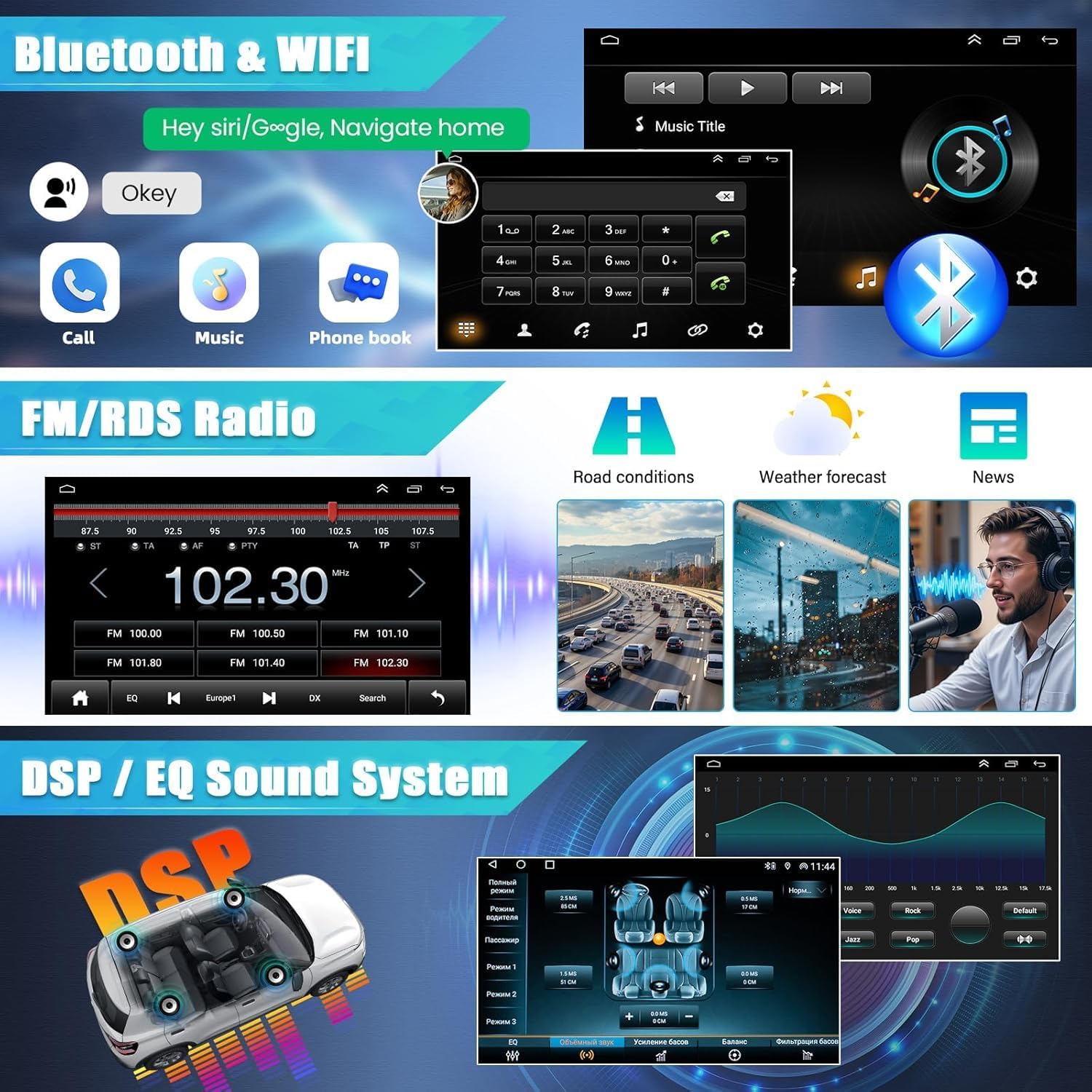
Image 4.4: Displays for Bluetooth, FM/RDS Radio, and the DSP/EQ sound system settings.
4.8 Backup Camera Function
The unit automatically displays the rear view when the vehicle is shifted into reverse gear, providing parking assistance.
- The included AHD backup camera provides a 1080P image with a 170° wide-angle view.
- Reference lines are displayed on the screen to assist with parking. The camera is waterproof for durability.

Image 4.5: The reversing image displayed on the car stereo screen, showing parking assistance lines.

Image 4.6: Features of the reverse display including reference lines, HD image, night vision, and waterproof design. Also shows the steering wheel control learning interface.
4.9 Steering Wheel Control (SWC)
Program your vehicle's steering wheel buttons to control the car stereo functions.
- Go to the 'Steering Learn' or 'SWC Settings' menu in the unit's settings.
- Follow the on-screen instructions to assign functions (e.g., volume up/down, track skip, mode) to your steering wheel buttons.
5. Maintenance
- Cleaning: Use a soft, dry cloth to clean the touchscreen and unit exterior. Avoid abrasive cleaners or solvents.
- Software Updates: Periodically check the manufacturer's website for software updates to ensure optimal performance and access to new features.
- Avoid Liquids: Do not expose the unit to water or other liquids.
6. Troubleshooting
If you encounter issues, refer to the following common problems and solutions:
| Problem | Possible Cause | Solution |
|---|---|---|
| Unit does not power on | Incorrect wiring, blown fuse, vehicle battery issue | Check power cable connections, inspect vehicle fuses, ensure battery is charged. |
| No sound | Speaker wiring issues, volume too low, mute activated | Check speaker connections, increase volume, ensure unit is not muted. |
| GPS signal lost or inaccurate | GPS antenna placement, antenna fault | Ensure GPS antenna has a clear view of the sky, check antenna connection. |
| Bluetooth connection issues | Phone not discoverable, incorrect pairing process | Ensure phone's Bluetooth is on and discoverable, delete previous pairings and re-pair. |
| Backup camera not displaying | Camera wiring, reverse trigger wire not connected | Check camera power and video connections, verify reverse trigger wire is connected to vehicle's reverse light. |
7. Specifications
| Feature | Detail |
|---|---|
| Model Number | for Chevrolet Impala 2014-2020 |
| Operating System | Android 14 |
| Screen Size | 7 inch |
| Touch Screen Type | Capacitive |
| Connectivity Technology | Bluetooth, USB, Wi-Fi |
| Special Features | Wireless CarPlay, Android Auto, DSP, GPS Navigation, FM/RDS, Backup Camera Support, Steering Wheel Control |
| Audio Output Mode | Stereo |
| Manufacturer | dehateo |
8. Warranty and Support
For warranty information or technical support, please refer to the contact details provided with your purchase or visit the official dehateo website. Keep your purchase receipt as proof of purchase.